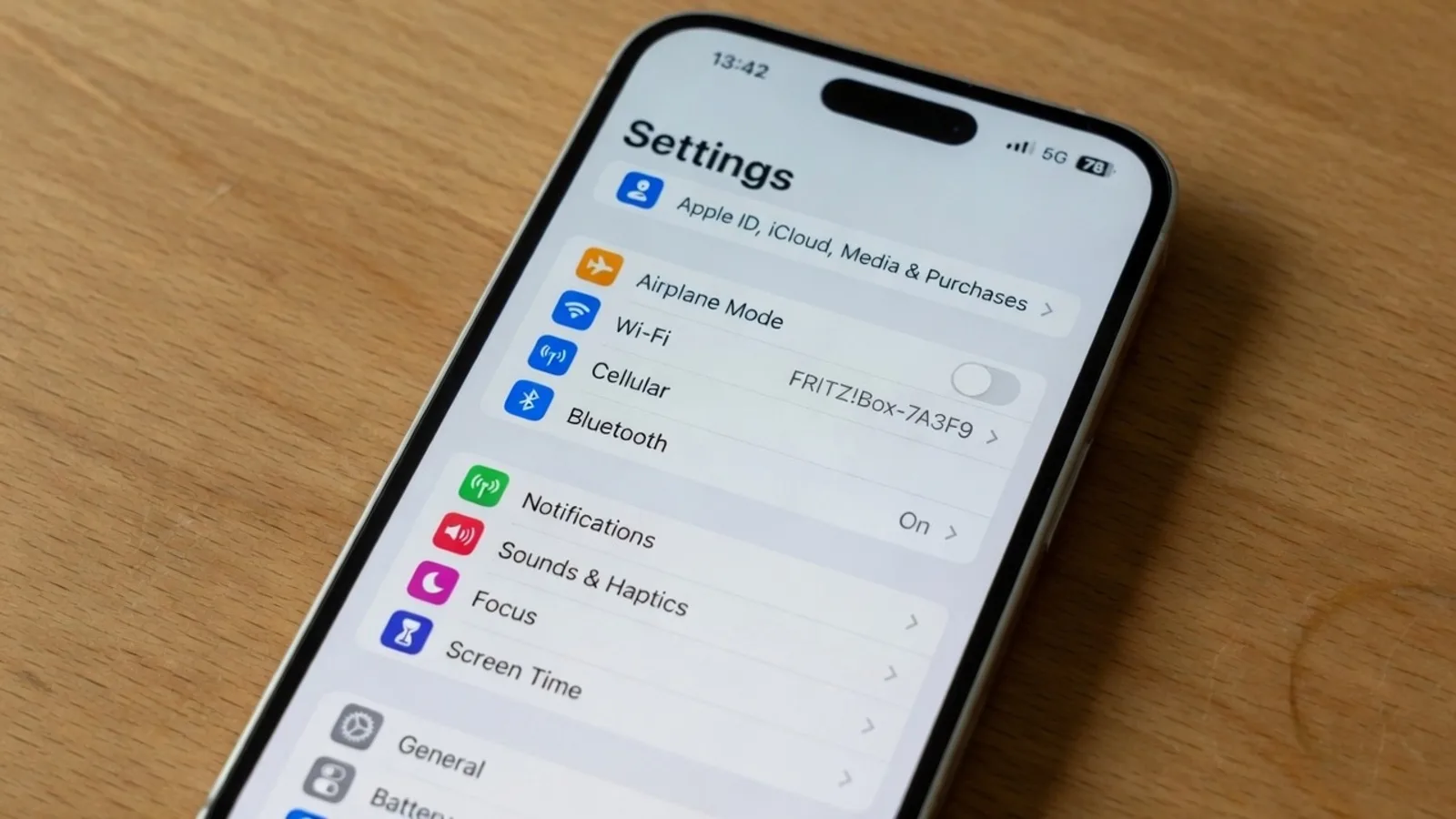
I was finalizing a product slide deck late yesterday evening when an irritating discrepancy on our preview slide caught my eye. The central dashboard card displayed 3 seats left under the workspace configuration panel, but our newly approved tier required the preview to show 12 seats left. Our staging database had already been refreshed for a different testing milestone, leaving me with nothing but a flattened PNG file.
If you regularly assemble documentation, pitch decks, or onboarding tutorials, you have almost certainly encountered this exact frustration. An otherwise impeccable interface capture becomes instantly obsolete because a single counter or label no longer aligns with your message. Rather than spending hours rebuilding an entire database state, you need a dependable way to resolve that single string.
Before reviewing any editing methods, you should establish sensible operational boundaries for this kind of work. Modifying baked-in interface text should only ever be applied to product dashboards, software walkthroughs, technical documentation, and marketing assets that you own or have explicit authorization to adjust. You must never alter official invoices, financial receipts, government identification documents, or payment transaction slips, nor should you attempt to manufacture counterfeit business records.
Whenever you still have access to an operational source environment, logging back into the platform and taking a fresh screenshot remains the cleanest option. A genuine browser capture guarantees native layout rendering, authentic character kerning, and correct background alpha values without visual compromises. Modifying an existing image should be reserved for situations where the original software state is gone and you only need to fix one line.
When professionals face this bottleneck, they typically evaluate four different approaches to handle the problem. Some teams choose to spin up their development environment and recreate the test data from scratch. Others drop a solid color rectangle across the old text, turn to manual raster retouching suites, or use dedicated browser-based text replacement tools.
The first approach is to return directly to your source application and recreate the exact visual state. You launch your staging deployment, populate a test user account with custom data, adjust the seat limit to show 12 seats left, and take a new capture. This route ensures that your typography, system theme, and layout margins stay completely authentic.
However, this classic solution frequently stumbles against practical obstacles. Staging instances often experience unexpected downtime, sandbox accounts expire unexpectedly, or seed scripts fail to restore the precise layout geometry you originally captured. Spending half a working day reconstructing an elaborate test account just to adjust a single line of text is an exhausting drain on your time.
The second approach is the makeshift color patch commonly attempted inside presentation software or basic drawing utilities. You pick an eyedropper tool to sample the grey or white tone behind 3 seats left, draw a solid rectangle over the label, and place a text box containing 12 seats left across the patch. It requires no specialized skills, which makes it tempting when an urgent deadline looms over you.
Despite its simplicity, this masking technique almost always reveals itself as an amateur repair job. Modern software cards rarely feature flat monochrome surfaces, relying instead on delicate vertical gradients, ambient shadows, and subtle background textures. Placing an unyielding flat color box over those subtle tones creates a noticeable rectangular bandage across your graphic. If you want to understand how proper surface blending avoids this flaw, explore Edit Text in Screenshot.
The third route involves opening traditional raster editing software to manually rebuild the damaged pixels. You load your image into a graphic editor, trace a selection around 3 seats left, and paint over the characters using clone stamps, spot healing tools, or pattern fills. Once the original lettering disappears, you create a brand-new type layer, browse your local font library for a matching style, and position the replacement text.
While manual raster editing provides deep granular control for experienced designers, it demands considerable patience and technical skill. You must manually reproduce the optical weight, baseline rhythm, and color transitions of the surrounding interface elements. If your chosen font exhibits slight differences in letter geometry or stroke thickness, the spliced phrase will stand out immediately against the surrounding card.
The fourth approach relies on a specialized in-browser canvas built specifically to replace text embedded inside an existing image. Rather than covering pixels with clunky patches or manually recreating missing background textures, you upload your static graphic directly into the workspace. The engine inspects the uploaded file, pinpoints the rectangular bounds of 3 seats left, and lets you enter your new text in place.
This workflow analyzes the visible stroke thickness, baseline alignment, and background colors directly from the surrounding pixels. You enter the replacement characters yourself, ensuring complete editorial control without relying on random automated suggestions or translation guesswork. To see how this targeted canvas model operates across different workflow scenarios, you can reference Edit Screenshot Text Online.
Understanding the mechanics of dedicated web-based screenshot editing helps you work efficiently without wasting resources. When you upload a graphic, the initial optical detection process scans the image and highlights text rows without consuming any credits. You can inspect the bounding boxes across your interface, verify which elements were identified, and plan your revisions before committing to a final render.
Each detected text region comes equipped with an independent lock toggle that isolates that specific row. This lock belongs strictly to the recognized text line rather than operating like a traditional Photoshop layer mask. Engaging the lock guarantees that adjacent headers, numerical values, or button labels remain completely untouched while you regenerate the target string.
When your interface requires element removal rather than replacement, leaving the text field blank simply erases that line cleanly from the card. When you are satisfied with your edits and click generate, the credit cost scales according to your chosen resolution. Standard 1K exports consume 10 credits, 2K exports require 20 credits, and high-resolution 4K exports require 30 credits.
Every new account receives complimentary trial credits upon signing in, allowing you to test the output quality on your own files before committing further. The editor supports static PNG, JPG, and WebP files, covering the standard export formats generated by modern web browsers and desktop capture tools. If your team frequently edits product graphics and promotional banners alongside app interfaces, you can also explore Edit Text in Image.
Maintaining clear expectations about technical boundaries ensures that you get the best possible results from the platform. The system reconstructs the targeted region by estimating visible stroke weights and local color palettes rather than reading original system font files. Because the software reconstructs the visual area on top of a static raster image, the finished output represents a close visual approximation rather than a lossless vector asset.
You will not find infinite free rendering allowances or bulk automated APIs within this workflow. Each modification requires your direct oversight to evaluate text alignment, confirm spelling, and ensure that the rendered result complements your surrounding design. This hands-on process guarantees that your finished capture looks coherent and ready for immediate deployment.
Selecting the best method ultimately comes down to balancing your available source files against your immediate project deadline. If your staging environment is actively running and you can modify database seed records without delay, capturing a fresh screenshot remains the purest choice. For informal internal scratchpads where aesthetic quality carries little weight, a quick color rectangle may serve as an adequate stopgap.
However, when you need to publish high-visibility user guides, slide decks, or product release announcements, polished visuals become paramount. Traditional raster retouching offers immense flexibility if you already possess advanced software skills and matching typeface files. When time is short and you only need to revise an isolated phrase like 12 seats left, direct line replacement provides the most practical balance of fidelity and speed.
Edit Text in Screenshot
Fix UI labels, numbers, and dates with our free online screenshot text editor.
The Bottom Line
You should never feel forced to choose between wasting hours rebuilding a complex test environment and settling for clumsy, noticeable graphic patches. When you are staring at a finished dashboard card that needs 3 seats left swapped to 12 seats left, having multiple strategic options protects your team workflow. Always recapture your interface from source code whenever an active environment is readily available, but turn to direct text replacement when the static capture is all you have.
By combining accurate text line detection, row-level locking, and predictable credit tiers, you can update vital interface graphics without derailing your release schedule. Make sure you only edit product assets you are authorized to update, inspect your rendered output carefully, and keep your documentation crisp and current. A disciplined approach to screenshot editing preserves your professional credibility while keeping your product narratives completely aligned.
Sources
- https://en.wikipedia.org/wiki/Graphical_user_interface
- https://en.wikipedia.org/wiki/Dashboard_(business)
- https://en.wikipedia.org/wiki/Availability