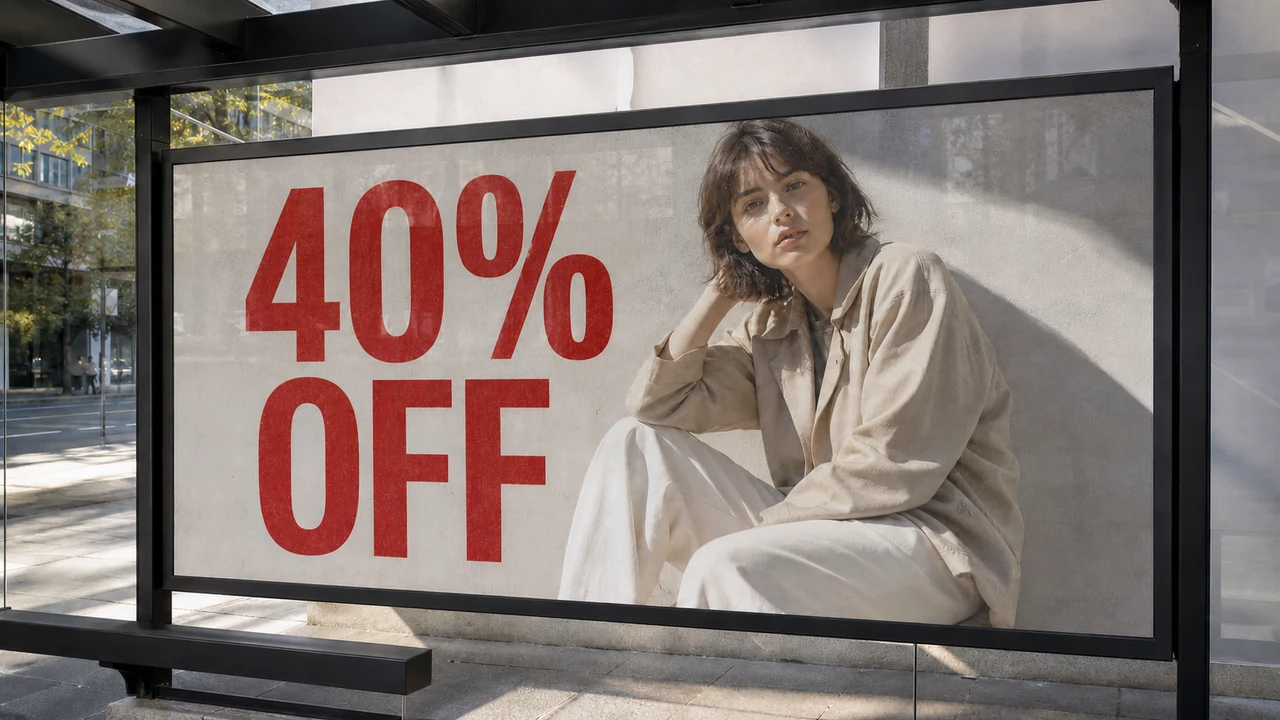
Every visual asset eventually gets flattened. You design a campaign graphic, export it as a PNG or WebP, and later catch an outdated date, a typo, or a revised price. When you search project archives, the original multi-layered file is missing. All you have is a static raster grid where lettering is permanently baked into background photography, gradients, and lighting.
Finding the best way to Change Text in Image assets depends entirely on where that graphic lives in its production lifecycle. Design roundups routinely group every utility together, treating vector suites, basic caption tools, and neural repainting engines as interchangeable alternatives. In practice, repairing a flattened visual with vector tools causes tedious cloning, while using a raster inpainter on an unflattened template is backwards.
To select the right tool without visual friction, teams must understand three distinct architectures: live type layers in native design software, floating caption overlays in annotation utilities, and still-file inpainting in pixel synthesis engines. This boundary becomes unmistakable when updating an outdated "v2.1" version chip on a flattened UI graphic where the source canvas has vanished.
Change Text in Image
Update words in finished images with our free online image text changer and style matching.
Category 1: Live Type Layers in Native Design Files
The cleanest, most mathematically precise way to adjust wording is working inside an active authoring environment using native type layers. Applications like Photoshop handling unflattened PSD files, Figma, Illustrator, and Affinity Designer operate at the structural object level. Here, typography exists as editable character strings linked to font binaries and rendered dynamically as parametric vector paths.
Because typographic data remains strictly separated from background artwork, designers retain absolute mathematical control over every glyph. You can modify tracking, leading, baseline shifts, and OpenType stylistic alternates without altering the artwork beneath the letters.
Resolution independence ensures glyph outlines remain mathematical curves rather than fixed pixel grids, so resizing text frames never compromises edge sharpness. Nondestructive editing means changing a sentence requires zero pixel reconstruction; the software simply discards previous glyph vectors from memory and renders new paths directly above background layers.
The limitation of live type layers is structural: they require continuous custody of original source assets. When an agency delivers a visual as a flattened WebP or PNG, those live vector layers cease to exist. Once rasterized, opening the file in Illustrator or Photoshop provides only an immutable background plate, requiring tedious manual cloning and font-matching to rebuild.
Category 2: Caption Overlays and Annotation Utilities
The second category encompasses lightweight editing tools designed to stack new words over existing graphics without altering underlying image data. You find this architecture in social media story editors, mobile markup utilities, meme generators, and browser screenshot annotation suites. These tools treat the imported image as an immutable backdrop and place a secondary graphical overlay directly over the canvas.
When masking outdated text or adding fresh information, the mechanism relies on superficial layering techniques. Applications place solid banner backdrops over original wording to mask it, rendering standard system typography inside an opaque rectangular container. Other utilities apply high-contrast outlines and heavy drop shadows around new characters, or slap floating sticker badges over outdated visual details.
Overlay tools serve an important purpose when communication speed trumps aesthetic continuity. If you are marking up a mobile screenshot to report a software bug, preparing an internal training slide, or posting a spontaneous social video with high-visibility subtitles, an obvious floating text layer is completely acceptable.
However, overlay tools cannot produce a seamless design revision. Placing an opaque shape over a product banner to cover an old discount code disrupts lighting, obscures original background textures, and announces to every viewer that the image was hastily modified. When the objective is making the revision look native to the original design, overlays fall decisively short.
Category 3: Still-File Inpainting and Pixel Repainting
The third category addresses the most difficult technical scenario: modifying wording embedded directly into a flattened, single-layer image file where no vector data exists. This is where you need to edit text in image assets by reconstructing pixels directly. Specialized repainting engines inspect surrounding pixels, remove target characters, restore occluded backgrounds, and synthesize replacement letterforms directly into the image fabric.
ReWords operates strictly within this third category, functioning as a dedicated still-file inpainter rather than a vector design suite or simple overlay utility. The editing process is guided by manual user intent; you type your own replacement wording directly into the interface. The software does not attempt to guess what your copy should say or scrape random strings.
Explicit line targeting isolates the text region by detecting specific lines across the raster canvas. Once a line is confirmed and targeted, the model focuses its computational effort on that exact bounding coordinate. This targeted containment keeps adjacent visual details stable and prevents distortion across neighboring areas of the graphic.
Context-aware texture synthesis powers the core reconstruction process. The engine analyzes ambient noise, paper grain, photography bokeh, lighting gradients, and compression artifacts to blend synthesized pixels into the background canvas.
Operating in this category requires acknowledging that pixel inpainting is fundamentally a best-effort reconstruction process. Flattened rasters do not contain hidden layer data behind original letters; the engine must infer depth, surface reflectance, and typography styling from surrounding visual clues. It does not load original font files and cannot produce mathematically lossless vectors, but when executed properly, the finished canvas looks as though the original design was rendered with the new text intact.
Changing Baked-In Version Chips on Flattened UI Exports
Consider a typical production dilemma: you have a finished marketing screenshot of an application interface, but a pill-shaped badge in the navigation bar still reads "v2.1." You need it to display "v3.0." Note that "v2.1" and "v3.0" here represent baked-in UI badge copy on a flattened screenshot, not model version numbers or inpainting engine generations.
If you still hold the original Figma component or layered PSD file, Category 1 is the obvious route. You edit the live text layer and re-export. But when that source file is inaccessible, rebuilding an entire interface layout just to modify four characters is inefficient. Category 2 overlays also fail because placing an opaque box and a system font over a rendered UI element breaks anti-aliasing and misaligns subtle drop shadows.
This scenario is where Category 3 proves its worth: still-file inpainting built specifically for rasterized lettering. Rather than relying on automated text guessing, you supply the exact replacement string yourself, typing "v3.0" directly. The engine reads surrounding visual context, clears the baked-in "v2.1" pixels, and reconstructs new characters seamlessly within the existing badge. Because this process reconstructs pixels rather than loading an original font file, it provides a best-effort visual match rather than a mathematically lossless vector.
Workflow control within the editing interface remains disciplined. In the editor, Lock represents a detected text line rather than a Photoshop layer, allowing you to anchor surrounding copy while generating edits on the target text. This anchoring prevents unwanted drift across adjacent navigation items, keeping generative synthesis strictly confined to the targeted version badge.
From a billing perspective, text detection is completely unbilled, allowing you to verify line boundaries before committing any balance. Generating the finished still-file edit consumes credits tied directly to canvas resolution: 10 credits for 1K, 20 credits for 2K, and 30 credits for 4K. New users receive trial credits after login to evaluate results on real graphics, though ongoing production relies on credits rather than unlimited free exports. When the original design canvas is gone and a sticker overlay looks amateurish, inpainting the flattened file maintains asset integrity.
Evaluating the Three Approaches for Your Project
Selecting the right tool comes down to asset custody and visual fidelity requirements. Rather than relying on arbitrary feature lists, evaluate your project against these direct operational realities:
| Evaluation Factor | Live Type Layers (Design Files) | Caption Overlays (Annotation Tools) | Still-File Inpainting (ReWords) |
|---|---|---|---|
| Source Asset Required | Multi-layer project (PSD, FIG, AI) | Any flat raster file (PNG, JPG) | Any flat raster file (PNG, JPG) |
| Output Appearance | Original design fidelity | Visible overlay patch / sticker | Seamless blended pixel canvas |
| Typography Precision | Exact point size & kerning control | Basic system fonts & alignments | Best-effort typographic matching |
| Background Restoration | Not needed (layers remain separate) | None (obscured by opaque shapes) | Contextual pixel reconstruction |
| Primary Use Case | Active brand design & production | Quick markup, memes, urgent notes | Fixing flattened assets without source |
When you manage your own design library and have access to the master repository, working directly with live type layers will always provide the most rigid typographic control with licensed font files. When you need to annotate a quick instruction for a team member, overlaying a high-contrast label with a mobile markup tool gets the message across without fuss.
When you receive a flattened marketing graphic, an archived promotional banner, or an international product image where the original project file is missing, neural still-file inpainting bridges the gap. To update your asset, simply highlight the target text, type your replacement wording, lock surrounding lines, and run the engine to replace text in image files directly on the flattened pixel canvas.
The Bottom Line
No single tool handles every text-editing scenario across digital graphics. If you possess the master design file, open Figma or Photoshop and edit the live vector type layer directly—it is the only way to retain mathematical typography precision.
If you simply need to stamp a high-visibility disclaimer or a quick annotation over a screenshot, an overlay caption tool gets the job done instantly without worrying about background aesthetics.
However, when you are handed a flattened raster image and need to swap out baked-in words without leaving an awkward opaque box or ruining surrounding scenery, still-file inpainting is the only viable path. By understanding these structural differences, you can choose the right tool for your specific file format and preserve visual integrity across your visual assets.