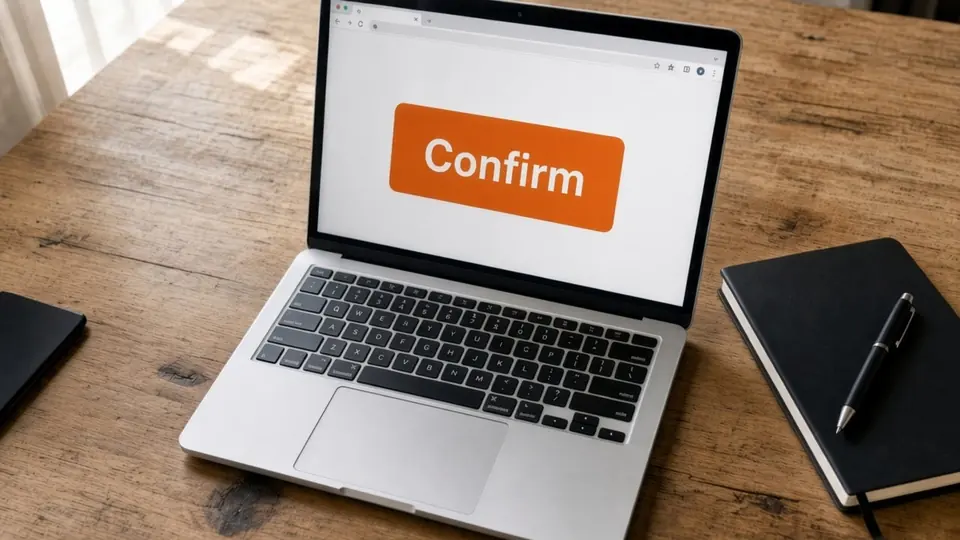
I sat at my wooden desk earlier this morning with a warm coffee mug resting beside my keyboard and an open notebook. On my primary monitor, a full-resolution browser screenshot showed a settings form with an orange button that read Submit. Our product team had decided to replace that label with Confirm just before the release notes were scheduled to publish.
The test environment where that capture originated was already torn down and replaced with a newer development build. Staring at the isolated graphic file, I realized that recreating the exact form state would take far more setup than the minor label change justified.
Edit Text in Screenshot
Fix UI labels, numbers, and dates with our free online screenshot text editor.
Recapturing Versus Editing an Existing Capture
If you still have direct access to the live software build, opening the running interface and adjusting the text directly in the code or document inspector is usually the cleanest choice. A true recapture produces untouched vector antialiasing, crisp background fills, and native font metrics without any synthetic guesswork. Whenever you can recreate the entire interface state without friction, capturing a fresh screenshot gives you pristine results.
That pristine route vanishes when you are stuck with an isolated PNG file and the original staging environment is completely unavailable. When you hold an otherwise perfect image and only that single orange button label needs an update, replacing that line directly inside the screenshot makes practical sense. You do not need to resurrect an entire testing environment just to swap one outdated word on a finalized graphic.
The decision between capturing a new image and editing an existing one hinges on your access to the source and the volume of changes needed. Rebuilding an entire dashboard view is well worth the effort if a dozen separate components, navigation menus, and data tables are out of date. When only one standalone label is wrong, editing the existing asset spares you from unnecessary configuration overhead.
Modifying Embedded Interface Elements Directly
Many basic graphic tools handle text edits by simply dropping an opaque rectangular overlay directly across the image. That technique creates visible borders, disrupts subtle gradient shading, and leaves awkward seams across styled interface controls. Changing text inside an interface graphic requires reading the pixels around the letters, wiping the old glyphs, and setting fresh characters into the cleared space.
When you work with Edit Text in Screenshot, the objective is to blend the replacement smoothly into the existing button surface rather than stacking a visible sticker on top. The background texture, shadows, and surrounding padding should look coherent with the rest of the application window. This approach treats the original screen capture as an integrated visual composition rather than a backdrop for floating annotations.
You provide the replacement wording manually by typing the new characters directly into the designated input field for that detected row. The tool does not guess what your product copy should be, leaving full editorial control in your hands. In my case, I typed Confirm into the box to replace Submit so the graphic matched our finalized release terminology.
If an interface element has been removed from your software entirely, you can simply leave the replacement field empty. Leaving the entry blank wipes out the old text and fills the area with the matching background tone without inserting new characters. That simple action allows you to clean up deprecated options or retired toggle labels with minimal effort.
Authorized Interfaces and Responsible Usage
Ethical boundaries are essential whenever you alter the visible text inside captured imagery. This process is built strictly for software user interfaces, technical documentation, design wireframes, slide decks, and marketing screenshots that you own or have permission to modify. Maintaining consistency across user manuals and product announcements is a standard production requirement for product teams.
You must never use these techniques on sensitive personal or legal paperwork, including receipts, utility invoices, identification cards, bank statements, or payment confirmations. Using image modification to forge official records or falsify business transactions is unethical and strictly forbidden. Tools designed for interface documentation should never become instruments for deceptive documentation.
Screenshots function as functional communication assets across engineering, design, and product marketing teams. Keeping an onboarding guide or slide deck aligned with the latest button labels helps users navigate software without confusion. As long as you maintain clear permission over the product materials you edit, updating interface labels keeps documentation dependable.
Optical Matching Against Native Font Rendering
Native applications and web browsers render typography through system-level font rasterizers, hinting engines, and vector outlines. When an interface is captured into a raster image, all of that structural typography data is flattened into a static grid of color values. The image file contains no embedded OpenType tables, no glyph vectors, and no true font metadata.
To make convincing adjustments, an editing tool must inspect the visible stroke weight, character spacing, line height, and color values directly from the bitmap. Platforms such as Edit Screenshot Text Online analyze the visible pixels to approximate the visual appearance of the surrounding interface copy. Because the software evaluates the visual footprint rather than loading an installed font file, the adjustment remains an optical approximation.
This optical approach means the final render is not completely lossless under extreme magnification. While the text appears natural at regular viewing sizes across presentations and documentation, meticulous inspection will reveal subtle differences compared to a fresh browser render. Accepting that practical balance between visual coherence and microscopic precision is key to working with static assets.
Managing Text Detection and Credit Consumption
When you upload a graphic into the workspace, the system runs an automated scanning step to identify individual text regions across the canvas. Detecting these text lines does not consume any of your credits, allowing you to review the detected boxes before deciding to generate a new image. You can see precisely which phrases the scanner identified across your layout without spending any account balance.
Once the detected lines appear, you can lock specific text boxes to ensure they remain untouched during processing. Locking a line in this workflow specifically anchors that recognized text region so its coordinates and content stay fixed. This lock functions on the detected bounding box rather than creating or locking layers inside an image manipulation suite.
New users receive trial credits upon logging in so you can evaluate the workflow on your own interface captures. When you decide to run a generation, credit usage depends directly on the output resolution of the graphic. An export at 1K resolution uses 10 credits, a 2K resolution export requires 20 credits, and a high-resolution 4K export consumes 30 credits.
The platform works with standard static image formats, including PNG, JPG, and WebP files. There are no unlimited free export packages, and the service does not offer an automated batch API for mass image generation. Each graphic receives deliberate attention, ensuring that individual interface updates receive proper visual review.
Handling Broader Promotional Assets
While application interfaces represent the most common use case, marketing materials and promotional banners often encounter similar text alignment issues. An advertising graphic or product mockup might display an outdated slogan or an obsolete call to action that needs a quick correction. If the original design canvas is unavailable, replacing that phrase directly inside the graphic provides a viable path forward.
You can address broader graphic layouts through Edit Text in Image when working with banners, feature graphics, or standalone promotional assets. The underlying mechanism remains consistent across formats, focusing on matching background fills and visible letter weights. This keeps your external marketing assets consistent with your updated software terminology without requiring complete graphic overhauls.
Understanding the limits of graphic editing helps you determine when to tweak an image and when to request a complete rebuild from your design team. Simple text corrections on buttons, headings, and labels work exceptionally well within static captures. When an entire page structure, color palette, or illustration style changes, commissioning a brand-new graphic remains the better design decision.
Guidelines for Clean Interface Adjustments
Achieving clean results begins with the quality of the image you upload to the editor. You should always use the cleanest available screenshot, favoring uncompressed PNG files over heavily compressed social media attachments. Heavy compression creates visible halo artifacts around text edges, which confuses the optical scanner and compromises the background fill quality.
You should also pay close attention to the length of your replacement phrase relative to the original text. Swapping Submit for Confirm works seamlessly because both words share a similar visual width inside the button container. Replacing a single concise button label with a lengthy explanatory clause will crowd the container and distort the natural visual balance of your interface.
Before publishing your revised screenshot, inspect the margins and alignment surrounding the updated element. Ensure that button borders, adjacent icons, and neighboring form fields remain sharp and undisturbed. Taking a moment to verify the overall layout ensures your updated visual documentation looks completely authentic to your audience.
The Bottom Line
Finding an outdated button label inside a crucial presentation slide or user manual no longer forces you into a frustrating dilemma. When you cannot access the original software build to perform a fresh recapture, modifying the text directly within the existing image gives you a clean, practical solution. You can correct specific interface labels without rebuilding retired test environments or settling for clumsy visual patches.
Reserve image text modification for legitimate product interfaces, marketing graphics, and documentation assets that you have the right to edit. Respect the boundaries of official financial and legal records, and take advantage of direct pixel editing when you only need to fix a single outdated line. This balanced approach keeps your documentation accurate, professional, and aligned with your evolving product.
Sources
- https://en.wikipedia.org/wiki/Button_(computing)
- https://en.wikipedia.org/wiki/Web_form
- https://en.wikipedia.org/wiki/Wireframe