The struggle is real — you have a finished image, but one word is wrong.
I've been there. A client sends over a promotional poster, and the price is off by a few dollars. Or you spot a typo in a screenshot after it's already been cropped and exported. Your gut reaction? Open Photoshop, try to match the font, erase the background, and spend the next 40 minutes on what should have been a 30-second fix. As one user recently put it on Microsoft Tech Community, the core problem is simple: "I want the new text to look exactly the same as the original one, including the same font, size, color, and style." And yet, every workaround falls short — text boxes never match perfectly, manual erasing leaves artifacts, and hunting down the exact typeface feels like solving a puzzle you didn't sign up for.
That's exactly the problem ReWords AI was built to solve. In this guide, I'll walk you through how it works, why it beats traditional editing for this specific task, and the real-world scenarios where it saves the most time.
Edit Text Same Font
Edit image words with our free online same font text editor.
The Problem: Why Editing Text in Images Is So Frustrating
Let's break down why this is harder than it sounds.
When you add a text box in Canva or Photoshop, you're layering new text on top of the existing image. The original text is still underneath — you have to erase it first, then manually pick a font that hopefully resembles the original, adjust the size, tweak the color, and somehow blend it into the background. If the background is a gradient, texture, or photograph, you're looking at significant cleanup work.
Here's what makes it painful:
- Font matching is guesswork. Unless you run the image through a font identifier (and even then, results are hit-or-miss), you're eyeballing it.
- Background repair is tedious. Erasing the old text and filling in the background requires careful cloning or content-aware fill — tools that demand skill and patience.
- No source file? You're stuck. If the image came from a designer who's moved on, or it's a screenshot you captured months ago, there's no PSD or Figma file to fall back on.
This is the exact scenario described in that Microsoft community thread — someone has an image with text, needs to change it, and wants the result to look identical. The suggestions there ranged from Photoshop to font detection tools, but none offered a single, streamlined solution.
The Solution: ReWords AI — One Tool to Replace Text in Images
ReWords AI takes a fundamentally different approach. Instead of overlaying new text, it analyzes the selected text region, erases it, rebuilds the surrounding area, and generates replacement text that tries to match the original font, color, size, and style — all in a few clicks.
No Photoshop. No font hunting. No manual background repair.
Here's the step-by-step workflow:
Step 1: Upload Your Image
Head to rewordsai.app and drop your image into the workspace. It supports PNG, JPG, and WebP formats. Works on both desktop and mobile browsers — nothing to install.
Step 2: Select the Text You Want to Change
ReWords AI automatically detects text in your image. You can:
- Click on detected text to select it instantly.
- Draw a box around any text the auto-detection missed.
This is a game-changer for images with multiple text elements — you pick exactly what you want to change, leaving everything else untouched.
Step 3: Enter Your Replacement Text
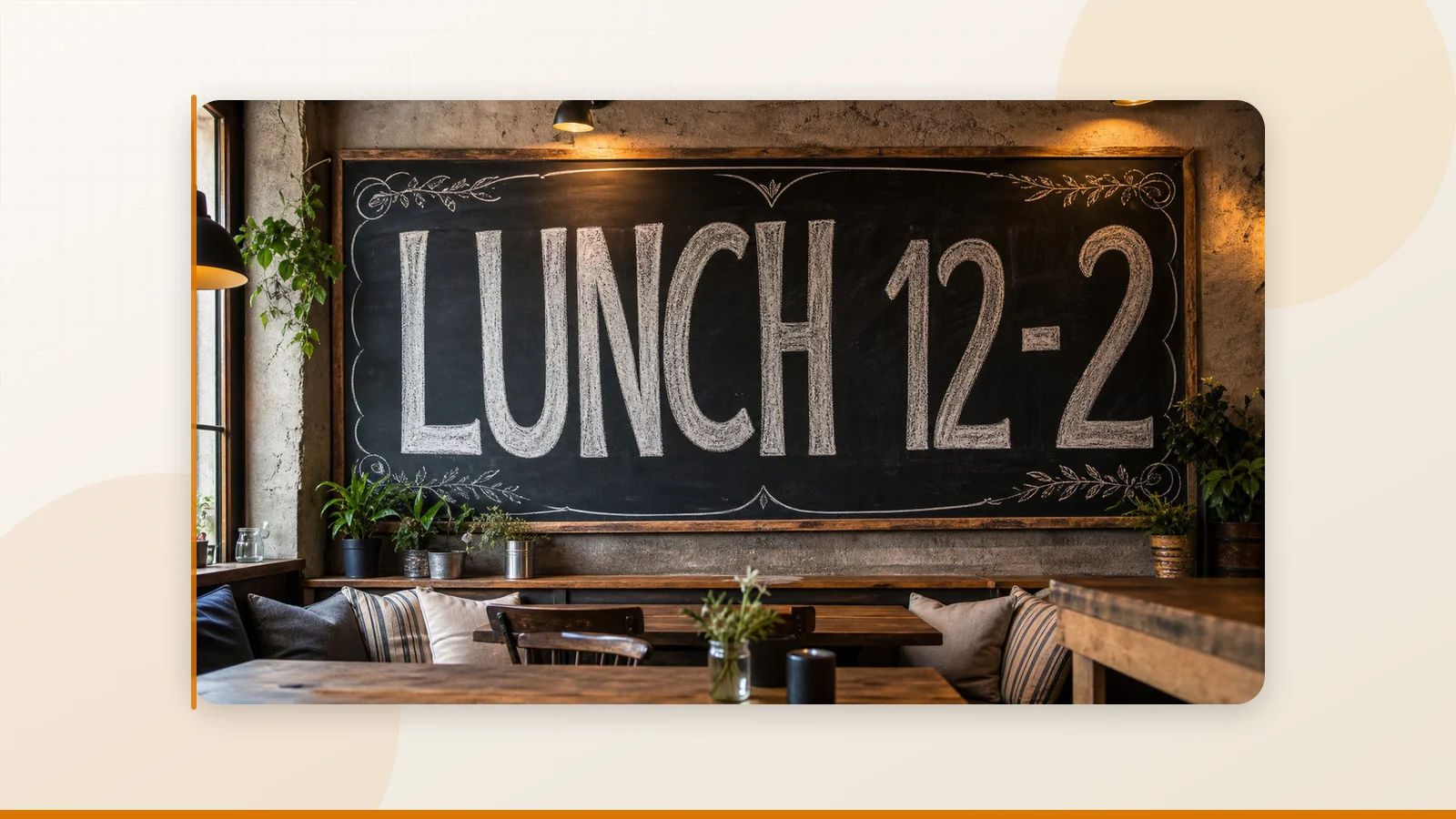
Type in the new text. Whether it's a price change ($14.50 → $14.99), a schedule update (8:00 PM → 7:00 PM), or a complete headline swap (UP TO 30% OFF → UP TO 50% OFF), you enter the replacement and hit generate.
One credit per image — regardless of how many text regions you edit.
Step 4: Download the Result
Review the output. If it looks good, download it and use it immediately. The entire process takes under a minute.
Pro tip: New users get a free image edit after signing in — no credit card required. It's the fastest way to see if ReWords AI works for your specific use case.
Where ReWords AI Shines: Real-World Use Cases
This isn't a theoretical tool. Here are six scenarios where it delivers immediate, practical value:
1. Fixing Typos in Screenshots
You captured a perfect screenshot for a blog post, but there's a typo in the UI. Instead of re-navigating to the page and recapturing, just upload the screenshot, select the typo, and fix it. Done.
2. Updating Prices and Dates on Posters
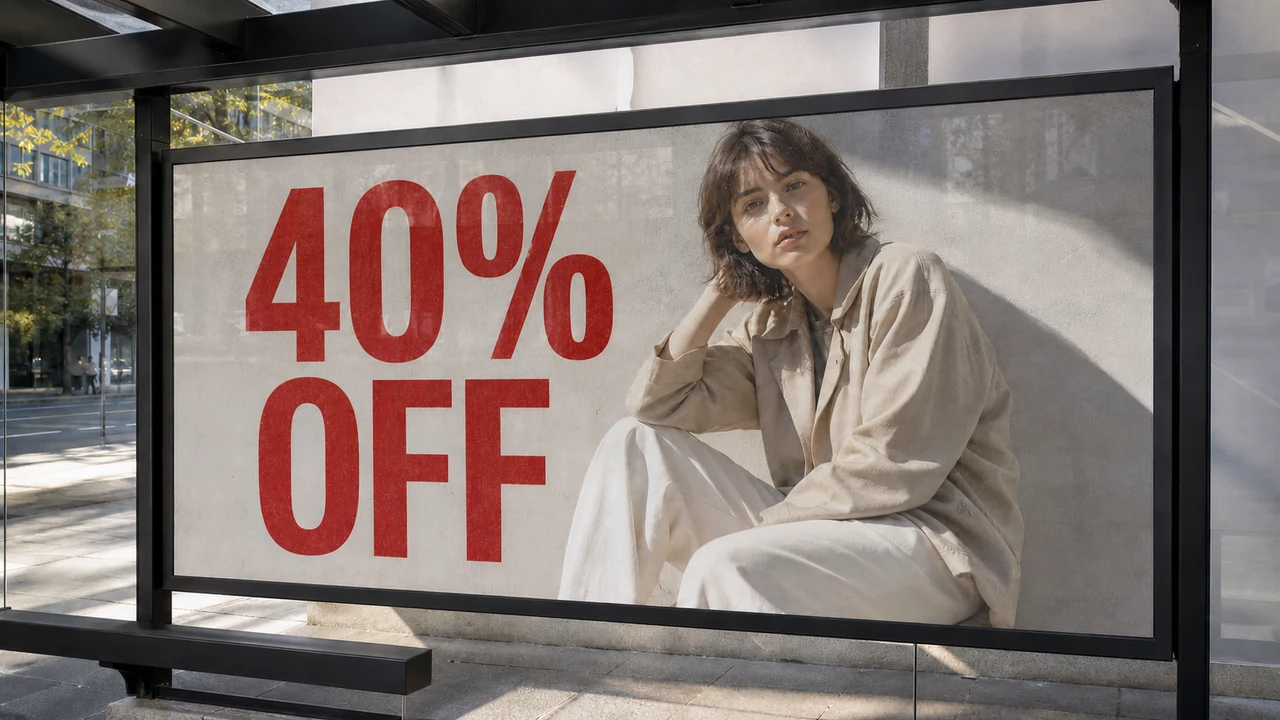
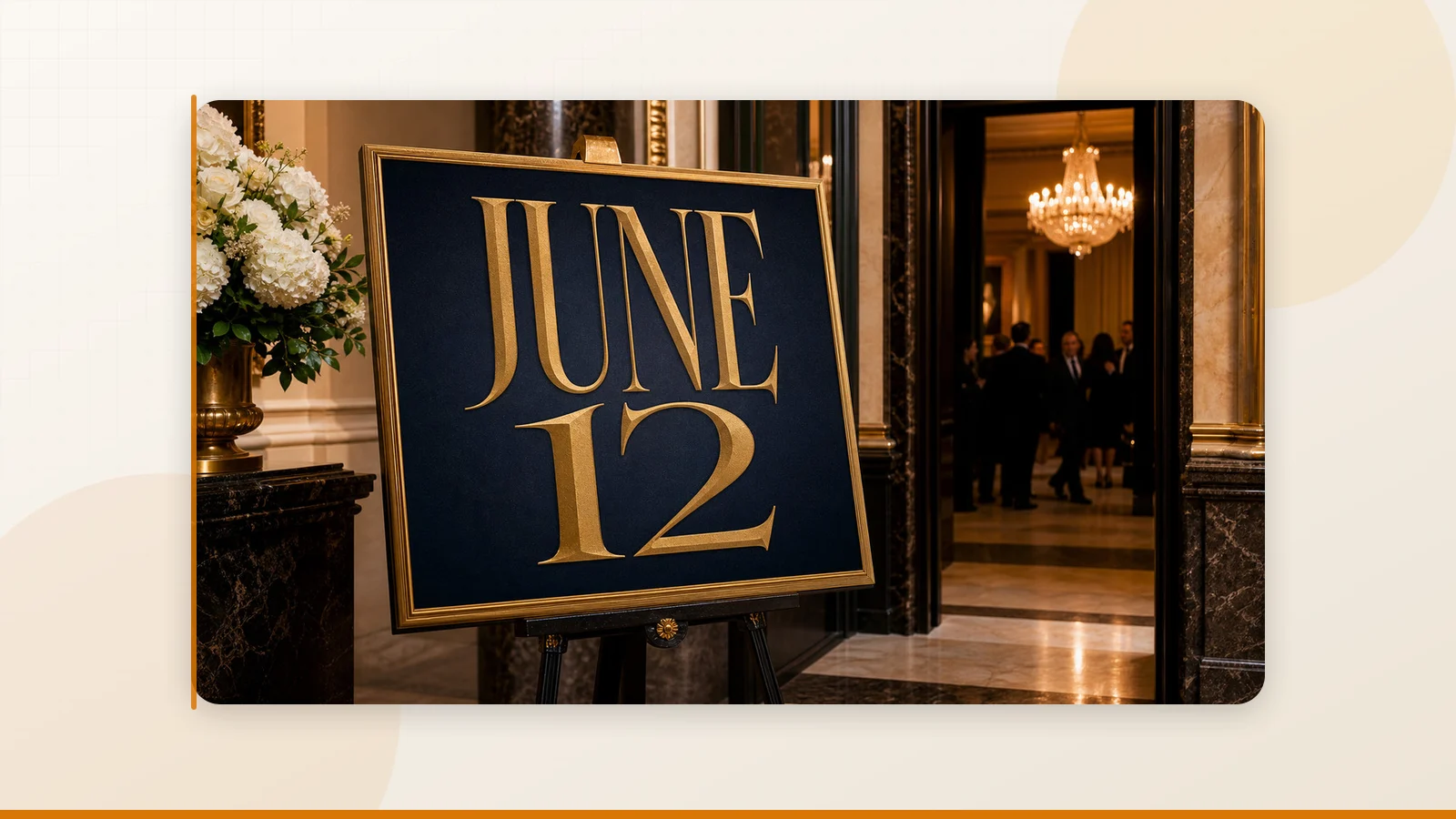
Marketing materials go stale fast. A sale changes from 30% to 50%. An event moves from Tuesday to Wednesday. With ReWords AI, you edit the text in the finished export — no need to reopen the design file or track down the original font.
3. Localizing Product Photos
Expanding to a new market? Swap the label text on product packaging images without scheduling a new photoshoot. The tool keeps the layout and style intact while you change the wording.
4. Correcting AI-Generated Images
If you've used Midjourney, DALL-E, or Stable Diffusion, you know the pain: the image looks perfect, but the text is garbled or misspelled. ReWords AI lets you upload the AI-generated frame, select the broken word, and replace it — shipping the corrected image the same afternoon.
5. Swapping Meme Captions
Social media moves fast. Swap captions on meme templates or update text overlays on Instagram, TikTok, and YouTube graphics without rebuilding the entire image.
6. Quick Fixes on Creative Documents
Presentation graphics, internal reports, training materials — when the wording needs a tweak and you don't have (or don't want to open) the source file, ReWords AI handles it in the browser.
ReWords AI vs. Traditional Editors: What's Actually Different?
| Feature | ReWords AI | Canva / Photoshop Express |
|---|---|---|
| Edit existing text in images | Yes — AI rebuilds the region | No — overlay only |
| Match original font automatically | Analyzes and matches the style | Manual font selection required |
| Background repair | Automatic | Manual (clone stamp, content-aware fill) |
| Source file needed | No | Often yes |
| Best for | Correction, translation, quick fixes | New design creation |
The key distinction: ReWords AI replaces text that already exists in the image. Traditional "add text" tools only put a new layer on top. If you need to change what's already there — especially without the original font or design file — ReWords AI is purpose-built for that job.
What About Accuracy? Setting Realistic Expectations
I want to be straight with you: no AI tool is perfect. ReWords AI aims to match the original font and style as closely as possible, but results depend on:
- Image quality — higher resolution images produce better matches.
- Text complexity — simple, clean text works best. Curved or heavily stylized text is harder.
- Background texture — solid or gradient backgrounds are easier to rebuild than busy photographs.
The tool's FAQ puts it honestly: "Results vary with image quality, font complexity, background texture, and text length, so review the output before publishing."
My recommendation: try the free edit first. Upload a representative image from your workflow, make a replacement, and judge the result yourself. For straightforward text on clean backgrounds — prices, dates, headlines, labels — it consistently delivers usable output.
Getting Started in Under 2 Minutes
Here's exactly what to do right now:
- Go to rewordsai.app.
- Sign in (takes 30 seconds).
- Upload an image with text you want to change.
- Click the text or draw a selection box.
- Type your replacement and hit generate.
- Download the result.
That's it. No software to install, no tutorials to watch, no font databases to search through.
If you need higher volume, ReWords AI offers credit packs and subscription plans (which unlock 2K and 4K resolution exports). There's even an API in beta for developers who want to integrate text replacement into their own workflows — contact support@rewordsai.app for access.
The Bottom Line
If you've ever stared at a finished image and thought "I just need to change one word," ReWords AI is the tool you wish existed years ago. It eliminates the tedious cycle of erasing, font-matching, and background repair — replacing it with a four-step workflow that takes less than a minute. Grab your most frustrating image, try a free edit on ReWords AI today, and see how close the match really is.