Last updated: July 2026
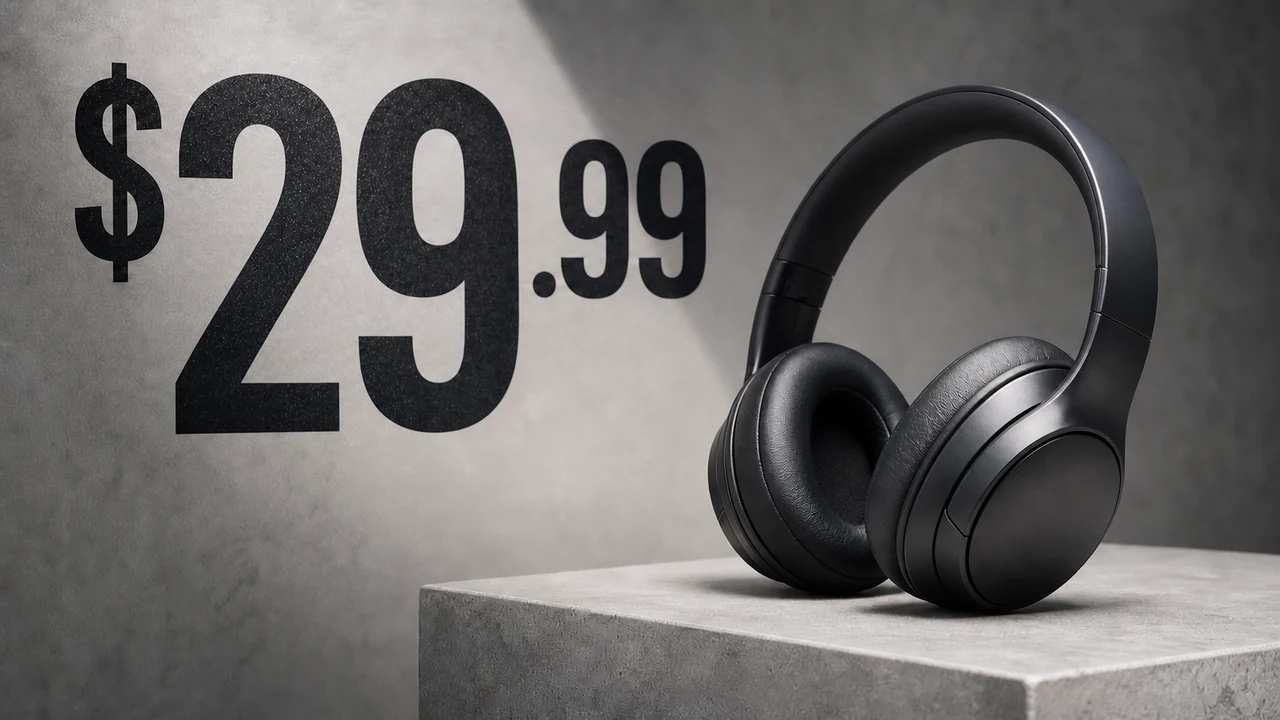
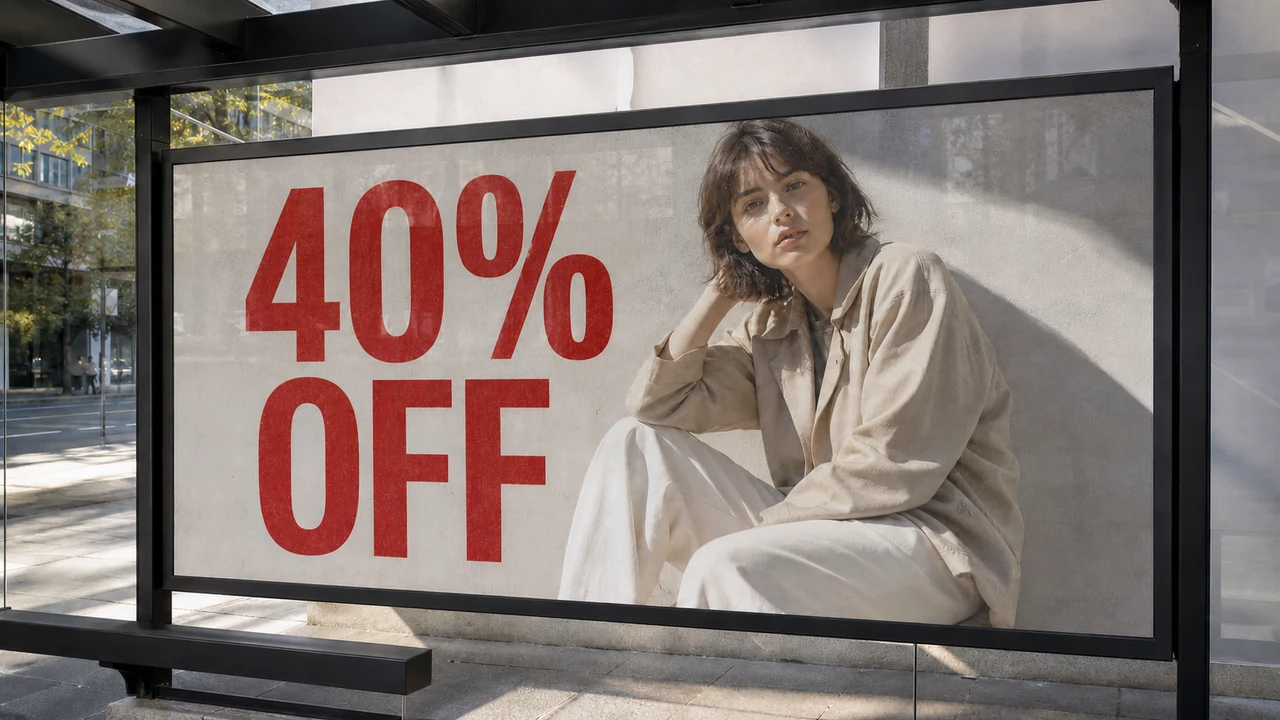
It is 6 p.m. The campaign goes live tonight. In the final proof pass, someone notices the promo price on the banner is wrong.
The designer is offline. The Canva link is missing from Slack. The folder only has a PNG.
At that moment the question is not “how do I design?” It is: should you touch this export at all—and if you do, how do you fix the text without making it worse?
This guide is for operators, marketers, PMs, and anyone who regularly receives finished images (PNG, JPG, WebP, screenshots) without the source file. You will learn:
- Why a flat export is not a text box
- When to go back to Canva or Photoshop instead of “fixing the PNG”
- A practical workflow for short text fixes on exports
- How a specialist browser tool like ReWords AI fits that workflow—honestly, including limits
Edit Text in Image
Edit text in finished images with our free online image text editor.
The export is not a design file
In Photoshop, live type layers stay editable as text. Once type is rasterized—or the file left the design tool as a flattened PNG/JPG—the letters become pixels, not a text field.
So when you only have an export, you are not “opening the text box.” You are:
- Removing or covering the old lettering in the pixels
- Placing new lettering that tries to match weight, color, and surroundings
- Checking that the result still holds up at real publish size
That is why white rectangles, random fonts, and rushed overlays look like patches: they skip reconstruction and style matching.
Canva workflows that extract text (for example Grab Text-style features) work best while the asset still lives in a Canva project. If the project link is gone and you only hold a download, you have already left that context. For a deeper split between project-native editing and export-native editing, see ReWords AI vs Canva.
The three-way fork: Canva, Photoshop, or a finished-image tool?
Before you upload anything, force a 30-second decision.
| Path | Choose it when… | Skip it when… |
|---|---|---|
| Back to Canva | You still have the project link; text is still native Canva type; you need templates, brand kits, or multi-size exports | You only have a flat PNG/JPG from someone else |
| Back to Photoshop (or Illustrator) | You have a PSD/AI with layers; you need print control, complex retouching, or exact type systems | There is no layered file and the change is one short line under a deadline |
| Finished-image text tool (e.g. ReWords AI) | You only have PNG/JPG/WebP or a screenshot; you need to replace or remove text already in the pixels; speed matters | You still have source access, or you need print-critical / legal-critical exactness |
If you still have a PSD, compare the specialist path honestly against the suite: ReWords AI vs Photoshop. If you are choosing among AI text-in-image tools later, use the dedicated pages such as vs Photext and vs Refont—this article stays focused on the no-source-file situation.
Rule of thumb: if the project is still alive, do not “patch the export.” If the file is already flat and the change is small, treat it as a pixel repair job.
Mistakes that make a small text error expensive
| Mistake | Why it hurts | Why people still do it |
|---|---|---|
| White bar or color block over old text | Breaks texture, shadow, and perspective | Fastest panic move |
| New text layer slapped on top | Font, tracking, and anti-aliasing rarely match | Works in any slide tool |
| Full Photoshop rebuild for one word | Turns a five-minute need into a multi-hour rebuild | “PS can fix anything” |
| Shipping a soft screenshot | Wrong copy and soft pixels | Deadline theater |
| Machine-translated paste without layout check | Line length and brand terms break | Understaffed localization |
| Blind edits on glass, heavy perspective, or blur | Edges and lighting fail | “It’s only a few letters” |
| Changing prices/specs without a second check | Customer and compliance risk | “We can always fix the creative” |
| Editing IDs, receipts, or evidence-like assets | Legal and trust risk—not a design problem | Unclear boundaries |
If the asset is an official record, ID, receipt, or anything that could mislead people, stop. Do not treat it as a marketing export.
A practical workflow when you only have the export
1) Intake questions
Answer these before tools:
- Do I have a source file, edit link, or live type layer?
- Is this one or two short lines—or a layout-breaking rewrite?
- Is this an official record, evidence, or regulated claim?
- Is the final use print, strict brand review, or legal-sensitive?
- Yes to source → go back to source
- Layout-breaking rewrite → design tool
- Official/evidence → stop
- Print / strict legal → prefer source or a designer
2) Asset check
- Prefer the original export, not a screenshot of a screenshot
- Is the text sharp, upright, and unobstructed?
- Background: gradient, texture, glass, strong perspective?
- Will the new string be much longer than the old one?
Clear UI labels, printed short headlines, and price tags behave better than dense paragraphs, ornate display type, tiny legal lines, or messy handwriting.
3) Lock the copy first
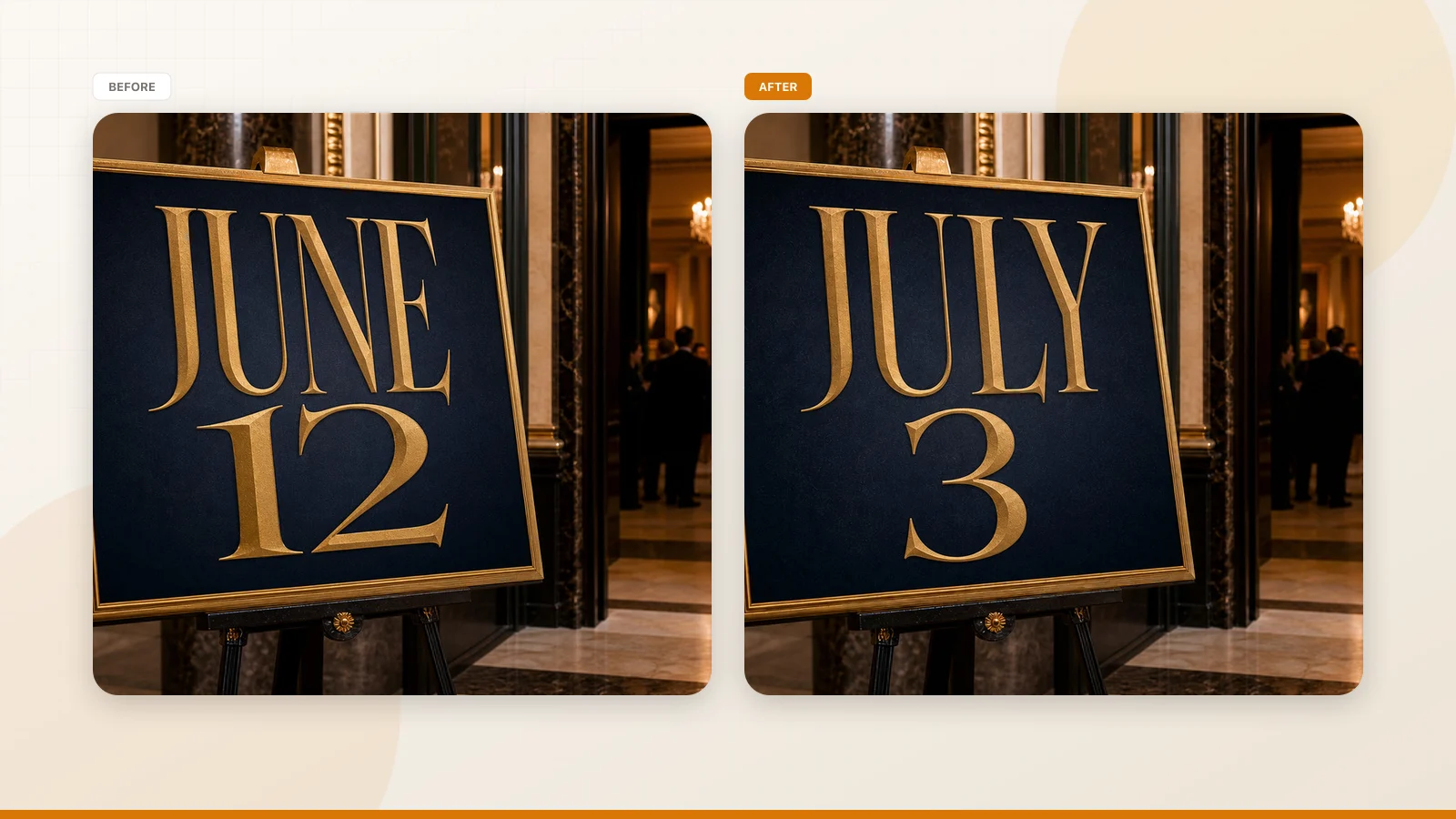
Finalize numbers, currency, dates, time zones, brand spelling, SKUs, and offer conditions outside the image. Do not invent wording while the generation is running.
4) Make the smallest possible edit
- Upload PNG, JPG, or WebP
- Select detected text, or draw a box if detection missed a region
- Enter replacement text—or leave it blank to remove text
- Change only what must change
- Generate, then zoom the edges, spacing, and background
In ReWords AI, the flow is built around that job: upload a finished image, select regions, replace or clear text, and download after review. Style matching is best-effort—inspect before you publish. Keep the tab open while generation runs; high-quality edits can take longer than a quick overlay.
5) Pre-publish checklist
- [ ] Edges: no white halo, dirty fringe, or mush
- [ ] Tracking/leading not suddenly crushed
- [ ] Background texture not smeared
- [ ] Numbers and currency symbols correct
- [ ] Multilingual punctuation and casing consistent
- [ ] Brand color and wording still on-brief
- [ ] Looks acceptable at real publish size
- [ ] Price, terms, and disclaimers double-checked by a human
When you must stop and find the source (or a designer)
Do not force a finished-image fix when:
- You still have Canva, Figma, PSD, AI, or live type
- The file is for print production or heavy brand governance
- You need multi-block reflow, tables, or many linked changes
- You need an exact font file and production kerning
- The type is tiny legal copy, ingredients, or dense specs
- The photo has heavy perspective, glare, or motion blur
- The image is an ID, receipt, official record, or evidence
Speed is not a reason to create a compliance problem.
How ReWords AI fits (and what it does not claim)
ReWords AI is a browser tool for existing text inside finished images:
- Formats: PNG, JPG, WebP
- Actions: replace text or remove it (blank replacement)
- After sign-in: trial credits for a first edit (see current site for exact trial terms)
- Ongoing use: credits / subscription; resolution affects credit cost (for example, a standard 1K generation is listed on-site around 10 credits—always confirm on pricing)
- Matching: best-effort style fit, not guaranteed font-file recovery
- Not a full design suite; not unlimited free forever
Try it on a real export: open the workspace, upload the PNG you actually need to ship, and fix one short line. For a task-focused landing, see Edit text in image. If you only need a price or number, Edit price in image is a more direct path.
FAQ
Can I use this instead of a print production workflow?
No. Treat finished-image tools as digital patching for exports and screenshots. Print-critical work still belongs with layered sources and professional type control—see ReWords AI vs Photoshop.
Can I batch hundreds of SKUs automatically?
Public product pages describe an API in beta, but do not treat bulk catalog pipelines as a documented self-serve feature unless support confirms it. For high volume, ask support@rewordsai.app.
Will the new text use the exact same font file?
Do not plan on that. ReWords aims to match look and feel; it does not recover licensed font files from pixels.
What about handwriting, heavy effects, or busy photos?
You can try, but results are less stable. Clear print and UI text remain the reliable cases.
Can I only remove text without replacing it?
Yes—leave the replacement empty when the product UI allows remove/blank, then check whether the filled background looks natural.
Is it OK to fix a version number on a product screenshot?
Often yes for marketing screenshots. It is not OK to alter official records, evidence, IDs, or receipts.
What about privacy?
Uploads may be processed with third-party infrastructure. Read the privacy policy before sending sensitive material. Prefer not to upload personal IDs or confidential documents.
Is the trial unlimited free editing?
No. Sign-in trial credits are limited; continued use requires credits or a subscription.
Closing: fix the export—or refuse the wrong job
When the only file you have is a flat export, the professional move is not “always redesign” and not “always white-bar the typo.” It is:
- Decide whether source access still exists
- Refuse unsafe assets
- Change the smallest truthful line you can
- Inspect like a publisher, not like a slot machine
If tonight’s problem is a wrong price, date, or label on a PNG sitting in chat, start with that file in the ReWords AI workspace—then decide whether the result is good enough to ship, or whether you must escalate to the real design source.