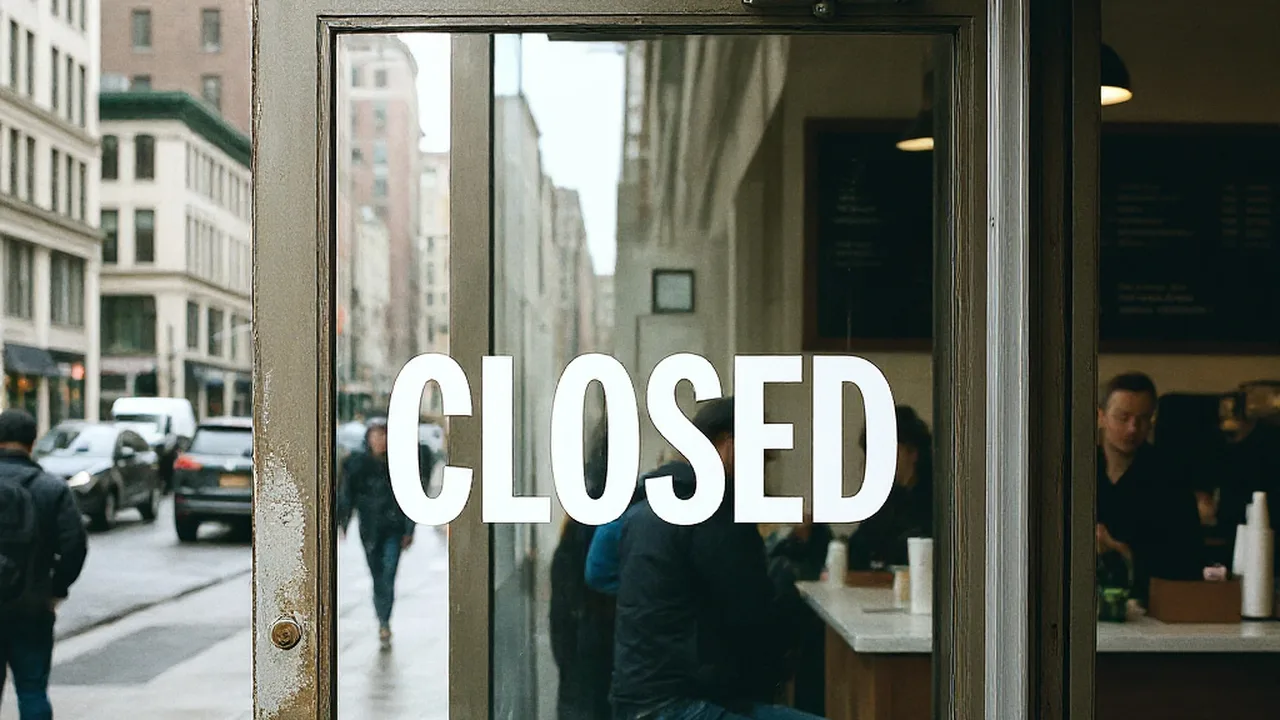
I was staring at a finished photograph of a street corner cafe bathed in warm afternoon light. The composition was balanced, capturing the brass door handle, the reflection of autumn trees across the glass, and the word OPEN painted in aged gold lettering across the storefront door. I needed that exact visual asset for an evening campaign, but the signage had to say CLOSED instead.
If you have ever tried to modify a picture like that, you know the frustration of having a completed image trapped in a flat raster format. Rerolling the prompt or regenerating the entire scene was completely out of the question because it would replace the barista, change the wood grain, and scatter the reflections. I did not want an entirely new coffee shop created by an algorithmic roll of the dice. I simply needed to modify the characters sitting on the glass pane while preserving every ambient highlight, shadow, and architectural detail.
The fundamental problem with modern image synthesis is how neural models treat typography. When a visual model constructs an image, it does not layout vector outlines or select font glyphs from an operating system directory. Instead, it renders text as a cluster of decorative surface textures and localized color values directly into the pixel grid.
Because the letters are melted into the surrounding pixels, standard text prompts fail when you need surgical precision. If you try to prompt a model to adjust one phrase, the generative pipeline often scrambles the geometry, alters the lighting, or invents bizarre pseudo-alphabets. If the text is garbled pseudo-script in an AI generation where the composition is already locked, you can use Fix Text in AI-Generated Images to correct the lettering without redrawing the surrounding artwork.
For years, fixing flattened type required loading the file into Photoshop or GIMP, painstakingly stamping out the original characters, and guessing at the color grading. Alternatively, you might drag the asset into Figma or Canva, place a clean digital text box over the background, and hope nobody noticed that the crisp digital font looked completely unnatural against a dusty glass window. Those manual workarounds consume valuable energy and frequently produce sterile results that clash with natural lens grain and optical depth.
Rather than masking layers manually or rebuilding an entire graphic from scratch, modern workflows rely on an AI Image Text Editor designed specifically to handle flattened raster files. These systems read the spatial coordinates of existing characters, analyze surrounding environmental cues, and repaint only the specific bounding regions. That targeted approach lets you preserve the lighting, angle, and atmosphere of the original photograph.
When you want to replace a word on a physical object in a picture, the editor must examine more than just letterforms. It looks at the tilt of the surface, the warm cast of incoming sunlight, the soft focus of the camera lens, and the micro-textures of the background surface. That localized approach ensures that the new characters feel authentic to the environment rather than pasted on top like an artificial sticker.
Fix Text in AI Images
Repair typos and garbled words using our free online AI image text editor without rerunning prompts.
Step 1: Upload Your Flattened Image File
I begin by taking the completed picture and uploading it directly through the web interface. The system accepts standard flat image formats, including PNG, JPG, and WebP, meaning you do not need proprietary project files or preserved layered archives.
Once the file finishes uploading, an automated optical pass scans the picture to identify every string of legible lettering across the frame. This detection phase does not consume any credits, allowing you to review all recognized words before committing to a generation. If you are exploring the workspace for the first time, you receive trial credits upon signing in so you can test the editor on your own photography or design mockups.
Step 2: Select the Detected Line You Need to Change
After the initial scan completes, the interface highlights the detected lines of text as discrete selectable boxes. In my cafe scenario, the system immediately boxed the word OPEN positioned in the center of the glass door pane.
Click directly on the highlighted bounding box that contains the word you want to revise. Inspecting the highlighted boundary confirms that the tool has isolated the exact characters without encroaching on the surrounding wooden trim or the brass handle. This targeted boundary tells the editing engine precisely where pixel reconstruction must occur.
Step 3: Type Your Replacement Characters
Once you click the detected line, an input field opens for you to provide the new wording. I typed CLOSED directly into the box, matching the capitalization style of the original storefront lettering.
You enter your own replacement characters manually, keeping full creative control over spelling, brand voice, and terminology. If you ever need to clear a line of text entirely rather than replacing it, simply leaving the replacement field empty removes that line during generation. You remain entirely responsible for the final wording, phrasing, and factual accuracy of any copy you introduce into the graphic.
Step 4: Lock the Lines You Want to Preserve
Most real-world photographs and complex marketing banners contain multiple pieces of text across the canvas. My cafe image, for instance, had a small chalkboard menu leaning against the brick wall and a discreet street number printed above the lintel.
To guarantee that those unrelated words remain untouched, click the lock icon next to each detected line you want preserved. It is crucial to understand that this Lock feature locks an identified line of text rather than a Photoshop layer, protecting that specific cluster of pixels from being modified during synthesis. Locking every secondary line ensures that the model focuses its attention strictly on the word you intend to change.
Step 5: Generate and Compare Against the Original
With your new text entered and non-target lines securely locked, choose your desired output resolution and proceed to generate the updated image. Credit deduction occurs exclusively during this generation stage: rendering a 1K image requires 10 credits, a 2K image costs 20 credits, and an ultra-detailed 4K render uses 30 credits.
When the generation finishes, place the resulting picture next to the original file to evaluate how the new letters settle into the scene. The engine performs a best-effort visual match, studying the original lighting, perspective, drop shadows, and distressed paint textures to render the replacement naturally. Keep in mind that this process reproduces the organic visual aesthetic rather than pulling an identical font file from your system, and it does not represent a lossless vector export or a regulatory guarantee.
Applying the Workflow to Other Projects
Once you understand how to isolate and update text on a single glass door, you can apply the exact same method across diverse commercial and creative projects. You can Edit Text in Image assets such as trade show signage, packaging concepts, social media advertisements, book covers, and real estate photography.
Think about working on an outdoor promotional poster where an event date changed after the client approved the final lighting pass. Redoing the photoshoot or repainting the background in digital painting software takes considerable effort and risks altering the overall mood. By isolating the single date line, typing the revised calendar numbers, and locking the headline, you resolve the change while keeping the visual identity intact.
This approach also benefits physical product packaging where multilingual variations or regional product names must fit onto identical renders. Instead of dispatching each change back through a long 3D rendering pipeline, you can update localized packaging copy directly on flattened, high-resolution preview files. You maintain visual consistency across an entire catalog without re-rendering basic geometry.
Scope, Rights, and Realistic Expectations
Working with visual synthesis models requires clear expectations regarding capabilities and operational scope. The engine is tuned for targeted character replacement and organic integration, but it is not built as an automated batch processing pipeline or a headless server API. Every task represents a considered modification of an existing image.
Each generation is an intentional choice that consumes allocated credits, meaning there is no unlimited free generation tier. The tool is designed to assist creators, designers, and business operators in updating content they own or hold rights to produce. It should never be used to strip copyright markings, remove attribution notices, or erase watermarks belonging to other artists and photographers.
Because the synthesis focuses on visual realism, complex typefaces featuring elaborate calligraphic flourishes or distressed weathered foil require careful inspection. The goal is always a convincing visual match that respects ambient lighting and environmental decay, giving you a believable graphic that looks cohesive to the naked eye. You should always review the rendered output carefully before publishing it in commercial channels.
The Bottom Line
Fixing baked-in text on a finished image does not require throwing away a beautiful composition or struggling through hours of tedious manual cloning. By identifying flat raster type, entering your own replacement phrasing, locking adjacent lines, and running a targeted generation, you can change critical wording without disturbing the background world.
Whether you need to swap OPEN to CLOSED on a sunlit cafe door or correct a misrendered word on a high-stakes campaign graphic, precision editing keeps your assets intact. You maintain full ownership over the text you write, while intelligent synthesis takes care of matching the perspective, shadows, and surface texture. That balance gives you control over your message while protecting the visual atmosphere you worked so hard to create.
Sources
- Analysis of AI image generation mechanisms and textual rendering artifacts
- Community discussion on text editing limitations within generative diffusion workflows
- Technical breakdown of inpainting versus full-scene regeneration for visual assets
- Overview of latent and diffusion-based probabilistic generative models
- Architecture and capabilities of modern text-to-image synthesis frameworks
- Foundational principles and neural network architectures in deep learning