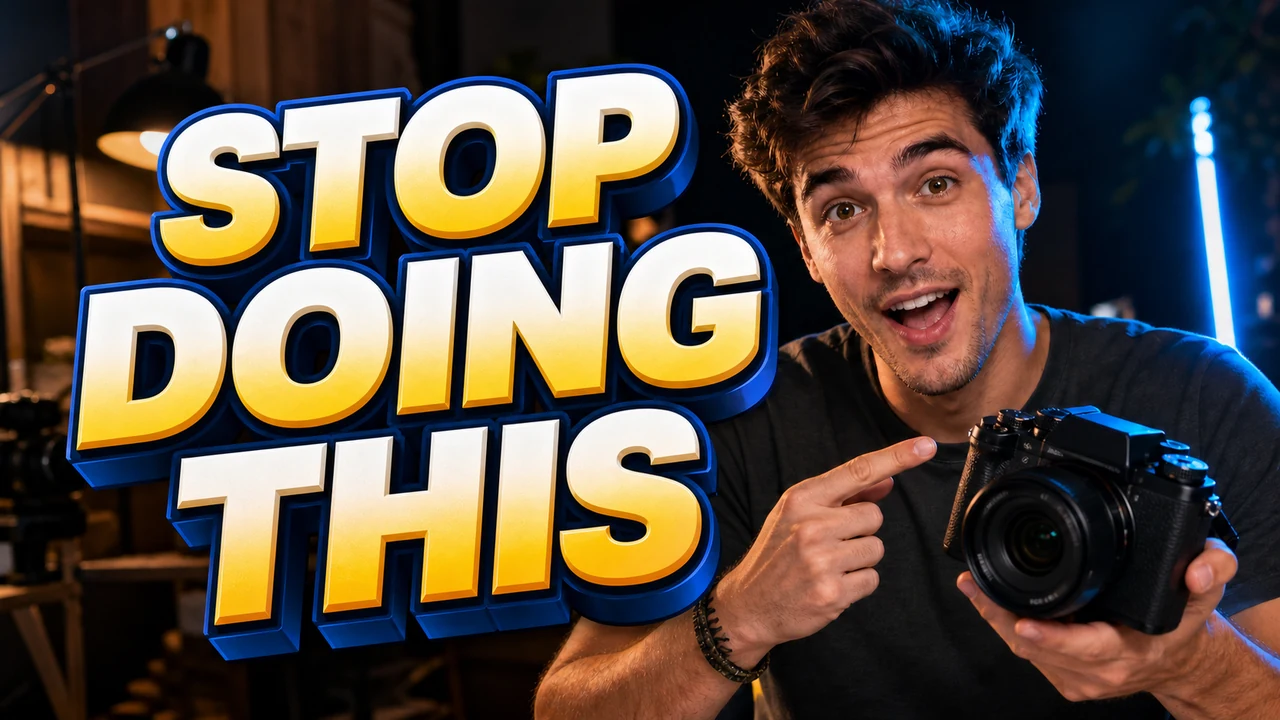
I was staring at an exported video graphic on my desktop yesterday afternoon with my cursor hovering over the headline. Across the center of the image, bold letters shouted "5 QUICK TIPS" against a bright background, but the video topic had shifted during final review. The creator needed the graphic to say "STOP THIS NOW" instead, yet the production deadline left no room for rebuilding the layout from scratch.
When you open a finished PNG or JPG file, the letters no longer live in an editable text layer. Every stroke, outer shadow, and bright highlight is flattened directly into the background pixels alongside the artwork. If you do not have the original working file, you must replace those pixels without distorting the surrounding art.
Before touching any image editing tool, you should always check whether your source files still exist. If you built the graphic in Adobe Photoshop or Canva, returning to your active project canvas is always the cleanest path forward. When those project files are deleted or archived by a previous designer, you are left with an immutable graphic that requires direct pixel replacement.
This situation happens frequently when you receive deliverables from an external production team or salvage assets from an older upload. You have a crisp image ready for your channel, but a single phrase locks the visual asset into an outdated hook. Learning how to modify those flattened letters directly saves you from reconstructing the entire visual composition.
Editing flattened graphics is fundamentally different from typing into a desktop layout program. You are not picking a font family from a local dropdown menu or adjusting live tracking values. Instead, a specialized Thumbnail Text Editor detects visual shapes, reconstructs the occluded backdrop, and draws new glyphs that follow the existing aesthetic cues.
The underlying system examines the lighting, surface gradients, drop shadows, and bevel angles that define the original typography. It attempts a best-effort visual match rather than loading native font binaries from your operating system. Because this process synthesizes replacement pixels, you should view it as an intelligent visual approximation rather than a lossless vector edit.
The workflow does not provide automated text recommendations or automated translation prompts. You remain in complete editorial control by entering the exact wording you want to see on your canvas. This manual input ensures that your updated graphic conveys your exact meaning without unexpected phrase substitutions.
When you launch the web workspace, you will find a focused canvas designed specifically for isolated typographic changes. The scanning step analyzes typography across the uploaded canvas without charging any usage credits to your account balance. Once the scanning routine finishes, you can review the detected text boundaries and decide which regions require modification.
New accounts receive complimentary trial credits after completing the basic sign-in step. These credits give you an immediate opportunity to test your graphic modifications and inspect the rendering behavior. Once you exhaust those complimentary allowances, additional rendering tasks require account credits based on the export canvas resolution.
Thumbnail Text Editor
Edit baked-in words on video covers with our free online thumbnail text editor and style matching.
Five Steps to Modify Headline Typography on an Exported Graphic
The following workflow shows you how to transform "5 QUICK TIPS" into "STOP THIS NOW" using direct canvas interactions. Follow each phase carefully to preserve the background artwork while cleanly replacing the core headline.
Step 1: Upload the Flattened Graphic File
Begin by dragging your exported PNG or JPG thumbnail directly into the processing area. The system accepts standard image formats without requiring special vector export settings from your previous software. Once the upload finishes, the system automatically runs an initial detection pass across the visual surface.
This detection phase identifies where words appear against the background scenery. Because this analysis runs without credit deduction, you can inspect how the system maps each line before committing any account balance. You will see colored boundary boxes outline each detected group of characters across the image.
Step 2: Select the Target Text Line
Hover over the headline that needs modification and click directly on the boundary box. In our working scenario, you will click the bounding region that surrounds the phrase "5 QUICK TIPS". Selecting this element activates the property inspector on your editing panel.
Take a moment to verify that the selection covers the entire text cluster you want to replace. If your graphic features multiple stacked lines, ensure that you only highlight the primary headline rather than adjacent subtitles. Isolating the exact phrase ensures the generative synthesis focuses exclusively on the words you intend to change.
Step 3: Enter Your Replacement Words Manually
After selecting the headline boundary, navigate to the text entry field in the workspace panel. Type your replacement phrase, "STOP THIS NOW", directly into the input box using your keyboard. You must provide the exact spelling, capitalization, and punctuation you want rendered on the graphic.
The interface does not supply translation suggestions or automated phrasing alternatives. This deliberate design ensures that creative decisions stay entirely in your hands rather than relying on algorithmic guesswork. When you Edit YouTube Thumbnail Text, clear editorial intent keeps your visual messaging aligned with your actual production goals.
Step 4: Lock the Lines You Want to Preserve
Most thumbnail compositions contain secondary text elements such as channel watermarks, episode badges, or topic categories. If you leave these surrounding elements unlocked, the synthesis pass might inadvertently adjust their letterforms while processing the overall composition. Click the Lock toggle on each detected line that you want the engine to leave completely untouched.
Locking acts as a strict preservation boundary for recognized typography. In our example graphic, any secondary badges or lower-third text elements remain frozen in their original pixel state. This targeted protection ensures that your primary headline updates while every other visual anchor retains its exact appearance.
Step 5: Generate and Compare the Visual Output
Select your desired export resolution and press the generation button to start the synthesis pass. The platform dedicates ten credits for a 1K render, twenty credits for a 2K output, and thirty credits for a 4K graphic. You can track the processing status directly in your active browser window until the final render loads.
When the render finishes, place the new visual side by side against your original source file for careful inspection. Examine the edges where the new phrase "STOP THIS NOW" meets your background photography or illustrations. When you Edit Text in Image assets, verifying that the new typography matches the lighting angle of the original scene ensures a cohesive finished asset.
Understanding Credit Consumption and Technical Realities
Every production environment operates within clear technical constraints, and knowing these parameters helps you plan your graphics workflow efficiently. ReWords AI does not offer unlimited free image generations or high-volume background batch endpoints. Each generation consumes a specific credit allocation determined strictly by the output resolution you select.
A standard 1K export requires 10 credits, which suits everyday video upload specifications comfortably. Stepping up to 2K clarity consumes 20 credits, providing extra edge definition for larger displays. High-resolution 4K deliverables cost 30 credits, which is ideal when you need oversized marketing assets derived from your core thumbnail concept.
Because automated detection costs zero credits, you can safely explore how your images are interpreted before starting any render. You can test line selections, experiment with manual text inputs, and configure your preservation locks without spending your account balance. You only allocate credits when you commit to generating the actual replacement pixels on the canvas.
Evaluating Typographic Consistency and Practical Limits
When evaluating your final export, keep in mind how the synthesis engine interprets design details. The system evaluates the color gradients, three-dimensional bevels, glowing borders, and drop shadows present in the original words. It then reconstructs those visual attributes across your replacement characters to harmonize with the surrounding artwork.
Because the tool relies on visual matching rather than loading original font files, extreme typographic styles may exhibit slight nuances. Highly custom hand-drawn lettering or deeply textured metallic 3D extrusions might display subtle creative differences compared to the source file. For standard headline fonts commonly used in online video graphics, the synthesis produces a natural and balanced visual substitute.
I always advise reviewing the rendered canvas at actual viewing scale rather than inspecting extreme zoom levels alone. Thumbnail viewers encounter your graphic within dynamic recommendation feeds and compact screen layouts. If the replaced words read clearly and match the visual weight of the composition, your asset is ready for deployment.
Maintaining Editorial Standards on Your Media Assets
Updating an exported graphic gives you immense agility when an editorial direction evolves late in the release cycle. However, visual modifications should always reflect the authentic content of your finished media presentation. Clear alignment between your visual hooks and your actual video subject matter maintains long-term audience trust across every upload.
We deliberately avoid making exaggerated claims regarding audience behavior or platform algorithms. No graphic editing tool can guarantee viewer actions, video impressions, or distribution velocity. The true value of this technology rests in practical visual maintenance when original working files are simply unavailable.
The Bottom Line
Having your typography flattened into image pixels used to mean rebuilding an entire thumbnail from scratch. With ReWords AI, you can upload your standalone graphic, lock the elements you want to keep, and type your new headline directly onto the visual canvas. It provides a focused, practical solution that preserves your existing creative work when original project files are no longer available.
Sources
- https://zhuanlan.zhihu.com/p/2042181678433658606
- https://en.wikipedia.org/wiki/YouTube
- https://en.wikipedia.org/wiki/Thumbnail
- https://en.wikipedia.org/wiki/Video