Last updated: September 2026


Late at night in a group chat, a friend drops a foreign meme.
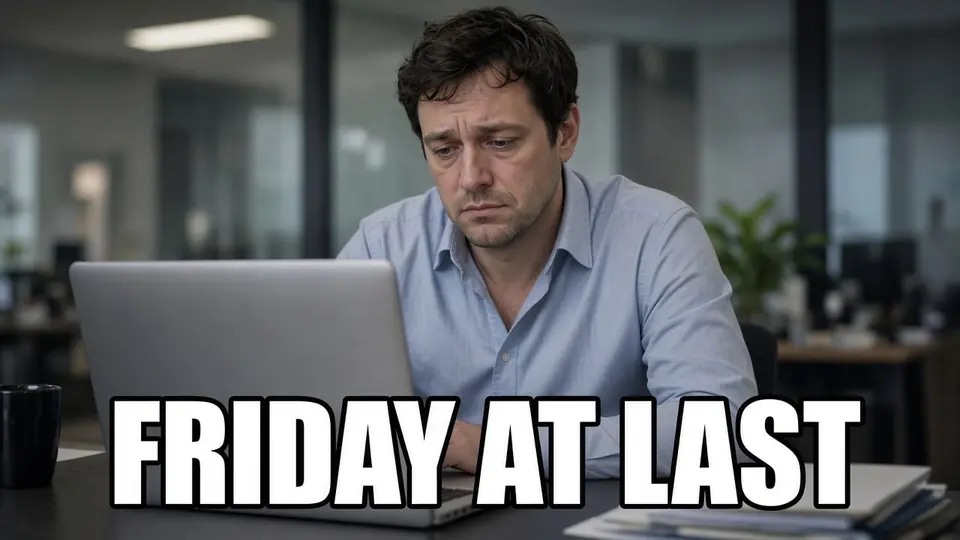
The raised-eyebrow micro-expression on the character's face is pure gold, but that classic white Impact font with a heavy black outline is already baked permanently into the pixels.
You want to localize the punchline for your friends or swap it out with an inside joke from your own community.
So you open the search bar and type in meme translator or meme translation tools.
What shows up in search results? A sea of meme generators.
Every single one of them urges you to pick a blank canvas template and type two lines from scratch.
Except you only have this finished, heavily circulated image in hand. You don't have the original blank template anywhere.
If all you need is to understand what it says, pulling out your phone to scan the screen gets the job done.
But if you want to drop a clean, ready-to-share static meme into your chat without looking sloppy, raw machine translation plastered over the top just won't cut it.
Translate Text in Image
Auto-translate baked-in words and repaint visuals with our free online image translator.
Don't Confuse Editing Finished Memes with Meme Generators
Many people reach for the wrong tool right from the start.
A meme generator is a creation tool designed for blank canvases.
What we usually have, though, is a screenshot of a finished meme.
The caption isn't sitting on a neat text layer floating above the artwork—it has melted into the character's hair and the noisy background colors.
You don't need to generate a brand-new meme from scratch. You need in-place text replacement on an existing image.
The Mistake I Made: Why Solid Patch Overlays Ruin the Joke
Before I worked out a clean workflow, the dumbest mistake I made was taking lazy shortcuts.
I would grab a screenshot, slap a solid color rectangle or a semi-transparent banner over the old text, and type the new words right on top.
Once I shared it, the entire joke felt dead.
The magic of a meme lives in the tiny details: the twitch of an eyebrow, a subtle glance, and tight visual framing.
An awkward patch cuts right through the composition and can easily block essential facial expressions.
Humor grows out of the image details, not out of floating text patches.
I eventually realized that the only decent fix is to cleanly erase the old caption, inpaint the background texture underneath, and embed the new copy right back in its original place.
4 Practical Steps to Edit Baked-In Meme Captions
Here is my standard four-step workflow for handling finished memes:
Step 1: Upload Your Static Image Asset
This is where you prep your source material.
Save the meme you want to tweak as a static image and click "Upload" on the interface.
It currently supports static PNG, JPG, or WebP files.
This isn't a live camera scanner, nor is it a right-click browser extension for hovering over web pages. It is built strictly for handling local static files.
As a quick reminder: only edit memes you have the right to modify or create, and keep clear of any sensitive documents or official credentials.
Working directly with a finished static image saves you the hassle of hunting down an elusive blank template.
Step 2: Get Suggestions and Refine the Joke Manually
This step combines machine assistance with your own comedic judgment.
Once you upload the image, the system uses OCR to detect every line of text baked into the graphic.
As a guest user, you can view one machine-generated translation suggestion (Suggest) per image for free.
If you want to translate the embedded caption into another language, using Translate Text in Image to check the suggestions is an effortless starting point.
That said, I strongly advise against blindly copying the machine translation.
A meme's humor hinges entirely on tone, puns, wordplay, and local cultural references. A literal word-for-word translation often turns a sharp joke into something stiff or completely nonsensical.
On top of that, if the original image features vertical text, unusual decorative fonts, or heavy compression blur, the OCR might produce slight recognition errors.
Take this opportunity to step in, review the copy, and rewrite stiff phrases into natural, witty lines so the punchline actually lands.
Step 3: Lock Untouched Lines and Fine-Tune Your Copy
This stage is all about swapping copy while protecting elements you want to keep.
Inside the Meme Text Editor interface, replace the detected text line by line with your polished joke.
At the same time, spot any elements in the original image that should remain untouched.
The key mechanism here works line by line, not like Photoshop layers.
For instance, if there's an author attribution in the corner, a specific brand watermark, or a signature logo you want to preserve, simply click "Lock" next to that line.
Locked lines will be preserved completely in the final render. The system skips them and only performs in-place erasure on the specific lines you modified.
This preserves copyright notices and background nuances without messing up the rest of the composition.
Step 4: Spend Credits to Generate with In-Place Styling
This is the final phase of wiping old letters and embedding the new text.
Once you double-check your text and ensure every untouched line is locked, click "Generate."
Account credits are only deducted when you click Generate. You get initial trial credits upon logging in, but this is not an unlimited free tool, nor does it offer unlimited generations without an account.
Classic memes most frequently rely on white Impact letters bordered by a thick black stroke.
When you trigger generation, the system removes the old letters, inpaints the underlying graphic, and does its best to match the original weight, black outline, and spatial placement.
To be completely candid: this is an algorithmic best-effort match, not a lossless vector reconstruction, and there's no guarantee it will reproduce the exact same font typeface.
Even so, the new wording sits naturally in the original spot without distracting color blocks, giving you a polished image ready to drop right into the chat.
The Bottom Line
At the end of the day, customizing memes is a craft meant for fun.
Nobody wants to look at a genuinely funny picture ruined by an ugly, clumsy patch slapped over the punchline.
The next time you stumble upon a hilarious meme with its punchline baked into the pixels, and you want to adapt the joke or tweak the dialogue, give Edit Text in Images a try.
Sources
- Zhihu column: reading foreign meme captions already baked into the image
- Zhihu column: how 表情包, 梗图, and meme map across languages
- Zhihu column: using AI to translate text already printed on an image
- Public guide: overlays covering the joke vs placing the punchline back in place
- Google Translate Help: Translate text in images
- W3C Internationalization: vertical Chinese, Japanese, and Korean text