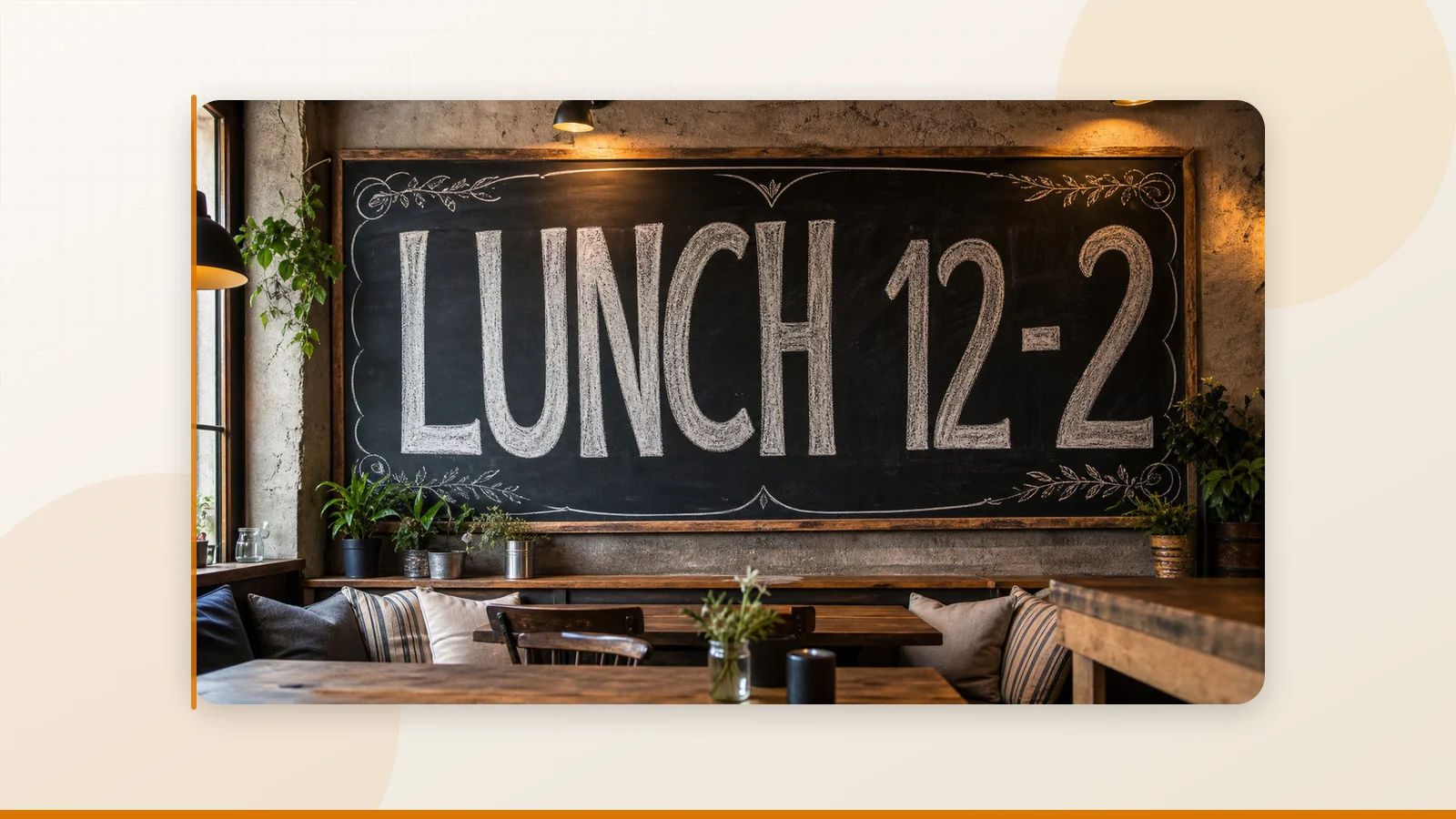
I spent three weeks testing every AI image editor I could find. Most of them disappointed me. A few genuinely surprised me. Here's my brutally honest top 5.
There's a moment in every freelancer's life when you realize you've been fighting your tools instead of using them. Mine came at 11 PM on a Tuesday, trying to change a single word on a client's product photo. I'd already burned through Photoshop (too slow for a one-word fix), Canva (text overlay, not replacement), and two "AI-powered" apps that shall remain nameless (both produced garbled nonsense).
That night, I decided to go nuclear. Over the next three weeks, I tested 15 AI image editing tools on real tasks — not lab conditions, not cherry-picked demos, but actual client work with deadlines. I scored each tool on output quality, speed, ease of use, and how often I had to redo the work manually anyway.
Here are the five that earned a permanent spot in my toolkit — and why.
How I Tested
Every tool went through the same gauntlet of real editing tasks:
- Text replacement — Change a price, date, or headline in a finished image while keeping the original font and background intact.
- Object removal — Cleanly erase an unwanted element (watermark, photobomber, stray logo) and reconstruct the background.
- Background swap — Replace the background of a product photo while preserving shadows and lighting.
- Batch consistency — Apply the same edit across 10 similar images and check for quality drift.
- Speed-to-download — Time from "I have an idea" to "the file is on my desktop."
Not every tool excelled at every task. The ranking reflects overall utility for someone who edits images frequently and values their time.
My Top 5 AI Image Editing Tools in 2026
1. ReWords AI — Best for Text Replacement in Images
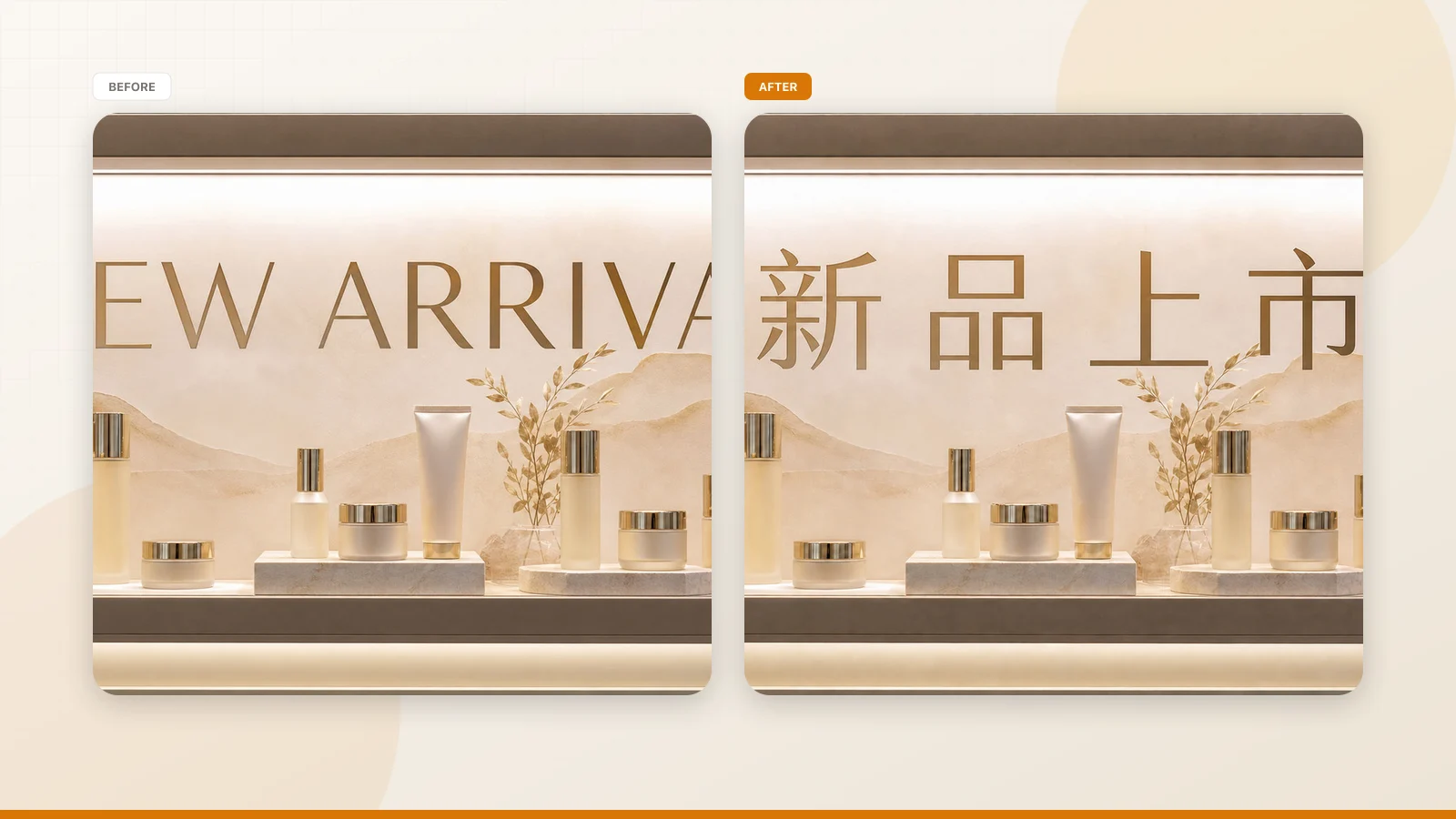
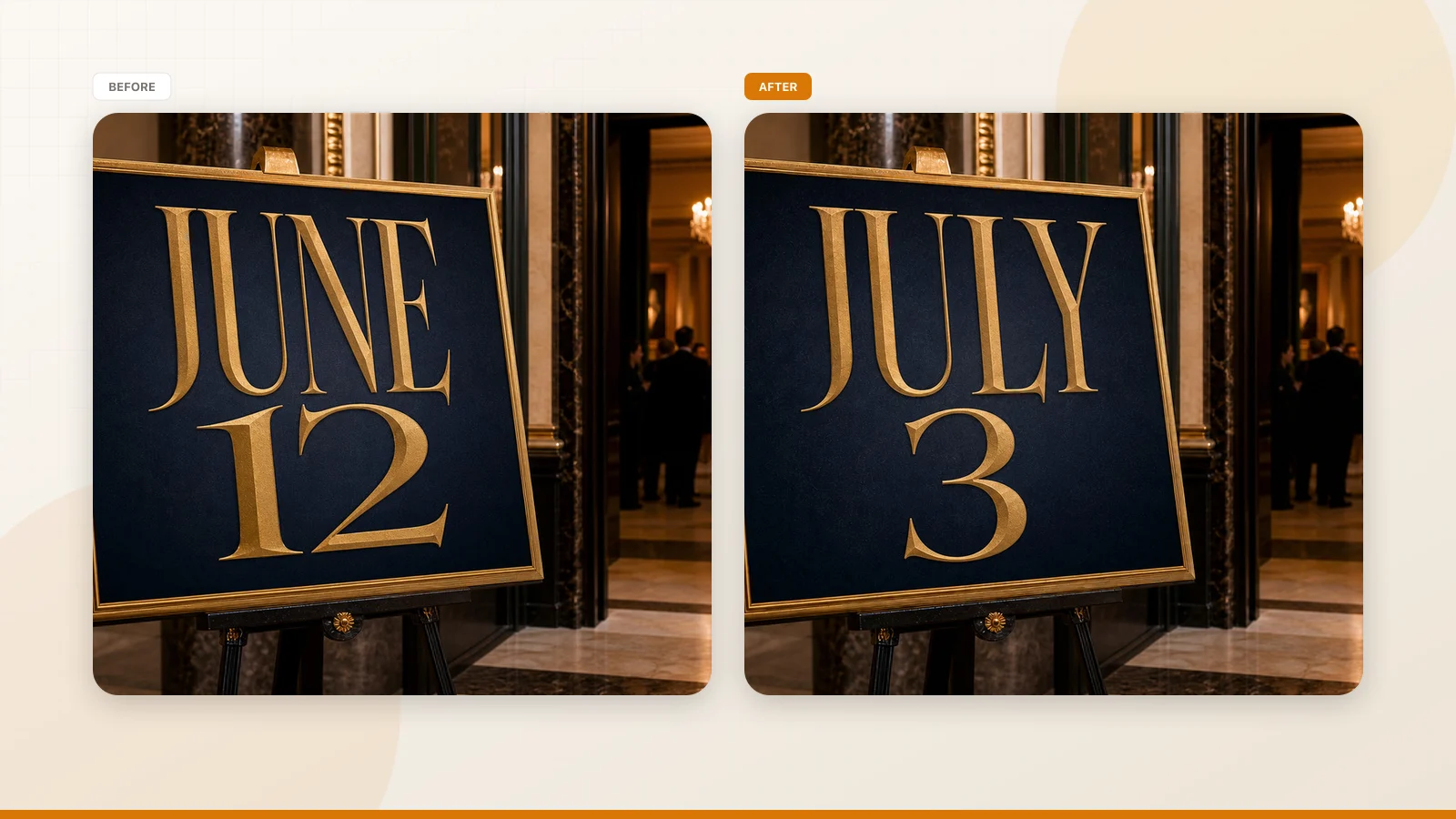
ReWords AI earned the top spot for one specific reason: it's the only tool I tested that reliably replaces existing text in images with seamless results. Every other tool either overlays new text on top, requires manual font matching, or butchers the background during the process.
The workflow is dead simple: upload your image, click on the text you want to change (or draw a box around it), type your replacement, and generate. The AI erases the original text, reconstructs the background, analyzes the font style, and renders new text that matches the original. Fifteen seconds, done.
What I used it for:
- Swapping prices on e-commerce product photos (changed "$14.50" to "$14.99" across 8 product images — took 3 minutes total)
- Fixing a typo in a client's event poster that had already been printed digitally
- Correcting garbled text in AI-generated images from Midjourney
- Updating dates on marketing banners without reopening the original design files
Why it's #1 on this list:
This tool does one thing and does it exceptionally well. The background reconstruction is consistently clean — on gradients, photographic textures, and solid colors. Font matching handles standard typefaces with impressive accuracy. And the entire process is browser-based with no installation required.
Where it falls short:
It's not a general-purpose image editor. You can't use it for object removal, background swaps, or creative composition. It's laser-focused on text replacement, which is both its greatest strength and its limitation. Also, highly stylized or hand-lettered fonts may need a manual review before publishing.
Pricing: Free trial edit for new users, then credit-based. Subscription plans unlock 2K/4K exports.
Best for: Marketers, e-commerce sellers, content creators, and anyone who regularly needs to change text in finished images.
2. Adobe Firefly (via Photoshop) — Best for Professional-Grade Editing
Adobe Firefly inside Photoshop remains the most technically powerful image editing setup available. Generative Fill produces the cleanest object removal and background reconstruction I've seen, and the integration with Adobe's broader creative ecosystem (Lightroom, Illustrator, Express) makes it the default choice for professionals.
What I used it for:
- Removing complex objects from product photos with multiple overlapping elements
- Background swaps on high-resolution print files (300+ DPI)
- Detailed retouching where pixel-level control matters
Why it made the list:
Nothing else matches Firefly's output quality on complex edits. When a client sends a 50MB TIFF file and says "remove the person in the background and make it look like they were never there," this is the only tool I trust to deliver professional-grade results.
Where it falls short:
The learning curve is steep if you're not already a Photoshop user. The subscription cost ($20.99/month minimum) is hard to justify for simple edits. And for text replacement specifically, it still requires manual work — font matching, background cloning, perspective adjustment — that ReWords AI handles automatically.
Pricing: $20.99/month Creative Cloud Photography Plan.
Best for: Professional designers, agencies, anyone already in the Adobe ecosystem who needs maximum control.
3. Canva — Best for Quick Social Content
Canva isn't a specialized image editor — it's a content creation platform with AI editing features built in. And for what most people actually need (quick social media graphics, template customization, team collaboration), it's genuinely excellent.
What I used it for:
- Quick text additions to social media templates
- Swapping backgrounds on simple graphics
- Team collaboration on marketing assets where multiple people need to review and edit
Why it made the list:
The workflow integration is unmatched. If your team already creates content in Canva, the AI editing features (Grab Text, Magic Eraser, Background Remover) eliminate the need to switch to a separate tool for minor corrections. The template library alone saves hours.
Where it falls short:
Canva's text editing is overlay-based — it adds new text on top rather than replacing existing text in images. On photographic backgrounds, the results often look layered rather than seamless. And for complex edits (object removal on busy backgrounds, perspective-aware text replacement), it simply doesn't compete with specialized tools.
Pricing: Free / $15/month Canva Pro.
Best for: Social media teams, content creators, anyone who needs fast template-based design with occasional AI edits.
4. Fotor — Best Free Option for Everyday Edits
Fotor surprised me. I expected a mediocre free tool and found something that punches well above its weight — especially for font matching and quick photo enhancements.
What I used it for:
- Quick photo enhancements (brightness, contrast, color correction)
- Text overlay with decent font matching
- Background removal for simple product photos
- Prompt-based editing ("change the background to a beach scene")
Why it made the list:
The font matching is the best I've found in any free-tier tool. The Auto Text Grab feature works well for making existing text areas editable, and the prompt-based editing mode reduces friction for straightforward updates. For a tool that costs nothing to start, the output quality is impressive.
Where it falls short:
Background reconstruction on complex photographic backgrounds is inconsistent — sometimes clean, sometimes with visible artifacts. Daily usage limits on the free plan can be frustrating during busy periods. And like Canva, it's better at adding new text than replacing existing text seamlessly.
Pricing: Free with daily limits / $8.99/month Fotor Pro.
Best for: Freelancers, small business owners, and anyone who needs a capable free editor for everyday image tasks.
5. Photoroom — Best for E-Commerce Product Photos
Photoroom is hyper-focused on one use case: making product photos look professional. And it nails it.
What I used it for:
- Background removal and replacement on product photos
- Creating consistent product listing images across an e-commerce catalog
- Quick shadow and lighting adjustments for flat-lay photos
Why it made the list:
For e-commerce specifically, Photoroom's results are remarkably clean. The AI understands product shapes, preserves natural shadows, and generates backgrounds that look like they came from a professional photo studio. The batch processing feature is a genuine time-saver for sellers with large catalogs.
Where it falls short:
It's not designed for text editing, creative composition, or general-purpose image manipulation. If your needs go beyond product photography, you'll outgrow it quickly. The free tier adds watermarks to exports.
Pricing: Free with watermarks / $12.99/month Pro.
Best for: E-commerce sellers, marketplace vendors, anyone who needs consistent product photos at scale.
The Tools That Didn't Make the Cut (And Why)
I tested 10 other tools that didn't crack my top 5. Here's a quick rundown of why:
- AI inpainting tools (Stable Diffusion, ComfyUI): Powerful but impractical for everyday edits. The setup time and learning curve kill the efficiency benefit unless you're running them daily.
- iOS-only apps: Some genuinely good text replacement tools exist, but only on iPhone. If you work on a desktop, they're not an option.
- Pixlr: Solid browser-based editor, but the AI features feel underbaked compared to Fotor at a similar price point.
- PicsArt: Mobile-first with a cluttered interface. Fine for casual social media edits, frustrating for anything precise.
- Remove.bg / Cutout Pro: Great at one thing (background removal) but too narrow to be a primary editing tool.
- Photopea: Impressive free Photoshop alternative, but the AI features are minimal compared to Firefly.
- Musely: Fast for simple corrections, but background reconstruction on complex images is unreliable.
- Refont AI: Good for high-volume text replacement in localization workflows, but too specialized for general use.
What I Learned After Testing 15 Tools
Three weeks and 15 tools later, here's what stuck with me:
No single tool does everything well
The "all-in-one AI editor" doesn't exist yet. Every tool has trade-offs. The smartest approach is to build a small toolkit: one tool for text replacement (ReWords AI), one for heavy-duty editing (Photoshop + Firefly), and one for quick everyday tasks (Fotor or Canva).
Specialization beats generalization
The tools that impressed me most were the ones focused on doing one thing exceptionally well. ReWords AI for text replacement. Photoroom for product photos. Remove.bg for background removal. The "we do everything" tools usually do everything at a C+ level.
Speed is a feature
In freelancing and content production, time is the scarcest resource. A tool that delivers "pretty good" results in 15 seconds often beats a tool that delivers "perfect" results in 15 minutes. The exception is high-stakes work (print, brand campaigns, client-facing hero images) where quality is non-negotiable.
Free tiers are getting better — but they're still limited
Every tool on this list has some form of free access. But for professional use, you'll hit limits fast — daily caps, watermarks, resolution restrictions, feature locks. Budget for at least one paid tool in your stack.
My Recommended Toolkit
If I had to start from scratch tomorrow with a limited budget, here's exactly what I'd set up:
| Need | Tool | Cost |
|---|---|---|
| Text replacement in images | ReWords AI | Free trial, then credits |
| Heavy-duty editing & retouching | Adobe Photoshop + Firefly | $20.99/month |
| Quick social content & templates | Canva | Free or $15/month |
| Everyday photo edits | Fotor | Free or $8.99/month |
| Product photos at scale | Photoroom | Free or $12.99/month |
Total monthly cost for the paid versions: roughly $58/month. For a freelancer or small team doing regular image work, that's a bargain compared to the hours saved.
The Bottom Line
After testing 15 AI image editing tools across three weeks of real client work, the landscape is clear: no single tool does everything, but a few do specific things exceptionally well. For text replacement in images — the task that started this whole journey — ReWords AI remains the most reliable option I've found. For everything else, the tools above cover the full spectrum. Build your stack, stop fighting your tools, and get back to the work that actually matters.