Last updated: July 2026
In digital marketing and content production, visual assets drive everything. But there's one problem that consistently derails workflows: the need to edit text in image files. Translating a sign in a product photo, swapping a price on a promotional banner, fixing a typo baked into a flattened JPEG — these tasks have always been painful.
The old way meant firing up Adobe Photoshop, wrestling with clone stamps and perspective warps, and spending 30 minutes hunting for a font you'd never quite match. AI has changed that equation entirely.
In this guide, I'll show you how to replace and modify text inside images using ReWords AI, a browser-based tool purpose-built for this exact job. We'll cover why it works, how the technology handles the hard parts automatically, and the real-world scenarios where it saves the most time.
Edit Text in Image
Edit text in finished images with our free online image text editor.
Why Manual Text Replacement Is So Painful
Before diving into the AI solution, it's worth understanding why "just change the text" has always been a deceptively complex request.
When a designer agrees to swap text in a flattened image, they're actually executing a chain of difficult tasks:
- Background Reconstruction — The original text has to be erased, which means rebuilding whatever sat behind it: textures, gradients, patterns, or photographic detail.
- Font Identification — Finding an exact match for the font in a rasterized image is often impossible. Designers typically settle for something "close enough" and hope nobody notices.
- Perspective and Distortion — Text in real-world photos is rarely flat. It curves around bottles, angles away on signage, or sits on crumpled surfaces. Replicating that 3D geometry by hand is tedious and error-prone.
- Lighting and Texture Matching — New text must blend with the grain, noise, shadows, and ambient light of the original photo to look convincing.
For anyone without a design background, this barrier is effectively insurmountable. That's the gap ReWords AI was built to close.
What Is ReWords AI?
ReWords AI is a browser-based tool designed to edit text in image files without requiring any design skills, installed software, or source files. It handles the entire pipeline — text detection, background erasure, font analysis, and text generation — in a streamlined, click-driven interface.
How It Differs from Traditional Editors
The core difference is philosophical. Tools like Photoshop give you a blank canvas and a hundred options. ReWords AI gives you one focused task: select the text you want to change, type the replacement, and let the AI handle everything else.
There are no layers to manage, no masks to paint, no font libraries to browse. The system analyzes the surrounding pixels to understand context, lighting, and style, then generates replacement text that blends into the original image as naturally as possible.
Step-by-Step: How to Edit Text in Images with ReWords AI
The workflow is designed to be fast. Here's how it works in practice.
Step 1: Upload Your Image
Open rewordsai.app in any browser — desktop or mobile. Drag and drop your image into the workspace. The tool supports PNG, JPG, and WebP formats and handles high-resolution files while preserving output quality.
Step 2: Select the Text to Change
ReWords AI automatically scans the image and detects text regions. You have two options:
- Click on detected text to select it instantly.
- Draw a selection box around any text the auto-detection missed.
This dual approach handles everything from clean UI screenshots to busy street photography. You control exactly which text gets modified — everything else stays untouched.
Step 3: Enter Your Replacement
Type the new text into the input field. The tool accepts any language and any length. Common examples:
- Change "Summer Sale" to "Winter Clearance"
- Update "$14.50" to "$14.99"
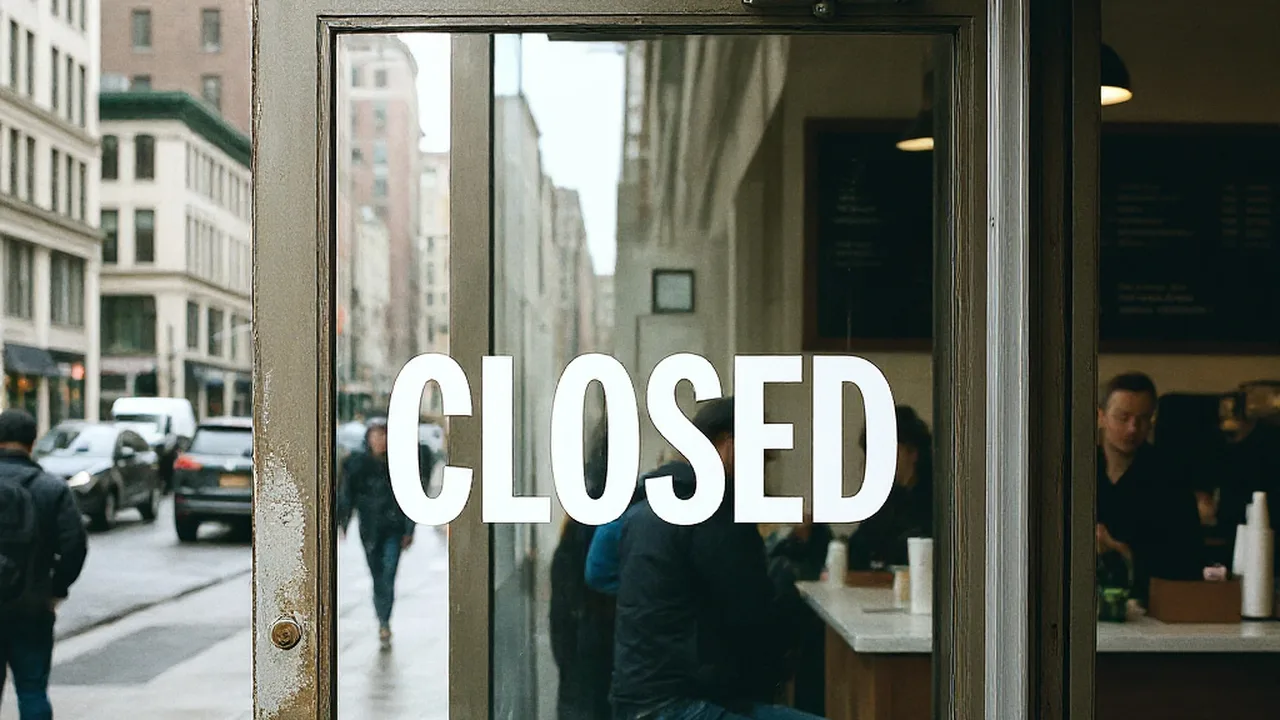
- Replace "OPENING SOON" with "NOW OPEN"
- Translate English labels to Chinese, French, Japanese, or any other language
You can edit multiple text regions in a single image — one credit per image regardless of how many changes you make.
Step 4: Generate and Review
Click the generate button. Processing typically takes 15 to 30 seconds. During this time, the AI is:
- Erasing the original text pixels
- Reconstructing the background behind them
- Analyzing the original font's weight, color, style, and spacing
- Rendering new text that matches the analyzed style
- Compositing everything into a seamless final image
Step 5: Download the Result
Review the output. If it looks right, download it immediately — the file is ready to use in campaigns, listings, or presentations. If something needs adjusting, tweak the replacement text and regenerate.
New users get a free edit after signing in — no credit card required. It's the fastest way to judge whether the tool fits your workflow.
Why This Technology Changes the Game
The ability to edit text in image files this quickly has practical implications across several industries.
1. Marketing Localization at Scale
International brands constantly need to adapt creative assets for different markets. A banner designed for the US campaign needs to be translated for France, Japan, or Brazil. With ReWords AI, a marketer uploads the master creative and replaces the text with the local language version. The tool preserves the original visual style, so brand consistency holds across regions — no source files, no designer handoff, no delay.
2. E-Commerce Price and Label Updates
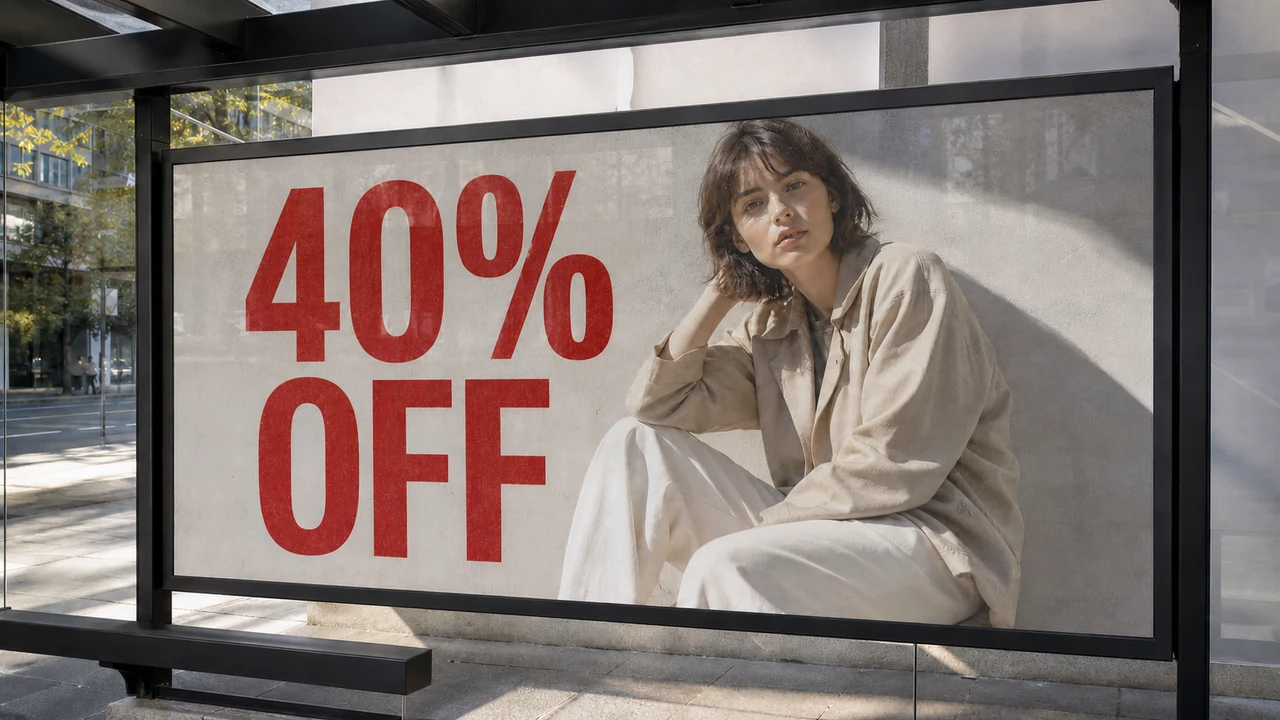
Online stores change prices and promotions constantly. Instead of scheduling a new photoshoot or digging through archives for the original design file, store managers upload the existing banner and update "50% Off" to "70% Off" in seconds. Product labels, packaging text, and promotional graphics all follow the same one-minute workflow.
3. Screenshot and UI Corrections
Product marketers and developers frequently need to fix typos, update numbers, or correct labels in screenshots. Re-shooting the screen means re-navigating the entire UI flow. With ReWords AI, you upload the screenshot, select the error, and fix it — no recapture needed.
4. AI-Generated Image Cleanup
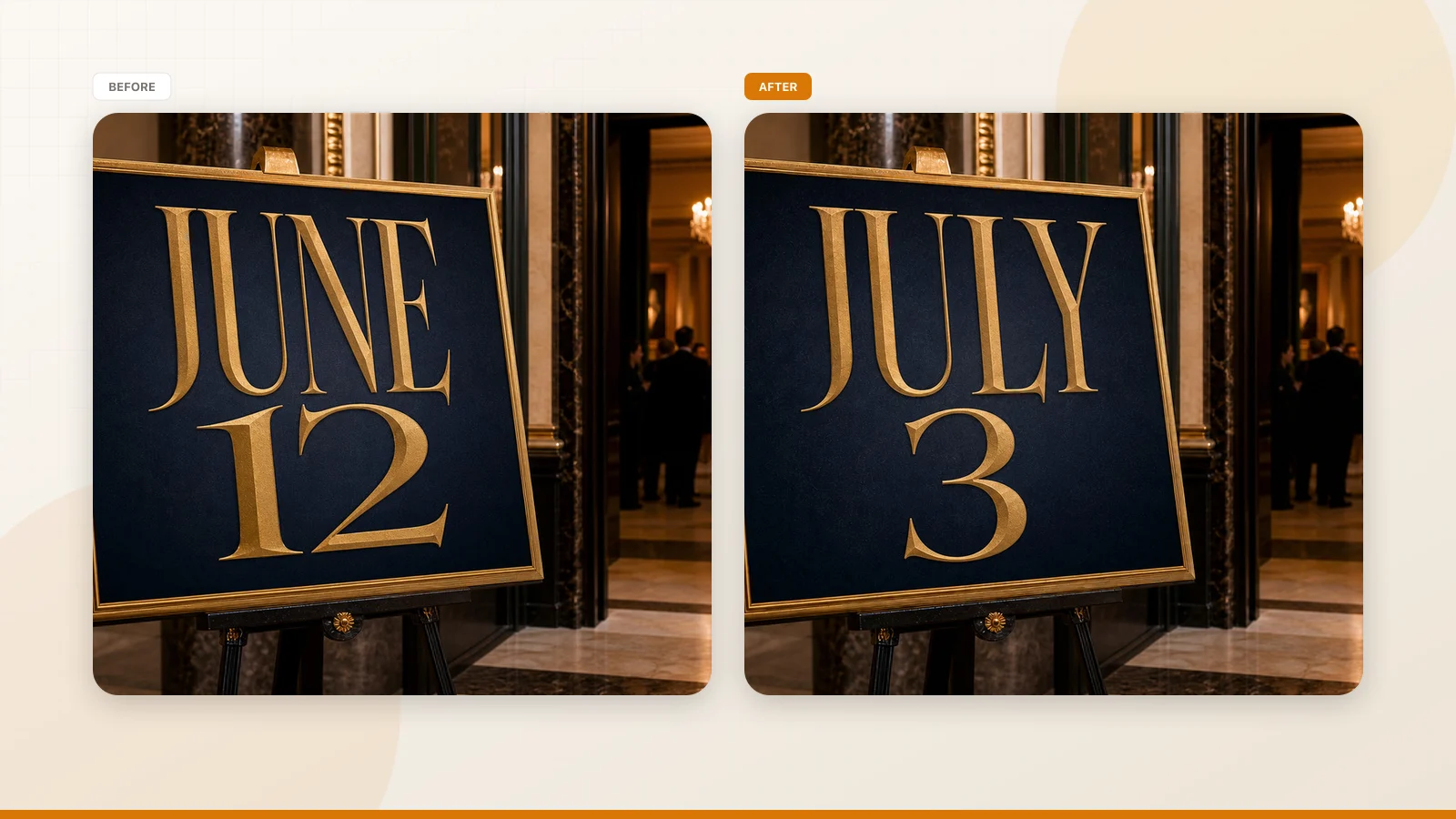
AI image generators like Midjourney and DALL-E produce stunning visuals, but their text rendering is notoriously unreliable. Letters get garbled, words misspell, and entire phrases become unreadable. ReWords AI lets you upload the AI-generated image, select the broken text, and replace it with correctly spelled content — turning an unusable generation into a publishable asset.
5. Content Remediation
Sometimes a great photo is compromised by unwanted text — a brand name on clothing that needs clearance, a street sign with sensitive information, or a watermark that's no longer relevant. The tool allows seamless alteration, replacing the offending text with contextually appropriate content or effectively removing it by blending it into the background.
How the AI Handles the Hard Parts
You don't need to understand the underlying technology to use ReWords AI, but it helps to know what's happening behind the scenes — especially when evaluating output quality.
Texture Awareness
If your text sits on a rough brick wall, the AI ensures the replacement text looks painted on brick, following the grout lines and surface irregularities. On a smooth gradient, the new text blends seamlessly into the color transition. This isn't simple text overlay — it's context-aware rendering.
Lighting Consistency
The system detects the dominant light source in the image and adjusts the replacement text accordingly. If light comes from the upper left, shadows and highlights on the new text will match that direction. This attention to photorealistic detail is what separates AI-generated edits from obvious manual patches.
Font Style Matching
Perhaps the most valuable capability: you never need to identify the original font. The AI analyzes the glyph shapes, weight, and spacing of the existing text and generates new characters that fit the same visual family. Whether the original was a bold sans-serif, an elegant script, or hand-painted lettering, the output aims to match that style as closely as the image allows.
No Design Skills Required
The biggest advantage of using ReWords AI to edit text in image files is the complete removal of the skill barrier:
- No Photoshop knowledge needed — no layers, blending modes, or clone stamps.
- No font library required — the AI handles font matching automatically.
- No design theory necessary — composition, balance, and color harmony are managed by the system.
This puts professional-quality image editing within reach of social media managers, small business owners, e-commerce sellers, content creators, and anyone else who needs to modify visual assets without waiting on a design team.
Pricing and Getting Started
ReWords AI operates on a credit-based model. Each image edit costs one credit, regardless of how many text regions you modify. New users receive a free trial edit after signing in — no payment information required.
For higher volume needs, credit packs and subscription plans are available. Subscription users also unlock 2K and 4K resolution exports for print-quality output.
Developers interested in integrating text replacement into their own applications can access the API (currently in beta) by contacting support@rewordsai.app.
Ready to try it?
Visit rewordsai.app, sign in, upload an image, and make your first edit. The entire process takes under a minute — no software installation, no tutorials, no font hunting. Your workflow will never be the same.