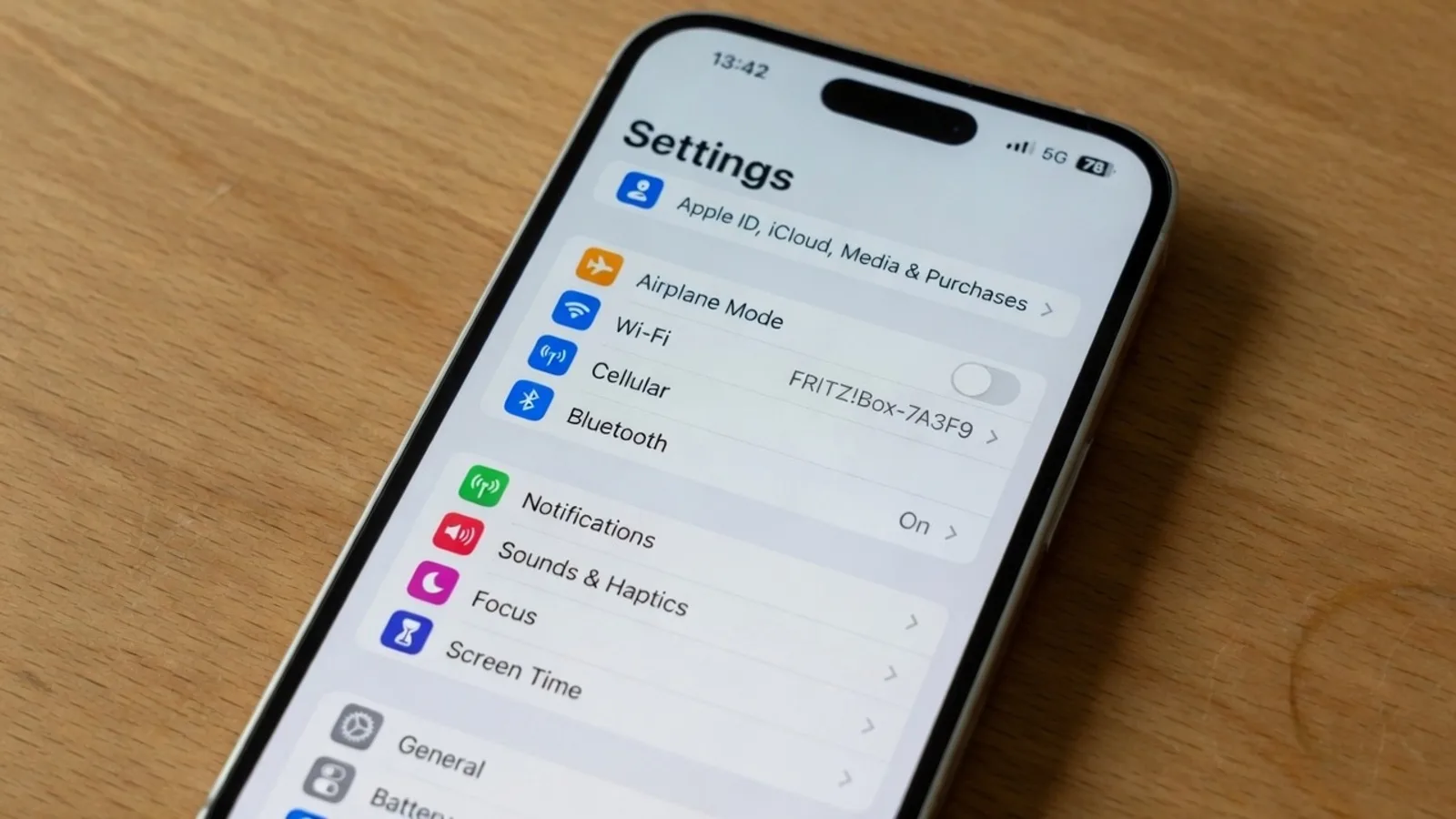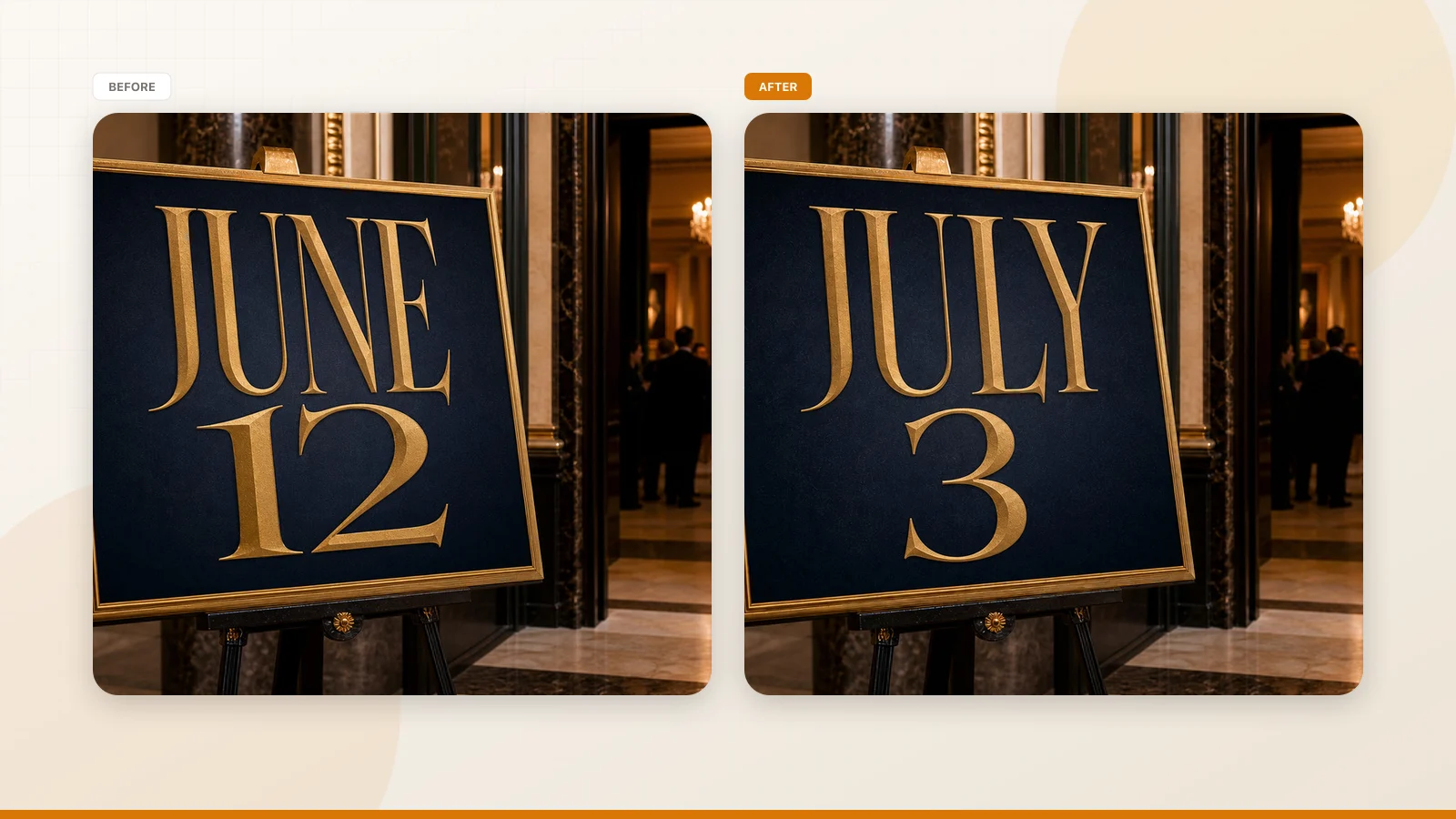
You make product screenshots, App Store images, tutorial graphics, A/B test variants—and every time, you need to change a few words. A button label. A price tag. A status badge from "Coming Soon" to "Limited Offer." Open Photoshop, select, type, match the font, align, merge, export. Five minutes per image. You have thirty of them.
Here's the good news: 90% of screenshot text edits don't need Photoshop at all.
Screenshot UI text is fundamentally different from poster or photo text. It sits on simple backgrounds—solid-color buttons, light card surfaces, uniform nav bars—and uses system default fonts. These traits mean a tool built specifically for "select text → replace → match font and style" is dramatically faster than a general-purpose image editor.
This article tells you when to use AI for instant screenshot text edits—and when it's actually worth opening the professional tools.
Edit Text in Screenshot
Fix UI labels, numbers, and dates with our free online screenshot text editor.
What You Need to Understand First: Screenshot Text Is "Baked" Into Pixels
Screenshot text and text you type in a design tool are not the same thing.
When you capture a screen, the system has already run the text through a full pipeline—layout engine → font rendering → anti-aliasing → subpixel alignment—and baked it into pixels. The same text captured on different operating systems, different browsers, or different scale factors will show subtle differences. This is why "just paste the new text on top" often looks wrong.
But flip the perspective: because screenshot text is already baked, editing it only requires two things—clear the old pixels, place the new ones. Unlike poster design, screenshots rarely have complex textured backgrounds, handwritten fonts, or perspective distortion. Most UI screenshot text edits are single-line text replacements on solid or low-texture backgrounds.
These characteristics mean: for 90% of screenshot editing needs, you don't need Photoshop's layer system, Figma's component library, or an OCR positioning engine. You just need a tool that recognizes the original text, matches the font style, and replaces it.
Classify Your Edit First, Then Choose Your Tool
| What You're Editing | Example | Complexity | Traditional Way | Fastest Way |
|---|---|---|---|---|
| Button text | "Buy Now" → "Flash Sale" | 🟢 Low | Photoshop 3 min | ReWords AI 30 sec |
| Labels / Pills / Badges | "New" → "Best Seller" | 🟢 Low | Photoshop 3 min | ReWords AI 30 sec |
| Prices / Numbers | "$29" → "$19.90" | 🟢 Low | Photoshop 3 min | ReWords AI 30 sec |
| Status text | "Processing" → "Shipped" | 🟢 Low | Photoshop 3 min | ReWords AI 30 sec |
| List items / Menu items | Nav titles, tab names | 🟢 Low | Photoshop 2 min | ReWords AI 20 sec |
| Text on frosted glass / blur backgrounds | iOS notification center, control center | 🟡 Medium | Photoshop precision 10 min | Photoshop / Figma |
| Text with complex shadows / glows | Dark mode card titles | 🟡 Medium | Photoshop precision 10 min | Photoshop / Figma |
| Multi-language batch localization | 20 screenshots × 8 languages | 🔴 High | Source-code re-capture or scripted pipeline | Source-code re-capture |
Notice the pattern? The first five rows cover the vast majority of daily edits, and they share common traits—solid or simple gradient backgrounds, single-line text, system default fonts. Using Photoshop for these is like using an excavator to repot a houseplant. It works, but it's overkill.
ReWords AI: Purpose-Built for Screenshot Text Replacement
ReWords AI does one thing, and stays focused: upload a screenshot → select the text region → type new text → AI auto-matches the original font and style → download. Four steps. No layers, no font picker, no export settings.
It doesn't compete with Photoshop or Figma—it divides the work:
| ReWords AI | Photoshop | Figma | |
|---|---|---|---|
| Best for | Simple UI text replacement | Complex background retouching, layer management | Component-based reconstruction, batch variants |
| Speed | 30 seconds | 3–10 minutes | 5–20 minutes (including component setup) |
| Learning curve | Zero | High | Medium-high |
| Font matching | Automatic | Manual identification + installation | Manual setup |
| Pricing | Free trial, from $5/month | Subscription | Free + subscription |
Three Screenshot Editing Scenarios Where ReWords AI Shines
Scenario 1: App Store Screenshot A/B Testing
You're about to launch your app. You need three copy variants for the store screenshots—"AI-Powered Note Taking" vs. "Your Second Brain" vs. "Capture Any Thought in 3 Seconds." Five screenshots per set. The traditional way: open Photoshop → edit text → export → repeat 15 times.
With ReWords AI: open the first screenshot, select the headline region, type Variant A, download. Same image, select the same region, type Variant B, download. Thirty seconds per variant, per image. Fifteen variants, under ten minutes total.
Scenario 2: SaaS Dashboard Screenshot Updates
Your product shipped an update. The button changed from "Export Report" to "Download Report." The nav item changed from "Data Overview" to "Analytics." Your help center, sales materials, and customer onboarding docs all have screenshots that need updating—probably a dozen or more.
With ReWords AI: open the old screenshot → select the button text → type the new label → download. A dozen images, five minutes. No need to re-capture screenshots (especially the ones showing specific data states that are a pain to reproduce).
Scenario 3: Pricing Page Screenshot Batch Updates
Prices changed. Plan names changed. Promo badges changed. Every screenshot that shows the old pricing needs updating—across your website, store listings, ad creatives, and partner materials. Different folders, different sizes, different formats.
With ReWords AI: find one, fix one. Don't worry about where the original was made, whether you have the source file, or what font was used. The AI handles style matching automatically. Twenty pricing-related screenshots, fully updated in half an hour.
When Should You Use Professional Tools?
About 10% of screenshot edits are better handled with professional tools. This isn't a ReWords AI limitation—it's about the inherent complexity of the screenshot itself:
Frosted glass / blur backgrounds: iOS notification center, control center, neumorphic UI styles—the text sits on a translucent blur layer that reveals content behind it. Once you erase the old text, perfectly reconstructing that blur layer is extremely difficult. Use Photoshop's Remove Tool or manual Clone/Heal.
Complex shadows and glow effects: White text with system drop shadows in dark mode, Material Design elevation shadows—these effects are composited by the system rendering engine and are hard for any AI tool to replicate automatically. Rebuild the text layer in Figma and manually adjust the shadow parameters.
Batch multi-language localization: 60 screenshots × 12 languages = 720 images. At this scale, the right approach is going back to source code and re-capturing. Apple Xcode can export localized screenshots directly from UI tests. Android has pseudolocalization tools to catch truncation and layout issues before you even start. Pixel editing is a last resort, not the first choice.
The rule of thumb: the simpler the background, the fewer the changes, the more often you need to do it—the more ReWords AI pays off. For the one image that needs 30 minutes of precision work, use the professional tools.
Three Screenshot Editing Tips (Regardless of Your Tool)
Tip 1: Clear the background first, then place the new text. Don't erase and type simultaneously. Fully restore the old text area to a clean background first (solid color → fill; simple gradient → sample both ends and draw the gradient), then place the new text on top. A single-pixel anti-aliasing remnant from the old text is most visible at 200% zoom.
Tip 2: Place new text on integer pixel coordinates. Half-pixel positions (e.g., x=120.5) make text edges look soft. Regardless of your tool, keep new text x and y coordinates on whole integers.
Tip 3: Don't guess fonts—work backward from system defaults. iOS screenshots → check SF Pro / SF Display first. Android screenshots → check Roboto / Google Sans (Material 3). Windows screenshots → check Segoe UI Variable. Web screenshots → inspect the computed font-family in browser DevTools. Image-based font search tools work well for posters but poorly for UI screenshots—UI fonts are usually system built-ins that search engines may not index.
The Bottom Line
Screenshot text editing is simpler than you think 90% of the time—solid backgrounds, single-line text, system fonts. That 90% can be handled by an AI text replacement tool in seconds. No Photoshop needed.
The remaining 10% of complex cases—frosted glass backgrounds, layered shadows, batch multi-language localization—are when professional tools earn their place. Knowing which is which keeps screenshot editing from slowing you down.
Try ReWords AI—free trial after sign-in. Grab a screenshot you recently edited (button text, price tag, status badge—anything works), upload it, select the text, type the new copy, and see if the AI handles it in seconds. If it does, you can stop opening Photoshop for button labels, price tags, and status badges from now on.
System font information in this article is based on official human interface guidelines from Apple, Google, and Microsoft. Tool capabilities are based on publicly available product page descriptions. Verify font license terms for your platform before use.