If you run e-commerce operations, you know the real bottleneck before every campaign. It's not sourcing. It's not pricing. It's image editing.
Promo badges need updating. Cross-border packaging needs Chinese annotations. Old packaging versions need switching to the new ones. A few words on a photo—open Photoshop, select the text layer, adjust the font, tweak the shadow, merge layers, export. Twenty minutes gone. You have 50 SKUs. Do the math.
Here's the thing about these edits: they're already compliant. The problem isn't whether you can make them—it's how long they take. And being slow is its own kind of risk: campaigns go live with outdated images, version mismatches trigger customer complaints, cross-border detail pages sit without Chinese explanations for weeks.
This article solves one problem: how to use AI to take those safe, routine packaging-photo edits from 20 minutes down to 30 seconds. Along the way, we'll also cover the 20% of edits AI shouldn't touch—because knowing the boundaries makes you more confident using the tool.
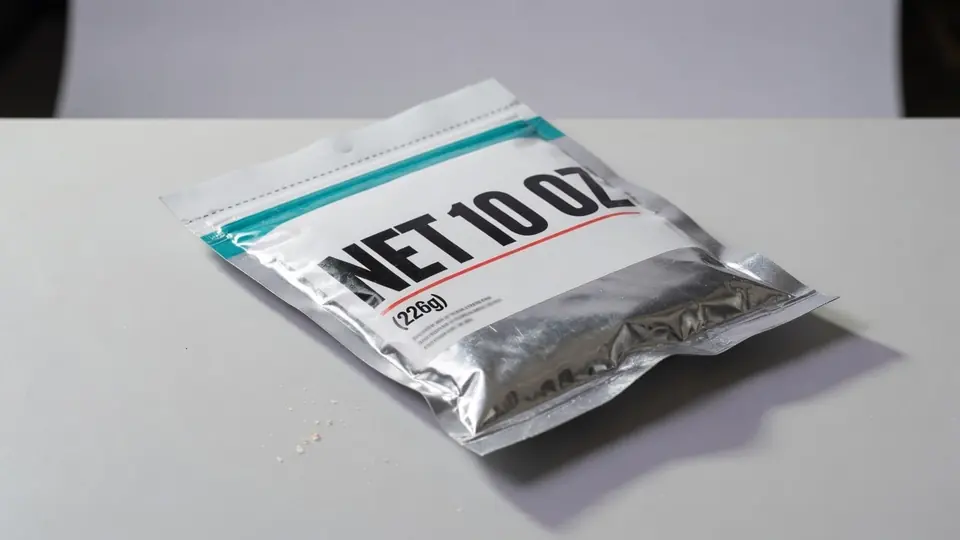
Packaging Text Editor
Update claims, volume labels, or piece counts on pouch and box mockups.
First, Get the Big Picture: 80% of Packaging Edits Are in the Safe Zone
Most day-to-day packaging photo edits for e-commerce aren't skating on thin ice. Break them down:
| What You Need to Do | Safe? | Traditional Approach | The Pain Point |
|---|---|---|---|
| Update promo badges/campaign text | ✅ Safe (if physical packaging is synced) | Photoshop: select → type → style → export | Repeat for every SKU. 50 SKUs is a nightmare. |
| Add Chinese annotations to cross-border packaging | ✅ Safe (annotation is safer than direct replacement) | Photoshop: new layer → type → layout → align | The copy already exists. The work is pure manual labor. |
| Switch old packaging version to new | ✅ Safe (if inventory matches) | Photoshop: open old → edit text → save as new | Every version update means doing it all over again. |
| Remove tracking codes/internal pricing | ✅ Safe | Photoshop: blur/select-delete | Simple, but painful at volume. |
| Brand copy localization | ✅ Safe (if brand-approved) | Photoshop: precision retouching → font matching → multiple review rounds | Font matching and review cycles eat the most time. |
| Amplify efficacy claims / alter ingredients / change certifications | ⚠️ Don't touch | — | This isn't an efficiency problem. It's a legal problem. |
See the pattern? The first five rows cover the vast majority of daily operations, and they're all legal and necessary work. The real issue isn't "can I do this" — it's "can I stop this from eating my entire afternoon."
How Slow Is the Traditional Way? Let's Do the Math
Say you're updating promo badges across 50 SKUs—changing "Summer Sale" to "Black Friday Deal." Standard Photoshop workflow:
- Open the PSD file (find the right SKU version) — 1 minute
- Select the text layer, edit the copy — 30 seconds
- Check font, size, color, alignment — 30 seconds
- Export PNG/JPG, name it, save to the right folder — 1 minute
- Repeat × 50
Three minutes per image. 50 images = 2.5 hours. And that's assuming you have the PSD source file, the fonts are installed, and nothing needs perspective distortion. The reality is often: you only have a flat exported JPG. No layers. No source file. No font information.
Now try it a different way: open ReWords AI, upload the JPG → select the text region → type "Black Friday Deal" → AI matches the original font and style → download. Thirty seconds per image. 50 images = 25 minutes. The two-plus hours you just saved is time you can spend on literally anything else.
How ReWords AI Speeds Up Compliant Edits
ReWords AI does one thing, and does it without the overhead: replace text in finished images while matching the original font and style as closely as possible. No layers. No font picker. No export settings. Four steps:
- Upload your image
- Select the text region you want to change
- Type the new text
- Download
It doesn't replace Photoshop's precision retouching capabilities. It doesn't replace your legal team's compliance review. What it replaces is the mechanical, repetitive part of compliant edits—opening software, selecting text, typing, adjusting styles, exporting. Those steps account for 90% of the time spent on safe edits, without requiring 90% of the skill.
Three E-Commerce Scenarios Where ReWords AI Shines
Scenario 1: Bulk Promo Badge Updates
Your detail pages have packaging photos for 30 products, each with a campaign badge in the bottom-right corner. Every time the promotion changes, all 30 badges need updating. Traditionally, you either manually edit 30 images or build a batch script—which you then discover doesn't work because the badges aren't in exactly the same position across every image.
With ReWords AI: select the badge text on each image, type the new promo copy, AI matches the original badge font and color. Thirty images, roughly 15 minutes. The iron rule remains: physical packaging must be synced too. That's true regardless of what tool you use.
Scenario 2: Chinese Annotations on Cross-Border Packaging
You're selling imported skincare. The packaging is entirely in English. You need to add Chinese product names and usage notes to your supplementary detail-page images—not replacing the original packaging text, just adding annotations alongside it.
The traditional Photoshop path: open → new layer → type → pick a font → adjust size → align → export. Five minutes per image. ReWords AI isn't designed for annotation layers specifically, but here's the practical workflow: use ReWords AI to rapidly prototype Chinese copy placement on the packaging, confirm the wording with your team in minutes instead of hours, then finalize. The speed gain is in the iteration—you can try three versions of the Chinese wording in the time it takes to export one Photoshop draft.
Scenario 3: Rapid Packaging Version Switching
Your brand updated the packaging design. The new version is manufactured and in the warehouse. You need to update every detail-page image that still shows the old packaging. With ReWords AI: upload the old packaging photo, select the text regions that changed, type the new copy, download. Twenty images, updated without a reshoot, without redoing the entire layout.
Know the Boundaries—So You Can Use AI With Confidence
About 20% of packaging text edits genuinely shouldn't go through an AI text replacer. Not because the tool is unsafe—because those edits demand human verification for reasons no AI tool can replace. Knowing these boundaries actually makes you more confident using the tool for everything else.
Fields to handle manually, regardless of tool:
| Field | Why Manual | The Right Approach |
|---|---|---|
| Efficacy claims (therapeutic, weight loss, anti-inflammatory, etc.) | A single word off can constitute false advertising | Use brand-approved formal copy; human verifies character-by-character |
| Statutory label content (ingredient lists, expiration dates, production dates) | Food and cosmetics regulations mandate strict accuracy | Copy directly from product registration/filing documents; human verifies |
| Certifications, awards, patent numbers | Numbers and identifiers must be character-perfect | Manual entry; don't rely on AI recognition |
| Origin, manufacturing address, executive standards | Same character-level accuracy requirement | Manual entry |
This isn't a ReWords AI limitation—it's true of any tool, including Photoshop. Statutory text demands human review regardless of whether an AI or a human typed it. The tool doesn't change the compliance responsibility.
But flip the perspective: how many of your daily packaging edits actually involve statutory labels? Most are marketing copy, promo language, brand identifiers, version information. All safe edits. All just slower than they need to be.
Platform Rules Aren't Roadblocks—They're the User Manual
E-commerce platform image rules all say the same thing: what the customer sees in the photo should match what they receive in the package. This has nothing to do with whether you used AI or Photoshop.
Take Taobao/Tmall's 2025 "Product Images Must Not Be Distorted" upgrade. People see "AI-generated image ban" and get nervous. But read the actual rule: it prohibits using AI to generate product images that differ materially from reality. "Differ from reality" is the operative phrase. If you used AI to update a promo badge, and the physical packaging has the updated badge too—there's no discrepancy. The rule targets lying, not which pen you used to write.
Same logic applies to JD.com's "description discrepancy" rules and Amazon's "images must accurately represent the product" requirement. Your defense isn't "don't use AI." It's "the image matches the product, regardless of what tool made it."
One sentence: platforms don't object to you editing images. They object to you editing an image into a different product. If what's in the photo matches what's in the box, nobody cares how you made the photo.
A Simple Team Workflow: Fast, Not Sloppy
If you're running an e-commerce operations team, add two lightweight safeguards when using AI for packaging edits:
Layer 1: Classify before you edit. Is this a safe-zone edit (promo text, version number, brand name, annotation) → go ahead. Is this a caution-zone edit (efficacy claims, ingredients, certifications, dates, statutory labels) → get brand/legal approval first, then proceed.
Layer 2: Save the trail. Keep the original and edited images, note what was changed and when. This isn't paranoia—it's so that if a customer ever files a "not as described" complaint, you can produce proof in under three minutes: "I changed the campaign badge. The physical badge matches. Here's the before-and-after with timestamps."
Two layers. Almost no extra time. And it gives you the peace of mind to use AI tools at full speed. Fast and sloppy are not the same thing.
The Bottom Line: Fast Isn't Dangerous. Slow Isn't Safe.
Four sentences to take with you:
One: 80% of e-commerce packaging photo edits are safe by nature. Updating promo text, adding annotations, switching approved versions—all legal, all necessary, all just routine work.
Two: The bottleneck on safe edits isn't compliance—it's speed. Three minutes per image in Photoshop. Thirty seconds with ReWords AI. Fifty SKUs, two-plus hours saved.
Three: The 20% of high-risk edits need human review regardless of what tool you use. That's not a special AI limitation. That's a compliance baseline. Knowing the boundary lets you use AI tools everywhere else without hesitation.
Four: Platforms care about "does the image match the product"—not "which tool made the image." If the photo and the physical item are consistent, your choice of tool is an efficiency decision, not a compliance one.
If you're running an e-commerce project, managing a batch of SKU packaging images, or just tired of losing half your weekend to Photoshop before every campaign—try ReWords AI once. Free trial after sign-in. Upload one image, select the text, type the new copy, and see if the AI can handle it in seconds. If it can, congratulations: you just got two hours of your weekend back.
Legal information in this article references Chinese regulations (Advertising Law, Consumer Rights Protection Law, Food Safety Law) and publicly available platform rules for sellers on Chinese marketplaces. For sellers operating in other jurisdictions, equivalent standards apply under the FTC Act (US), EU Unfair Commercial Practices Directive, and other applicable consumer protection laws. This does not constitute legal advice. Consult qualified counsel for specific compliance decisions.