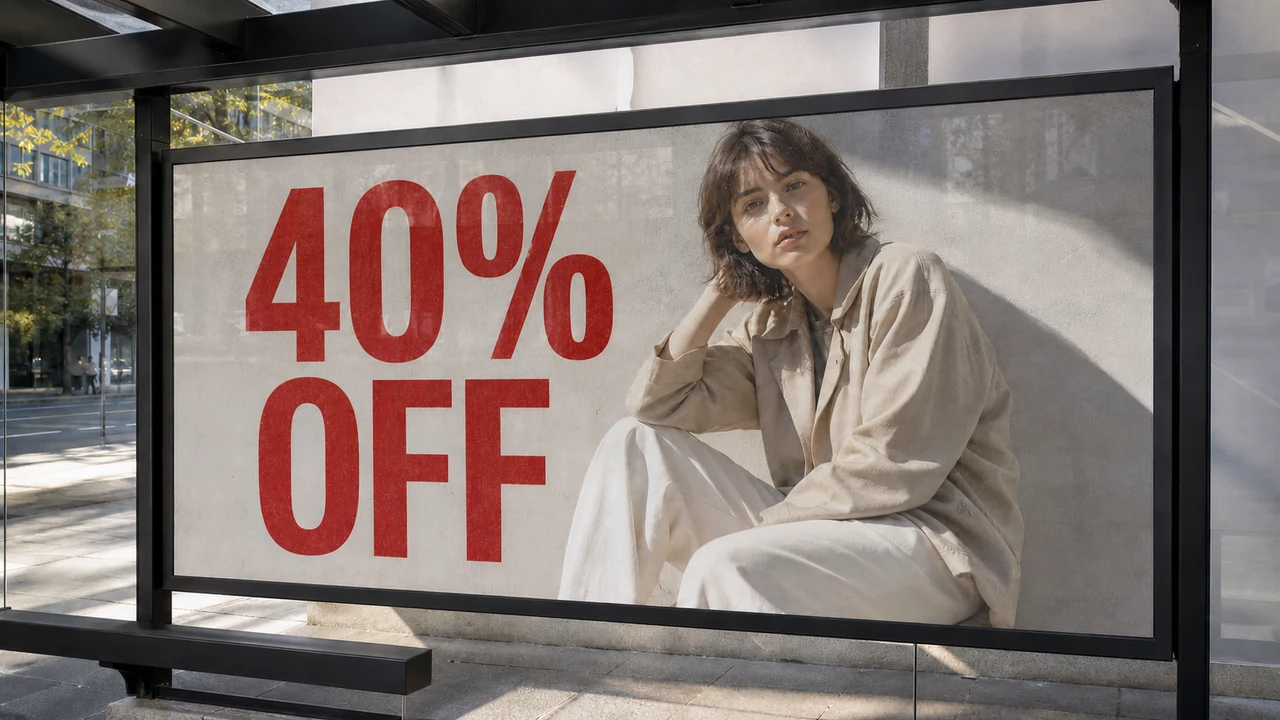
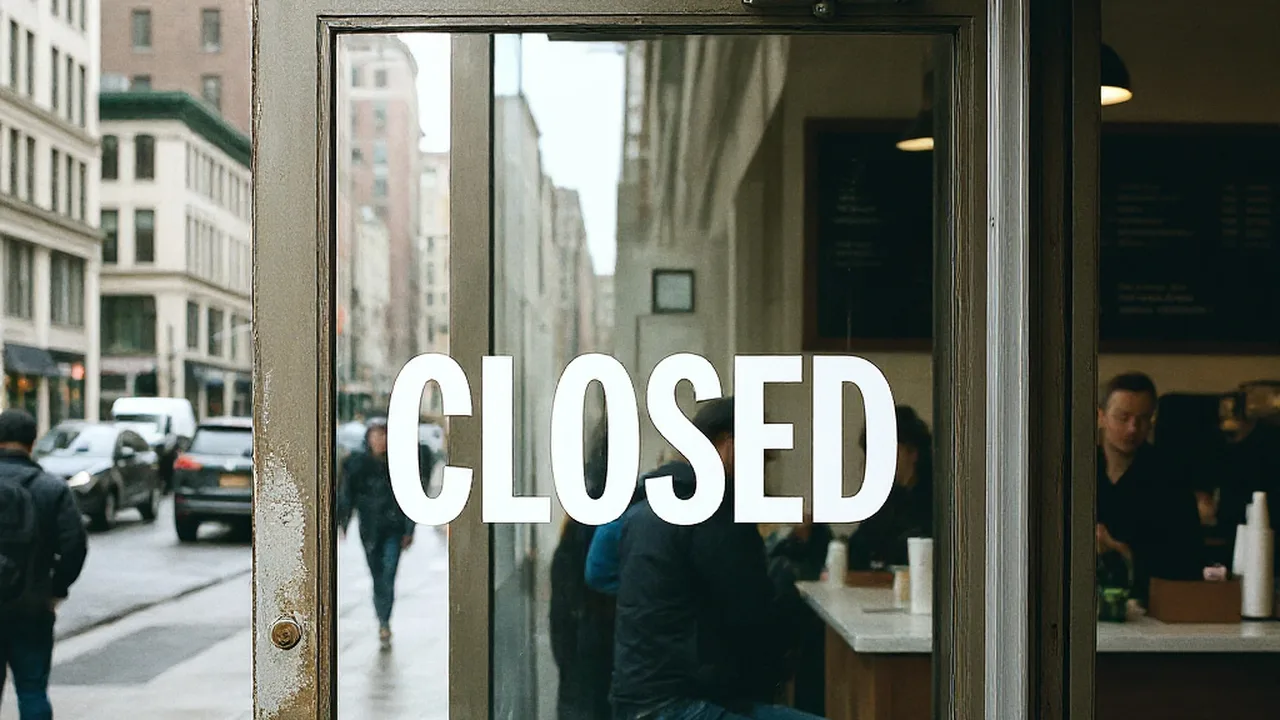
I had the launch email scheduled for 12:01 AM and the homepage hero banner loaded in Shopify. At 11:42 PM, I noticed the discount badge on the main graphic said 30% OFF instead of 40% OFF. The freelance designer who built the file was asleep in another time zone, and my local downloads folder held only a single flattened 1200x630 PNG. I opened a browser tab, searched for a free photo editor, and tried to patch the number with a clone stamp brush. Ten minutes later, I had a blurry grey smudge across a clean gradient and a mismatched block font that looked like a ransom note.
You do not need a full design suite when you are ten minutes away from a scheduled campaign. You need to know why standard browser photo tools fail on flat exports, what actually happens to letters once they turn into pixels, and how to swap the text cleanly without rebuilding the entire asset from scratch.
Edit Text in Image
Edit text in finished images with our free online image text editor.
Why does a general free photo editor fail when a deadline hits?
When you search for a free photo editor under time pressure, search engines give you lightweight canvas apps, browser-based drawing tools, and generic filter utilities. These tools work well when you want to crop a square headshot, adjust the brightness on a product photo, or add a red arrow to a screenshot. They fail on finished marketing banners because they treat every image as an unlayered grid of colored dots.
In a live vector design file, a text box remains distinct from the photography and backgrounds behind it. You click the box, backspace over the old number, and type the new one. The software recalculates the font geometry, applies the drop shadow, and preserves the clean background automatically. Once that design exports to a flat format like PNG, JPG, or WebP, those independent layers disappear. The letters merge permanently with the background textures, shadows, and gradients.
A standard free photo editor gives you two primitive ways to interact with that flattened text: paint over it or clone nearby pixels. Painting a solid rectangle over the number leaves a visible patch that looks amateur. The clone stamp tool requires you to sample adjacent pixels and paint them across the characters by hand. If your background is a clean solid white, you might get away with it. If your banner features a radial gradient, subtle film grain, or a product shadow, manual cloning creates noticeable banding and blurry edges.
After you finish painting away the old number in a basic editor, you still have to match the typography. Free browser tools offer a dozen generic system fonts. When your brand uses a custom geometric sans-serif with specific kerning and a subtle inner shadow, dropping Arial or Roboto on top sticks out immediately. At midnight, trying to manually tweak letter spacing and color hex codes in a generic tool turns a two-minute correction into a stressful half-hour scramble.
What actually happens to pixels when text gets baked into a pNG?
To understand why quick edits look sloppy, it helps to look at what image encoders do during export. When graphics software exports a design, it performs rasterization. The vector outlines of typography are converted into fixed pixels mapped to a coordinate grid, as outlined in Adobe's documentation on raster layers.
During this process, the software applies anti-aliasing along every curve and diagonal line. Anti-aliasing creates semi-transparent transition pixels between the edge of a letter and the background beneath it. If a black letter sits on a bright yellow background, the outer edge contains a one-pixel halo of dark yellow and orange tones. When you try to erase the letter using a magic wand or background eraser in a basic editor, those blended transition pixels remain behind as dirty fringes.
Flat formats also discard metadata about font families, weights, tracking, and optical sizing. Once a file saves as a standard WebP or PNG, as detailed in the MDN Web Docs image format guide, the file knows nothing about fonts. It only knows color values per pixel. When you open that file in a conventional photo editor, the software cannot tell where the letter ends and the background begins.
Consider a common ecommerce situation. A direct-to-consumer apparel store prepares a flash sale banner for a Friday midnight launch. The creative lead approves a hero banner showing a model wearing a jacket, with the text "SUMMER FINALE: 30% OFF AT CHECKOUT" stamped across the lower third. At 11:30 PM, the inventory manager informs the team that the discount must be 40% to clear warehouse stock. The person on duty has no access to the master Adobe Illustrator project or the team's shared typography library. Opening the flat PNG in a generic browser paint tool and erasing the "3" leaves a hole across the model's textured cotton sleeve. Attempting to redraw the cotton texture by hand is impossible in fifteen minutes, and placing a plain black box over the sleeve breaks the visual balance of the entire storefront.
How do you choose the right fix when the clock is ticking?
When you discover a mistake on a flat export right before a deadline, you have four distinct paths. Choosing the right path depends on how much time you have, whether you own the original source project, and how complex the background is behind the words.
| Method | Time Required | Background Quality on Gradients | Typography Match | Best Used For |
|---|---|---|---|---|
| Basic Free Photo Editor (Clone Brush) | 15, 30 minutes | Poor (leaves smudges and visible seam lines) | Manual selection from basic system fonts | Plain white or solid black backgrounds with zero texture |
| Full Design Rebuild (Canva / Figma) | 20, 45 minutes | Clean (new vector background created) | Close match if exact brand fonts are uploaded | Major layout changes or when you have spare hours |
| Dedicated Graphic Designer Re-export | 2, 12 hours | Perfect (native layers preserved) | Perfect native vector fonts | Critical print runs or major brand campaigns with loose deadlines |
| Specialized AI Text Replacement Tool | 1, 3 minutes | High (AI reconstructs the texture behind the text) | Best-effort automated font, color, and size matching | Urgent digital deadline fixes on flattened PNG, JPG, or WebP files |
Rebuilding the entire graphic from scratch in Canva or Figma is a common reflex. According to Canva's export guides, rebuilding requires locating the uncompressed background photograph, matching the exact canvas dimensions, recreating color overlays, retyping every heading, and aligning all secondary elements. If you have forty minutes, rebuilding gives you total control. If you have five minutes before an automated email blast goes out, rebuilding introduces new mistakes, such as mismatched logo margins or wrong button placements.
A specialized text replacement tool approaches the file differently. Instead of asking you to act as a digital painter, it scans the flat image, detects the text boundary, removes the rasterized glyphs while reconstructing the background texture underneath, and renders the new characters in a matching visual style. You can test this workflow on the ReWords AI workspace by uploading the image and replacing the target phrase directly.
What do people type into chatGPT at midnight, and why does the advice fall short?
When people panic over a wrong number on a flat image, they frequently open ChatGPT, Claude, or Gemini and ask for immediate help. The prompts usually look like this:
- "How do I change text on a PNG without Photoshop for free?"
- "Can you edit the number on this picture and send it back to me?"
- "What is the fastest free way to remove text from a JPEG and keep the background?"
General large language models are trained on broad technical documentation and forum threads. When you ask them how to edit text in an image, they default to standard academic or power-user advice. They tell you to install GIMP and follow a multi-step tutorial involving the heal selection filter and resynthesizer plugin. They provide thirty-line Python scripts using OpenCV and inpainting libraries. Or they suggest uploading the image to an AI image generator with an inpainting brush.
None of these suggestions solve a midnight crunch:
First, installing open-source desktop software like GIMP and configuring third-party plugins takes half an hour if you have never done it before. Reading tutorial steps while your heart rate is elevated leads to misclicks and frustration.
Second, writing and running local Python scripts requires a configured development environment, package managers, and image processing libraries that regular store managers and marketers do not maintain on their work laptops.
Third, passing the banner to a generative text-to-image model usually destroys the rest of the layout. Generative models tend to re-render the entire scene, altering the model's face, hallucinating nonsensical lettering on nearby elements, and changing the exact hex colors of your brand logo.
Instead of asking an AI model for general photo editing advice, you should ask targeted questions about file handling. Better questions include: "How can I replace a single line of text in a flat image while keeping the original font?" or "What online tool detects and swaps typography in a flat PNG?" That points you directly to purpose-built tools designed for text replacement rather than general-purpose photo touch-ups.
Who ends up paying for the fix during a midnight rush?
Deadline corrections reveal an interesting operational divide between who makes the mistake, who fixes it, and who pays for the software tools involved.
Consider a second concrete situation involving a digital marketing contractor. An independent media buyer manages paid social campaigns for three local retail clients. On Friday at 5:30 PM, the client sends over five approved ad creatives for a weekend flash sale starting Saturday morning. At 8:00 PM, the client sends an urgent text: the headline promo code was changed from SAVE20 to FLASH25 because the Shopify coupon engine had a naming conflict. The client's in-house graphic designer has already logged off for the weekend and does not check Slack until Monday.
The media buyer faces a clear choice. They can pause the campaign and lose two days of weekend revenue, attempt to rebuild the client's branded art from scratch, or use a paid text replacement tool to fix the coupon code across all five creatives in five minutes.
In agency and freelance workflows, software costs during emergencies fall into three buckets:
- Company Card on File: In-house marketing teams usually have an active software subscription. When a late-night fix arises, team members log in, spend standard workflow credits, and the cost gets absorbed under general marketing overhead.
- Freelancer Out-of-Pocket: Independent contractors rarely want an expensive monthly recurring subscription for every niche utility. When an urgent client asset breaks, they need one-time credit packs so they can spend a few dollars, fix the files immediately, and add a small technology line item to their month-end client invoice.
- Small Business Owner Direct Purchase: Solo operators and boutique store owners pay directly from their operating account. For them, spending fifty cents to fix a critical sale graphic is vastly cheaper than hiring an emergency freelancer on an hourly rush rate.
Transparent pricing matters when you are trying to solve an urgent problem. On ReWords AI, new users can try a free image edit after signing in to verify that the replacement looks right before spending money. Processing a standard 1K image uses 10 credits. For occasional fixes, one-time credit packs do not expire and work out to roughly $0.40 to $0.60 per standard image. For agencies and busy marketing teams running high volumes, yearly subscriptions bring that cost down to approximately $0.17 to $0.25 per image. You can see the complete tier breakdown on the pricing page.
What should you check before you push the edited graphic live?
When you replace text on a flat graphic in two minutes, it is tempting to download the file and upload it straight to your ad manager or storefront. Moving too quickly can introduce subtle visual flaws that erode customer trust. Before you hit publish, run through this short verification check:
- Check the baseline and alignment: Look closely at how the new words sit relative to nearby design elements. In professional layouts, headlines align to strict grid baselines. Make sure the replacement text does not drift upward or downward compared to the original line.
- Inspect the background boundaries: Zoom in to 200% on the area where the old characters were removed. Check for halo artifacts, smeared grain, or abrupt color steps. High-contrast areas, such as bright white letters on dark photographic backgrounds, require clean edge reconstruction.
- Evaluate the font weight and kerning: AI text replacement matches typography on a best-effort basis. While modern models closely approximate font families, subtle differences in character tracking (the spacing between letters) or stroke weight can appear if the replacement phrase is much longer or shorter than the original text.
- Verify legibility across screen sizes: Preview the corrected graphic at the actual display size it will occupy on mobile screens. A number that looks crisp on a desktop monitor can turn muddy on a phone screen if the stroke weight is slightly too light.
Honest boundaries are essential here. No automated tool achieves a 100% perfect typeface match across every custom or boutique font. If your original graphic uses hand-drawn calligraphy, distressed grunge textures, extreme 3D extrusions, or text wrapped along complex curved paths, automated replacement can struggle. Always review the rendered output with your own eyes before pushing it to high-spend campaigns.
Furthermore, only edit assets that your organization owns or holds valid commercial licenses to modify. Using image manipulation software to alter competitor logos, fake chat screenshots, forge receipts, or modify legal disclosures is unethical and exposes your business to serious liability. Text editing tools exist to fix production mistakes on legitimate commercial creative, not to bypass copyright or generate misleading media.
When will you need this workflow again?
Fixing a promo banner at midnight feels like an isolated panic, but flat-file text problems recur across the entire marketing calendar. Once you establish a reliable way to edit text in an image, you stop treating flattened exports as unchangeable dead ends.
Here are the common operational moments where this capability saves hours of redundant design work:
- Seasonal clearance updates: You run an annual Memorial Day or Labor Day campaign. The overall visual theme, product photography, and layout remain identical to last year, but the dates and discount percentages need updating. If the original designer left the company or the source PSD was archived on an inaccessible server, swapping the text on the master export gets the campaign live on time.
- Regional price adjustments: An ecommerce brand sells across multiple geographic markets. Instead of building six independent design files for different currencies, the localization team takes the primary master graphic and updates the localized price badge for each regional storefront.
- Ad creative iterations: A growth marketer runs paid social ads and discovers that a specific hook copy performs well, but the secondary call-to-action needs testing. Swapping "CLAIM FREE SHIPPING" to "ORDER BEFORE MIDNIGHT" on the winning video thumbnail or static card takes sixty seconds instead of a two-day ticket in the design queue.
- Legacy asset reclamation: Older blog headers, presentation decks, and product infographics often contain outdated statistics, old URLs, or retired product names. Refreshing those flat assets keeps your content library accurate without demanding dedicated design resources.
The next time a sale deadline is ticking and a flat graphic has the wrong number, skip the manual clone stamp brush in a basic photo editor. Upload the file to a specialized text replacement workspace, make your correction, inspect the edges at full resolution, and get your campaign launched on schedule.
Sources
- Adobe Photoshop User Guide: Layer Basics and Working with Rasterized Graphics
- Canva Help Center: Downloading and Managing Flat Design Exports
- MDN Web Docs: Guide to Web Image Types and Formats