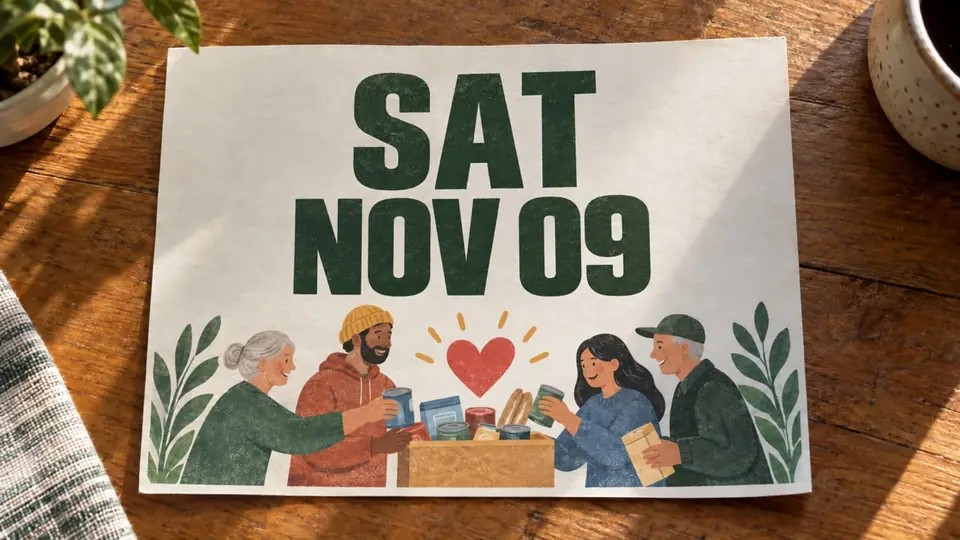
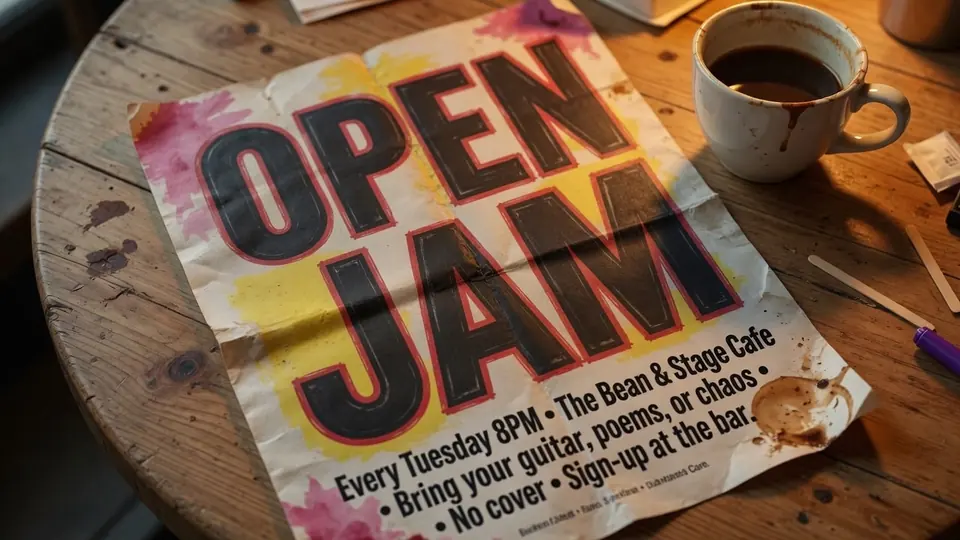
I still remember staring at a finalized community weekend schedule on a Friday afternoon when the forecast suddenly predicted heavy rain. The flyer had already been approved for neighborhood distribution, but the bold heading near the bottom read PARK LAWN instead of the sheltered indoor pavilion. Because the file had arrived as an exported graphic, every letter of that venue name was already fused directly into the background art.
My first instinct back then was the same move countless event coordinators try when facing an urgent deadline. I dragged the flat image directly into my graphic software, hoping that dropping it onto an artboard would somehow unpack the letters back into highlighted text boxes. Instead, the canvas treated the entire layout as an unmovable block of color, meaning any new label I typed simply floated awkwardly on top of the original words.
Many people assume that modern online layout suites can automatically deconstruct a flat flyer export. When you upload a PNG, JPG, or WebP to Canva, the platform receives a flat grid of pixels rather than a layered document. Uploading a flyer to Canva does not magically turn the existing baked-in flat text into editable text boxes.
If you attempt to patch over a mistake inside Canva, your primary native option is placing a solid color rectangle over the old address and typing new words inside that box. That workaround often looks like a piece of digital masking tape stuck onto a finished marketing asset. The patched area rarely blends with underlying gradients, paper textures, or decorative background patterns that sit behind the letters.
For projects where you need a cleaner typographic adjustment without redrawing the entire sheet, exploring a specialized Canva Image Text Editor workflow helps bridge the gap. Rather than sticking crude shapes over baked pixels, targeted tools examine the actual visual environment of the letters. That approach gives you a practical way to update critical details without sacrificing the original visual cohesion of the layout.
Before touching any image manipulation platform, I always urge you to check for the master design file first. If your original project still lives inside your Canva account, a shared Figma workspace, or a layered Photoshop PSD, going back to that original file to edit the text box is always the cleanest route. Opening the source project lets you click the original text frame, highlight the old words, and type the revision with zero quality loss.
The reality of real-world event organizing, however, is that source files disappear constantly. The freelance designer who built the initial run might be unreachable over the weekend, or the marketing committee may have inherited only a finalized promotional export from last season. When you are left holding nothing but a flat raster image, reconstructing the entire layout from scratch can take hours that you simply do not have.
In these situations, the dates, ticket tiers, gate numbers, and venue names remain firmly welded into the graphic. You cannot simply backspace over the typography because there are no font files attached to the flattened image. You need a dedicated method that can identify where the old letters sit, clear that specific space, and reconstruct the surrounding texture smoothly.
That specific challenge is why we built ReWords AI for everyday print and promotional assets. When you use an image-based workflow to Edit Text on Flyer assets, the goal is targeted alteration rather than starting a design from zero. You upload your existing graphic, let the system map out where text appears, and focus entirely on the specific phrases that require an update.
Our engine analyzes the uploaded flyer and highlights the identified lines across the sheet. You do not spend credits merely running this initial detection pass, allowing you to review how the text was parsed before committing to a final image generation. Once the lines are mapped out, you retain full manual control over the updated copy.
When you only have the exported PNG, JPG, or WebP file, you type the replacement wording into the editor yourself. This is not an automated translation suggestion system, so you enter the exact phrasing you need directly into the text field. If you need PARK LAWN changed to REC CENTER, you simply type REC CENTER into that field, and the engine focuses on placing those new letters within the original composition.
Sometimes an updated event requires removing an entire line of information rather than substituting new characters. Leaving a detected line blank simply removes that line from the generated output. You do not need to hunt for specialized eraser tools or manually paint over the background.
Another essential control in our interface is the Lock toggle, which behaves quite differently from standard design software. Clicking Lock on a detected line freezes that specific identified text line from regeneration, rather than acting like a Photoshop layer lock. This allows you to protect lines that are already accurate while modifying only the specific fields you need to update.
It is equally important to understand how the visual rendering process actually works. The system performs a best-effort visual match based on the visible color, stroke thickness, letter slant, and general weight seen in your uploaded file. It does not possess the proprietary font file used by the original designer, nor does it generate a lossless vector file.
Because this is an aesthetic reconstruction rather than a native desktop publishing export, minor variations in kerning or letter edge distress can occur. For most printed bulletin handouts, direct mail drops, and social promo cards, this visual approximation blends cleanly into the surrounding artwork. If your brand guidelines demand exact vector point precision for trademarked typography, returning to the source project remains the proper path.
When you are ready to produce your final asset, ReWords AI operates on a clear credit system. New accounts receive trial credits upon logging in, giving you the ability to test the workflow on your own files before purchasing more. Detection runs cost nothing, so you only spend credits when you trigger an active generation.
The credit cost scales directly with your chosen export resolution to match your distribution needs. Generating a 1K resolution image consumes 10 credits, a 2K resolution image consumes 20 credits, and a 4K resolution image consumes 30 credits. We do not offer unlimited free image generations, and we do not maintain a bulk background API for automated mass processing.
Choosing the right resolution depends on where your updated promotion will ultimately live. A 1K render works well for quick digital announcements, group chat shares, and social media carousels where screen sizes are modest. For high-density displays or standard desktop monitors, a 2K render provides crisp character edges across larger graphic headers.
If you plan to send the final sheet to an office laser printer or a commercial print shop, stepping up to a 4K render is well worth the credit balance. Physical print materials reveal compression artifacts and soft letter edges far more readily than mobile displays. Working with a dedicated Flyer Text Editor gives you the clarity required to produce sharp physical handouts without blurry text boundaries.
Flyers represent a unique category of marketing collateral because their core value relies entirely on volatile logistics. A music festival poster might keep its headlining artwork for months, yet the gate opening hour or parking fee might shift days before the event. Similarly, community gatherings, neighborhood fundraisers, and school club meetings frequently face last-minute venue adjustments due to weather or building availability.
Direct marketing history shows that leaflets and printed circulars succeed when the practical call to action remains clear and immediate. If an attendee shows up at the wrong corner of a public park because the printed sheet carried outdated details, the promotional effort fails. Being able to correct that single line on a finished asset saves organizers from re-hiring design help under pressure.
To get the best outcome when revising your materials, start with the highest-resolution raster export available. Uploading a heavily compressed screenshot taken from a mobile phone often makes text boundaries blurry, making detection less precise. Providing a clean, uncompressed PNG or high-quality JPG yields much better alignment for color matching and texture blending.
Always double-check your custom text entries before clicking the generation button. Since you type the new wording directly into the interface, taking a moment to verify spelling, room numbers, and dates prevents wasted credits on avoidable typos. Once the render completes, examine the new lettering at full magnification to ensure the contrast against the background remains easy to read.
If your flyer features heavy decorative elements or complex photo collage backgrounds, check that the new text fits within the original negative space. Keeping your replacement wording around the same character count as the original phrase produces the most balanced composition. If your new phrase is significantly longer, the letters may look tighter or shift slightly to accommodate the boundary.
Canva Text Editor
Edit flattened Canva exports directly using our free online Canva image text editor with font matching.
The Bottom Line
Uploading a flattened flyer to Canva lets you place new elements on top, but it will never unlock the baked-in pixels underneath. When the source design files are missing and an event deadline is looming, you need a tool that modifies rasterized text directly on the image. ReWords AI gives you full manual control over the revised wording, clear credit costs tied to output resolution, and visual style matching that keeps your promotional assets looking polished.
Sources
https://zhuanlan.zhihu.com/p/2065449081007346078 https://www.zhihu.com/question/29496489 https://www.zhihu.com/question/657445134 https://en.wikipedia.org/wiki/Leaflet https://en.wikipedia.org/wiki/Direct_marketing https://en.wikipedia.org/wiki/Print_advertising