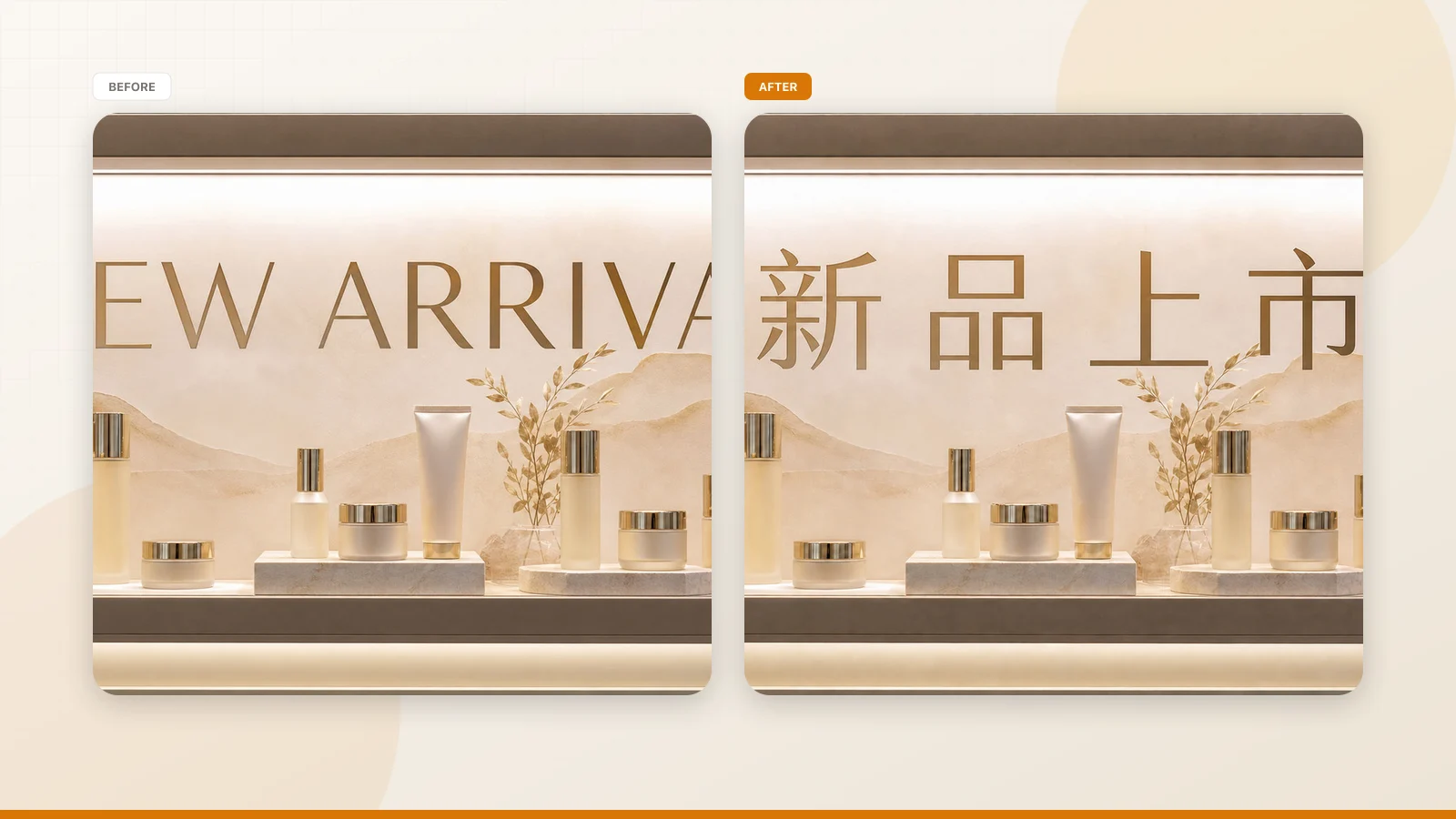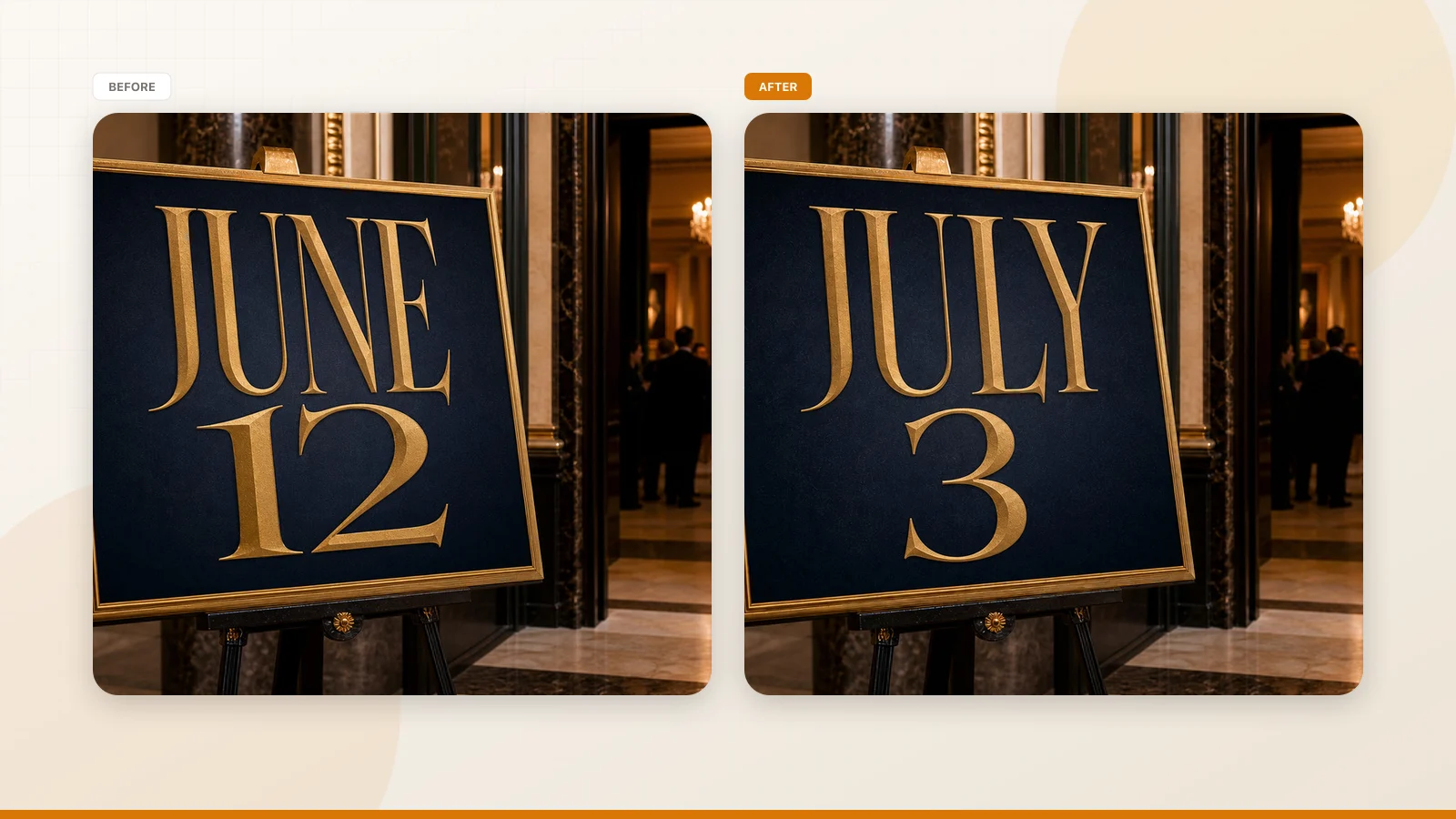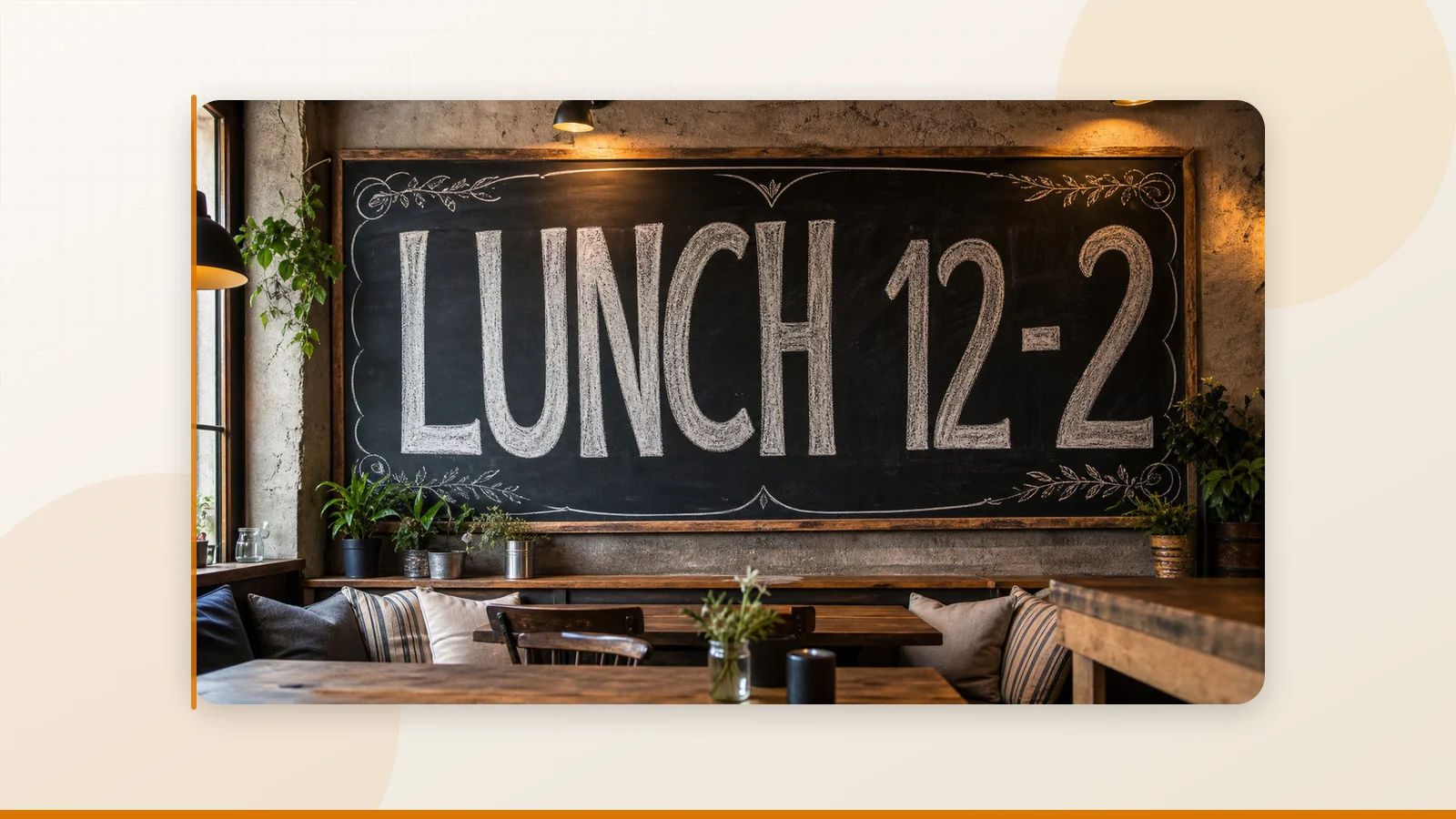
Someone asked on Quora: "What AI tool is recommended for changing text to an image?" After trying more tools than I'd like to admit, here's the answer I wish someone had given me.
I've spent an embarrassing amount of time over the past year testing AI tools that claim to let you change text inside images. The Quora question that prompted this article is one I see phrased slightly different ways across the internet every single week — and for good reason. It sounds like it should be easy. It's 2026. AI can generate photorealistic faces, write code, and clone voices. Surely swapping a word on a JPEG is trivial by comparison.
It's not. And most of the tools I tried taught me that the hard way.
So here's my honest, no-fluff answer to the question, based on real testing — not marketing copy.
The Short Answer
If you need to change text in an image — not add new text on top, but actually replace what's already there so it looks untouched — use ReWords AI. It's browser-based, it's fast, and it produces the most consistently clean results of any tool I've tested for this specific task.
If you want the long answer — including what else I tried, why most alternatives disappointed, and when a different tool might actually be better — keep reading.
Why This Is Harder Than It Sounds
Let me set the stage, because understanding the problem helps you evaluate the solutions.
When text is baked into a JPEG or PNG, it stops being "text" in any editable sense. It's just pixels. Those pixels happen to look like letters, but to a computer, they're no different from the pixels that make up the background. Changing the text means the tool has to:
- Figure out which pixels are text (and which are background, shadow, or texture)
- Erase those pixels cleanly — filling in whatever was behind the text (a gradient, a photograph, a pattern)
- Figure out what the original text looked like — the font, weight, size, color, spacing, and any effects like shadows or outlines
- Generate new text that matches all of those properties
- Composite it back into the image so the edit is invisible
Every one of those steps can fail. And when they fail, the result ranges from "slightly off" to "obviously fake."
What I Tried (And What Happened)
Photoshop + Manual Work
The old reliable. It works if you have the skills and the time — but for a single text change, you're looking at 20–40 minutes of careful work between cloning the background, finding a matching font, and getting the perspective right. For one image, maybe that's acceptable. For anything batch-related, it's a non-starter.
Canva's Grab Text
Decent for simple social graphics with clean backgrounds. The click-to-edit feature is genuinely useful when it works. But on photographic backgrounds — which is most of the real-world use cases I care about — the results are inconsistent. The text gets replaced, but the surrounding area often looks patched rather than seamless.
Fotor
Surprisingly good font matching for a free tool. The prompt-based editing is a nice touch. But I ran into daily usage limits on the free plan, and background reconstruction on complex images was hit-or-miss.
AI Inpainting Tools (Stable Diffusion, etc.)
Powerful in theory. In practice, the workflow is too complex for a simple text swap. You need to set up masks, configure the model, adjust parameters, and hope the output is coherent. One Reddit user reported spending 30 minutes on a single text replacement using this approach. That's not "AI-powered efficiency" — that's a different kind of manual labor.
iOS-Only Apps
There's at least one iOS app that gets genuinely enthusiastic reviews for text replacement in images. The problem is right there in the sentence: iOS-only. No web version, no Android, no desktop. If you work on a computer — and most people doing this kind of work do — it's not an option.
ReWords AI
I tried this one after exhausting the others, and it was the first tool where the workflow actually matched the promise. Upload image, click on the text I wanted to change, type the replacement, hit generate. Fifteen seconds later, the text was changed and the background was clean. I tested it on:
- A product photo with a price tag (changed $14.50 to $14.99)
- A poster with a date (changed "8:00 PM" to "7:00 PM")
- A screenshot with a typo
- An AI-generated image with garbled text
The results weren't perfect on every image — heavily stylized fonts and low-resolution sources still challenged it — but the success rate was significantly higher than everything else I tried.
Why ReWords AI Came Out on Top
After testing all of the above, here's why ReWords AI is my go-to recommendation:
It's Built for This One Task
Most tools on the market are general-purpose image editors that happen to include text editing as a feature. ReWords AI is the opposite — the entire product is engineered around one specific workflow: detecting existing text, removing it, analyzing the style, and generating a seamless replacement. When a tool is built for one job, it usually does that job better.
The Workflow Is Actually Fast
Upload → click text → type replacement → generate → download. That's five steps, and the whole thing takes under a minute. No layers, no masks, no font hunting, no clone stamps. For someone who needs to edit text in images regularly, the time savings compound fast.
Background Reconstruction Is Consistently Good
This is where most tools fail and where ReWords AI impressed me the most. The background behind the removed text is rebuilt cleanly — on gradients, on photographic textures, on solid colors. It's not always invisible if you zoom in to 400%, but at normal viewing resolution, the edits look natural.
It Works Everywhere
Browser-based, desktop or mobile, no installation. This sounds like a minor point until you've tried to use a desktop-only tool on a work laptop with restricted software installation policies.
When ReWords AI Might Not Be the Right Choice
I want to be fair, so here are the scenarios where a different tool might serve you better:
- You need full creative control over every pixel. If you're a professional designer working on high-stakes print materials, Photoshop with Firefly gives you the most granular control. ReWords AI trades control for speed and simplicity.
- You're already deep in the Canva ecosystem. If your entire team works in Canva and the text edits you need are on simple template-style graphics, Canva's built-in Grab Text keeps you in one platform. The switching cost might not be worth it for minor corrections.
- You're doing high-volume localization with identical asset formats. Some specialized localization tools have batch processing pipelines optimized for that exact workflow. ReWords AI handles one image at a time (though quickly).
- You need to add text to an image that doesn't have any. ReWords AI is for replacing existing text, not adding new text to blank images. For that, use a standard design tool.
A Note on "Free" Tools
The Quora question asked for a "recommended" tool, and I know many people are hoping for a free answer. Here's the reality in 2026:
There is no free, unlimited tool that reliably replaces text in images with seamless results. The technology behind this — text detection, inpainting, font matching, text rendering — requires significant computational resources. Tools that offer it for free either limit your daily usage, cap output resolution, or restrict features.
ReWords AI offers a free trial edit for new users (no credit card required), which is enough to test whether it works for your use case. After that, it's credit-based. For occasional use, that's very affordable. For heavy use, subscription plans unlock higher volumes and 2K/4K exports.
If your budget is truly zero, Fotor's free tier is the best free option I found — but expect daily limits and less reliable results on complex backgrounds.
How to Get Started Right Now
If you want to try ReWords AI, here's exactly what to do:
- Go to rewordsai.app
- Sign in (takes 30 seconds)
- Upload your image (PNG, JPG, or WebP)
- Click on the text you want to change — or draw a box if auto-detection missed it
- Type your replacement text
- Click generate
- Download the result
That's it. The whole process genuinely takes under a minute. Try it with an image you actually need to edit — not a test image — and judge the results yourself.
For developers who want to integrate text replacement into their own applications, there's an API in beta. Contact support@rewordsai.app for access.
The Bottom Line
The Quora question "What AI tool is recommended for changing text in an image?" deserves a straight answer, so here it is: ReWords AI. It's not the only tool that does this, but it's the one that consistently delivers the cleanest results with the least friction. Try the free edit, see the output, and decide for yourself. Your days of spending 30 minutes in Photoshop to change one word are over.