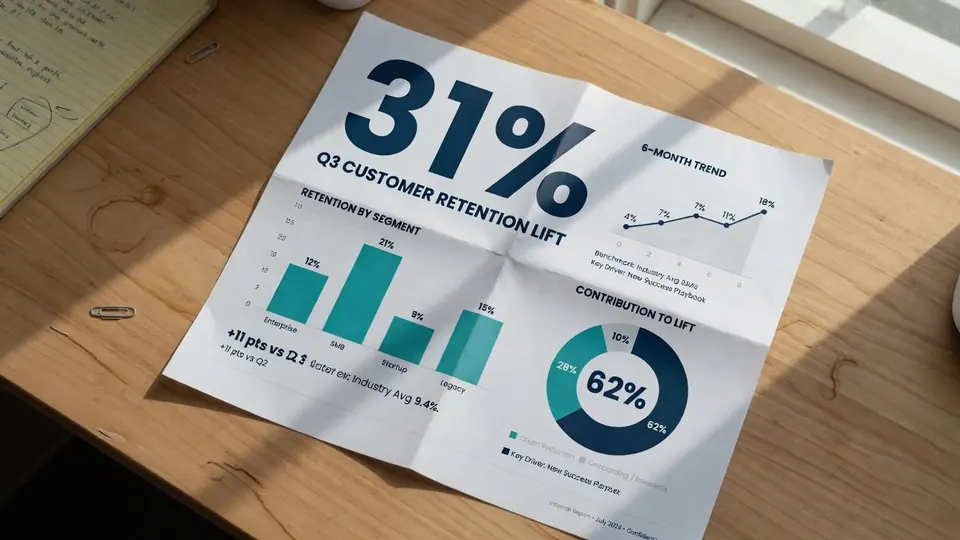
Late yesterday afternoon, I sat in front of my monitor reviewing an exported summary graphic for our quarterly leadership meeting. The presentation deck was already finalized, but the header badge on our primary milestone graphic still displayed Q1 instead of Q2.
The freelance visual designer who built the slide deck was completely unavailable, and our team lacked the original layered design files. All I had in our repository was a flattened export with layered drop shadows and subtle background patterns. Opening a massive graphics suite to clone textures and manually align typography felt like an exhausting detour, yet walking into the briefing with an outdated quarterly tag was unthinkable.
Edit Text in Infographic
Update outdated metrics, headers, and stat labels on your finished infographic.
Why Original Source Files Always Take Precedence Over Direct Pixel Editing
When you encounter an outdated graphic asset, your first step should always be checking whether the master project file still exists. If you have the layered document saved inside Figma, Adobe Illustrator, Photoshop, or Canva, you should open that application and modify the live text frames directly. Vector text boxes preserve true font vectors, precise kerning, and complete visual sharpness without causing any degradation to underlying illustration components.
Direct pixel modification exists purely as a practical workaround for situations where those source assets are lost, flattened, or completely inaccessible. Once an image is exported into raster pixels, the letters merge permanently into surrounding colors, lighting gradients, and texture noise. Starting from scratch to rebuild an intricate layout can take hours of unnecessary drafting. In those specific scenarios, turning to an Edit Text in an Infographic solution allows you to alter existing pixels directly without reconstructing the whole canvas.
Examining the Debate Around the Best Approach to Modifying Image Text
In design discussions, people often debate which workflow represents the best method for modifying copy embedded inside flattened pictures. Traditionalists argue that manual cloning and patch stamping inside desktop photo editors remain the most dependable choice for managing complicated textures. In contrast, modern creators often prefer direct text-replacement tools because they erase old letters and render new typography simultaneously.
Neither method can be crowned as an absolute winner across every scenario, because each involves distinct operational trade-offs. Manual retouching grants you total control over pixel blending and feathering, but it demands advanced technical software skills and considerable patient effort. Automated pixel replacement offers immense speed when updating simple labels, yet its output depends on how cleanly the system interprets surrounding design elements. Evaluating the best option requires you to weigh your project deadlines against the visual complexity of your background.
Relying on endless manual patching for a minor typo often wastes creative energy that could be spent elsewhere. When you only need to adjust a standalone caption or update a single label, choosing direct pixel editing prevents unnecessary reconstruction while preserving the visual rhythm of your document.
Working with Static Graphics and Replacement Fields Inside ReWords AI
Whenever I handle flattened visual collateral, I rely on ReWords AI to process static picture files without unnecessary friction. The platform works directly with standard static image formats, supporting PNG, JPG, and WebP uploads. You do not need to convert your graphics into unusual file extensions or re-render them through intermediate software before starting your revisions.
After your image is uploaded, the system performs an initial scan to identify typographic sections scattered across the canvas. This detection process costs zero credits, giving you the freedom to review recognized text boundaries without worrying about your balance. If you are exploring the tool for the first time, you will find complimentary trial credits waiting in your account right after completing sign-in.
Once the visual scanner highlights the relevant sections, you type your replacement words directly into the corresponding interface fields. You remain in full control of every phrase, so the system never attempts to guess your messaging or generate unprompted phrasing. If you need to remove an unwanted line entirely, leaving the input field blank erases that text cleanly while healing the background underneath.
For text elements that should stay untouched, you can simply click Lock on any recognized line to prevent accidental modifications during the rendering phase. This locking capability protects critical captions, brand names, and surrounding labels while you focus exclusively on the specific wording you intend to revise. Adopting a dedicated Infographic Text Editor with per-line controls ensures that your adjustments remain isolated to the designated visual zone.
When you confirm your edits and click generate, the credit cost scales strictly according to the output resolution of your canvas. Producing a 1K resolution image requires 10 credits, generating a 2K resolution visual consumes 20 credits, and an ultra-sharp 4K export costs 30 credits. This tiered structure ensures that you only spend higher credit amounts when your distribution channel truly requires exceptional visual clarity.
Understanding the Technical Boundaries of Font Matching and Resolution
It is essential to understand the technical realities of editing typography directly on rasterized graphics. ReWords AI performs a best-effort visual match to approximate the font weight, letter shapes, slant, color palette, and texture of the original design. The engine does not parse or export proprietary font files, and the finished output is not an infinitely scalable lossless vector asset.
Because raster editing operates on fixed pixels, minor visual variations can occur when rendering text against noisy photographic backdrops or intricate gradients. For everyday marketing collaterals, digital slide decks, and website banners, this visual approximation blends seamlessly into the surrounding art. However, if your design requires strict adherence to custom corporate typography guidelines, rebuilding the visual inside native vector design software remains the superior path.
The operational scope of the service is focused strictly on deliberate single-image workflows. The platform does not offer an unlimited free subscription model, nor does it provide a bulk API for automated batch processing tasks. Every revision is treated as an individual piece of creative work where you upload the file, adjust specific text entries, and verify the resulting image.
Data Integrity, Truthful Details, and Responsible Visual Modifications
The ability to alter copy inside flattened pictures brings significant ethical obligations that every creator must respect. You should only edit images that you personally created or have acquired explicit authorization to revise. Using image editing software to modify intellectual property without permission or alter official documents creates serious compliance and copyright concerns.
You must also maintain strict truthfulness regarding any commercial specifications displayed across your revised visuals. Details such as retail prices, inventory quantities, technical specifications, promotional discounts, and warranty durations must correspond exactly to real products and authentic business terms. Modifying an old graphic to show an inaccurate discount or a fabricated product spec damages customer trust and introduces legal liabilities.
This commitment to truthfulness extends directly to visual charts, metric callouts, and data-driven graphics. If you rely on an Edit Text in Image workflow to update analytical figures, those values must reflect numbers you have already calculated and verified against raw data records. You must never invent higher performance numbers or adjust metrics simply to present an artificially flattering narrative.
When modifying statistical charts, keeping visual geometry synchronized with numerical truth is essential. For instance, in a distribution graphic like a histogram, changing numeric interval labels without recalculating the underlying frequency distribution distorts how viewers perceive the data spread. Similarly, altering plotted points or axis milestones on a line chart misleads people about actual performance trends, while fabricating coordinates across a scatter plot creates false impressions of correlation.
Whenever I update quarterly visuals or reporting summaries, I confirm every single metric against our verified source spreadsheets before finalizing the image. Maintaining strict parity between your raw data and your published graphics protects your professional integrity. Visual editing tools should always be used to correct genuine administrative mistakes and keep records accurate, rather than manipulating factual evidence.
The Bottom Line
Flattened raster images do not have to leave you stranded when you encounter an outdated headline or an incorrect date badge. By applying targeted pixel synthesis to static PNG, JPG, or WebP files, you can update necessary copy while keeping the rest of your graphic intact. As long as you maintain strict data honesty, obtain appropriate usage rights, and prioritize original source files whenever they exist, you can handle unexpected revisions with confidence.
Sources
- https://en.wikipedia.org/wiki/Histogram
- https://en.wikipedia.org/wiki/Line_chart
- https://en.wikipedia.org/wiki/Scatter_plot