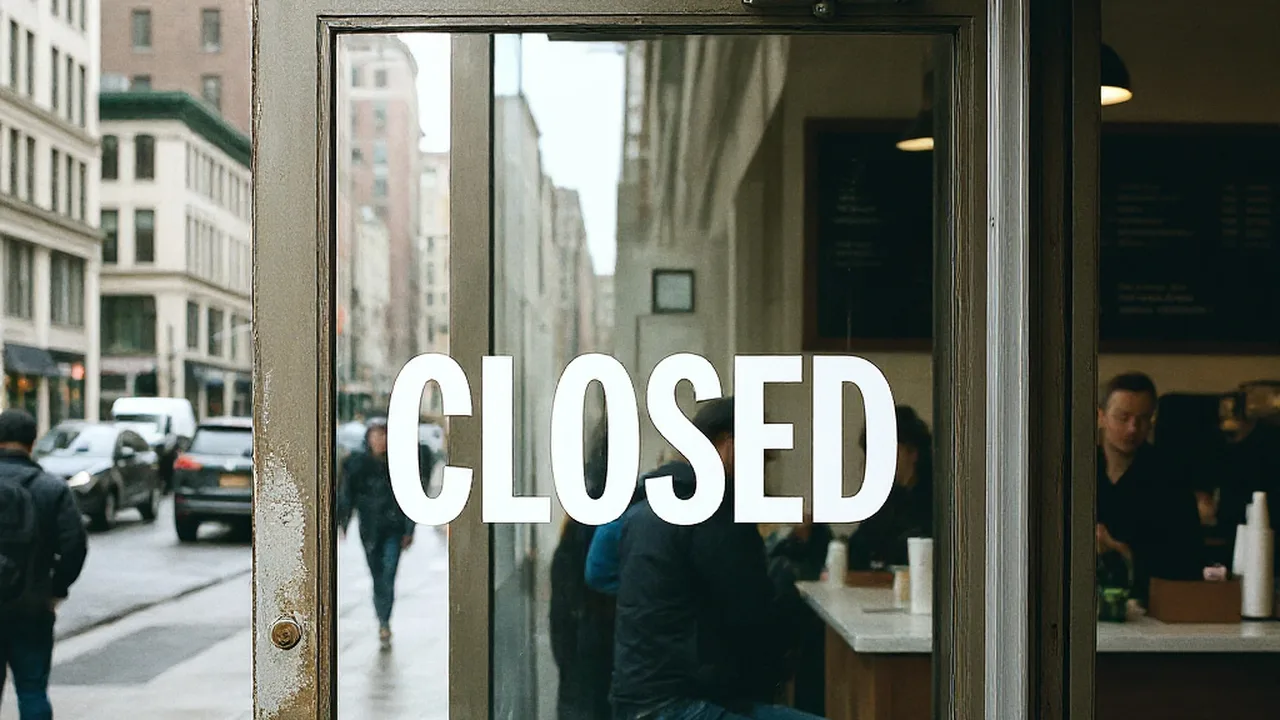
I was staring at a corner bistro rendered at twilight, admiring the wet pavement reflecting warm amber light from nearby streetlamps. Inside the large storefront, two patrons sat near a wooden counter under soft pendant bulbs, looking completely natural and relaxed. Right across the ribbed glass door in the foreground, painted in bold block lettering, the sign said OPEN.
The entire concept for this visual piece called for a quiet, locked storefront after closing hours. That single word contradicted the narrative mood, meaning the glass pane had to read CLOSED instead. I found myself hovering over the prompt box, wondering whether to discard this entire composition or find a way to preserve the work.
If you spend any regular time generating images, you know the frustration of the near-perfect frame. Modern generative models render stunning lighting and atmospheric depth, yet they still stumble when forming coherent words. Deciding whether to scrap everything or rescue the keeper is one of the most practical choices you will face in your workflow.
Fix Text in AI Images
Repair typos and garbled words using our free online AI image text editor without rerunning prompts.
The Hidden Cost of the Full Reroll
Hitting the prompt rerun button feels like an easy reflex because it requires only a single click. When you click that button, however, you gamble away every visual element that already fell into place. Diffusion models synthesize the entire canvas as a single unified field of mathematical noise rather than layered components.
When you reroll the prompt to fix a typo, the algorithm constructs an entirely new distribution from scratch. The charming wet cobblestones might turn into dry modern asphalt, and the warm pendant lighting might shift toward sterile fluorescent glare. You might get the new lettering right on a subsequent roll, but the soul of the original render is permanently gone.
Full regeneration only makes sense when the foundational structure of the image is broken. If the bistro door sits at an impossible angle, or the anatomy of the patrons looks deformed, you should certainly run a new prompt. When the core composition misses your artistic brief, starting over is the only sensible choice.
Rescuing the Scene with Targeted Line Correction
The alternative approach treats your existing render as a finished canvas that simply needs a minor touch-up. Instead of discarding the frame, you inspect the specific word on the glass door and swap the characters directly. Using a dedicated tool like Fix Text in AI Image lets you keep the surrounding ambiance untouched.
Think back to my bistro door and the unwanted sign. The reflection of the twilight sky on the glass, the fine mist, and the wood grain of the door jamb are all worth saving. When you alter the text on that line, the surrounding highlights and textures remain undisturbed.
This workflow changes how you approach creative prompts. Instead of hoping a single generation miraculously gets both complex background lighting and flawless signage right in the same pass, you decouple the two challenges. You focus on generating compelling imagery first, confident that letter-level flaws can be resolved later.
How Focused Text Replacement Operates
When you bring a raster image into an editing workflow, you must control exactly what the new phrase says. You do not ask an automated agent to guess your desired meaning or hope it suggests something catchy. Instead, you type the replacement string directly into a dedicated text field with your own keyboard.
If you want the sign on the glass door to read CLOSED, you type those exact six letters yourself. There are also instances where you realize a surface looks much cleaner without any lettering at all. If you want to eliminate an awkward label entirely, you simply leave the replacement field empty to wipe that line away.
Working with an Edit Text in Image tool also requires managing surrounding phrases that you do not want altered. Most commercial scenes contain multiple lines of text, such as a street number, a tiny warning sticker, or a menu board. A dedicated Lock feature allows you to freeze a detected line of text so the model ignores it during generation.
It is important to remember that locking here applies strictly to an identified line of text rather than a native Photoshop layer. You are not manipulating independent vector objects or detached typography assets. You are telling the system to preserve that specific detected zone on the flat raster plane while modifying adjacent lettering.
Visible Texture Versus True Font Files
Many creators assume that an image editor works by reading font files or vector paths embedded inside the file. When you export an AI render, however, you are dealing strictly with flat pixels in static PNG, JPG, or WebP formats. There is no typography metadata, no kerning table, and no vector outline stored in the file data.
The system examines visible attributes such as stroke thickness, color gradients, perspective slant, and natural surface wear. It then synthesizes the replacement letters to match those observed characteristics as closely as possible. Because this is an inferencing operation on raw bitmap data, it is not a mathematically lossless vector operation.
This balance between text fidelity and visual cohesion is essential for realistic scenes. If you simply pasted a crisp digital font over the bistro door using graphic design software, the letters would float unnaturally over the wet glass. The synthetic replacement blends into the surrounding world because it inherits the visual physics of the render.
Clear Boundaries and Credit Transparency
Understanding how your platform manages system resources helps you plan your work without unexpected surprises. In ReWords AI, the initial detection stage does not consume any of your credits. You can upload your image, allow the system to identify the words across your surfaces, and evaluate the detected lines freely.
To help you test this approach on your own projects, new users receive trial credits upon logging into their accounts. When you proceed with generating your replacement, the credit cost scales directly with your chosen output canvas resolution. Exporting a result at 1K resolution costs 10 credits, rendering at 2K resolution costs 20 credits, and rendering at 4K resolution costs 30 credits.
It is equally vital to understand what the platform does not offer. There is no unlimited free generation tier, and the platform does not provide a bulk automated processing API. When you use the AI Image Text Editor, you are fine-tuning a chosen piece rather than running mass batch conversions.
A Practical Decision Framework: When to Reroll vs. When to Edit
To make your day-to-day workflow smoother, you should establish a clear checklist before touching the regeneration button. When you look at an image with imperfect text, evaluate the rest of the canvas before taking any action. If the environment, the subjects, and the camera perspective align with your artistic vision, keep the canvas and move forward with an isolated text edit.
You should choose full regeneration whenever the problem involves anatomy, spatial logic, or artistic style. If the bistro interior looks flat, or the window reflections show jarring digital artifacts, rerolling the prompt is the correct decision. No amount of text editing can fix an image that lacks proper lighting or compelling composition.
On the other hand, you should choose text editing whenever the scene feels complete except for typographical errors. Changing a storefront sign, correcting a menu board, or fixing a poster headline are ideal scenarios for localized replacement. You preserve the delicate raindrops on the window, the soft glow of the interior lighting, and the posture of the patrons.
Adopting this dual mindset will save you significant creative energy over time. You stop treating generative image models as all-or-nothing lotteries that must yield perfection in a single lucky draw. Instead, you view diffusion models as the creator of rich baseline scenes and specialized editing tools as the finishing workshop.
The Bottom Line
Generative AI excels at creating breathtaking visual atmospheres, but it still struggles with precise human language. When you render a scene where the lighting, mood, and composition are worth keeping, do not surrender it to another random prompt roll. Reroll the whole prompt when the entire scene fails, but repair the individual line when only the letters are broken. That balance protects your artistic vision while giving you complete authority over every word in your frame.
Sources
https://en.wikipedia.org/wiki/Orthography https://en.wikipedia.org/wiki/Hallucination_(artificial_intelligence) https://en.wikipedia.org/wiki/Confabulation