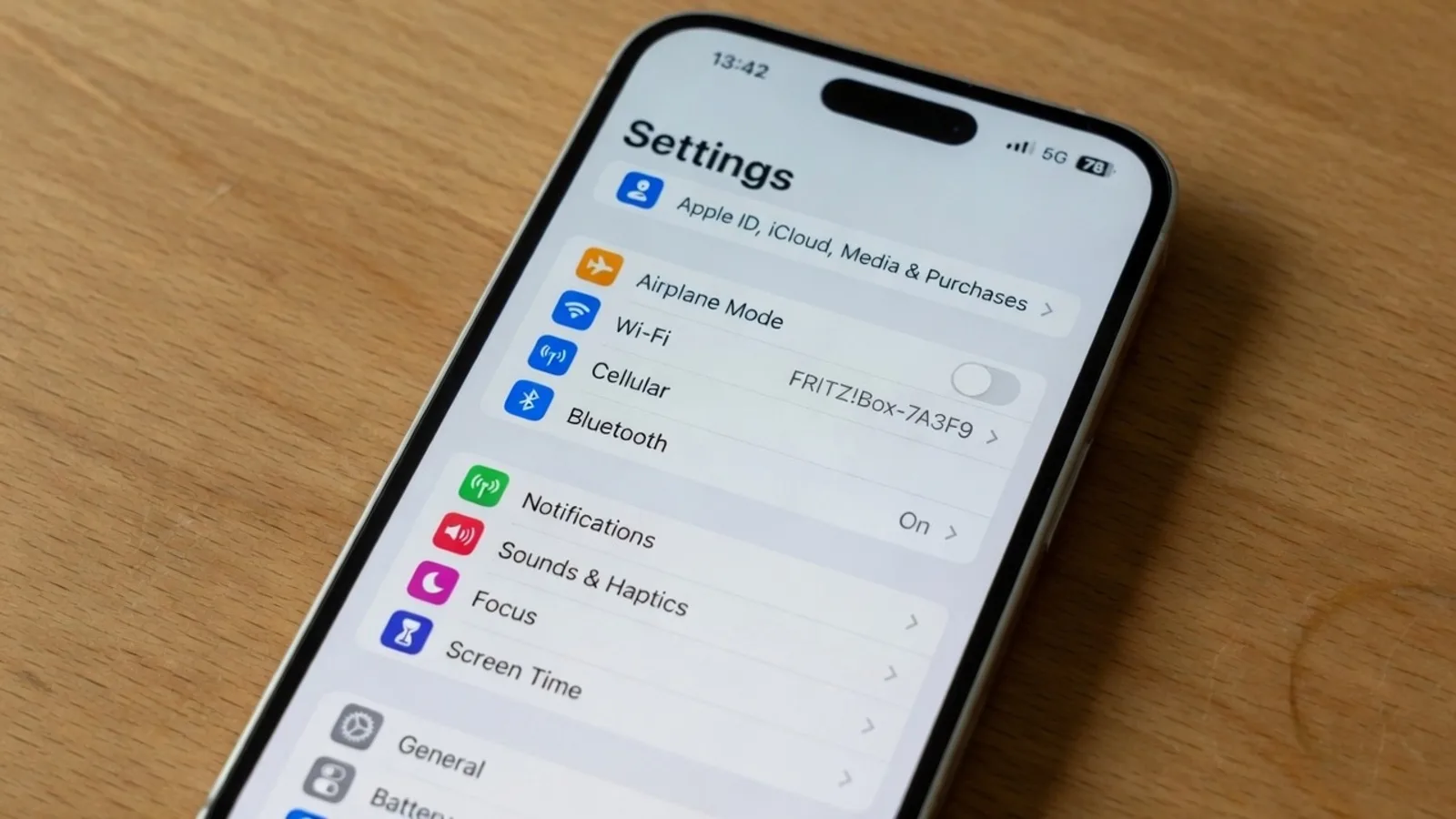
My phone was resting face up on the oak desk, showing a still capture of a German system menu. The header at the top read Einstellungen, and a list of connection toggles stretched down the glass. A colleague had sent me the image file through chat to ask about an elusive wireless configuration issue.
Instead of picking up a second device to point a live lens at the glass, I pulled that saved file directly into my browser. The system scanned the layout and suggested Settings for the top header. That small interaction captured why a dedicated workflow makes sense whenever you handle clean digital stills.
Holding a separate gadget in the air to read another display feels clumsy when the pixels already exist on your hard drive. Most people learned mobile translation through tools built for physical environments, like street signs or café boards. You can read more about how live viewfinders operate in our review of Google Translate Camera.
When you work with an image capture, you are dealing with a frozen grid of pixels rather than a shifting optical feed. The goal is rarely a temporary overlay that disappears the moment your hand trembles. You generally want to replace the original text inside the graphic, export a fresh picture, and share it back to your team.
Using a dedicated Screenshot Translator lets you treat the graphic as an editing workspace rather than a viewfinder. The engine locates where each text block sits against the background and evaluates the surrounding colors. It then suggests a translated phrase while preparing to paint those characters directly over the source image.
This distinction matters because user interfaces have strict spatial constraints that camera overlays ignore. An operating system menu does not expand simply because a foreign phrase contains twice as many syllables. When you translate digital captures, you need direct control over the exact wording before anything gets painted into the final frame.
Machine models are capable assistants, but you remain entirely responsible for the final vocabulary on the canvas. The engine generates candidate wording based on the visible context, but it does not know your project jargon or internal company naming rules. You can accept the proposed text, rewrite individual phrases, or lock specific blocks that should stay untouched.
Visitors exploring the tool receive one suggestion per job to preview how the replacement works. If you want further iterations or custom styling adjustments, you can sign in and manage the text blocks line by line. Every text field remains open for direct typing so that you can correct awkward terminology before exporting.
This workflow is designed for quick communication, product reviews, and documentation rather than certified translation or legal filings. Court documents, formal affidavits, and statutory notices demand sworn human linguists who provide accredited certificates of accuracy. A visual replacement tool exists to help you understand a dialog, navigate foreign settings, or share understandable mockups with remote peers.
When the software identifies text across the screenshot, it organizes the content into individual detected lines. Clicking the lock feature binds that specific detected line in place so the generator will not overwrite it during rendering. This is useful for keeping brand names, untranslatable technical flags, or standard system icons exactly as they were captured.
It is worth noting that locking here applies strictly to a recognized text line, not a standalone Photoshop layer. The system treats the image as a single flattened canvas rather than an editable multi-layer document. If you wish to remove an unnecessary line entirely, simply leaving that text input field blank deletes it from the output image.
This simple editing method avoids the hassle of opening heavy desktop photo editors just to clean up an interface snippet. You identify the text you need, adjust the words to fit your preferred tone, and exclude decorative clutter with minimal effort. You stay in command of every character that appears on the exported graphic.
Once you approve the wording, the rendering engine reconstructs the translated text directly onto the underlying image. The renderer attempts to match the visible weight, sizing, and color of the nearby graphic elements. It observes the contrast of adjacent pixels and paints the new characters so they blend naturally into the original backdrop.
This process represents a visual reconstruction rather than an exact typography clone using proprietary font files. System interfaces often employ closed-source fonts that are not legally or technically embedded within raster screenshots. The engine produces a clean, readable approximation that respects the visual hierarchy of the operating system without claiming lossless font replication.
The platform supports standard static graphic files, including PNG, JPG, and WebP formats. There is no automated batch API or open-ended pipeline for processing thousands of files behind the scenes. Every image is processed as an individual task to ensure clear manual oversight and reliable visual quality.
Navigating service costs should always be straightforward, especially when testing new workflows. Running text detection and viewing the preliminary translation suggestions does not deduct any credits from your balance. This allows you to inspect the recognized text boundaries and review suggested phrases before deciding whether to build a final graphic.
New users receive complimentary trial credits after signing into their account. When you choose to produce a final exported image, credit usage scales with the resolution of your uploaded file. Creating a 1K resolution export costs 10 credits, a 2K resolution export requires 20 credits, and a 4K resolution export uses 30 credits.
This transparent tiering ensures you only spend resources when committing to high-resolution visual output. If you only need a quick low-resolution draft for team chat, the balance impact remains minimal. You can evaluate the text placement thoroughly before confirming the final render.
Working with digital interfaces brings an ethical responsibility regarding data accuracy and transparency. You can explore broader visual workflows in our guide to Translate Text in Image. While modifying interface text is powerful for design and collaboration, certain boundaries must never be crossed.
Never use visual tools to alter financial numbers, invoice references, order IDs, or tracking codes. Similarly, you should avoid modifying network identifiers, including the specific Wi-Fi names displayed in a wireless settings panel. Changing sensitive identifiers undermines trust and can easily cross into misleading or fraudulent activity.
A translated checkout screen or cart summary must never be presented as proof of payment or completed fulfillment. We do not provide instructions, features, or workflows intended to forge transactional records or tamper with official logs. Visual translation is meant to bridge linguistic gaps for comprehension, not to fabricate unverified administrative history.
Consider how common it is to receive an operating system screenshot from an international colleague. Perhaps they are running a localized build in German, Japanese, or French, while you need to verify where a particular toggle lives. Trying to retype those foreign words into a dictionary app by hand wastes valuable energy.
Uploading the screenshot directly solves the problem without unnecessary hardware juggling. You see the layout intact, read the suggested English terminology, and can easily tell whether a given toggle governs notifications or network privacy. You retain the exact context of the user interface without having to install unfamiliar language packs on your own machine.
Furthermore, having the translation rendered in place makes downstream discussions far more productive. You can send the updated graphic back into the team channel, and everyone immediately recognizes which button or menu corresponds to the instruction. The visual context remains anchored to the exact buttons and toggles your colleague is looking at.
Because interface elements frequently rely on shortened terms or abbreviations, automated systems can misinterpret standalone labels. A single word like Einstellungen might seem obvious, but smaller labels inside submenus can easily carry ambiguous meanings. Taking a few seconds to inspect the model recommendation ensures your final graphic makes sense in context.
If a proposed translation feels overly literal or overflows a tight navigation bar, you can shorten it manually before rendering. This flexibility helps you preserve the balanced spacing of the original interface while conveying the correct functional meaning. The software assists with detection and baseline rendering, but your human eye guarantees overall coherence.
Treating the tool as an interactive assistant yields the most dependable results across diverse software screenshots. You benefit from rapid text recognition and background healing while retaining absolute authority over technical terminology. The result is a clean, comprehensible image ready for your documentation, slide deck, or bug tracker.
Google Translate Camera
Upload photos to our free online camera text translator for clean in-image translation without jitter.
The Bottom Line
Translating text inside a digital interface should never require pointing a physical camera at an electronic display. When you already possess a clear screenshot file, feeding that graphic into a browser tool delivers a cleaner, more controlled outcome. You gain the ability to review wording, lock essential terms, and render readable phrases directly into the source composition.
Keep in mind that automated recommendations are merely starting points, and you remain responsible for the final vocabulary choices. Check your text lines carefully, respect operational boundaries around sensitive numbers, and use the flexible resolution tiers to fit your project requirements. A thoughtful approach ensures your translated screenshots remain clear, professional, and genuinely useful across language barriers.
Sources
- https://en.wikipedia.org/wiki/IPhone
- https://en.wikipedia.org/wiki/Screen_capture
- https://en.wikipedia.org/wiki/IOS