I was staring at an old promotional poster saved on my desktop last week, wondering how to salvage the visual layout. The banner prominently featured 20% OFF across an intricate textured background, but the upcoming holiday campaign required 40% OFF. Unfortunately, the original design project with editable text layers had long since vanished, leaving me with nothing more than a flattened picture file.
If you manage marketing assets or handle social graphics, you have likely encountered this exact obstacle. Rebuilding an entire creative composition from scratch just to update three characters wastes valuable energy. Instead of starting over, you can use dedicated web tools to Replace Text in Image assets by directly repainting the underlying pixels.
Traditional image editors typically address this scenario by drawing a colored rectangle over the existing typography and placing a standard text layer on top. While this approach might pass on plain monochrome paper, it completely destroys subtle shadows, paper grains, and natural gradients. The final composition ends up looking patched together rather than professionally designed.
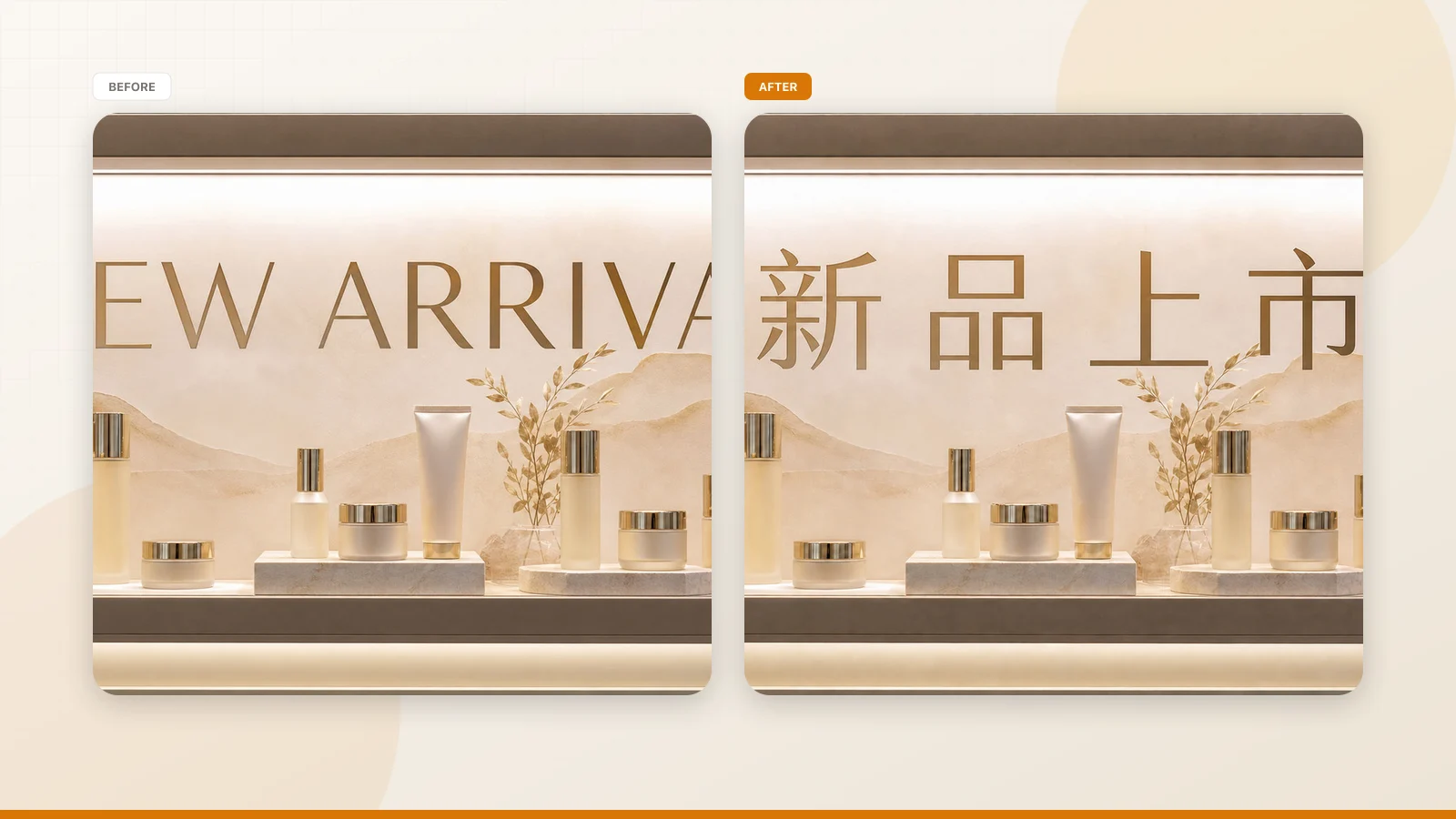
True pixel replacement works by analyzing the surrounding context before drawing any new characters. The system must reconstruct the background texture where the old letterforms once sat, while matching the lighting, slant, and color of the original typeface. This approach allows you to cleanly Edit Text in Image files without producing visual seams or messy edges.
If you still possess the original project file with active text layers, you should return to your primary design software to make your revisions directly. Native software edits guarantee absolute vector sharpness and mathematically exact font kerning. However, when you are left solely with an exported visual file, the following five steps will guide your replacement process.
Replace Text in Image
Use our free online photo text replacer to swap existing words in images, not just text overlays.
Step 1: Upload Your Flattened Image
Begin by dragging your static graphic file into the upload zone on ReWords AI. The platform supports standard static image formats, including PNG, JPG, and WebP. Because the tool is structured for focused individual asset adjustments, it does not provide an automated batch API.
As soon as your upload finishes, the system automatically analyzes the canvas to identify all existing typography. This detection stage processes your graphic without charging any of your account credits. You can inspect the identified text boundaries across your image before committing to any generative adjustments.
Step 2: Select the Detected Line of Old Text
Once the visual analysis completes, hover your cursor over the visual canvas to see the highlighted regions. Click directly on the specific detected line showing the phrase 20% OFF to open its editing properties. Each recognized phrase acts as an individual boundary box, allowing you to isolate individual lines across your layout.
Selecting an item isolates only that specific sequence of letters. This targeted selection ensures that neighboring visual elements and background decorations remain undisturbed during editing. You can verify that the highlighted frame neatly encloses the target phrase before proceeding to the text field.
Step 3: Type Your Replacement Copy Directly
After selecting the target line, enter your updated wording into the designated input box. You must type the replacement text yourself, as the system does not provide automated translation suggestions or guest text prompts. For my campaign banner, I manually typed 40% OFF into the field to substitute the older discount figure.
If your objective is simply to remove an unwanted phrase from the graphic entirely, leaving the text field blank removes that line from the canvas. The engine interprets an empty input as a request to clean out the letterforms and seamlessly heal the background. Otherwise, verify that your new words are spelled correctly before advancing to the locking phase.
Step 4: Lock the Lines You Want Untouched
Before initiating the generation process, review the other lines of text identified across your composition. Click the Lock button on every phrase that should remain completely unchanged throughout the rendering process. It is important to remember that this function locks an identified line of text, not a Photoshop layer.
Locking these lines prevents the rendering engine from reinterpreting or shifting adjacent typography while it updates your primary headline. In complex layouts with legal disclaimers, brand taglines, or dates, locking provides stability across the visual canvas. You maintain full control over which areas transform and which areas stay anchored to their original pixels.
Step 5: Choose Resolution, Generate, and Compare
Once you have locked your stable lines and entered your new copy, choose your preferred output resolution. ReWords AI provides new users with trial credits upon logging in so you can evaluate the workflow. The generation cost scales predictably with image fidelity: generating at 1K resolution costs 10 credits, 2K resolution costs 20 credits, and 4K resolution costs 30 credits.
There is no unlimited free generation tier, which makes choosing the appropriate resolution an important practical consideration. If you are verifying visual fit, a standard resolution run conserves your account balance. For final client presentations or large print banners, selecting higher resolutions ensures crisp detail across the newly synthesized areas.
After the generation finishes, examine the updated artwork alongside your original file. The engine uses best-effort visual matching to replicate the weight, slant, and color of the original characters rather than retrieving an actual font file. Because this is not a mathematically lossless vector process, taking a close look at the side-by-side preview confirms that the aesthetic matches your standards.
Understanding How Style Matching Operates on Raster Pixels
When you Change Text in Image compositions, keeping character counts comparable yields the most balanced aesthetic results. Swapping 20% OFF for 40% OFF maintains the exact same character count, allowing the new characters to settle comfortably into the existing visual space. If you replace a concise phrase with an extensive sentence, the synthesized characters must compress to remain within the original margins.
Visual weight also plays a substantial role in how naturally new words blend into a flattened raster background. The synthesis model examines neighboring letterforms to infer stroke thickness, subtle surface bevels, and atmospheric lighting. Observing how your new phrase harmonizes with surrounding visual elements helps you determine whether further adjustments are necessary.
Working Within the Boundaries of Pixel Synthesis
Replacing text within flattened graphics differs fundamentally from manipulating typography inside an active layout application. In a dedicated graphic suite, fonts exist as vector paths defined by mathematical control points, ensuring infinite scalability without degradation. In contrast, working on static PNG, JPG, or WebP files requires reconstructing the underlying bitmap data from surrounding contextual clues.
Because the platform does not install or extract desktop font packages, it reconstructs character geometry based purely on visual pattern matching. This makes the system particularly effective for stylized typography, weathered textures, and embossed promotional slogans that would be difficult to match using standard font libraries. Recognizing that the output is a visual synthesis allows you to calibrate your creative expectations appropriately.
Quality Checks Before Deploying Your Image
Before uploading your newly generated graphic to your social channels or ad campaigns, take a moment to perform a few quality checks. Zoom in on the perimeter of the replaced words to verify that no ghosting or jagged halos linger from the prior phrase. Confirm that the background grain flows continuously through the negative space between the newly rendered letterforms.
Next, verify the overall color harmony across the updated composition under standard viewing conditions. The brightness and contrast of your updated text should match the ambient lighting established by the rest of the artwork. When your visual inspection confirms that the modified asset holds up under scrutiny, download the completed file to your local drive.
The Bottom Line
Updating text trapped inside a flattened graphic no longer requires you to rebuild an entire visual asset from scratch. By uploading your static file, typing your replacement copy, locking stable lines, and choosing an appropriate rendering tier, you can refresh outdated graphics efficiently. While this workflow relies on best-effort pixel matching rather than lossless font substitution, it provides a dependable path forward whenever your original design files are out of reach.
Sources
- https://en.wikipedia.org/wiki/Find_and_replace
- https://en.wikipedia.org/wiki/Text_editing
- https://en.wikipedia.org/wiki/String_(computer_science)