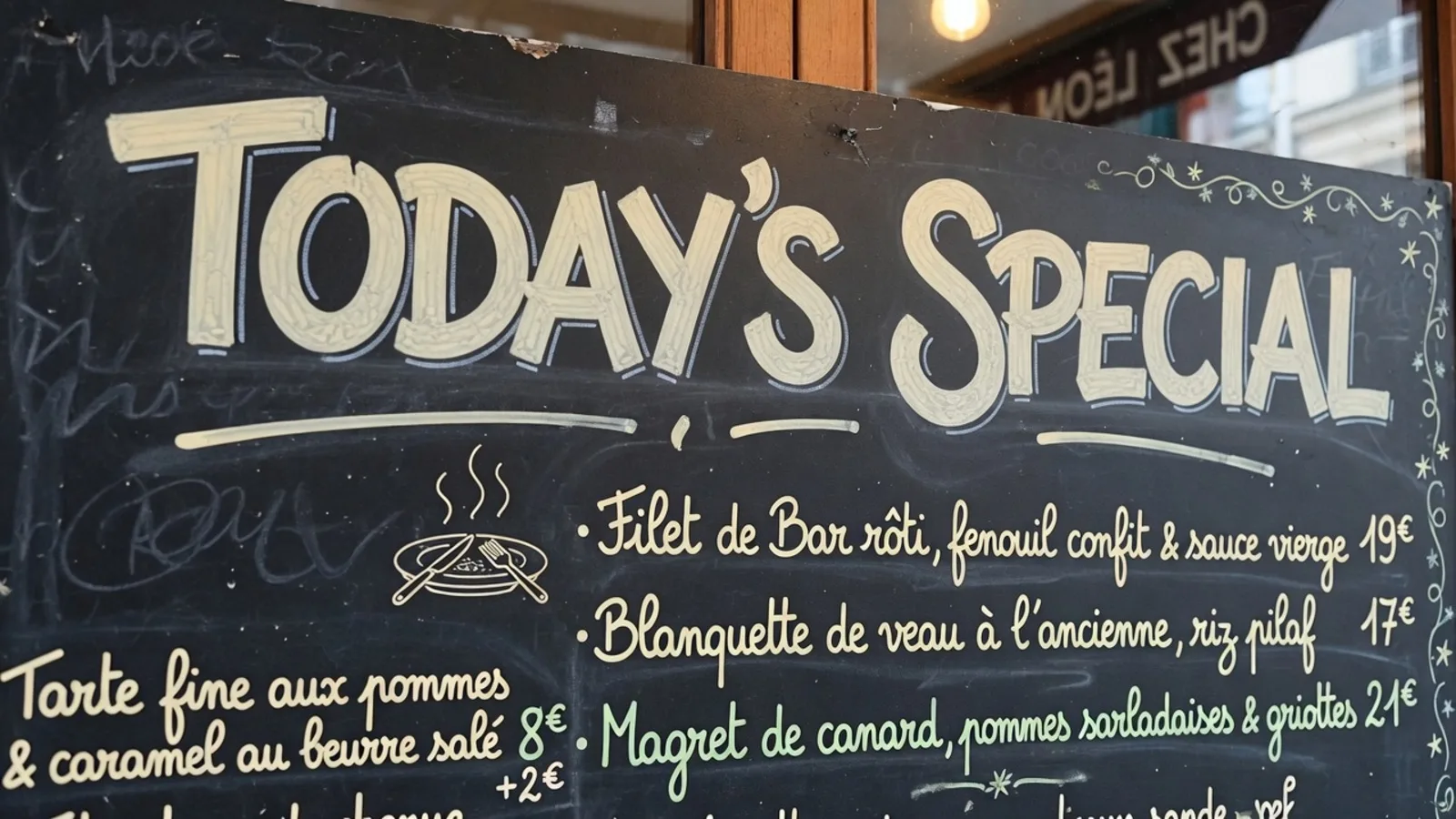
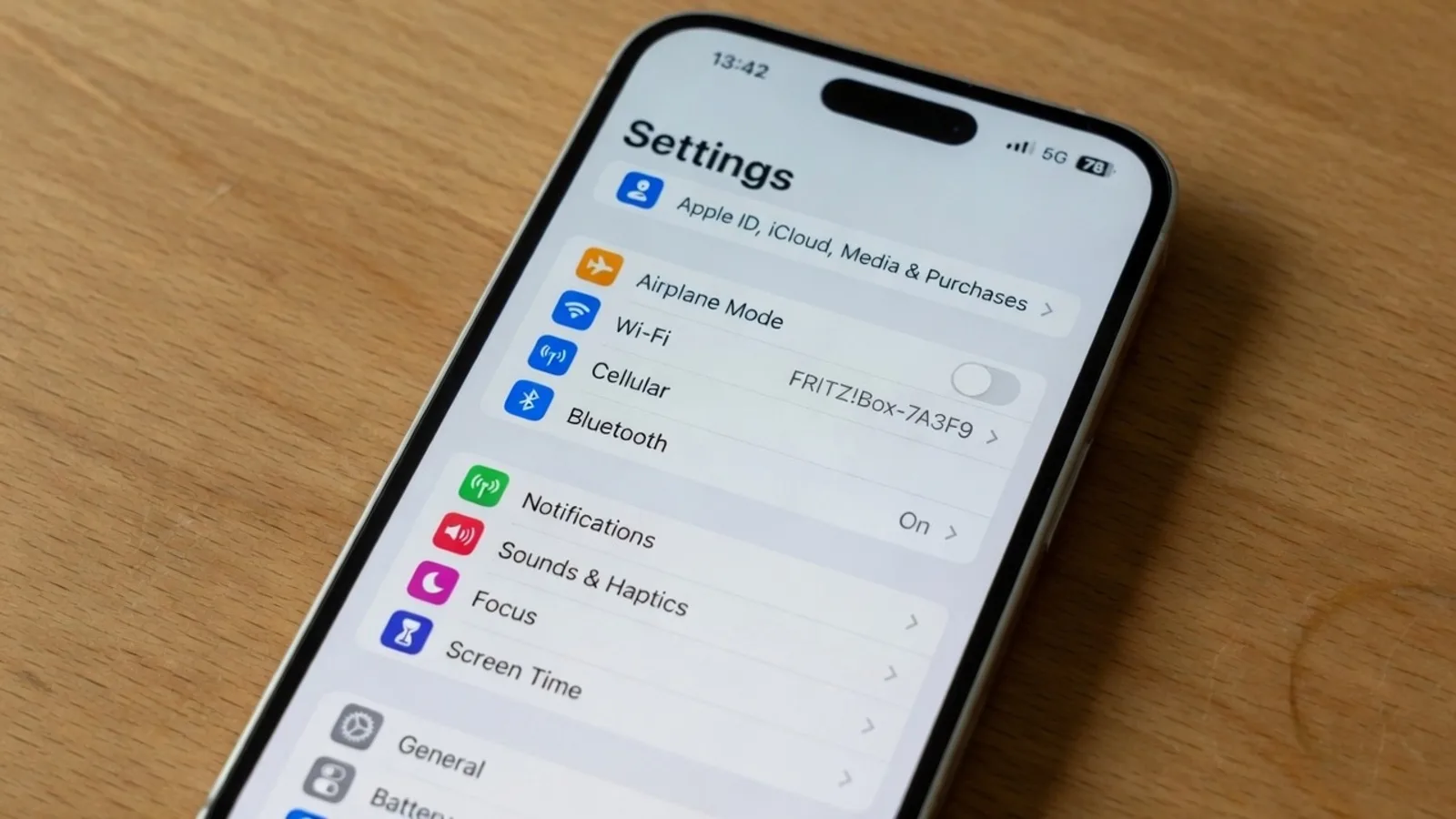
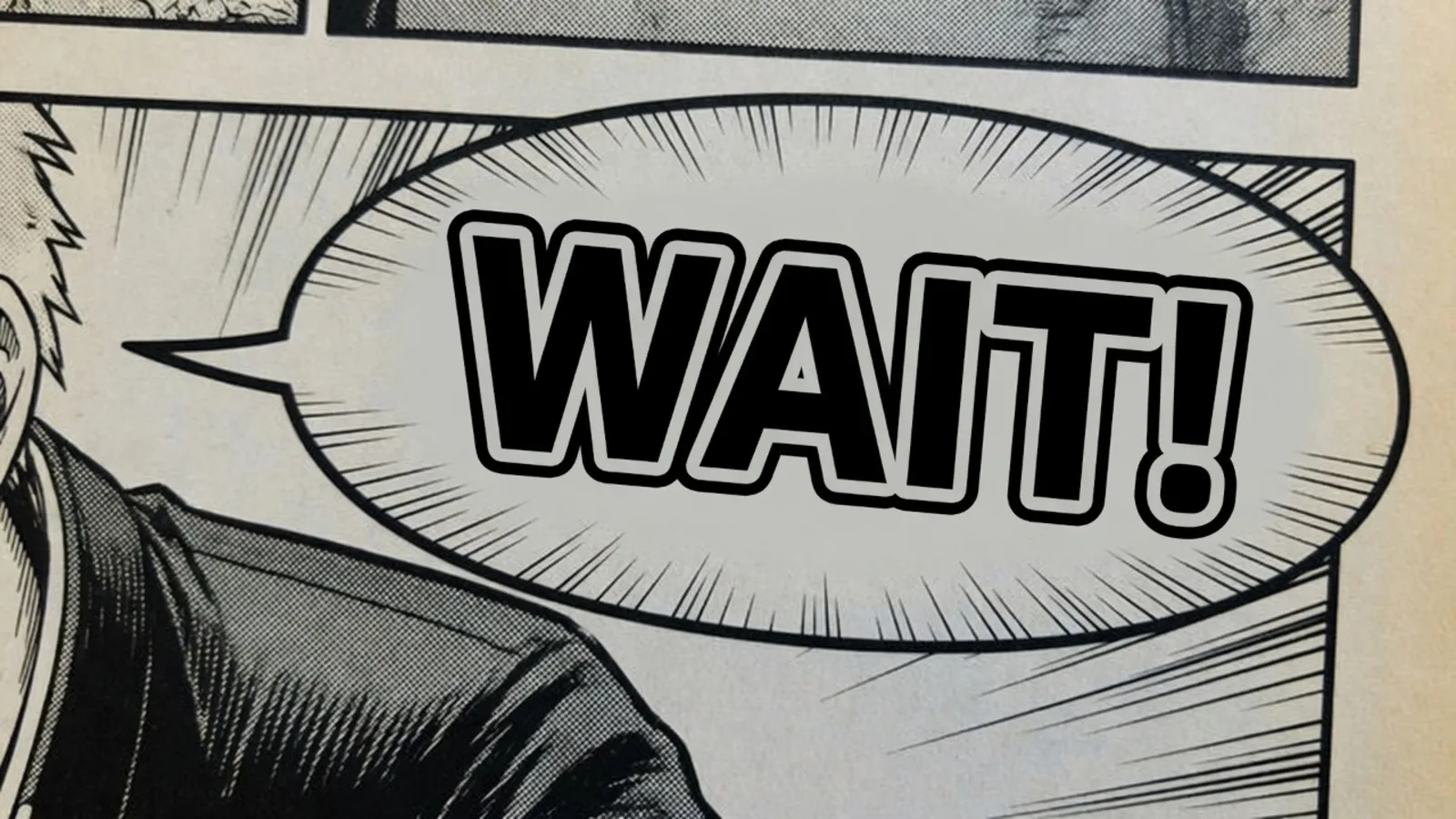
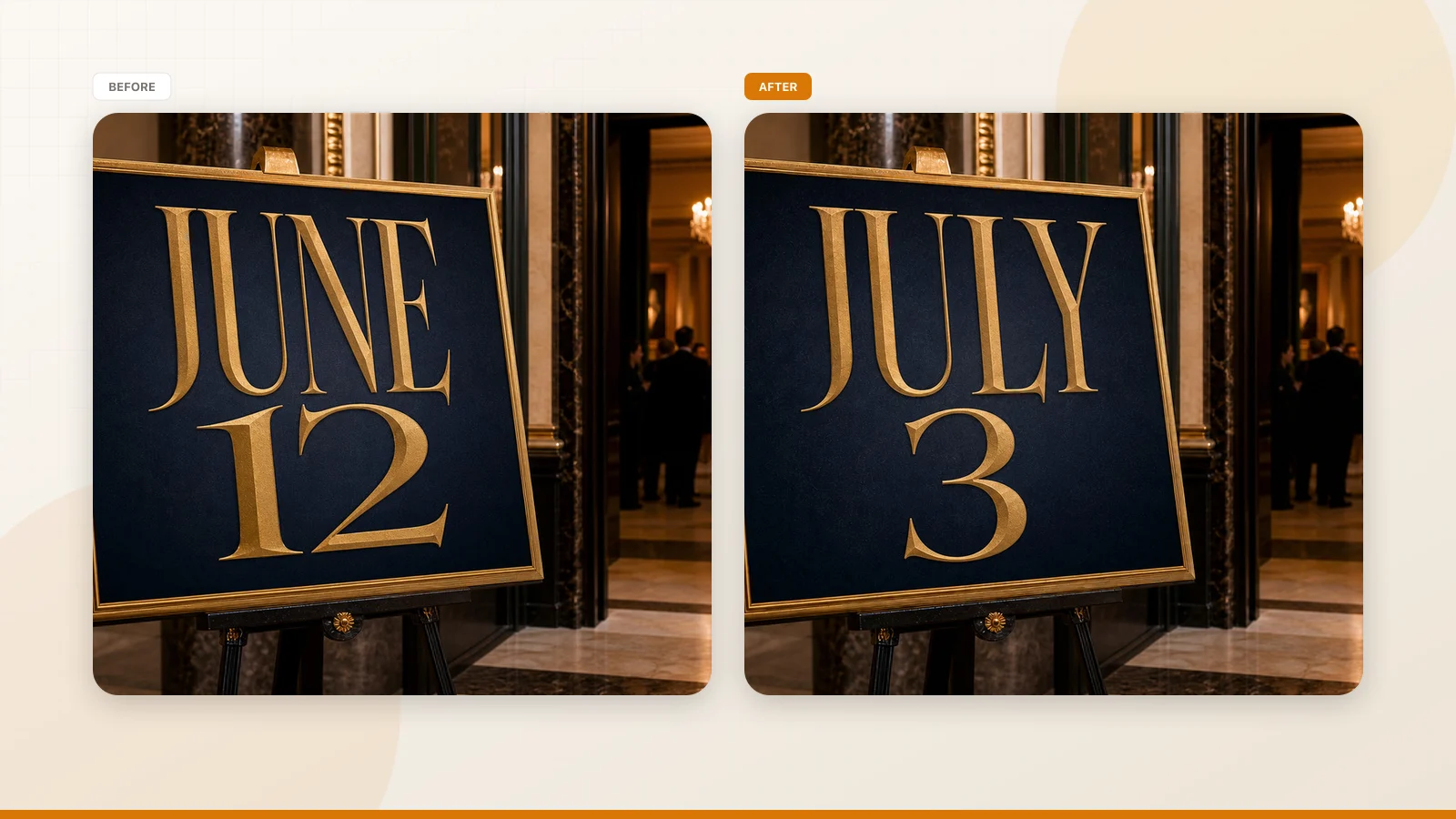
Ten ways to localize the words inside a finished image — while keeping the layout, fonts, and background exactly as the designer left them.
A campaign poster in English. A menu in Japanese. A product label in German. A technical diagram labeled in Spanish. You need each of them in another language — and all you have is the exported image.
Translating a document is easy: hand the text to a translator, get the words back. Translating the text inside an image is a different animal entirely. You are not just changing words. You are surgically editing pixels while a designer's layout watches over your shoulder, and any mistake — a font that's slightly off, a background that doesn't quite line up, a translated word that's 30% longer than the original — is immediately visible.
This is the exact problem that makes image localization so awkward: you have to change the meaning without changing the design. The report below maps ten real approaches for doing exactly that, from fully manual designer work to one-click AI, complete with the fidelity, cost, and failure modes of each.
Translate Text in Image
Auto-translate baked-in words and repaint visuals with our free online image translator.
Why Translating Text Inside an Image Is So Hard
When you translate a document, the layout flexes. When you translate text baked into an image, the layout is frozen in pixels. That single constraint creates a stack of problems:
Text length changes. A short English phrase can balloon by 30% or more in German or French, while the same phrase shrinks dramatically in Chinese or Japanese. The space in the original design is fixed, so the translation has to be re-fitted — resized, re-wrapped, or re-tracked — without breaking the composition.
Fonts and styling must match. The original typeface, weight, color, letter spacing, and effects like shadows or outlines all have to be reproduced. Get them wrong and the localized version looks subtly foreign next to the original.
The background must be rebuilt. Erasing the source text destroys the pixels beneath it. On a solid color this is trivial; on a photo, gradient, or texture, you are reconstructing missing imagery.
Non-text elements need care too. Arrows, callouts, numbering, and legends often contain text or point to text, so a clean localization has to account for them.
Every method below is a different way of balancing those four problems. The right choice depends on how faithful the result must be, how much text the image contains, and whether you have the original source file.
The Fastest Route: Online AI Image Translation
Before the manual methods, know that the shortcut exists — and it's the one most people should start with.
Online AI tools built for this exact job, such as ReWords AI, combine text detection, machine translation, and AI image inpainting into a single flow. Instead of overlaying a new text box, they detect the text already in the image, translate it, erase the original, rebuild the background, and redraw the translation in a matching font, color, and size — so the layout stays put.
How it works:
- Upload the image. Open the tool, choose the "Translate Text in Image" function, and upload the picture (e.g., an ad with a "SUMMER SALE" banner).
- Pick a language and edit. The platform detects every text line automatically. Select your target language, and it returns a line-by-line translation suggestion you can correct by hand. Lock any words that must not change, like brand names.
- Generate. Click Generate or Apply, and the AI removes the original text and redraws the translation using the original font, color, and background.
- Download. Review the result and download the localized image.
Figure: Online AI translation example (left: original, right: translated).
Why it's the default choice: it needs no source design file, no software install, and no design skill. A typical image comes back in seconds to a minute. Tools in this category usually include a free allowance (ReWords offers a few free generations per image), with paid credits beyond that.
Where to stay careful: the translation itself deserves a check — especially numbers and proper nouns — and dense text, complex lighting, or extremely decorative fonts can occasionally trip up the AI's reconstruction. It's also worth being mindful of copyright and sensitive content.
Best real-world fit: e-commerce product images, localized ad and social graphics, menus, flyers, and comics — the day-to-day localization jobs where you no longer have the original file.
The Full Toolkit: 10 Ways to Translate Image Text Without Breaking the Design
If the image is complex, the stakes are high, or you'd rather build your own pipeline, here are all ten approaches worth knowing. Each one lists how it works, what it needs, how faithful it is, and who it's for.
Method 1: Manual Design Editing (Photoshop / Illustrator)
How it works: A professional designer does it by hand. First, extract the original text (via OCR or manual transcription) and translate it. Then, in Photoshop, Illustrator, or a similar tool, retype the translation in a matching font and style on top of the original text area. The pipeline runs: extract text → translate and proofread → find or recreate the matching font → erase the original text, insert the translation, and adjust effects.
Tools: Adobe Photoshop, Illustrator, InDesign, GIMP, Figma; OCR tools like Tesseract can assist with extraction.
Input / Output: Any image format in (PNG/JPEG); a new image out in the same format, or an editable PSD/AI file with layers.
Automation: Low. Mostly manual, with automation only in the OCR extraction stage.
Accuracy & fidelity: Highest. The designer controls font, position, and style completely and can reproduce the original design to the pixel. Fidelity depends on skill, it's slow, and it's sensitive to translation-length expansion.
Time & cost: High. A professional edit can take minutes to hours depending on complexity, and the software has a learning curve — inefficient when you're translating at volume.
Pros & cons: Fully preserves layout and style (theoretically a seamless swap), which suits demanding marketing and brand copy. But it's slow, expensive, and error-prone, and unless you have the identical font, a perfect match is hard.
Best for: Ad posters, packaging design, UI prototypes, and print collateral that demand high-fidelity localization.
Case note: Atlas Cloud points out that after OCR extracts the text, it still has to be "placed back into the design" by hand, while pure image editing merges changes onto a new raster layer with less control over individual letters — manual typesetting is slower but the most precise.
Method 2: OCR + Design Software Typesetting
How it works: A slightly more automated, semi-manual pipeline. First, run OCR on the image to extract each text box's content and position. Then get translations via machine or human translation. Finally, re-render the translation into the image at the original positions and styles using layout software or a script. Pipeline: OCR recognition → text translation → layout reconstruction → output image.
Tools: OCR libraries and apps (Tesseract, EasyOCR, Adobe Acrobat OCR); translation APIs (Google Translate, DeepL, Baidu Translate); layout tools (Adobe InDesign, Photoshop, or Pillow/Matplotlib in a programming environment).
Input / Output: Any image format in (PNG/JPEG); a new image out. A vector document (PDF/AI) can be used in between to preserve layout.
Automation: Medium. OCR and translation can be automated, but final typesetting usually needs a human hand — especially when source and target languages differ greatly in length and you must adjust font size and line spacing.
Accuracy & fidelity: High. If you match the fonts and frame positions, the layout is well preserved. But translation expansion can break the original spatial distribution, requiring scaling or re-wrapping, and positioning errors on complex graphics hurt fidelity.
Time & cost: Medium. The OCR-and-translation part is fast (seconds to minutes), but the follow-up typesetting takes minutes to tens of minutes.
Pros & cons: Faster than pure manual work, but it depends on OCR accuracy and font matching; tiny differences in kerning and ligatures can creep in. Suits text-heavy images with high design requirements. The catch: it doesn't handle non-text elements (leader lines, numbering) — those need manual work.
Best for: Localizing chart annotations, technical manuals, and educational diagrams with many text elements.
Background: PDF translation tools generally follow this logic — parse the document structure, translate region by region, then "replace text in place and preserve the layout." Run OCR and block-by-block translation on an image, and you get the same in-place result.
Method 3: Dedicated Document Translation Services (Format-Preserving)
How it works: Use an enterprise or online format-preserving translation service. These tools parse the layout and fonts in the input file or image, machine-translate each text block, and re-typeset the output. Key steps: layout parsing (identify text box coordinates, fonts) → text translation (cloud service or local MT) → layout re-rendering → output file. Images are typically preserved untouched.
Tools: Online platforms or commercial software such as PDFTranslator (Gemini + ChatGPT engines), the Pangeanic ECO platform, Pairaphrase, and Smartcat. Many accept PDF or image input and output a translated PDF or graphic that keeps the original styling.
Input / Output: Scans, images, or PDFs in (JPG/PNG/PDF); a translated file in the same format out, with layout, tables, and graphic positions essentially intact.
Automation: High. The system runs end to end, needing only light human proofreading.
Accuracy & fidelity: High. Advanced services use high-precision OCR plus dedicated LLMs/translation systems to achieve coordinate-level mapping of text and format. Layout and fonts are preserved (document-level fidelity can reach 90%+), with error mainly from translation-length differences.
Time & cost: Low. Translation is fast — seconds to minutes for most jobs (a 60-page PDF in minutes). But it's usually a paid service or requires purchased API quota.
Pros & cons: The upside is high automation, time savings, and good fidelity. The downside is sensitivity to API fees (bulk or long documents cost money) and limited support for unusual layouts or handwriting. Suits batch document or image translation.
Best for: Enterprise multilingual technical docs, product manuals, training materials, and financial reports where layout must be faithfully preserved. Under the hood, these systems are essentially the OCR + translation + auto-typesetting pipeline.
Method 4: Online AI Image Translation Tools
How it works: Dedicated AI services translate and modify text directly in an image, often using deep learning to "mask and repaint" automatically. Typically: upload the original → auto-OCR the text regions → translate automatically (with manual proofreading) → the model erases the original and repaints the translation in a similar font style → download the new image. These tools bundle OCR, MT, and image completion into a one-click translation.
Tools: ReWords AI, ImageGPT, EditTextImage, Codia, VisualGPT, and similar. Interfaces often let you lock text lines that must not change and edit the suggested translation.
Input / Output: A normal bitmap in (PNG/JPEG); a same-resolution bitmap out, with the translation rendered in the original style.
Automation: High. You upload and click "generate"; the AI handles the middle steps.
Accuracy & fidelity: High overall. Modern generative models match font style and background texture well enough to produce "no visible edit" results, though very dense text, complex lighting, or highly decorative fonts can introduce flaws. OCR accuracy depends on source quality, and machine translation is largely neural — quality varies and warrants a human review.
Time & cost: Low to medium. Most online tools return in seconds to a minute (often with free-use limits), need no local install, and are friendly to non-technical users; bulk work requires payment or credits.
Pros & cons: Convenient and efficient, and it replaces text directly on the image without the original design file. But quality depends on the AI, sometimes needing retries or prompt fine-tuning, and you should handle copyright and sensitive information with care.
Best for: Everday localization of e-commerce product images, localized ads and social graphics, menus, flyers, and comics. For example, ReWords shows replacing "SUMMER SALE" on product packaging with "夏季特卖" while keeping the background identical, and EditTextImage shows "Summer sale — 30% off everything" translated to the German "Sommer-Sale — 30 % auf alles" with the layout unchanged. These are classic localization scenarios.
Figure: Online AI tool translation example (left: original, right: translated).
Method 5: Mobile Instant-Translation Apps
How it works: Use a phone's image-translation app (Google Translate, Baidu Translate camera mode, Microsoft Translator) on a photo or imported image. Most recognize text in real time and overlay the translation on screen, or produce a snapshot with translated text. Flow: take/import a photo → auto-OCR → auto-translate → overlay or mark the original → view the result.
Tools: Google Translate app, Baidu Translate camera, WeChat's built-in scan-translate, and similar.
Input / Output: A phone photo or screenshot in; usually an overlaid image or translated text out. Some offer a saved annotated image.
Automation: Fully automatic. No text input required — simple to operate.
Accuracy & fidelity: Low. The main goal is comprehension; the translation uses a default font and a coarse background mask, and the original layout and style are not preserved at all. OCR and translation quality are close to professional tools, but the output isn't usable as a publishable design file.
Time & cost: Extremely low. Real-time translation, usually a few seconds.
Pros & cons: Fast and convenient with no expertise required — enough for daily use. But it cannot preserve the original design, may add a logo or watermark, and the output is for reference reading only, not for final publication.
Best for: Quickly understanding foreign menus, street signs, and manuals while traveling or in daily life. Users who photograph text with Baidu Translate and save the image often see the tool's brand mark or a patch covering part of it. These tools are better for reading assistance than formal localization.
Method 6: Multimodal Large-Model Editing (e.g., GPT-4 Vision)
How it works: Use the latest multimodal AI models (GPT-4V/4.5, ChatGPT image editing, OpenAI DALL·E 3 editing) for high-level instruction-based image editing. You input the original image and use a natural-language prompt to "translate the text while keeping the design unchanged." The model combines text detection, semantic understanding, and image generation to change the words while preserving layout elements and style. Flow: input image + instruction → the model recognizes and translates the text → the model generates a new image → human proofreading.
Tools: OpenAI ChatGPT (with image features such as GPT-4V), the DALL·E 3 image-editing API, Google Imagen Editor (mostly research-stage), and developer access via the OpenAI API.
Input / Output: An image plus a text prompt in; a new image out (usually at the original resolution or as specified).
Automation: High. A simple prompt is enough; the model does the rest.
Accuracy & fidelity: Generally high. These models preserve layout relationships and style well. OpenAI's official examples show translating a coffee-machine instruction diagram into Spanish while keeping the layout, and Atlas Cloud reports GPT-4V translating infographic text into other languages while leaving everything else intact. Still, they can miss some text or introduce small shifts — especially when the translated text's length differs greatly from the original — so follow-up fixes may be needed.
Time & cost: Medium. Generating one image usually takes seconds to tens of seconds, but advanced models require server calls with API or subscription costs, plus your time writing prompts and reviewing output.
Pros & cons: A friendly experience with one-click translated images, and it preserves visual relationships (arrows, legends, layout hierarchy) in complex backgrounds. But fine control is limited — expect spelling errors, some untranslated text, or compositing artifacts that need a human eye. It can't yet replace fine typesetting, but it performs well in most marketing scenarios.
Best for: Quickly localizing infographics, posters, and illustrated promotional material. For example, you can give ChatGPT an English ad image and the prompt "translate all text into Chinese, don't change anything else," and the model generates the corresponding-language image.
Figure: GPT-4V multimodal translation example (left: Korean input, right: Vietnamese output).
Method 7: Deep Diffusion-Model Editing (DALL·E, Stable Diffusion)
How it works: Diffusion-based image editing masks the text region on the original image, then generates replacement content from a prompt. General flow: detect text and generate a mask → design the prompt (e.g., "replace X with Y, keep the background unchanged") → use DALL·E 3 or Stable Diffusion Inpainting to fill → get the new image. For example, upload the original and a text mask to OpenAI's API, then send an edit request to "replace text."
Tools: The OpenAI DALL·E 3 editing API, Adobe Firefly Generative Fill, HuggingFace Diffusers (e.g., runwayml/stable-diffusion-inpainting). Controls like ControlNet text detection and LaMa inpainting help mark the regions to replace.
Input / Output: The original + a text mask + a prompt in; an image file out. The model usually matches the translation language and style automatically.
Automation: Medium-high. The masking step needs an extra tool (drawn by hand or generated programmatically), but the generation itself is one-click.
Accuracy & fidelity: High, but slightly below dedicated text-editing models. Diffusion models are often imprecise with long text (they can break words), and style consistency depends on prompt quality. The strength is background repair — it can blend translations into complex textures naturally. The weakness is sometimes imperfect letterforms, slight blur, or unwanted detail. Best results need tuned masks and prompts.
Time & cost: Medium. Generating one image typically takes ten to tens of seconds (or depends on your GPU locally); cloud services add queue time.
Best for: Creative translation — concept art, slogans in illustrations — and any case where a slight style shift is acceptable. In the example below, Stable Diffusion translated the English banner "Summer sale — 30% off everything" into the German "Sommer-Sale — 30 % auf alles," re-rendering it while keeping the background unchanged.
Figure: Stable Diffusion text-replacement example (left: original English banner, right: German result).
Method 8: Custom Computer-Vision + Script Pipeline
How it works: A fully self-built automation pipeline. Use computer vision to detect text regions (e.g., OpenCV edge/contour detection or a deep OCR model), combine with a machine-translation API, and draw the translation onto the original image with an image library (Pillow/OpenCV). Steps: text detection → OCR and translate per box → cut out and fill the text region's background (with an inpainting algorithm) → draw the new text → output.
Tools: Python (Pillow, OpenCV, EasyOCR, pytesseract, Baidu or Google Translate APIs), Adobe PixelSense, C#/.NET image processing, and similar.
Input / Output: A normal bitmap in; a same-resolution bitmap out. The whole flow is self-built or scripted, with no off-the-shelf GUI.
Automation: High (if the script is well built). Fully batchable.
Accuracy & fidelity: Depends on algorithm details. It can roughly match layout but usually can't match fonts automatically — you pick the closest one by hand. It also can't repair backgrounds as seamlessly as diffusion models, commonly filling holes with a flat color or neighborhood average, and it's limited on complex backgrounds or non-standard fonts.
Time & cost: High development cost (needs programming), with runtime depending on OCR and drawing efficiency (seconds per image). Relative to third-party services, it's zero-cost in money but heavy in coding effort.
Pros & cons: Full control over the pipeline and good for batch automation, but design-detail fidelity trails dedicated AI tools and needs parameter tuning and post-correction. Fits deep customization or data-privacy scenarios (no public network).
Best for: Enterprise environments with special process requirements, or simple label replacement at small scale — e.g., a merchant scripting a flow to OCR, translate, and write back product-image labels. Technically demanding but flexible.
Method 9: Professional Human + DTP Service
How it works: Outsource to a translation-and-design team. A professional translator translates the text first, then a desktop-publishing (DTP) designer replaces it step by step against the original. It includes: identify and edit the source file (PSD/InDesign) → translate the text → adjust layout and re-render in the same software.
Tools: Usually the Adobe suite, InDesign, Illustrator. Vendors may use CAT tools (Trados, MemoQ) to keep terminology consistent, but final output depends on the design software.
Input / Output: Any image or source file in; typically a high-quality localized image or editable file out.
Automation: Low. A fully manual service requiring human intervention at every step.
Accuracy & fidelity: Highest. Translators and designers can adapt text for cultural nuance while precisely preserving or adjusting the design, and output quality is guaranteed by professionals.
Time & cost: Highest. Costs combine translation fees and design time, usually far more than machine options. Suits high-value projects or very sensitive content.
Pros & cons: Top-tier quality and reliability, at a much higher cost and time outlay than any automated method.
Best for: Brand-image campaigns, major trade-show materials, image content in government or legal documents, and localized publications that need human proofreading.
Method 10: Automatic Translation via Vector / Source Files
How it works: If the source image came from vector or design software, you can replace the text inside the design environment. For example, InDesign or Illustrator with plugins or scripts can extract text via OCR or automatic conversion, translate it, and re-insert it into text frames. Alternatively, convert the image to PDF, OCR-translate it, and import it back.
Tools: Adobe Acrobat (OCR + export to Word), Illustrator's find-and-replace text feature, InDesign scripts, or third-party plugins (Lokalise, Transifex's InDesign plugin, etc.).
Input / Output: Usually an editable document or PDF in; text replaced directly in the original file out.
Automation: Medium. Depends on the software's automation and script support.
Accuracy & fidelity: High. Because you edit the source directly, all layers and effects are preserved — provided the original file is available. If it's an already-flattened image, you need OCR help and it behaves like Method 2.
Time & cost: Medium. Automated replacement still needs human fine-tuning.
Pros & cons: Precise typesetting from the source file, but it depends on having the original editable file and the right software.
Best for: Translation projects where you hold the design source — e.g., translating an InDesign-laid-out manual — or emergency situations where you do a rough OCR translation first and then refine in the source file.
The Side-by-Side Comparison
| Method | Design fidelity | OCR / recognition | Multilingual | Technical difficulty | Cost | Speed | Best fit |
|---|---|---|---|---|---|---|---|
| 1. Pro design software (manual) | Very high | N/A (human) | Any | High (needs a designer) | Highest (labor) | Slow (manual) | High-spec brand / marketing assets |
| 2. OCR + typesetting | High | High (structured text) | Many | Medium-high (software/scripts) | Low (open source) | Medium | Technical docs, labeled diagrams, structured charts |
| 3. Document translation service | High | High (professional OCR) | Very many | Low (turnkey) | Medium-high (service fee) | Fast | Bulk PDF/scans, professional documents |
| 4. Online AI tools (ReWords, etc.) | High | High (AI) | Many | Low (turnkey) | Low/medium (free + paid) | Fast | E-commerce posters, comics, everyday multi-image localization |
| 5. Phone camera apps | Low | Medium-high (handheld) | Many | Very low (turnkey) | Low (free) | Real-time | Quick reading for travel / daily life |
| 6. Multimodal large-model editing | High | High (model) | Very many | Low (turnkey) | Medium-high (API fee) | Medium | Infographics, ad posters, UI screenshots needing fast reasoning |
| 7. Diffusion models (DALL·E, etc.) | Medium-high | Medium (needs mask) | Many | Medium (prompt craft) | Medium (API/compute) | Medium | Creative design, lenient style requirements |
| 8. Custom Python pipeline | Medium | Medium (tool-dependent) | Many | High (programming) | Low (open source) | Flexible (batch auto) | Automation environments (enterprise custom, batch) |
| 9. Professional human + DTP | Very high | N/A (human) | Any | Very high (expert team) | Highest (service fee) | Very slow (manual) | High-end publications, strict text/format demands |
| 10. Direct source-file translation | Very high | High (from source) | Many | Medium (design software) | Low (existing software) | Medium | Projects with editable source (InDesign books, report translation) |
Note: "fidelity" here means how closely the translated image matches the original design. Phone apps are for comprehension and add a large mask, so fidelity is low; professional design and document translation services fully preserve layout and fonts, so they score high.
Three End-to-End Tutorials
If you want to go deeper than clicking a button, here are the three approaches worth learning. Each includes the full flow and working code.
Tutorial 1: GPT-4 Vision Multimodal Editing
Overview: This example shows how to use OpenAI's GPT-4 with image features (or DALL·E) to edit text inside an image. Prep: Register with OpenAI and get an API key. Prepare a sample image with text and a matching mask. Assume we want to translate the English "Summer sale" into Chinese "夏季特卖."
Flow: input the original image → call the GPT-4V or DALL·E editing endpoint → the model recognizes and translates the text → the model generates a new image → download and proofread.
- Prepare the image and mask. Make sure the original (
orig.png) and the mask (mask.png) are aligned, with the mask covering only the "Summer sale" text region. - Call the API (using the OpenAI Python SDK as an example):
```python import openai openai.api_key = "YOUR_API_KEY"
Ask the model to translate the text in the masked area into Chinese
while leaving everything else unchanged.
response = openai.Image.create_edit( image=open("orig.png", "rb"), mask=open("mask.png", "rb"), prompt="用中文翻译上面的文字,不改变其他内容。", n=1, size="1024x768" )
Save the returned image to disk
with open("output.png", "wb") as f: f.write(response['data'][0]['image']) ```
This tells the model to translate the masked region's text into Chinese and leave the rest untouched, then generate the result.
- Review the output. Check
output.png. The model should have replaced "Summer sale" with "夏季特卖," with a similar font style and an identical background.
Figure: GPT-4V translation example (left: original Korean, right: model output in Vietnamese).
- Save the result. Use
output.png, and optionally fine-tune text position or style in an image editor.
Caveats: Always proofread GPT-4V's generated text. If something is missing, try a more detailed prompt or translate in smaller blocks. The OpenAI API bills by image size and number of generations.
Tutorial 2: Online AI Tools (ReWords / EditTextImage)
Overview: Use the ReWords app or a similar site to translate an image — ReWords in this example. Prep: Open an online tool such as ReWords or EditTextImage; no installation required.
Flow: upload the original → the system OCRs and detects the text → it auto-translates and shows suggested text → you adjust the text and lock anything that must stay → the AI renders the new image → download the translated image.
- Upload the image. Open the ReWords site, choose the "Translate Text in Image" function, and upload the picture to translate (here, an ad containing "SUMMER SALE").
- Choose a language and edit. The platform detects every text line, you pick the target language (e.g., Chinese), and it returns line-by-line suggestions. Correct any mistranslations and lock words that shouldn't change (like brand names).
- Generate the image. Click Generate or Apply, and the AI removes the original text and redraws the translation in the original font, color, and background.
- Download the result. Download the new image. In the example below, the left is the original "SUMMER SALE" image and the right is the ReWords-generated "夏季特卖" version.
Figure: ReWords image translation example (left: original, right: AI-translated).
Tips: These tools usually have a free allowance (ReWords includes several free generations per image), with payment or credits beyond that. Translation quality is high, but verify the text — especially numbers and proper nouns. It's ideal when you can't get the original design file and need to localize the image directly.
Tutorial 3: Python OCR + OpenCV Automated Translation
Overview: A script that extracts text from an image, translates it, and re-renders it into the image. We'll use Tesseract OCR with OpenCV/Pillow to translate a Spanish image into English.
Flow: load the original → text detection and OCR (Tesseract) → call a translation engine (Google Translate API) → use OpenCV to clear the original text region → draw the translation with Pillow → output the localized image.
- Install the dependencies (Tesseract-OCR and the Python libraries first):
```bash
Install Tesseract (example for Ubuntu)
sudo apt-get install tesseract-ocr
Install Python libraries
pip install pytesseract pillow googletrans==4.0.0-rc1 ```
- The script:
```python from PIL import Image, ImageDraw, ImageFont import pytesseract from googletrans import Translator
Load the original image
image = Image.open("image_with_text.png")
Run OCR (recognize Spanish text)
text = pytesseract.image_to_string(image, lang='spa') print("Recognized text:", text)
Translate the text
translator = Translator() result = translator.translate(text, src='es', dest='en') print("Translation:", result.text)
For this example the text position is known; in production you would
use pytesseract.image_to_boxes to get a box per character.
x, y, w, h = 50, 50, 300, 50 # example coordinates
Erase the original text on the image
draw = ImageDraw.Draw(image) draw.rectangle(((x, y), (x + w, y + h)), fill="white") # cover with white
Draw the translated text
font = ImageFont.truetype("arial.ttf", size=36) draw.text((x, y), result.text, font=font, fill="black")
Save the output
image.save("translated_image.png") ```
- How it works: the script first OCRs the original with Tesseract, fetches the translation with Google Translate (
googletrans), then uses Pillow to erase the original region and draw the translation. The example handles one fixed region; a real application would determine regions dynamically from the OCR results and match fonts (simplified here for illustration). - Output: running it produces
translated_image.png, with the original text region replaced by the English translation.
Caveats: This flow depends on OCR positioning accuracy and font-matching ability. In practice, combine OpenCV contour detection for a precise cut-out, and use Pillow to measure text width for automatic line wrapping. For multi-line text, loop over each segment. The whole thing can be batched, but layout fidelity trails AI-inpainting methods, so test and expect to tune parameters.
How to Choose: A Decision Guide
Match the method to three things — fidelity, cost, and whether you hold the source file:
- You have no source file, and you want it fast (the common case): use an online AI tool like ReWords AI (Method 4). Upload, pick a language, generate, download.
- The image is text-heavy and structured (charts, manuals, diagrams): OCR + typesetting (Method 2), or a format-preserving document service for bulk work (Method 3).
- The result must be print-perfect and brand-critical: manual design (Method 1) or professional human + DTP (Method 9).
- You want it automated inside your own workflow: a multimodal model API (Method 6) or a custom Python pipeline (Method 8).
- You need to translate a quick snapshot just to read it: a phone camera app (Method 5) — but never for publishing.
- You still hold the editable source file: edit it directly (Method 10). This is the cleanest possible path when it's available.
Five Rules for Preserving the Design
Whichever route you take, these habits separate "translated" from "professionally localized":
- Plan for text-length changes. German and French usually expand; Chinese and Japanese contract. Expect to resize, re-wrap, or re-track, and never assume the translation fits the original box as-is.
- Match the font, not just the words. Reproduce the original weight, color, letter spacing, and any stroke or shadow. A perfect translation in the wrong typeface still reads as wrong.
- Rebuild the background cleanly. The repaired area behind the text should be indistinguishable from its surroundings — feather edges and check the seam at 1:1 zoom.
- Handle the non-text elements. Arrows, callouts, numbering, and legends often carry or point to text; account for them so the localized version stays coherent.
- Proofread the translation itself. Machine translation is fast but imperfect. Numbers, units, brand names, and proper nouns deserve a human check before you publish.
The Bottom Line
You don't need the original design file to translate the text inside an image. You need to pick the right method for the fidelity you're after — and for most everyday images, that method is a one-click AI tool that reads the text, translates it, and redraws it in place without disturbing the layout.
When the stakes are high and the image is complex, the heavier tools — manual design, document services, or professional DTP — still earn their place. But for the vast majority of menus, posters, product images, and social graphics, you can localize in minutes.
Take an image you've been meaning to translate, upload it to ReWords AI, and see how faithfully a one-minute AI translation preserves the design before you consider the manual route.
References
- OpenAI image-editing and DALL·E editing documentation.
- Research on PDF and image translation with format preservation.
- Atlas Cloud reporting on OCR extraction and re-placement in design workflows.
- Product documentation for online image translation tools (ReWords AI, EditTextImage, and similar).
- Tesseract OCR, OpenCV, and Pillow documentation for custom pipelines.