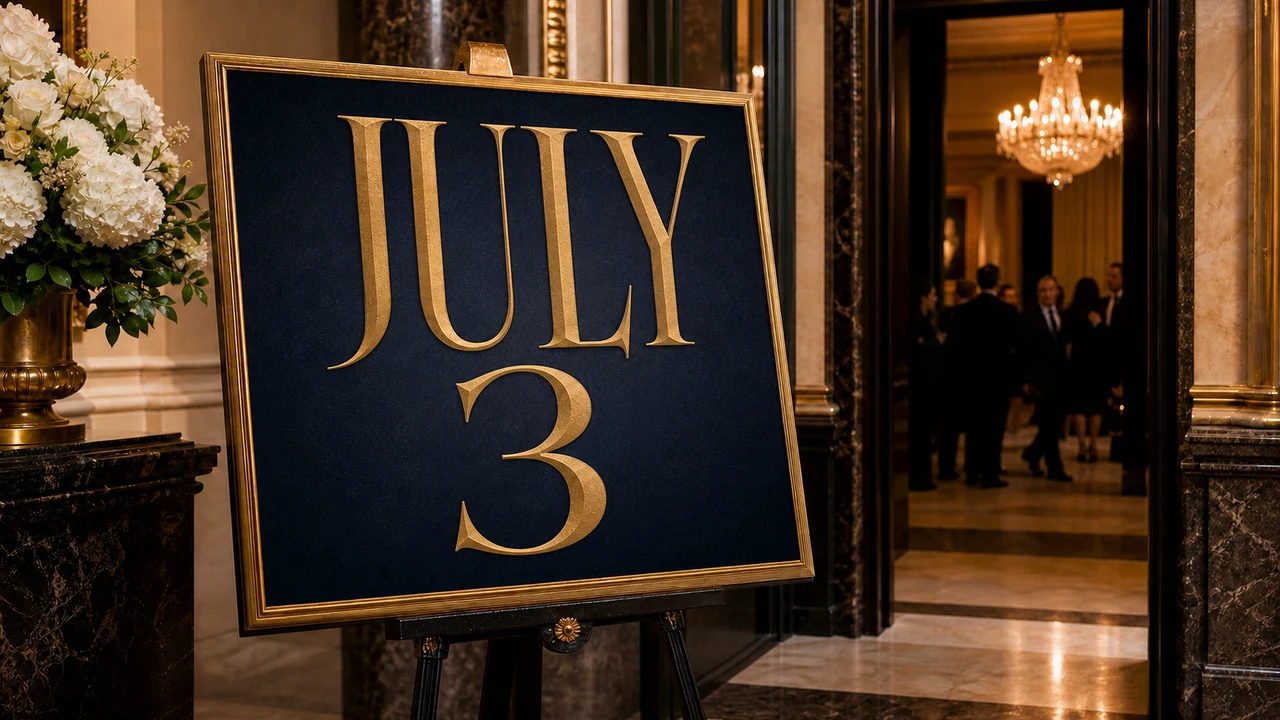
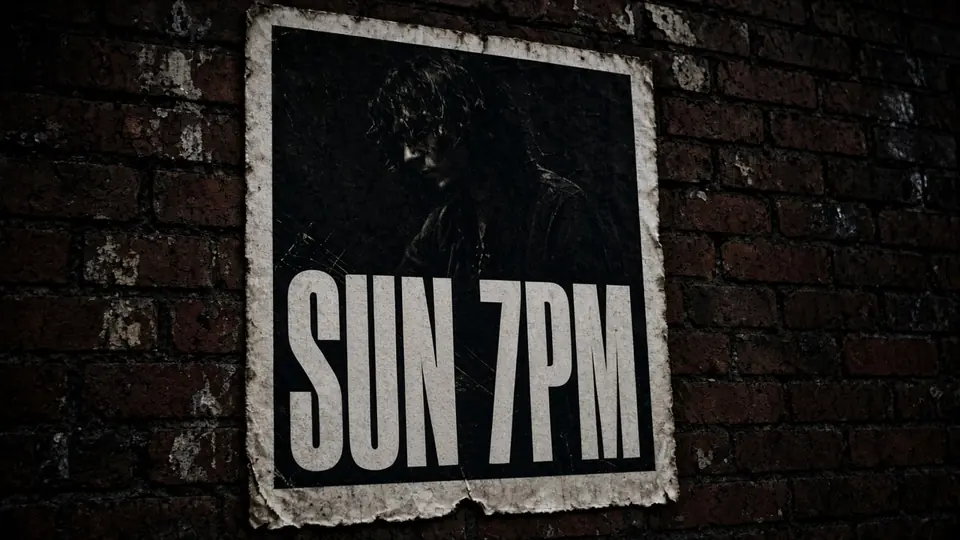
I recently opened an event invitation to update the text from HALL A to HALL B. The file arrived as an exported graphic set against textured cotton paper with subtle shadows. When you adjust wording on an unfamiliar asset, your first move determines whether the task takes moments or turns into an exhaustive rebuild.
If HALL A lives inside a native text box, clicking the phrase immediately displays the font toolbar, size controls, and an active cursor. If the letters are printed directly into the paper grain of an uploaded image, clicking on the words merely highlights the entire background graphic. You cannot place your cursor between the characters because the typography has merged into static raster pixels.
Canva Text Editor
Edit flattened Canva exports directly using our free online Canva image text editor with font matching.
The Difference Between Live Typography and Flat Pixels
Understanding the distinction between dynamic canvas elements and flattened raster graphics will save you from constant layout headaches. Modern design platforms handle text layers as editable vector objects, whereas imported images store visual data as fixed color grids. When you recognize which category your lettering belongs to, you can choose the correct editing strategy immediately.
Inside an ongoing Canva design that you built yourself, any text block you generate with the native typing tool remains live. You can double-click that container at any point to rewrite phrases, switch typefaces, or modify letter spacing. The system redraws every letterform dynamically, ensuring your typography looks crisp without disrupting surrounding artwork.
The situation changes completely when you work with an imported PNG, a flat JPG, or an exported presentation graphic. In these files, the software no longer recognizes individual characters or typographic style rules. If you drop a new text box across an uploaded image, the program simply adds a fresh layer on top rather than swapping the underlying characters.
To conceal an outdated phrase, many creators instinctively draw an opaque rectangle over the original text before typing new words over the patch. While that temporary masking trick might work on flat backgrounds, it looks disastrous against organic paper grains or delicate gradients. The visible boundary around the artificial patch destroys the depth of the artwork and signals poor craftsmanship.
Features like Grab Text or Magic Studio exist within Canva, but their availability varies depending on your subscription tier and geographic region. Because these proprietary options are not universally accessible across every account, relying on them often leads to unexpected roadblocks. When built-in tools are unavailable on your interface, you need a dependable method to handle stubborn raster typography.
Instead of relying on clunky cover-up patches, you can utilize a dedicated Canva Image Text Editor through ReWords AI to resolve the problem. This external workflow enables you to address the locked typography directly on the raster layer while keeping the surrounding environmental details intact. You avoid the tedious chore of recreating intricate background lighting, decorative borders, or handcrafted textures.
How to Inspect Your Layout and Identify Existing Characters
Before you decide how to alter any visual document, you should inspect the canvas to verify the status of the letters. Start by clicking directly on the phrase you need to modify and observing how the selection handles surround the object. An active text box will generate a compact rectangular frame tightly fitted around the specific line of copy.
Observe your mouse pointer carefully as you hover across the visual forms of the letters. An editable text container switches your pointer to a vertical text-selection cursor, allowing you to highlight individual words. If your pointer remains a standard directional arrow and clicking highlights the outer margins of the entire canvas, you are dealing with a flattened raster graphic.
You can also verify your element hierarchy by opening the native layer management panel within your design editor. In a layered document, distinct rows will correspond to your headline, subheadings, and supporting body copy. If the typography does not appear as an independent layer in the layer list, the characters are baked directly into the underlying bitmap.
Consider marketing collateral such as promotional graphics where an e-commerce badge displays 20% OFF or 40% OFF. If a marketing team exports that banner as a finished graphic, those promotional terms become fused into the visual artwork. When you need to revise that badge, standard canvas tools cannot peel the old figures away from the textured gradient.
Taking time to diagnose your document saves you from unproductive troubleshooting. You will avoid searching through extensive font libraries in a futile attempt to match an unidentifiable typeface that was never installed in your software. Recognizing that your typography consists of frozen pixels allows you to transition immediately to a specialized editing workflow.
Preparing Flattened Graphics for Pixel-Level Text Replacement
Once you identify that your graphic contains flattened raster lettering, you can export the asset and import it into ReWords AI. The platform provides an environment specifically engineered to handle baked letterforms without corrupting the surrounding visual texture. Rather than covering the canvas with artificial boxes, the system works with the existing pixel structure of your artwork.
When you choose to Edit Text in Image, the platform examines the uploaded asset to map out every recognized typographical line. Scanning your graphic does not consume any of your credits, allowing you to inspect the system's detection results freely. You can verify that the software located your target phrase before committing any resources toward generating updated visuals.
Once the automated detection pass completes, colored bounding frames outline the identified text regions across your image. If your composition contains multiple phrases that must remain untouched, you can use the Lock feature on any specific detected line. Locking a line instructs the processing engine to protect those coordinates, ensuring that only the designated target area undergoes revision.
For any line you select to alter, you type your own replacement words directly into the corresponding text input field. The interface does not force automated translation suggestions onto your design, giving you complete command over the resulting copy. You decide the exact wording, spelling, and capitalization required for your revised layout.
When you sign in to your account, you receive complimentary trial credits that let you test this workflow directly. If you proceed with the final generation, credit expenditure depends entirely on the resolution of your chosen output. Generating a 1K resolution image consumes 10 credits, a 2K resolution render requires 20 credits, and an ultra-sharp 4K output costs 30 credits.
Visual Styling Realities Versus Font File Matching
When you need to Edit Text in Image with Same Font, you must understand the distinction between visual rendering and true font files. The replacement engine performs a best-effort matching of visible styling, analyzing stroke weight, curvature, slant, surface distress, and lighting cues from the surrounding pixels. It does not extract, download, or install proprietary font files, nor does it generate lossless vector outlines.
Because the technology synthesizes visual harmony from surrounding raster context, minor variations may occasionally appear across complex letterforms. The generated characters blend into the ambient color balance, surface grain, and photographic depth of the original background. This contextual approach produces a coherent image that looks natural, avoiding the sharp contrast that occurs when modern vectors sit on weathered surfaces.
Maintaining realistic expectations ensures you get the most out of your creative workflow. The platform does not provide unlimited free image generations, and it is not intended to function as an automated bulk processing API. It is tailored as a precise desktop tool for individual creators and marketers who need careful updates on specific visual assets.
After your generation finishes, you can download the updated file and reintroduce it into your preferred layout software. If you originally built your project with external graphics, frames, or brand marks, you can simply replace the underlying image asset with your revised version. Your layout retains its structural integrity while presenting clean, updated text that matches the initial aesthetic.
The Bottom Line
Always inspect your design elements first to identify whether a line of text is an editable Canva container or a static raster image. When you have access to live text, make your adjustments directly on the canvas using standard typography tools. If your words are welded into flat pixels, avoid clumsy cover-up shapes and process the graphic through ReWords AI to maintain visual consistency.
The platform delivers a best-effort visual match of visible styling rather than relying on proprietary font files, ensuring your replacements blend naturally into existing textures. You maintain complete creative ownership by manually entering your own text, with generation costs set at 10 credits for 1K, 20 credits for 2K, and 30 credits for 4K. Identifying your assets accurately ensures you save design time and keep every graphic looking professional.
Sources
https://zhuanlan.zhihu.com/p/588099832 https://zhuanlan.zhihu.com/p/2042886390296339131 https://www.zhihu.com/question/638028057/answer/2088559792247911246 https://en.wikipedia.org/wiki/Information_design https://en.wikipedia.org/wiki/Graphic_organizer https://en.wikipedia.org/wiki/Style_guide