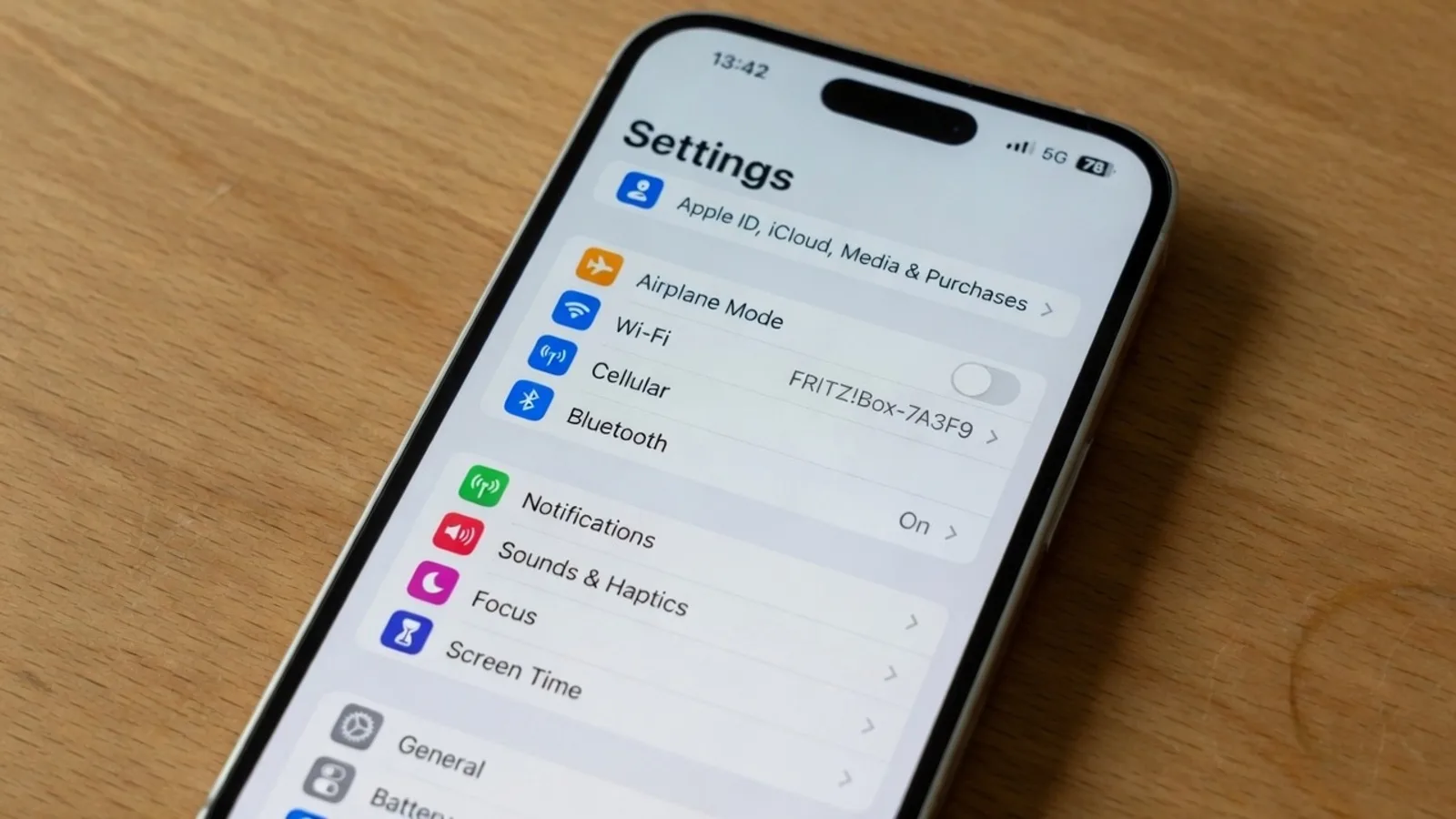
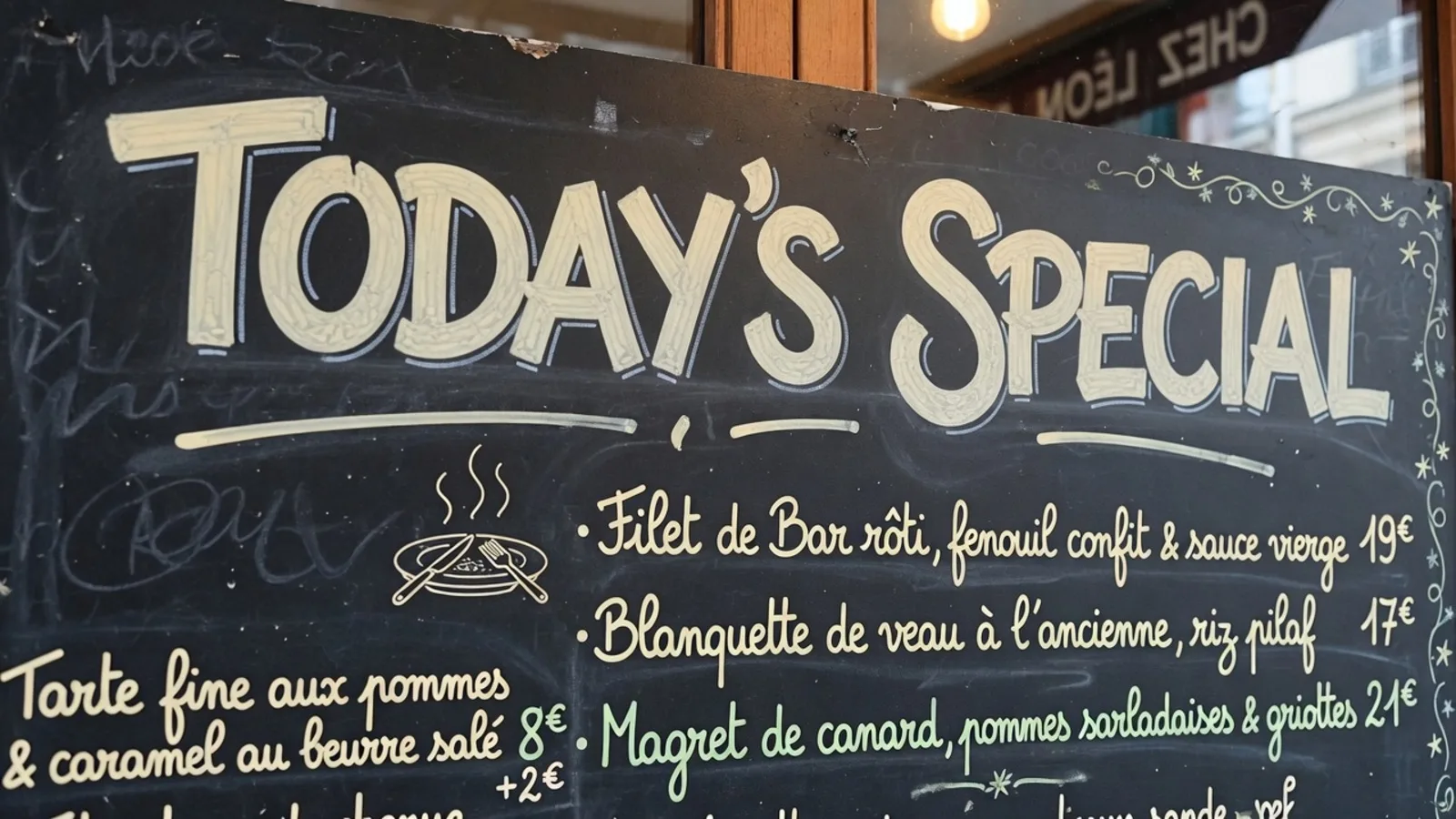
Whenever I see someone raise their smartphone to snap a photo of a laptop display just to read foreign text, I know frustration is about to follow. It seems like the quickest workaround in the moment, but you inevitably end up with blurry characters, nasty glare, and distorted angles. You do not need to rely on a live camera sensor or hold your phone in the air to decipher visual text.
Translating photo text without a live camera is not only possible, but it produces far cleaner results when you treat images as proper digital assets. Whether you are dealing with a captured screenshot, a downloaded graphic, or a scanned document, browser-based file workflows beat physical camera feeds every time. In this article, I will explain why pointing your phone at a screen fails and how you can translate still graphics directly.
Google Translate Camera
Upload photos to our free online camera text translator for clean in-image translation without jitter.
The Reflex: Why Pointing Your Phone at a Monitor Fails
We develop muscle memory from traveling abroad, where lifting a mobile viewfinder at a street sign feels natural. When you bring that same physical reflex to your computer desk, the underlying physics of digital screens works against you. Your camera sensor tries to capture an array of glowing physical pixels, leading to immediate optical degradation.
The most notorious culprit is the moiré pattern, which occurs when the pixel grid of your monitor interferes with the grid array of your smartphone sensor. This interference manifests as wavy bands and rainbow stripes across your photo, breaking up fine character strokes. Glare from overhead room lighting compounds the issue by washing out critical contrast. Furthermore, tilting your hand introduces trapezoid distortion, stretching letterforms into unreadable geometric wedges that confuse optical character recognition engines.
I have watched translation algorithms misread basic Latin characters and completely butcher East Asian scripts purely due to these optical artifacts. A crisp digital letter becomes a smear of dark and light patches once a camera lens re-encodes it through screen glass. If your goal is reliable interpretation, you must eliminate the physical optical step entirely.
The Gallery Import Limitation in Mobile Apps
Many users try to sidestep live pointing by saving an image to their camera roll and importing it into a mobile translation app. You might open Google Translate Camera on your phone and tap the gallery icon to process an existing snapshot. While this eliminates handshake and live focus jitter, it still relies on an architecture engineered for fast on-the-fly reading. The app identifies the text blocks and places floating, translucent text overlays across the screen.
These mobile tools are designed for immediate consumption rather than producing a finished, shareable visual asset. The overlay often clashes with the underlying graphics, obscures adjacent visual details, and rarely matches the original typography. If you take a picture of a foreign product package, such as inspecting a medicine box where medicine box 用法 → DOSAGE must be read in context, an ephemeral overlay provides basic comprehension but leaves you without a cleanly edited file.
The moment you attempt to export or screenshot that result, you realize you have merely captured a mobile reading session. The translated words sit awkwardly over the original graphics like floating stickers rather than belonging to the design. To create a visual that looks intentional and clean, you need a workflow that alters the image data itself rather than superimposing temporary text layers.
Understanding Still Rasters vs. Live Video Streams
A live camera feed is a continuous temporal stream fraught with motion blur, fluctuating exposure, and continuous autofocus hunting. In contrast, a digital screenshot or saved graphic is a fixed raster image made of discrete pixels arranged in a precise two-dimensional grid. When you capture a window directly on your operating system, every pixel value is preserved exactly as rendered.
Working directly with raster formats like PNG, JPG, or WebP gives image translation algorithms a massive computational advantage. Because there is no optical noise, lens distortion, or sensor compression to filter out, character detection engines can pinpoint text boundaries with mathematical precision. You can rely on a dedicated Screenshot Translator to extract and process screen content without losing a single pixel of clarity. This clean digital baseline ensures that complex typography and subtle background colors remain intact.
When you preserve the raster file directly from your computer or phone clipboard, you bypass all mechanical flaws of the physical world. You do not have to worry about ambient lighting, steady hands, or angled perspectives. The software receives pure data, which translates directly into higher recognition accuracy and far fewer mistranslated phrases.
Inpainting and Replacing: Keeping the Graphic Intact
In many real-world tasks, reading the translated text in a side-by-side text box is simply not enough. You frequently need to keep the visual graphic intact—preserving background gradients, icons, and textures while replacing the source text with translated wording. This requires an inpainting approach where the original letters are removed and the underlying background is reconstructed before rendering new text.
This is where dedicated browser-based platforms change the game. ReWords serves as a still-file Google Translate Camera alternative, not a live camera app, built specifically to process and edit static files directly on your desktop or mobile browser. When you need to Translate Image to English, you can upload your source file directly to generate an in-place graphic replacement. You simply drop your image into the still-file workspace to translate and repaint the detected text blocks.
Within this editing environment, text selection is straightforward and intuitive. In ReWords, Lock simply anchors a detected line of text rather than managing complex Photoshop layers. Guest visitors can run one suggest/job preview, while final image generation uses trial credits after login. Keep in mind that automated graphic replacement is a best-effort inpainting process, not a lossless vector rebuild, but it delivers an integrated visual that no phone viewfinder can match.
Comparing Practical Workflows Across Common Scenarios
Consider how this plays out when troubleshooting a software error dialog written in a foreign language. Snapping a photo of your monitor with your phone gives you a grainy, warped image that is awkward to file into a ticket or share with teammates. Taking a native screen clipping and processing it as a still file yields an immaculate, readable image with translated error messages set directly into the interface boxes.
The same principle applies to technical diagrams, schematics, and marketing banners found online. Re-photographing a high-resolution web banner destroys its visual fidelity and introduces severe color degradation. Handling the original file directly preserves the visual hierarchy and stylistic balance, ensuring your translated assets remain professional and ready for presentation.
Even for physical documents or product packaging that originated from an actual photograph, you achieve better outcomes by saving the original still capture once. Once that photo is stored as a file, pass it through a still-file translation tool rather than holding your phone aloft in a live translation mode. You gain full control over the output, allowing you to review the wording and inspect the rendered result at your own pace.
Practical Tips for Translating Still Photos Without Cameras
To maximize the quality of your translations without touching a camera viewfinder, establish clean capture habits. Use your system's built-in snipping shortcuts to grab regions of interest directly to your clipboard or desktop. Always favor lossless formats like PNG for digital UI elements and diagrams, reserving standard JPEG files for real-world photographic scenes.
If you must translate physical items like packaging or printed manuals, take a single, flat, well-lit photo using your default camera app rather than an in-app translation lens. Transfer that still file directly to your desktop or open it in your browser for processing. This separation between capturing the visual record and translating the content ensures you get optimal exposure on the photo and flawless text handling in software.
By shifting your mindset away from live camera viewfinders, you eliminate the mechanical barriers that cause OCR failures. You no longer have to squint at jittery screen text or deal with washed-out monitors. Digital files provide the stability, resolution, and detail required for dependable visual translation.
The Bottom Line
Pointing your smartphone at a computer monitor is an unnecessary habit that introduces moiré patterns, trapezoid distortion, and poor character recognition. Translating photo text without a live camera simply means treating screenshots and photos as digital raster files rather than ephemeral viewfinders. By uploading original stills to dedicated browser tools, you can replace foreign text with clean inpainting and keep your graphics intact.