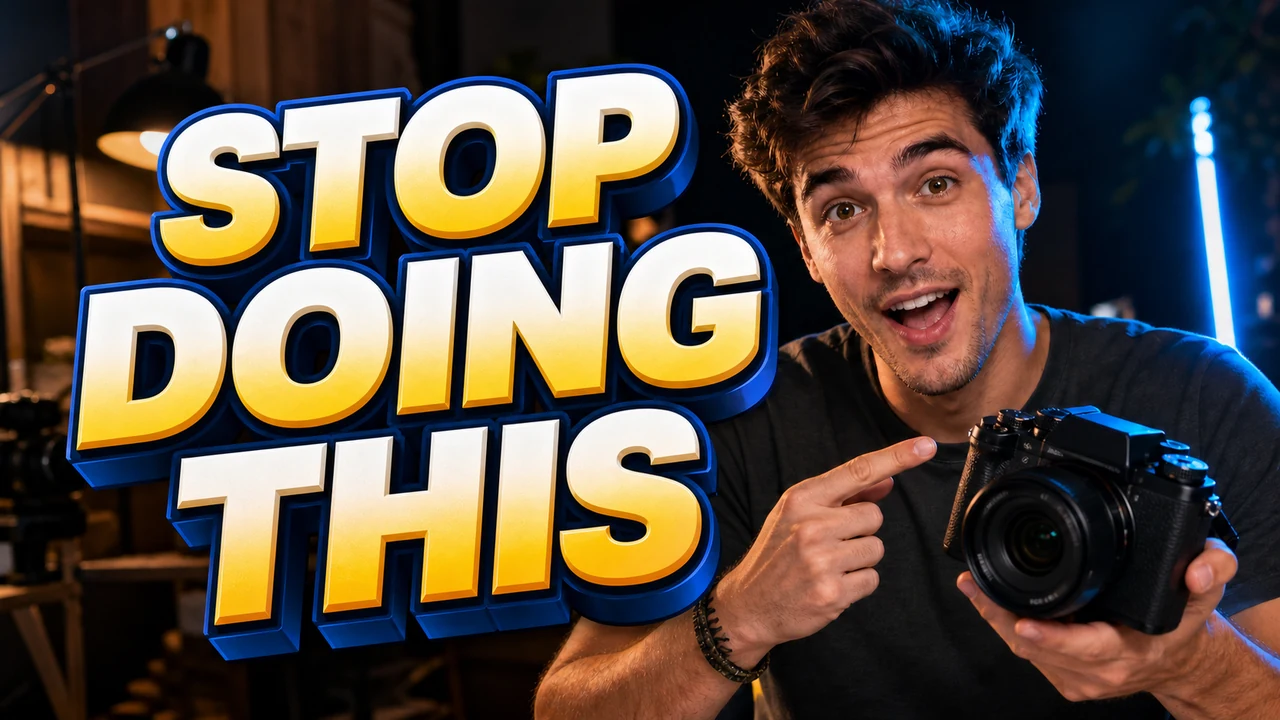
I was staring at a completed video thumbnail sitting on my desktop yesterday afternoon. Bold yellow letters across the top read NEW VIDEO against a dark studio background with warm rim lighting. The video was scheduled to publish the next morning, but the team decided the headline had to say WATCH THIS instead.
Dropping a solid color block over that graphic was an immediate visual disaster. The patch hid the rim light on my shoulder and left an awkward dark band across the composition. The lettering was already baked into the pixels, and the original project file was nowhere to be found on my storage drive.
If you still have the editable source canvas, the solution is straightforward. You open your saved design file in Photoshop or Canva, double-click the active text frame, and type your new headline. That standard layered workflow should always be your first choice whenever the editable assets remain accessible.
The problem begins when you only possess a flattened PNG or JPG export. Once graphic software renders text into a raster grid, character shapes fuse with background textures, lighting gradients, and camera grain. You no longer have distinct layers to manipulate, which makes routine copy adjustments frustrating.
Thumbnail Text Editor
Edit baked-in words on video covers with our free online thumbnail text editor and style matching.
Understanding the Category of Raster Text Replacement Tools
Traditional image editors force you to clean the background before you can add new lettering. You have to paint over the existing characters with a clone stamp, rebuild lost gradients by hand, and then position a fresh text element over the patched area. That manual process takes considerable patience and often leaves blurry artifacts across delicate background textures.
A modern raster text replacement tool approaches the challenge from an entirely different angle. Instead of separating the cleanup and retyping into disjointed tasks, the software treats character replacement as an integrated visual operation. The underlying model analyzes the surrounding visual environment while reconstructing the background and forming replacement letters simultaneously.
This specialized category exists specifically for flattened graphics where you cannot retrieve the original layered composition. When you work with a dedicated Thumbnail Text Editor, the platform processes the existing raster data directly. You gain the ability to revise static graphics without rebuilding the whole layout from scratch.
These tools operate on visual synthesis rather than simple font rendering engines. When a platform reads an image, it interprets letter boundaries, ambient shadows, and color transitions across neighboring pixels. It then generates updated typography that respects the environmental lighting of the original composition.
How the Modification Workflow Operates in ReWords AI
When you bring a flattened graphic into ReWords AI, the platform begins by running an automatic visual scan. The system inspects the image canvas to identify visible text groupings across the layout. This detection phase does not consume any of your credits, allowing you to examine the recognized text lines before committing to an edit.
Once the text lines are identified, you decide which elements to modify and which ones to keep intact. You can activate the Lock feature on any recognized line to freeze its current appearance completely. Locking ensures that brand logos, timestamps, or secondary captions remain untouched while you work on the primary title.
You supply the replacement wording yourself by typing directly into the designated input field. The platform never produces automated copy suggestions, and it does not force automated rewrites into your layout. You retain absolute control over every word, character, and punctuation mark that appears in the updated graphic.
After entering your desired phrasing, you select your preferred resolution tier to initiate the generation process. If you want to Edit Text in Image assets across different publishing channels, you choose the resolution that matches your target screen requirements. The engine then synthesizes your replacement copy directly into the existing background.
Credit Consumption and Output Resolution Structure
ReWords AI uses a clear credit system tied directly to output quality rather than monthly subscription locks. When you sign in to your account, you receive trial credits to test the tool on your own thumbnail files. This initial balance allows you to verify how the tool handles your specific art style before purchasing additional usage.
Credit costs depend on the dimensions you select for your final export. Generating a standard 1K image requires 10 credits, which works well for compact preview screens and mobile feeds. If you need sharper definition for desktop displays, generating a 2K image costs 20 credits.
High-resolution assets demand greater computational resources during raster synthesis. Generating a crisp 4K file requires 30 credits, providing maximum clarity for detailed display formats. You always know the exact credit cost before you trigger the rendering engine.
The platform does not provide unlimited free processing, nor does it support automated batch processing through an external API. Every graphic is handled individually inside the web interface to maintain consistent rendering quality. This focused approach ensures that each visual asset receives proper inspection throughout the replacement process.
Visual Style Matching Capabilities and Technical Boundaries
The rendering engine makes a deliberate, best-effort attempt to match the visible typography in your uploaded graphic. It evaluates character weight, visual tilt, color saturation, and surface highlights present in the original letters. It also studies subtle environmental traits such as drop shadows, ambient glow, and backlight bleed.
It is essential to understand that this process does not extract or install true digital font files. The system cannot deliver an editable vector file or an exportable font package from your flattened graphic. Instead, it reconstructs letter shapes through raster synthesis to harmonize with the existing graphic context.
Because the engine synthesizes pixels rather than vector curves, extreme close-up inspection may reveal minor texture smoothing. Solid backgrounds with clean edges yield sharp results, while intricate noise patterns or heavy film grain might blend slightly. The output aims for believable visual cohesion when viewed at standard display sizes.
If you originally constructed your thumbnail using an online layout suite, pairing a Canva Image Text Editor approach with raster synthesis bridges the gap when source files are lost. You avoid starting over with a blank canvas while still refreshing outdated titles. Knowing these technical realities helps you set realistic expectations for every export.
Managing Video Thumbnails Across Real-World Production Cycles
Video creators regularly face situations where a published thumbnail requires updated wording weeks after launch. Perhaps an episodic series needs distinct chapter markers, or a seasonal promotion has transitioned into an evergreen reference guide. When original design templates are misplaced, modifying the flattened file becomes an efficient alternative to reshooting the scene.
Updating visual assets across a video library also supports content translation and regional distribution. You can replace an English headline with Spanish or Japanese text while preserving the background lighting that frames your subject. Keeping the original image composition intact maintains strong brand recognition across different audience segments.
At the same time, you should maintain realistic perspectives regarding audience metrics and platform performance. Changing the words on a thumbnail cannot guarantee increased view counts, subscriber growth, or higher platform search rankings. Clean typography helps viewers understand your topic quickly, but sustained viewer interest always depends on your video content.
Visual clarity remains a foundational aspect of professional video presentation across all digital platforms. When your headline is easy to read against a coherent background, browsing audiences can evaluate your topic without distraction. Using the right tool for flattened assets simply removes friction from your routine thumbnail maintenance.
Before uploading any image, examine the contrast between your chosen wording and the underlying image textures. High contrast ensures readability across small mobile screens where intricate background details tend to disappear. A balanced layout gives your new headline the prominence it needs to communicate your message effectively.
Make a habit of organizing your exported media alongside your video archives to simplify future revisions. Storing high-resolution flattened copies ensures that you always have clean source material ready for raster text editing tools. When sudden title changes arise, having dependable source files allows you to execute updates without unnecessary stress.
The Bottom Line
When you still have an active design file with intact text layers, revising your headline in your original design program is always the best path forward. When all you have is a flat PNG or JPG, a raster text replacement tool allows you to swap baked-in words without destroying your background imagery.
ReWords AI gives you precise control by letting you enter your own replacement text, lock critical lines, and choose your preferred output resolution. The system matches visible typographic styling through intelligent raster synthesis rather than font extraction, delivering a practical solution when project files are gone.
Sources
- https://zhuanlan.zhihu.com/p/2042181678433658606
- https://en.wikipedia.org/wiki/Storyboard
- https://en.wikipedia.org/wiki/Title_sequence
- https://en.wikipedia.org/wiki/Lower_third