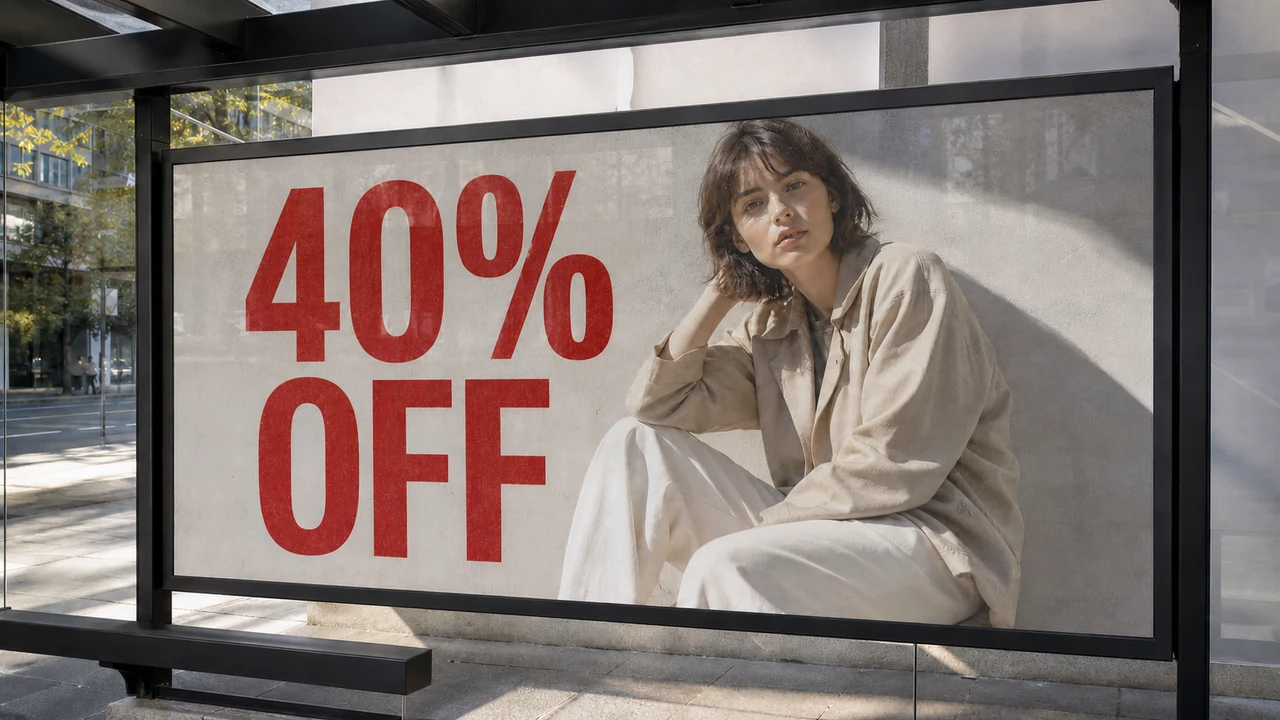
I recently stared at my phone screen looking at an exported event announcement saved as a high-resolution PNG file. The card displayed the phrase "SAVE THE DATE" in elegant typography across a textured watercolor wash. The composition was completely approved, but the event host had just moved the celebration by two city blocks.
If that artwork still rests inside an active Canva workspace, resolving the update is straightforward. You simply click the active text frame, type the corrected location details, and export a fresh file. When someone forwards you that announcement as a flattened PNG without source files, those convenient text boxes are completely gone.
That gap highlights a fundamental divide between vector layout environments and static raster files. In active design documents, typography exists as living code linked to font files and flexible coordinates. Once an artwork exports into standard raster formats such as PNG, JPG, or WebP, those characters merge permanently into the surrounding background pixels.
When that flattening occurs, standard graphic suites view the entire design as a uniform grid of colored pixels. Attempting to modify letters in conventional raster software often demands painstaking clone stamping, patch blending, and manual color reconstruction. That practical hurdle is why creators turn to an AI Image Text Editor instead of rebuilding entire layouts from nothing.
AI Image Text Editor
Replace, fix, or remove words with our free online AI image text editor and style matching.
When Staying Inside Canva Makes Sense
I always suggest remaining within your native design tool whenever you have direct access to the original project canvas. When your Canva file remains accessible, you retain full command over layer alignment, color swatches, vector elements, and font hierarchies. Adjusting an editable text frame directly on your existing artboard will always yield the cleanest vector output.
Canva also includes built-in workspace tools like Magic Studio and Grab Text to assist users with layout modifications. These features act as design-file assistants whose availability depends on your current subscription plan and geographic region. Because they operate inside ongoing design documents, their purpose is supporting layout work rather than reconstructing flat graphics received from third parties.
Staying inside your primary design environment also preserves collaboration histories, shared asset libraries, and team comments. If you manage recurring marketing decks, corporate templates, or multi-page social campaigns, working from the master document prevents layout drift. In those situations, re-exporting directly from the project board remains your most efficient route.
The Friction of Flattened Deliverables
Real-world workflows frequently break down when the master design file is unavailable. A freelance designer might have delivered an exported asset before concluding a contract, or an agency partner may have provided a finalized marketing banner. Without the editable source document, standard design tools can only treat the file as a single uneditable background image.
Reconstructing a finished visual from scratch just to revise a few words is an exhausting exercise. You must source the original background art, match subtle lighting gradients, and browse font catalogs to find visually similar glyphs. Even a tiny mismatch in letter weight or tracking can make the revised section stand out awkwardly against the rest of the image.
Placing a solid patch over the text inside an empty canvas rarely produces a convincing result. Handling a flattened deliverable demands an approach tailored directly for static exports, which is where a dedicated Canva Image Text Editor workflow proves valuable. Rather than asking you to recreate lost vector layers, modern visual models evaluate the surface texture and rewrite the characters directly within the existing image plane.
Comparing Canvas Editing and Pixel Replacement
Deciding on the correct editing path requires you to evaluate whether you hold an editable project file or a flattened graphic asset. The table below outlines how your initial file format determines your editing method:
| Workflow Factor | Canva Workspace | AI Pixel Text Editor |
|---|---|---|
| Starting Asset | Editable project file | Flattened PNG, JPG, or WebP |
| Target of Modification | Vector text frames | Rendered surface pixels |
| Final Output | Newly exported file | Re-rendered raster image |
| Primary Advantage | Complete layout control | No source file required |
As shown above, the core difference depends on the exact digital layer you are modifying. When you work inside software like Canva, Photoshop, or Figma, you adjust discrete typography properties positioned over separate graphic layers. When dealing with static files, the letters and background are already combined into a single pixel matrix.
Recognizing that distinction saves substantial production time and avoids unnecessary workarounds. Treating a flattened graphic as an editable canvas often leads to mismatched colors and clumsy text overlays. Approaching static files with a tool built for raster typography allows you to address the pixels directly without rebuilding lost design infrastructure.
Modifying Text on Finished Imagery with ReWords AI
I structured the ReWords AI workflow specifically around the realities of working with finalized raster deliverables. The platform supports standard static image formats, including PNG, JPG, and WebP files. After you upload an image, the system analyzes the composition and highlights the detected lines of text across the graphic.
Text detection costs zero credits, giving you the freedom to inspect all identified phrases before deciding to make adjustments. Trial credits become available once you sign in to your account. When you proceed with generating your updated image, credits are deducted according to your chosen resolution: 10 credits for 1K, 20 credits for 2K, and 30 credits for 4K.
You enter your replacement wording manually, maintaining full authority over your vocabulary and phrasing. The interface does not impose automated text suggestions or machine-translated assumptions, keeping the editorial decision entirely with you. If your goal is simply to clear an unwanted text line from the graphic, leaving that input field empty will remove that specific line of text.
You can also use the Lock feature to protect specific phrases that must remain untouched during processing. This toggle locks an identified line of recognized text rather than a Photoshop layer. By locking unchanged headlines or legal notices, you ensure that the model focuses exclusively on the wording you selected for revision.
This targeted mechanism avoids a persistent challenge found in general image generation models. Standard generative systems interpret letters as integral visual texture, which means rerunning a prompt regenerates the entire graphic and alters established artwork or facial expressions. ReWords AI modifies the existing text directly on an already-approved visual without disturbing the surrounding composition.
Stylistic Matching and Realistic Boundaries
When generating replacement words, the system analyzes surrounding visual context to reflect the visual tone of the original lettering. It assesses stroke weight, letter angle, illumination, and color blending to integrate the new phrasing into the visual environment. This process seeks to match the visual character of the original typography rather than loading the exact proprietary font file.
Because the platform works across raster pixels, the output is not a mathematically lossless vector file, nor does it provide a formal compliance guarantee for strict publishing audits. You remain responsible for evaluating the final phrasing, spelling, and visual coherence before putting the graphic into production. Checking your generated output at full display size ensures the revised lettering fits your aesthetic requirements.
Clear boundaries also govern how the service operates behind the scenes. We do not provide unlimited free generation queues, and we do not support automated batch processing pipelines. Furthermore, the platform is designed strictly for authorized editing tasks and is never intended for stripping watermarks or modifying protected assets belonging to other creators.
Evaluating Your Workflow Needs
A detailed look at ReWords AI vs Canva illustrates how each tool fulfills a distinct operational purpose. Canva remains the premier choice when you are developing brand templates, managing marketing collaterals, and working within an editable vector environment. When your master design file is readily available, editing your text frames inside that workspace remains the most direct solution.
An AI image text editor serves an essential role the moment your creative asset becomes detached from its original project. When an approved promotional visual, event banner, or social graphic arrives as a static raster file, rebuilding the layout from scratch creates unnecessary delay. Modifying the typography directly on the rendered pixels allows you to update your graphics quickly while preserving the visual identity of the approved piece.
The Bottom Line
The choice between a design suite and an AI image text editor depends entirely on the state of your asset. If you have an active project file with editable text frames, stay inside Canva and perform your revisions there. That workflow ensures pristine vector typography and keeps your working templates organized within your central asset library.
When you only have a flattened PNG, JPG, or WebP graphic, forcing that file back into a template editor leads to tedious compromises. ReWords AI allows you to update headlines, dates, and details directly on finished pixels without having to recreate the underlying background art. By understanding the distinction between editing layers and editing pixels, you can handle design revisions with clarity and confidence.
Sources
- Zhihu Article on Digital Image Editing and Layer Composition
- Zhihu Discussion on Text Modification in Raster Graphic Assets
- Zhihu Community Insights on Typography Processing in AI Workflows
- Wikipedia Overview of Canva Graphic Design Platform
- Wikipedia Reference on Layers in Digital Image Editing)
- Wikipedia Documentation on Digital Export Processes