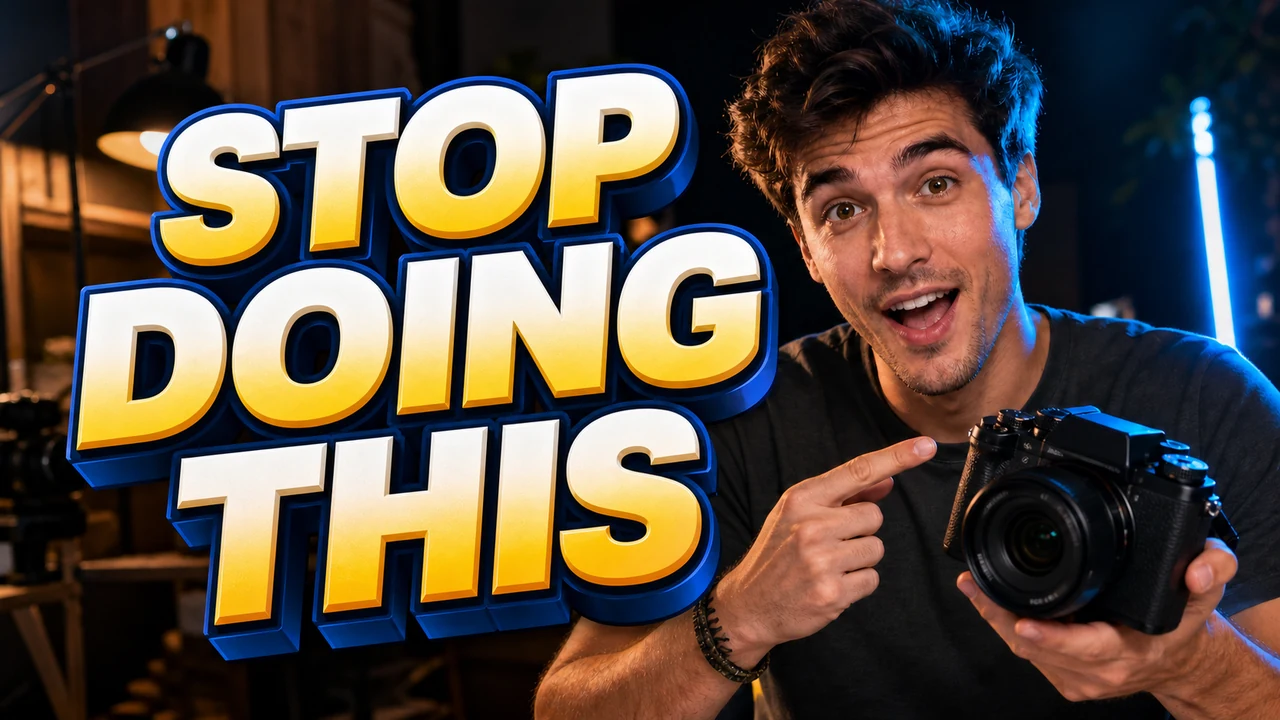
I sat staring at my computer monitor late on a quiet evening with an edited video ready for upload. Across the exported preview image, thick yellow lettering proclaimed "10 METHODS" across the right side of the frame. During my final audio edit, I had trimmed out several repetitive tips, leaving behind three concise takeaways that made the visual headline inaccurate.
Uploading a thumbnail that promises ten points when your runtime only covers three damages viewer trust immediately. My studio lighting was already packed away, and the only graphic asset I had on hand was a flattened PNG. I needed the lettering to say "3 KEY POINTS" while keeping my facial expression, lighting, and background completely intact.
Thumbnail Text Editor
Edit baked-in words on video covers with our free online thumbnail text editor and style matching.
Why Flattened Image Files Complicate Text Revisions
When you export a finished graphic, your editing software merges all individual layers into an uneditable raster surface. The vibrant letters spelling "10 METHODS" become permanently combined with the pixels representing your clothes, ambient lighting, and backdrop shadows. Standard image viewers treat that entire graphic as an indivisible grid of color rather than separate layers of text and photography.
This problem arises frequently when creators organize project archives or switch between editing machines. You might clear intermediate design drafts to save disk space, leaving only the final exported render in your active project folder. If you need a headline adjustment right before publishing, that missing project canvas creates an immediate bottleneck.
Method 1: Reopening the Original Design Canvas
If you still have your original project file inside your design software, opening that document remains your first and best option. You locate the layered canvas, select the existing text frame, and directly type your new phrase into the container. Because the file retains vector typography, your new letters match the existing font styling, letter spacing, and outline effects automatically.
The primary drawback is that working project files are not always available when you need them. You might be working on a laptop away from your primary desktop workstation, or you may have received the final image from an external graphic designer. When the native layered file cannot be located, opening your original design program ceases to be a practical option.
Method 2: Placing a Solid Color Banner Over the Words
Many creators rely on a familiar manual shortcut by drawing a solid opaque block over the outdated lettering. You open a basic photo editing utility, draw a colored rectangular shape directly over "10 METHODS", and type "3 KEY POINTS" on top of the patch. This method successfully conceals the original words without requiring complex pixel reconstruction or advanced retouching skills.
Unfortunately, placing an artificial banner across your graphic almost always harms the visual appeal of your thumbnail. The flat color strip interrupts the natural lighting of your photography, cuts off background depth, and looks like an accidental sticker slapped across the frame. Viewers immediately register the patch as an unpolished repair, which detracts from the professional impression of your channel.
Method 3: Rebuilding the Entire Graphic from Scratch
Another traditional path involves starting completely over with a blank canvas to recreate the original design. You capture a fresh freeze frame from your edited video sequence, import it into your layout tool, and rebuild the text hierarchy manually. This guarantees that all text elements remain crisp vector layers, giving you full control over typography, drop shadows, and visual alignment.
The drawback to a total redesign is the substantial amount of time and effort required for a minor editorial change. Video frame grabs rarely equal the crispness and dynamic range of a dedicated high-resolution still portrait taken under proper studio flashes. Reconstructing the layout also means identifying the exact original font, matching letter spacing, recreating color gradients, and re-masking your subject against the background.
Method 4: Replacing Flattened Text Lines in the Browser
When you only possess a flattened raster image, specialized browser-based tools offer an efficient alternative to full redesigns. A dedicated Thumbnail Text Editor allows you to target baked-in typography without damaging the surrounding photography. The software scans the graphic to detect where letters appear, fills the underlying texture seamlessly, and places your new phrasing into the clean space.
This workflow specifically solves the problem of transforming "10 METHODS" into "3 KEY POINTS" on an isolated picture file. You upload your exported image into the workspace, where an automated detection pass identifies individual text boundaries across the canvas. When you choose to Edit YouTube Thumbnail Text through this method, you skip the frustration of searching for missing project archives.
Targeting specific regions on a flattened graphic makes fast editorial revisions possible across diverse promotional materials. When you need to Change Text in Image assets such as video cards, channel headers, or promotional social graphics, browser processing keeps your production moving. The algorithm observes adjacent visual textures, lighting direction, and visible character weights to render an updated headline that fits naturally into the original scene.
How Credits, Detection, and Line Locking Work
Navigating the editing interface requires an understanding of how individual text lines are recognized and handled. After the platform analyzes your uploaded graphic, it displays detected text lines so you can review each phrase independently. When you activate the lock feature, you lock an identified detected text line against modification, which is distinct from locking a traditional Photoshop layer. If you decide that an extra subheadline is no longer needed on your cover, leaving the replacement field blank removes that line entirely.
The credit structure is designed to let you evaluate your image layout before spending any balance on output generation. The initial text detection process costs no credits, allowing you to confirm that the software reads your lettering properly. New users receive complimentary trial credits upon sign-in to test the replacement workflow firsthand. When you proceed with generating the final image, credit deduction scales with your chosen canvas size, requiring 10 credits for 1K, 20 credits for 2K, and 30 credits for 4K.
File compatibility accommodates standard raster formats produced by common editing and streaming workflows. You can import and export static images in PNG, JPG, or WebP formats to fit standard platform upload requirements. The service focuses on deliberate, single-asset modifications rather than automated bulk processing APIs or unlimited free exports.
Visual Matching Versus Traditional Font Files
It is important to set practical expectations regarding how the replacement typography is constructed on a flattened graphic. The underlying engine analyzes the visible stroke weight, color palette, and general geometry of existing letters to synthesize new characters. It does not install an actual font file or export mathematically lossless vector typography. Because the tool aims to match visible appearance within a raster image, minor stylistic variations may occur compared to native font typesetting.
Creators should also view headline adjustments as an editorial correction rather than a marketing shortcut. Modifying the words on your thumbnail will not artificially increase video views, boost viewer retention, or improve search placement on platform algorithms. An accurate thumbnail simply serves to align viewer expectations with the substance of your video, reducing immediate bounce rates caused by misleading headlines.
Ethical content management is equally vital when using image manipulation tools across digital platforms. This replacement technique is intended solely for modifying your own creative media when original source assets are missing. You should never use image editing software to scrape, modify, or repurpose thumbnails created by other independent video channels. Focusing strictly on your own creative workflow protects your channel reputation and aligns with respectful community standards.
Choosing the Best Approach for Your Thumbnail
Selecting the best method depends directly on what assets you currently possess and your immediate publishing timeline. If you still have the editable project canvas in your design suite, opening that document and modifying the text box is always the preferred solution. If that source file is permanently lost or inaccessible, inpainting the flattened file provides a far cleaner result than slapping an ugly colored bar over your artwork. Rebuilding from scratch remains an option, but it consumes valuable production time that could be spent creating your next video.
When you find yourself needing to revise "10 METHODS" to "3 KEY POINTS" under a tight deadline, minimizing friction is essential. Evaluating your available files honestly allows you to avoid unnecessary backtracking while protecting the visual quality of your cover art. By using modern inpainting tools when project archives disappear, you preserve your photography, lighting, and composition effortlessly.
The Bottom Line
Discovering an outdated text phrase on a flattened YouTube thumbnail does not mean you must scrap your work and start over. When your original project files are gone, browser-based inpainting tools allow you to update key phrases while keeping your face and background intact. The platform detects text without consuming credits, applies intuitive line locks, and scales output generation cleanly from 1K to 4K. Taking control of your flattened visual assets keeps your channel consistent, professional, and ready for publication on schedule.
Sources
- https://en.wikipedia.org/wiki/Vlog
- https://en.wikipedia.org/wiki/Keyboard
- https://en.wikipedia.org/wiki/Microphone