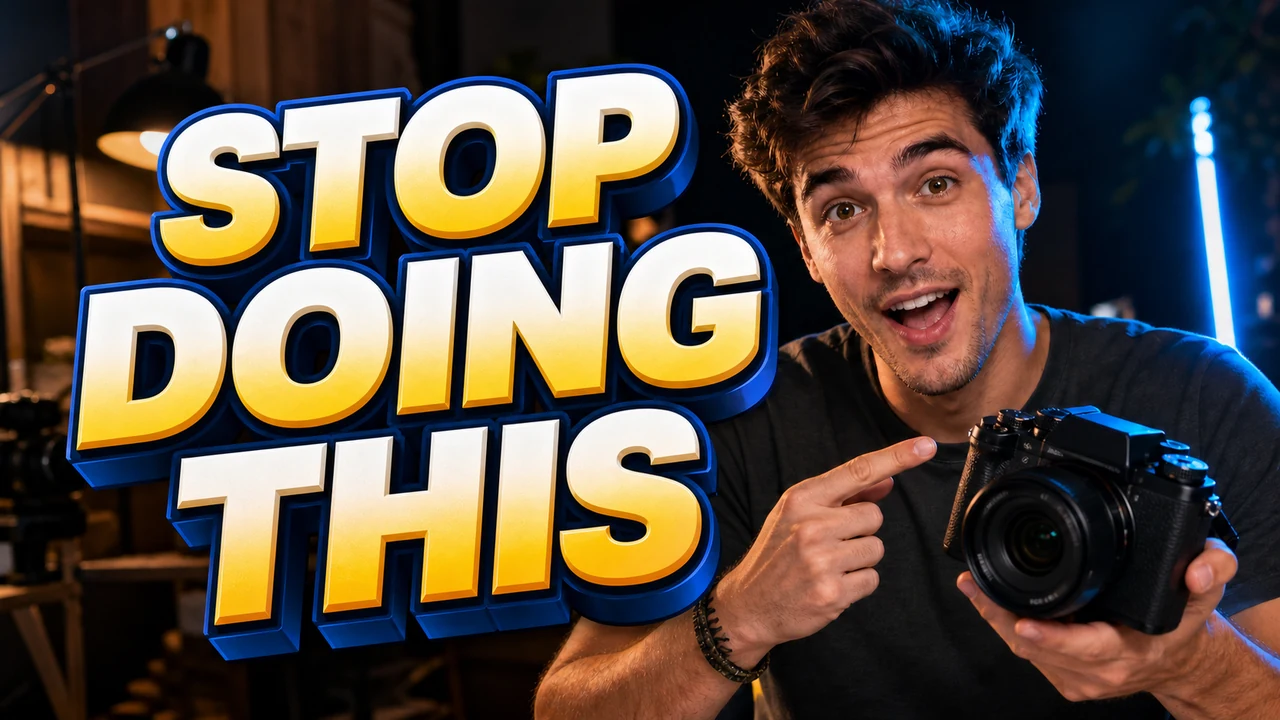
It was past midnight when I noticed the bright yellow banner across my finalized graphic read EPISODE 12 instead of EPISODE 13. The video cut was already sitting unlisted on YouTube, and the publishing schedule was locked in for early morning. I sat at my desk staring at the exported PNG file on my desktop, hoping against reality that the letters were still on an editable layer.
My immediate reaction was to launch Photoshop and dig through my local storage drives for the working project file. When I checked my archive folder, the original PSD was gone, likely overwritten during a late-night workspace cleanup or lost on an unmounted backup drive. Rebuilding the multi-layered asset from a blank canvas meant redoing hours of color grading, subject masking, and lighting adjustments.
Thumbnail Text Editor
Edit baked-in words on video covers with our free online thumbnail text editor and style matching.
When Your Original Design Files Disappear
When you face an embarrassing typo on an exported graphic, your first move should always be checking whether your original design file is still accessible. If you built your layout in Canva or Photoshop and the project still sits in your cloud library or recent files list, open that native workspace immediately. Adjusting an existing vector text box takes minimal effort and preserves your original typography without touching underlying image pixels.
Native project files remain the gold standard for graphic updates because type layers store font data, kerning values, and vector sharpness. Whenever you have access to that master file, you should make your adjustments there and perform a fresh export. The real friction begins when you only have a flattened PNG or JPG file and no working source document left in your workspace.
The Challenge of Rasterized Text Layers
During standard video production, assets move through several rapid stages from the initial rough cut to final color grading. In the rush to finalize titles and publish on schedule, creators often export their visual packaging as flat image files and clear out scratch disks. Once that export completes, the crisp vector letterforms melt directly into the surrounding RGB pixels.
The drop shadows merge into your portrait cutout, and ambient lighting wraps around every individual character edge. You cannot simply drop an opaque colored rectangle over the mistake, because modern video packaging requires unified lighting and visual depth. Slapping a clumsy solid block across your composition instantly ruins the visual balance you spent hours perfecting during post-production.
A crude patch makes your graphic look amateurish and distracts your audience from the core topic of your video. Viewers immediately notice uneven lines, mismatched background grain, and awkward contrast seams. What you actually need is a targeted way to replace that single row of letters while leaving your face, your subject cutouts, and your ambient lighting completely untouched.
Isolating Text in a Flattened Image
This frustrating situation is precisely where a modern Thumbnail Text Editor offers a practical path forward for creators. Instead of starting over with raw assets and recreating complex effects, you upload your finished JPG or PNG directly into your browser. The tool analyzes the image structure to locate rasterized letter patterns across the visual canvas.
The detection process runs automatically as soon as your graphic loads into the interface. This initial optical analysis identifies individual text lines without charging your account balance. Because text detection does not consume credits, you can review the detected bounding boxes before deciding whether to proceed with an edit.
Once the software highlights the target text line, you use the lock feature to secure that specific detected row. Locking the identified phrase prevents the generative system from accidentally modifying neighboring graphic elements or shifting surrounding textures. It establishes clear boundaries on the canvas so the processing focuses entirely on the words you want to change.
Manual Control Over Automated Guesses
After locking the line, you type the replacement phrase directly into the input field yourself. You are not forced to accept automated translation suggestions or machine-generated copy ideas. You know the exact editorial correction your graphic requires, whether that means changing a show number, fixing a misspelled name, or tightening a headline.
Direct manual input is essential whenever you need to Edit YouTube Thumbnail Text under tight publishing deadlines. Video creators frequently use specific acronyms, inside community jokes, or distinct naming conventions that automated systems frequently misinterpret. By typing the exact characters yourself, you ensure your visual branding remains authentic and accurate to your audience.
The interface acts strictly as an execution tool for your creative direction rather than making assumptions about your content. If you want uppercase lettering, custom punctuation, or specific character spacing, what you type is what gets processed. This eliminates the friction of fighting against automated autocomplete features or irrelevant stylistic presets.
Visual Style Matching in Practice
The underlying system handles typography through sophisticated visual matching rather than relying on external font libraries. It carefully evaluates the visible visual styling in your flattened image, analyzing properties like weight, slant, outline strokes, and color gradients. It then reconstructs the new characters to match that detected aesthetic as closely as possible.
You should understand that this process is an aesthetic reconstruction rather than a true vector replacement using local font files. The tool does not install TTF or OTF files on your operating system or reconstruct mathematically pristine vector outlines. It synthesizes new pixels that mimic the lighting, shadows, and textures of the original lettering.
Because this generative technique operates directly on raster data, it is not a mathematically lossless editing method. Highly intricate custom lettering, unusual 3D extrusions, or distressed hand-drawn brush marks may show slight nuances when examined at extreme magnification. Even so, the reconstructed styling blends naturally into the composition at standard display sizes across mobile screens and desktop feeds.
Predictable Credits and Resolution Tiers
Account balances operate under a transparent, credit-based model designed for individual asset corrections. Once you complete sign-in, you receive trial credits to test the interface and evaluate how the system handles your specific image. This trial allowance lets you test the workflow on an actual project before committing to larger production tasks.
When you are ready to produce a final image, the credit cost corresponds directly to the output resolution you select. Generating a standard 1K image requires 10 credits from your balance. If you need a sharper 2K graphic for high-density displays, the generation consumes 20 credits, while a pristine 4K export costs 30 credits.
The platform does not provide unlimited free image generations, nor does it offer a high-volume batch processing API. Every generation is an intentional editorial action intended to fix a specific visual asset. This deliberate setup ensures consistent processing resources for creators who need reliable, high-resolution results for their channel assets.
Preserving Faces and Complex Backgrounds
The primary advantage of this targeted workflow is that your focal subjects stay completely intact. When you use dedicated software to Change Text in Image, the generative engine masks off everything outside the selected boundary. Your facial expressions, skin tones, hair outlines, and background color grading remain untouched throughout the process.
Preserving your existing background and subject cutout spares you from repeating extensive editing tasks. In complex video packaging, finding the right frame, cutting out the subject, and applying subtle rim lighting takes significant effort. Throwing away that polished work simply to alter a single number or word is a massive drain on creative stamina.
This approach gives independent creators and production teams room to breathe when unexpected revisions pop up late in the publishing cycle. You can respond to last-minute title adjustments or guest name changes without sending your graphic designer back to square one. It bridges the gap between rigid flattened images and dynamic publishing demands.
Keeping Your Publishing Schedule on Track
Every content creator understands the friction of balancing rapid turnaround times against high production standards. While maintaining clean project archives in tools like Canva or Photoshop remains an essential habit, production mistakes will inevitably happen. Knowing how to surgically update flattened text protects your schedule without forcing you to sacrifice visual polish.
You do not need to settle for an obvious visual patch or spend hours reconstructing an entire thumbnail layout from scratch. By locking the detected text line, entering your exact wording, and choosing the right resolution tier, you can correct your flattened graphic with confidence. Your published video retains its polished aesthetic, and your audience sees the correct episode information from the moment your content goes live.
The Bottom Line
When you catch a typo on an exported graphic, always look for your original project file first. If your layered design is gone and only a flattened JPG or PNG remains, you do not have to rebuild the entire visual from scratch. A specialized text editor lets you lock the detected letters, type your replacement words manually, and match the visible typography while keeping your face and background intact.
Remember that detection costs no credits, trial credits are available upon sign-in, and generation costs scale predictably between 1K, 2K, and 4K outputs. While the system provides a best-effort visual match rather than lossless vector typography, it delivers the clean presentation you need to keep your publishing schedule on track.
Sources
- https://zhuanlan.zhihu.com/p/2042181678433658606
- https://en.wikipedia.org/wiki/Video_production
- https://en.wikipedia.org/wiki/Rough_cut
- https://en.wikipedia.org/wiki/Color_grading