Last updated: September 2026


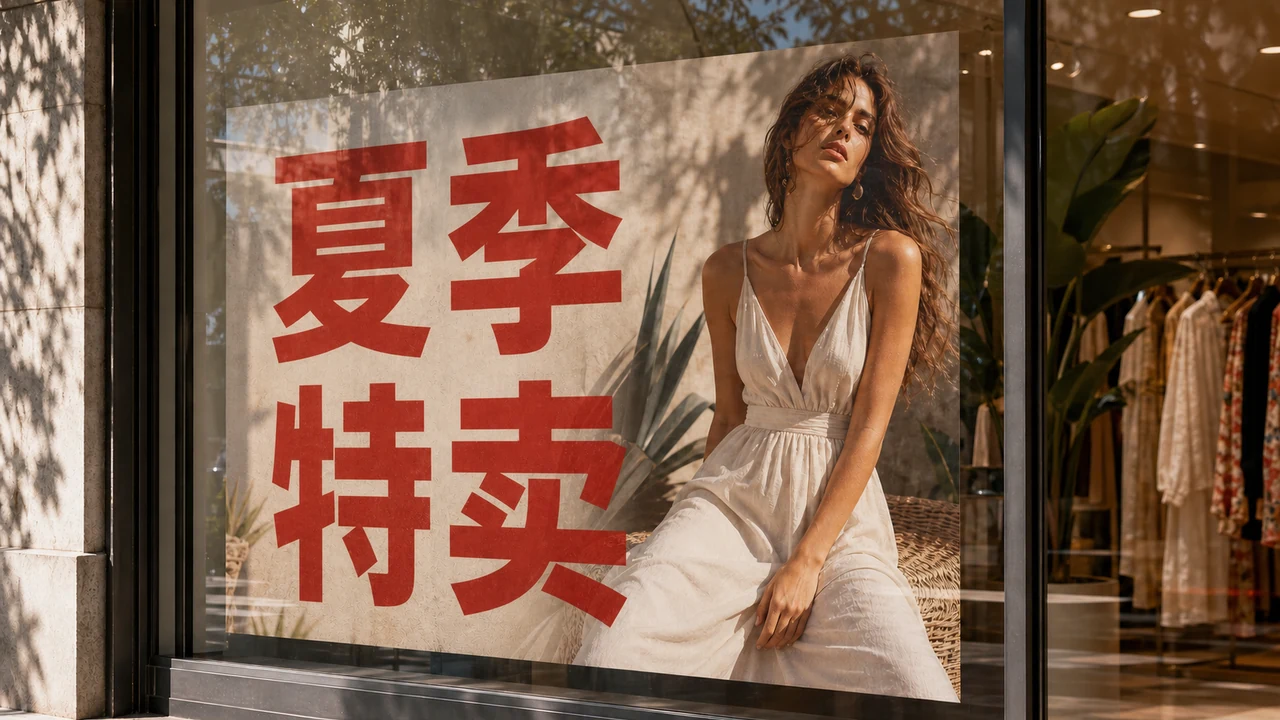
Your campaign launches next week, and the overseas marketing team suddenly asks for an English version of the poster.
Your manager drops a cloud drive link, and inside, all you find is a single exported 4MB PNG image.
No Illustrator project file, no PSD, and the original designer is on vacation and unreachable.
You could pull out your phone and scan it with your camera to decipher the literal meaning, but you obviously cannot send a camera viewfinder screenshot to your partners for official promotion.
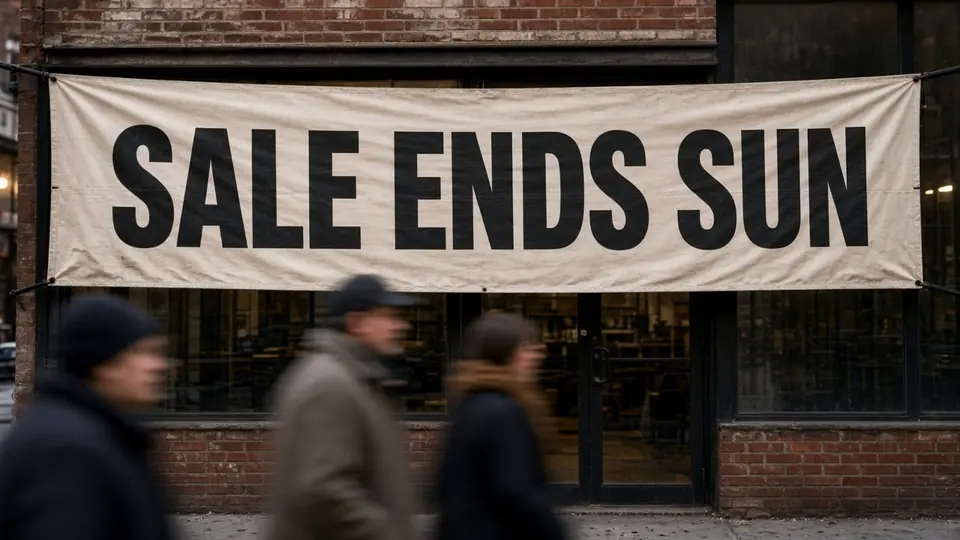
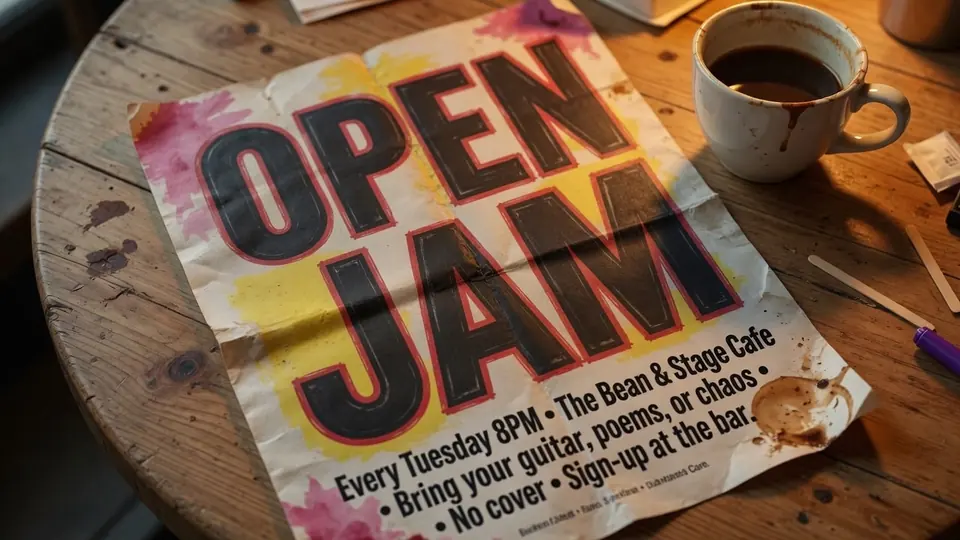
The problem in front of you is very real: you need to replace the Chinese title, dates, and venue baked into the pixels with the target language, all while preserving the poster's original design atmosphere.
Whenever I ran into this kind of mess in the past, my fixes were usually pretty clumsy.
The most blunt workaround was sampling the background color in a basic paint tool, dragging a solid rectangle over the original text, and slapping on a line of system default font.
If the poster background had even a hint of grain texture or a subtle gradient, that patch would stick out like a sore thumb.
I also tried dragging the whole image into design software for vector tracing, hoping to resurrect the text layers, only to find the letterforms had long fused into the background. Forcing a cutout just left an ugly fringed edge.
In Adobe Illustrator, having the project file makes editing copy as simple as grabbing the type tool and typing a few keystrokes. But facing a flattened static bitmap with all pixels merged, redrawing the entire graphic drains your energy and completely breaks the visual balance.
When you are stuck with nothing but a finished bitmap, here are four steps to clean up the mess:
Poster Text Editor
Edit dates and copy on finished posters using our free online poster text editor with font matching.
1. Upload the Static Poster: Know the Boundaries of Local Edits
- What it is: Bringing your existing static PNG, JPG, or WebP poster into the workspace.
- How you do it: Open Poster Text Editor and drag in your exported finished graphic directly. Do not try to convert it into some complex vector project; treat it simply as a flat bitmap. At the same time, make a rights check before you start: only edit posters your team has the rights and authorization to modify and distribute, and leave commercial assets of unknown origin untouched.
- Why it works: Often for tour stops, overseas exhibitions, or retail promotions, the only parts that actually need updating are two or three lines: the main title, dates, and venue. The core illustration and primary brand visuals do not need a redesign. Focusing on localized text saves you an enormous amount of unnecessary redraw time.
2. Check a Free Suggestion: Get a Fast Read on Layout Copy
- What it is: The system automatically detects text regions across the poster and provides a baseline translation suggestion in your target language.
- How you do it: After uploading as a guest, you do not need to register or pay right away—every image lets you view a Suggest translation suggestion once for free. Review the detection and suggested copy via Translate Text in Image, carefully cross-checking against the original poster's headline, subheadings, and event details.
- Why it works: This step lets you quickly verify how well the system captured the original text regions without forcing you to retype everything line by line. More importantly, reading through before triggering generation lets you catch stiff, literal translations of specialized acronyms or event themes early, preventing redundant rework later.
3. Shorten Placeholders and Lock QR Codes and Sponsor Lines
- What it is: Refining the phrasing of each translated line and locking visual elements that must never be altered.
- How you do it: Review and edit the translated copy line by line in the list. When translated foreign text expands in length, trim it proactively and replace long words with shorter phrasing. Next, click lock on sponsor logos, partner names, and bottom QR code lines. Note that what you lock here is a line—you do not need to dig through a complex layer stack. Following the workflow of Edit Text in Images, leave only the titles, dates, and venues that truly require updates to the system.
- Why it works: Posters rely on holistic layout. If translated text is too long and forced into the original area, the font gets squished down or spills outside its frame. Locking QR codes and sponsor details keeps scanning functionality intact and honors your business commitments.
4. Spend Credits to Generate: Best-Effort Match for Fonts and Textures
- What it is: Using trial credits or paid credits from your account to erase selected text areas and inpaint matching text locally.
- How you do it: Once every translated line looks right and critical elements are locked, sign in to your account and confirm generation using your granted trial credits. The platform does not repaint the whole graphic; it specifically erases the designated text regions and makes a best-effort match for font weight, slant, and surrounding background texture based on nearby context.
- Why it works: The hardest part of editing text without source files is restoring the background texture. Localized erasing and inpainting preserves ambient lighting shifts and grain around the original text as much as possible, keeping the generated text close to the original layout and ready for publication.
How I Trim Copy When Translations Expand
When translating finished posters, character expansion is the biggest headache.
A four-character Chinese phrase can deliver a grand event theme, but once translated into English, it often turns into a sprawling full-sentence clause.
If the original poster already had tight visual breathing room around the headline, dropping in a long sentence will throw off the entire visual weight.
When refining translated lines, I usually follow three simplification habits:
First, keep only the core verb and noun in the main event title, cutting unnecessary qualifiers and modifiers.
Second, drop prepositions from date lines entirely, using numerals and month abbreviations instead of full spellings.
Third, if a venue name is too long, keep only its widely recognized short form for that city, moving specific street addresses to your promo copy or ticketing link.
Posters are about visual communication, not event manuals—leaving room to breathe is always more important than strict grammatical completeness.
The Bottom Line
Editing posters without source files has never been about chasing some absolute, bit-identical restoration.
In real-world campaigns, rollout schedules show no mercy. What we care about in critical moments—when source files are missing and opening day is looming—is swapping the core information cleanly without ruining the original design aesthetic.
If you are currently stuck with a PNG poster that needs a foreign language version, log in to ReWords AI, claim some trial credits, and try uploading an image to test it out.