I was staring at a Japanese web checkout page yesterday on my desktop monitor, trying to confirm my cart items before entering any billing details. Near the top of the summary container, a clean heading read お支払い against a neutral background. I wanted to verify that I was in the right payment section without guessing what the interface intended.
Instead of reaching for my smartphone to scan the glass, I pressed my system shortcut and saved a clean PNG directly to my desktop. I needed to understand the navigation header clearly, but I also wanted a reliable visual reference for my records. Trying to hold a mobile lens against an active monitor felt awkward and unnecessary for that task.
Google Translate Camera
Upload photos to our free online camera text translator for clean in-image translation without jitter.
When Pointing a Handheld Lens Makes Sense
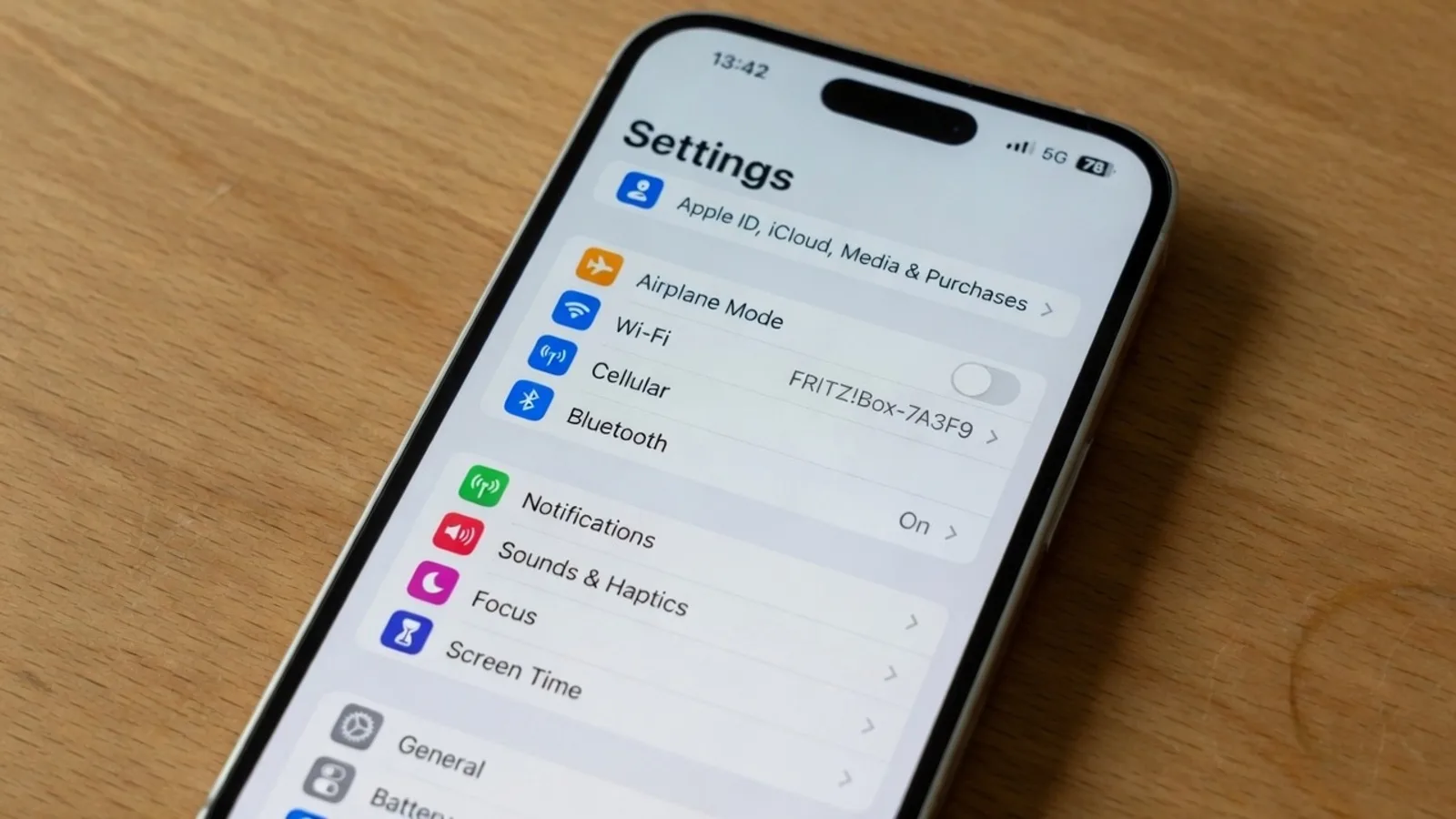
Taking a photo of an illuminated computer display rarely produces a pleasant result. The camera sensor picks up harsh moiré lines from the pixel grid, room glare washes out the contrast, and natural hand tremor makes the framing tilted. If you have ever tried to read small typography from a photograph of a laptop screen, you know how tiring that visual noise can be.
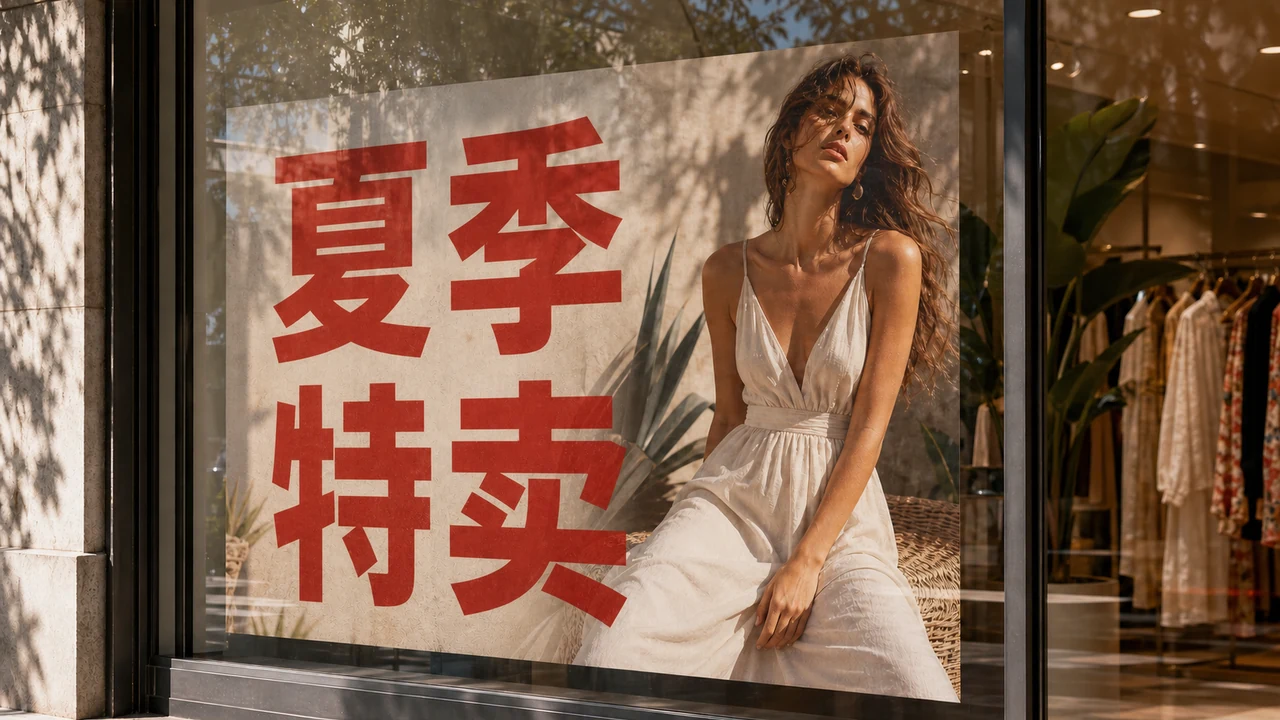
When you stand in front of an automated ticket kiosk or a physical retail counter, pointing a phone lens is remarkably convenient. You hold up your mobile device, look through the live viewfinder, and read the translated text hovering directly over the hardware buttons. That quick interaction guides your eyes in the physical world, helping you complete an immediate action before walking away.
Using a tool like Google Translate Camera solves an immediate physical obstacle without requiring file management. You do not need to download an image or organize folders when you only want to know which mechanical switch dispenses your receipt. The tool delivers personal comprehension right where you stand, which is exactly what a handheld lens is designed to do.
Working with Clean Digital Image Files
The situation changes entirely the moment you point that same mobile lens at an electronic computer screen sitting on your desk. You introduce unnecessary distortion, chromatic aberration, and skewed perspective to content that already exists as pristine digital information. Storing a photograph of a monitor in your project folders creates clutter that looks unprofessional and feels difficult to read later.
When you capture a native screenshot file, every pixel sits squarely on the digital grid where it belongs. The backgrounds are uniform, the characters are sharp, and the file is ready for direct processing without any optical interference. That is where a dedicated Screenshot Translator provides an entirely different kind of utility.
Instead of projecting floating words across an optical preview, a screenshot translation tool processes the static graphic file directly and redraws translated phrases back onto the canvas. The resulting image maintains the layout of the original user interface, making it easy to store, review, or share with colleagues. In my checkout session, I only needed to translate that single top heading お支払い into the English word Payment while leaving everything else untouched.
Suggestions, Verification, and Line-Level Control
When you upload a graphic file, the system analyzes the image layout and provides automated text suggestions for the detected areas. For guest visitors evaluating the platform, the service provides one suggestion per job. That single draft gives you an immediate starting point so you can see how the text maps across the interface before deciding how to proceed.
Automated language models can suggest helpful phrasing, but you remain personally responsible for reviewing and approving every word that appears on the canvas. You can edit the text string in the input field, refine the wording to suit your context, or accept the draft as it stands. These suggestions do not represent certified translations, and they should never be treated as legal interpretations of contractual purchase terms.
If the system detects a line of text that you prefer to keep in its native script, you have complete control over that choice. You can simply lock that detected line, which instructs the rendering engine to leave those specific characters untouched during processing. Leaving an input field blank removes that line entirely from the redrawn canvas, which lets you clear away unwanted clutter quickly.
Best-Effort Matching on Static Images
It is important to understand that locking an item locks a detected line of text rather than a distinct layer in a design application. The platform does not work like a multi-layered Photoshop file, and it does not maintain editable vector objects after rendering. It evaluates the detected line, replaces the text on that specific coordinate, and renders the replacement directly onto the underlying bitmap.
During the rendering phase, the engine performs a best-effort match to replicate visible font weight, scale, and color based on the pixels in the source image. It does not extract proprietary font files from the original software environment, nor does it claim to provide a lossless graphic reproduction. The goal is to generate a visually harmonious static replacement that looks natural within your PNG, JPG, or WebP graphic.
There is no unlimited free generation tier, and the platform does not offer a bulk processing API for running automated scripts across thousands of files. Each task is executed as an intentional, standalone job designed for individual users working with specific visual materials. This focused approach ensures stable rendering quality and keeps the editing interface straightforward for everyday visual tasks.
Safeguarding Financial Information and Transaction Data
Handling financial interfaces and order confirmations requires strict ethical boundaries and clear personal discipline. You should never alter numerical amounts, order identifiers, invoice references, or private Wi-Fi network credentials on any document you process. Modifying transaction values or reference numbers misrepresents historical facts and undermines the integrity of your visual records.
A translated checkout screen serves solely as a reading aid to help you navigate unfamiliar interfaces with confidence. It does not constitute proof of payment, and it must never be submitted to financial institutions, vendors, or employers as evidence of a completed monetary transfer. Our software is built to bridge reading barriers, not to fabricate payment documentation or generate misleading records.
When I processed my own Japanese order screen, I took care to translate only the heading お支払い to Payment. All the numerical items, item quantities, and order codes remained completely untouched in their original format. Maintaining that strict separation ensured that the document remained an honest, accurate visual reference that I could review without any confusion.
Understanding Credits and Resolution Costs
Managing your account balance is simple and transparent throughout the entire editing workflow. Detection and suggestions do not deduct credits from your account balance, allowing you to inspect bounding boxes and preview text drafts without spending any resources. You can adjust your lines, review your edits, and finalize your layout without worrying about hidden deductions during the preparation stage.
Trial credits are added to your account as soon as you sign in, giving you the opportunity to test the canvas generation process on your own images. When you decide to generate your redrawn image, credit consumption is calculated strictly by the output resolution of the graphic. Selecting a 1K resolution costs 10 credits, a 2K resolution costs 20 credits, and a high-resolution 4K export costs 30 credits.
Deciding Between the Lens and the Screenshot
Choosing between a camera viewfinder and a screenshot translation workflow comes down to where the information lives and how you intend to use it. If you are standing in a physical venue and need to decipher a printed poster, an appliance label, or a transit kiosk, reach for your phone camera. The live optical overlay gives you immediate context right where you stand, helping you take action without creating extra files.
If the text is already sitting on a digital display and you need an enduring visual record, save the original image and use software built to Translate Text in Image. You eliminate all the glare, moiré patterns, and awkward perspective shifts that come from photographing computer monitors with a phone. The resulting graphic remains crisp, legible, and easy to organize within your normal digital workspace.
Both methods serve valuable roles in overcoming language barriers, but confusing their use cases leads to frustration and messy files. Recognizing when a physical camera makes sense and when a clean screenshot workflow is required will keep your workflow smooth and your documentation pristine. Using the right tool for each medium allows you to read unfamiliar text quickly while maintaining high standards for the images you preserve.
The Bottom Line
Mobile camera translation tools remain the best choice when you need quick assistance navigating physical surroundings. They allow you to understand signs, retail displays, and machinery controls on the spot without managing downloads or waiting for export jobs. Whenever your goal is real-time comprehension in the physical world, your mobile camera remains the most practical instrument for the job.
When you are working with digital interfaces, a dedicated screenshot translator produces clean, shareable image files that preserve layout integrity. By translating a single navigation heading like お支払い into Payment while leaving financial amounts and order codes untouched, you maintain clear context without altering transaction realities. Keep your camera ready for your surroundings, and rely on screenshot translation whenever you need a clean graphic file to keep.
Sources
- https://en.wikipedia.org/wiki/Camera
- https://en.wikipedia.org/wiki/Checkout
- https://en.wikipedia.org/wiki/Point_of_sale