I was reviewing an architectural photograph of an entryway where a frosted glass door showed an adhesive vinyl sign reading PUSH. The issue was immediately clear to anyone familiar with the building: the heavy glass panel swung outward, meaning visitors had to pull the handle. The photo shoot had already finished, the client needed the marketing images right away, and returning to the location to reshoot was impractical.
Zooming in on my screen revealed real physical lighting details that made quick editing difficult. A brushed steel handle cast a soft vertical shadow across the pane, tree branches across the street cast dappled silhouettes across the glass, and the frosted surface had a distinct sandy grain. If I pasted a flat white block over the text and retyped the word, the patch would look like a clumsy digital sticker that erased the glass texture.
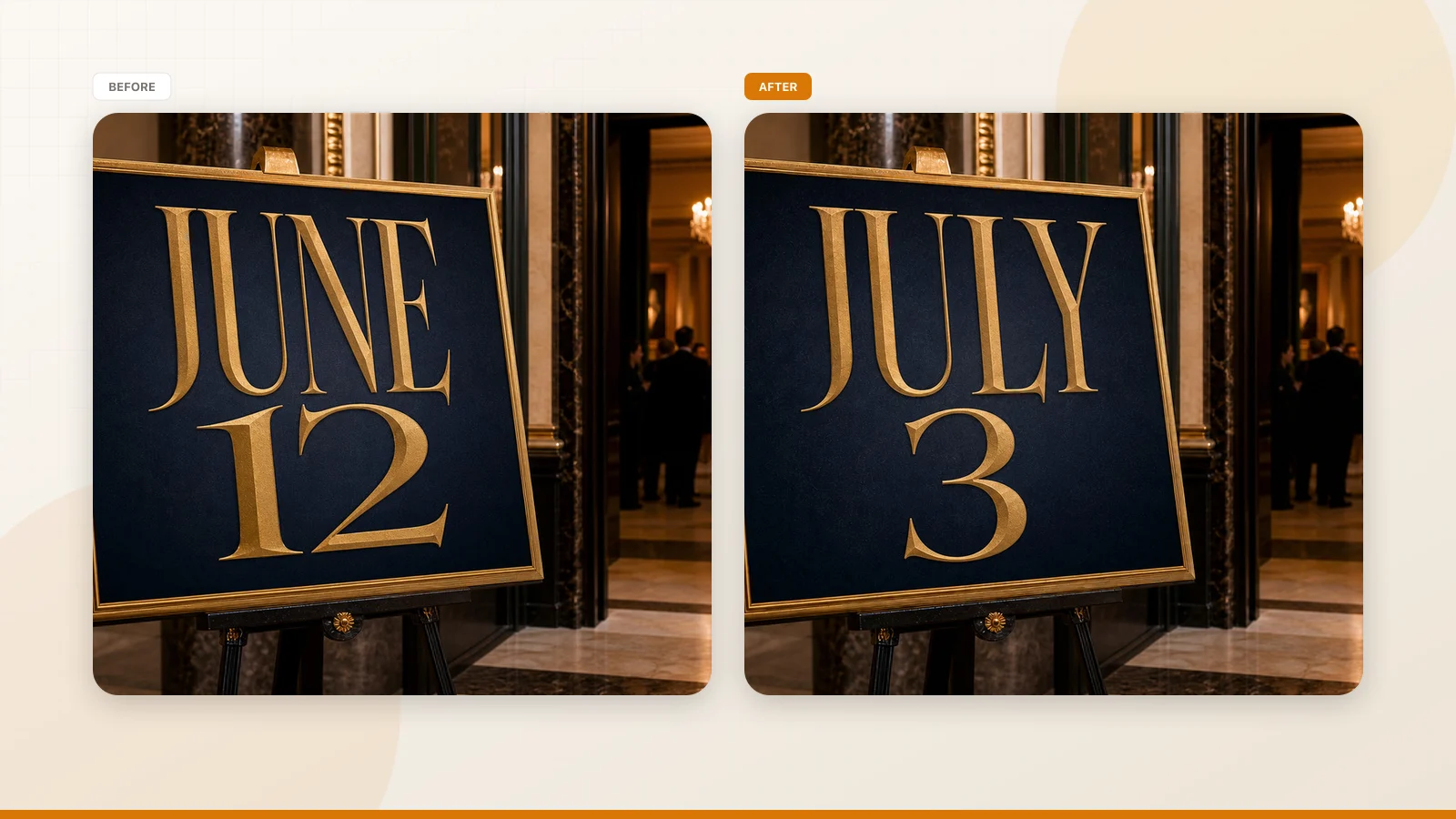
This dilemma is why designers need dedicated tools to Change Text in Photo files rather than blunt graphical overlays. We are modifying an existing still photograph that already captured natural lighting, subtle grain, and environmental reflections. If the physical vinyl decal on that physical door can still be replaced, you should peel off the old sticker and install a fresh sign. When you only have the digital still, however, your practical option is to modify the text inside the image itself.
Change Text in Photo
Use our free online photo text editor to update text on signs, menus, and storefront photos.
The Problem with Flat Digital Patches on Textured Glass
Frosted glass presents a tricky visual challenge because its surface is never a solid, uniform color. The sandblasted finish scatters light into tiny micro-textures, creating a soft glow that shifts across the pane. When afternoon sunlight filters through street trees, the resulting shadows soften the vinyl edges in ways that flat graphics cannot duplicate.
Conventional editing tools often fail on translucent doors because they treat text editing as an erasing task. Clone stamps and blur brushes smear neighboring pixels together, turning the delicate frosted grain into an artificial patch resembling melted plastic. When replacement letters sit on top of that flat area, the sudden loss of natural grain makes the edit stand out immediately.
A convincing edit requires new characters to settle directly into the existing visual environment. The replacement word must sit beneath the handle shadow while matching the optical noise of the surrounding pane. When you work with our Photo Text Editor, the goal is to render the revised lettering directly into the scene so the glass retains its authentic depth.
Detecting Architectural Signage and Locking Surrounding Lines
The editing process begins when you upload your static picture in PNG, JPG, or WebP format. The system scans the frame to identify every cluster of readable text across the door and surrounding entryway. This detection pass costs zero credits, allowing you to verify that the tool recognizes your target decal before you spend anything.
Once the scan finishes, the interface lists recognized text lines in a dedicated control panel alongside the preview. In an architectural photograph, the scanner often detects background signage through the translucent glass, such as suite numbers or hallway directories. You rarely want to modify those interior elements when your only task is adjusting the exterior door decal.
To keep background text safe from unintended changes, you use the line lock feature. Locking an item in our editor locks an identified text line within the detection interface rather than creating a Photoshop layer. This instruction tells the model to keep those specific characters untouched, ensuring that interior signs remain unchanged while you update the main entrance text.
Typing Replacement Text and Managing Line Removals
Once your target line is isolated, you type your replacement wording directly into the text field. The system does not offer translation suggestions or try to guess what you want to write. You retain full editorial control over the spelling, capitalization, and phrasing of the sign.
If your project only calls for deleting an unwanted sign without replacing it, leaving the replacement field blank removes that line entirely. In our frosted door scenario, however, you type the word PULL in clean capital letters to correct the directional mistake. The editor takes your input and analyzes the visual context of the original decal to determine how the new strokes should appear.
The engine performs a best-effort visual match against the visible stroke weight, color, edge sharpness, and perspective angle of the original vinyl. It does not extract or produce an installable font file, nor does it operate as a lossless vector design tool. Instead, it generates pixels that adopt the same physical texture, camera focus, and ambient lighting as the existing lettering on the door.
Handling Viewing Angles, Specular Highlights, and Surface Reflections
Architectural entryway photos are rarely shot dead-on because photographers usually capture perspective and building context. Shooting at an angle introduces natural perspective convergence, causing letters on the far side of the word to appear slightly smaller than those closer to the camera. If your replacement lettering ignores this perspective slant, the new sign will look detached from the glass.
Direct reflections and strong highlights add another layer of difficulty during the modification process. If bright sunlight cuts across the decal or the camera lens produced soft focus near the edges of the frame, blending replacement letters becomes noticeably harder. While the system works to harmonize the new word with these optical quirks, it cannot promise spotless results on severely blurred, highly reflective, or overexposed surfaces.
When you choose to Change Text in Image files that feature complex glass surfaces, inspecting your source frame beforehand is always worthwhile. Selecting a sharp exposure where the letters are clear and reflections are balanced produces a far more convincing outcome. Reviewing your photo before generating ensures that the finished image blends naturally with the surrounding architectural materials.
Output Resolutions and Credit Consumption
Rendering a finished image uses dedicated computing resources, which are handled through a clear credit balance. After signing in to your account, you receive trial credits that let you test the workflow on your own architectural photos without an upfront payment. Because text detection and line inspection cost zero credits, you can assess your image setup before spending anything.
When you are satisfied with your text input and locked lines, you choose the resolution that matches your deliverable. Generating a standard 1K image costs 10 credits, providing a fast option for web layouts and digital mockups. If you need sharper detail for client decks or high-definition screens, generating a 2K image costs 20 credits, while a 4K render costs 30 credits for large architectural presentations.
We do not offer unlimited free image generation, and the platform does not provide a batch processing API for mass automated tasks. Each static photograph is processed individually so you can inspect alignment, grain integration, and lighting balance with complete care. Handling photos one by one helps you maintain visual quality across every client deliverable.
Editorial Restraint, Image Rights, and Physical Reality
Using digital image editing tools requires clear boundaries regarding authorization and purpose. You should only edit photographs that you own or have explicit permission to modify, such as your own client deliverables, architectural portfolios, or marketing media. The platform is designed strictly for creative and promotional photography, not for altering identification cards, official documents, or utility billing records.
It is equally important to remember that editing a picture does not change the physical object in the real world. Changing PUSH to PULL on your computer screen solves an immediate visual presentation problem for a portfolio or website, but it does not fix the decal on the actual building. If the physical entrance still has the wrong signage, replacing the real vinyl decal remains necessary for real-world visitors.
Digital retouching serves to clean up visual distractions and correct presentation mistakes when reshooting is impossible. By respecting the difference between physical maintenance and digital post-production, you keep your creative workflow productive and honest. Applying careful editorial restraint ensures that your finished images remain believable, professional, and properly aligned with your project goals.
The Bottom Line
Correcting directional signage in an architectural photograph should never result in a damaged image or a plastic smear across the frame. When you need to turn PUSH into PULL on a frosted glass door, keeping the natural tree reflections, the handle shadow, and the authentic frosted grain is what makes the final picture believable. By scanning the frame for free, locking the lines you wish to preserve, typing your replacement text, and selecting the right resolution, you can update your photo cleanly while keeping its architectural character completely intact.
Sources
- https://en.wikipedia.org/wiki/Door
- https://en.wikipedia.org/wiki/Frosted_glass
- https://www.zhihu.com/question/595956264/answer/2089318244087869996