Last updated: July 2026
Search “change text in an image” and you will not get one clean answer. The results mix:
- Design suites that assume you still have layers (Photoshop type layers, Illustrator vectors)
- Design platforms that pull text into editable layers (Canva Grab Text–style workflows)
- Specialist AI tools that replace or remove text already baked into a flat PNG/JPG
- Tutorials, OCR apps, and “add text on photo” tools that solve a different job
That mix is the point. Most people are not asking “which logo is prettiest.” They are stuck between four practical axes:
- Do I still have the source file?
- Is the text still a live text object, or only pixels?
- Is this change print / brand / legal sensitive?
- How much time do I have?
This article is a selection framework, not another feature dump. For the no-source-file story in more depth, see No PSD, No Canva Link—Just a Flat Export. For pairwise product pages, use the comparison hub links at the end.
Edit Text in Image
Edit text in finished images with our free online image text editor.
First, separate the jobs people confuse
| Job | What you actually need | Common wrong tool |
|---|---|---|
| Replace baked-in text | Detect region, remove old glyphs, paint new style-matched text | Overlay a random font on top |
| Extract text to edit layers | OCR + new editable type in a design app | Expecting pixel-perfect recovery of the original face |
| Remove text only | Erase / fill background | A full redesign |
| OCR / copy text | Read characters into clipboard | A “text editor for images” |
| Add new caption | Typography on a blank area | A replace-in-place tool |
If you only needed OCR, Copyfish-class tools would be enough. If you only needed stickers, any meme editor would do. This guide is about changing words that already live inside the picture.
Path A — Photoshop (and when it is still the right answer)
Strengths
- Highest control when a PSD with type layers still exists
- Manual retouch stack: masks, clone, Content-Aware / generative fill, color management
- Print and brand systems when you actually need them
Limits for “I only have a JPG”
Adobe’s own “edit text in an image” teaching path assumes type layers. Without layers, Photoshop becomes a manual pipeline: erase → rebuild background → approximate font → re-kern. Powerful, slow, skill-heavy.
Cost shape: seat / subscription (+ generative credits on some plans). Link official plans rather than hard-coding dollar amounts that change.
One-line boundary: Have PSD, need control, can afford craft → Photoshop. Only a flat export and one short line → often not the fastest path. More detail: ReWords AI vs Photoshop.
Path B — Illustrator (rebuild, don’t “patch a PNG”)
Illustrator shines when the end state is vector / scalable / brand-owned type, including outlined text recovery workflows (e.g. Retype-class features) and Image Trace for reconstruction.
That is a takeover rebuild, not a fire drill for one wrong price on a social PNG.
One-line boundary: You need long-term editable type assets for print or brand libraries → Illustrator. You need tonight’s export fixed → different path. More detail: ReWords AI vs Illustrator.
Path C — Canva (editable-layer path)
Canva’s Grab Text-style approach is closer to lifting recognized text into editable layers inside Canva than to pixel surgery on an anonymous download.
Honest limits from the product’s own framing (paraphrased):
- Works best on straight, not heavily skewed text
- Font match depends on what exists in Canva’s library (otherwise closest match)
- Some regions may miss detection or leave residue that needs cleanup
When Canva wins
- The project is still open in Canva
- You need multi-page, brand kit, team handoff, or further layout work after the text change
One-line boundary: Still in Canva and want to keep designing → Canva. Only a flat export with no project context → Canva is optional, not automatic. More detail: ReWords AI vs Canva.
Path D — Adobe Express (browser content toolbox)
Express is strong at importing mixed sources (including paths that pull from PSD/AI/PDF/PPTX and other apps) and doing lightweight generative cleanup such as object removal, then publishing.
It is not the clearest “only replace one baked-in line on a finished raster” specialist. Think content ops cockpit, not single-job text replacer.
One-line boundary: Browser handoff across many file types and light edits → Express. Narrow finished-image text replace → a specialist is clearer. More detail: ReWords AI vs Adobe Express.
Path E — Specialist AI for finished images
This category (including ReWords AI, Photext, Fotor’s text tools, and similar) targets:
Upload a finished PNG/JPG/WebP → select existing text → replace or remove → download after review.
Why it exists
- No PSD required
- Lower skill barrier than manual retouch
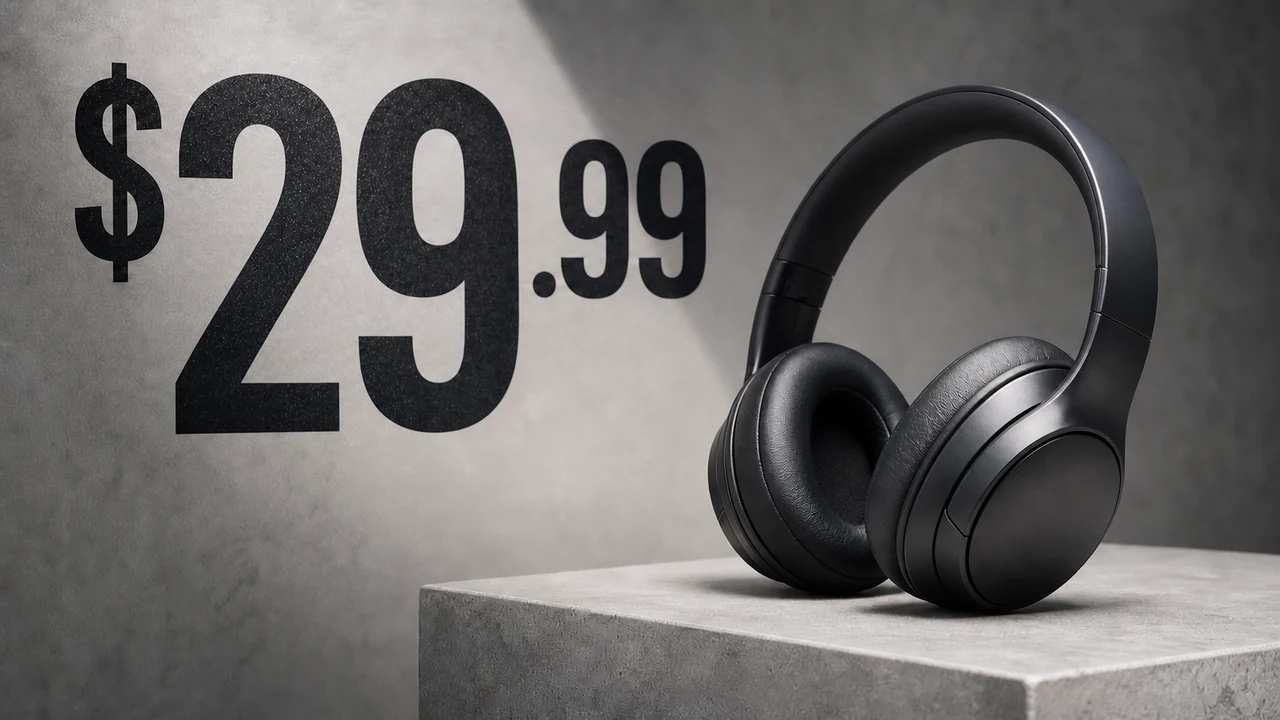
- Fast for short labels, prices, dates, UI strings, simple poster lines
Hard honesty
Scene-text editing is still hard under perspective, texture, tiny type, and long reflows. Responsible products describe style matching as best-effort, not font-file recovery or “pixel-perfect every time.”
ReWords AI in this lane
- Formats: PNG / JPG / WebP
- Replace or remove (blank replacement)
- Trial credits after sign-in; then credits / subscription (resolution affects cost—confirm on pricing)
- Not a full suite; not unlimited free; review before publish
Try the workspace on a real export. Task pages: Edit text in image, Edit price in image.
Decision tree (about 30 seconds)
Do you still have PSD / AI / Canva / Figma source?
  YES → Edit in that source (Path A–D as fits)
  NO  → Is the asset legal/official/evidence-like?
          YES → Stop. Do not “fix” it as marketing art.
          NO  → Is the change short text on a clear region?
                  YES → Specialist finished-image AI (Path E)
                  NO  → Large reflow / print / brand-critical?
                          YES → Rebuild in PS/AI/Canva with proper sources
                          NO  → Try specialist AI, then human QA
Scenario map (who should pick what)
| Scenario | Prefer |
|---|---|
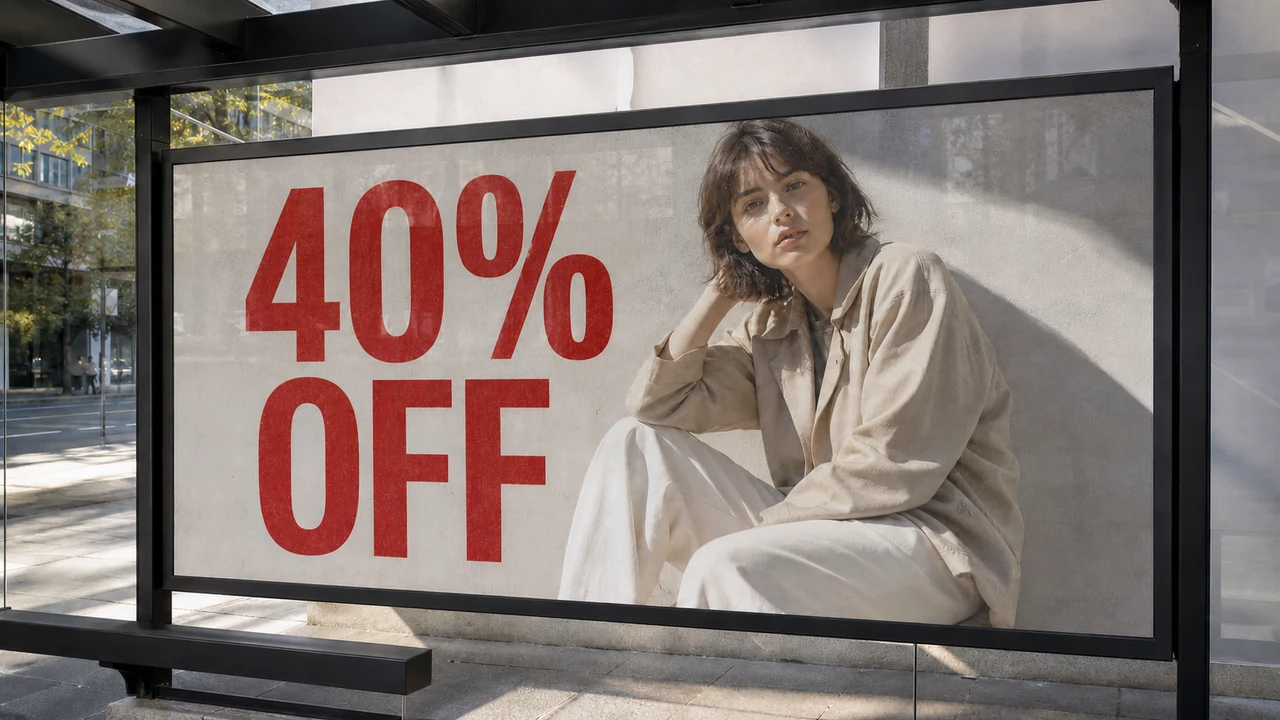
| Social promo PNG, price or date wrong, designer offline | Specialist AI |
| Ecommerce badge line on an approved product shot | Specialist AI + human check |
| SaaS screenshot label wrong, hard to re-capture | Specialist AI |
| AI-generated art with garbled title, composition is good | Specialist AI (or layer-rebuild tools if you need deep reflow) |
| Photo of storefront with glare / heavy perspective | Try AI only if short; else PS craft or reshoot |
| Canva project still shared with the team | Stay in Canva |
| Print packaging, outdoor board, brand master | Photoshop / Illustrator from source |
| Need to own editable vectors long-term | Illustrator rebuild |
Mistakes this framework prevents
- Using overlay text and calling it “replacement”
- Opening Photoshop for a one-word export fix when no PSD exists—and burning two hours
- Forcing Canva Grab Text on skewed photo type
- Treating AI results as print-ready without zoom review
- Editing IDs, receipts, or evidence-like images
FAQ
Can AI match the exact font file?
Plan for visual approximation, not licensed font recovery. Suites with font libraries may pick a closest match; pixel tools estimate style from the image.
Is “without Photoshop” the same as “better than Photoshop”?
No. It means lower barrier for a narrow job. Complex compositing and print control still belong in professional apps.
What if I have a PDF or PPTX instead of a PNG?
That is often an import-into-Express / suite problem, not a finished-raster patch—unless the PDF page is effectively a flat image.
Where do ReWords comparison pages fit?
Use them when you already know the category and want a product-level split: vs Photoshop · vs Canva · vs Illustrator · vs Adobe Express · vs Fotor
Closing
The useful question is not “Which logo wins?” It is:
What file do I have, how risky is this change, and how much control do I need?
Answer that, and Photoshop, Canva, Express, Illustrator, and specialist AI stop looking interchangeable. When the honest answer is “flat export, short text, digital publish,” start in the ReWords AI workspace—then escalate to a suite when the file still deserves one.