I was sitting at my desk yesterday evening, examining an image file sent over by a neighborhood bistro manager. The picture captured a warm afternoon scene of their sidewalk chalkboard menu, framed in stained oak with natural light glancing across the surface. Right in the middle of the board, an off-white painted header clearly stated "LUNCH 12-2" above the daily sandwich selection. The owner needed the graphic updated to "LUNCH 11-3" before their morning email announcement went out.
The physical bistro was already closed for the night, and the staff had departed hours ago. Even if I wanted to visit the storefront in person, the premises were locked and tomorrow's morning light would never match the photograph on my screen. I only had that single image file stored in my downloads folder to work with before the morning campaign launched.
Edit Text on Menu
Update seasonal prices, dish descriptions, and ingredient typos on your finished menu.
When You Should Simply Reprint the Menu
Whenever you can physically walk into the dining room, rewrite the physical sign, and take a fresh photo, you should choose that path. If the chalkboard is hanging on your wall and the chalk marker is sitting on your counter, erasing the numbers and writing them again by hand remains the best solution. A physical rewrite maintains the authentic texture of the surface without relying on digital image reconstruction.
A genuine reprint preserves the original ink density, paper grain, and reflective properties of your physical restaurant signage. When your team has immediate access to the printer, fresh cardstock, and a camera, producing a new physical menu sheet ensures complete consistency. Digital photo editing is not meant to replace your printing workflow when physical tools are sitting within arm's reach.
I never advise modifying pixel data when an authentic physical update is readily available to you. You should reserve digital image edits for situations where the original camera capture is the only surviving asset at your disposal. Altering an existing photograph becomes valuable precisely when physical access to the venue is impossible due to distance, closed doors, or finished marketing deadlines.
When the Existing Photo Is All You Have
You will often find yourself in situations where the physical menu board is entirely inaccessible. A client might send you an image of their display board that was photographed during a promotional campaign months ago. You could be managing an online delivery listing, preparing an editorial social post, or updating a directory listing late at night when the venue is completely unattended.
In that scenario, re-shooting the scene cannot happen because the original atmosphere and lighting are gone. You cannot ask a busy kitchen team to stop morning prep work to stage another photoshoot just for one line of operating hours. You are left with a single static image file, and you must update "LUNCH 12-2" to "LUNCH 11-3" directly within those existing pixels.
This is where using Edit Text on Menu becomes a focused necessity for designers and business owners. Rather than rebuilding the whole promotional layout from scratch or trying to recreate the wood grain background in a complex editor, you address only the text line that changed. You preserve the original photographic lighting and the natural scene while modifying only the specific characters.
Best-Effort Matching Versus Vector Font Files
When you upload an existing picture of a menu, the software does not look for an installed font file on your hard drive. Traditional design software requires you to identify the exact typeface, purchase an expensive license, and match the letter spacing manually against a raster background. In a real-world photo, printed and handwritten letters carry shadows, slight ink bleeding, and surface grain that font files cannot provide.
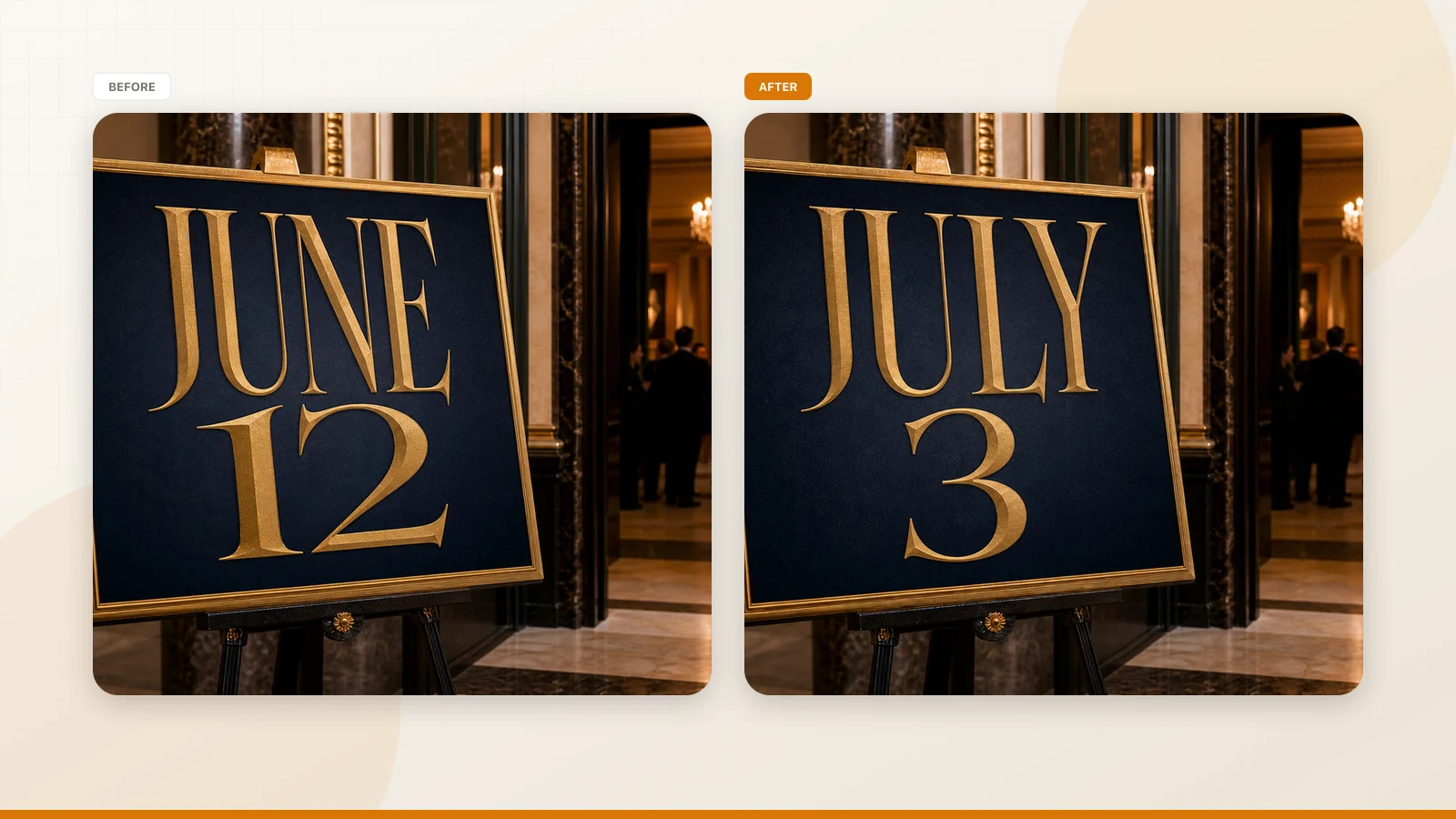
The engine analyzes the visual patterns of the letters already present across your menu photograph. It examines how light falls across the surface, the subtle angle of the camera lens, and the contrast between the lettering and the background material. It then generates replacement characters that mimic those physical characteristics directly inside the image plane.
This process represents a best-effort visual match rather than a lossless vector output. If your menu was written on a porous slate chalkboard or printed on textured recycled paper, the newly generated characters inherit those ambient environmental conditions. The goal is visual plausibility within the photograph rather than mathematical perfection across an infinite vector canvas.
Because the system performs a contextual visual reconstruction, it preserves the natural qualities that make a photograph look genuine. It respects the depth of field of the original lens, keeping foreground text clear and background textures softly blended. For promotional graphics, website hero banners, and social feeds, that photographic harmony prevents the updated text from looking synthetic.
Modifying the Line in Practice
To update the schedule row, you begin by importing your static image file into the workspace. ReWords AI supports standard static image formats, including PNG, JPG, and WebP files. Uploading your picture and letting the system scan for visible text lines does not consume any of your credits, allowing you to review the detected regions without pressure.
Once the automated detection identifies the text regions on your board, each line receives an individual bounding box. You can use the Lock control to secure any recognized line in place so its detected boundaries remain fixed while you work on other sections. If you encounter an outdated seasonal dish on the board, leaving the text replacement field blank removes that line entirely from the output image.
For our schedule update, you locate the bounding box covering "LUNCH 12-2" and type "LUNCH 11-3" directly into the corresponding text box. Because you enter the new characters yourself, you have absolute control over numbers, spacing, and capitalization. The tool does not attempt to translate your words or rephrase your menu items, keeping your editorial intent completely intact.
This targeted control is particularly helpful when you need to Edit Text in Image across varied marketing graphics. You do not have to struggle with manual clone stamping tools or spend time blending textured backgrounds to hide old words. You simply specify the replacement string, verify that the bounding box covers the target area, and proceed to the generation stage.
Understanding Credits and Output Resolutions
The credit structure in ReWords AI is designed around individual image renders rather than open-ended subscriptions. When you sign in to your account, you receive trial credits so you can evaluate how well the system matches your specific menu photo before spending any funds. Text detection remains free throughout your session, meaning you only spend credits when you decide to produce a finished graphic.
When you are ready to produce the modified asset, the credit cost corresponds directly to your chosen output resolution. Generating a standard definition render at 1K requires 10 credits. If you need enhanced clarity for modern smartphone displays or social banners, generating at 2K costs 20 credits. For large-format digital assets or high-resolution marketing layouts, rendering at 4K consumes 30 credits.
There is no unlimited free tier, and the platform does not offer a bulk API for automated background processing. The application is built for deliberate, hands-on adjustments on individual static images where visual fidelity matters to the creator. You choose the exact canvas resolution you need for your distribution channel, monitor your balance, and generate your finalized asset.
Working Within Real Photographic Limitations
Every photographed menu presents unique environmental conditions that influence the digital replacement process. Glare from an overhead dining room pendant lamp might wash out certain letters, while outdoor sunlight might cast sharp tree shadows across the chalkboard surface. When you Change Text in Image, the software must read the ambient lighting clues from the surrounding pixels to blend the new characters naturally.
If the source photograph is heavily compressed, shaky, or taken in near darkness, the generated typography will reflect those visual shortcomings. The engine cannot invent detail that was never recorded by the camera lens during the original shoot. Starting with a clear, steady photograph ensures that your replacement text maintains the crisp edges and realistic shading of the original sign.
I always suggest evaluating the angle of the photo before you begin your edits. If the camera was positioned at an extreme side angle to the menu board, character baselines may require extra attention to align cleanly with the surrounding rows. Taking a moment to inspect your static PNG, JPG, or WebP file beforehand ensures that your updated "LUNCH 11-3" schedule looks completely organic on the final board.
The Bottom Line
If you can still walk back into the venue, rewrite the chalkboard, or print out a fresh menu sheet, you should do that first. A physical reprint remains the most authentic and straightforward approach for any real-world dining space. When your doors are open and your staff is on site, physical adjustments will always beat modifying digital pixels.
However, when the physical restaurant is locked, the lighting has changed, and you only have an existing photograph on your computer, digital line editing becomes the sensible choice. ReWords AI allows you to lock the surrounding regions, type "LUNCH 11-3" over "LUNCH 12-2", and keep your marketing materials moving forward. With free detection, clear tier costs of 10 credits for 1K, 20 for 2K, and 30 for 4K, you can update critical details on your schedule without starting from scratch.
Sources
- https://en.wikipedia.org/wiki/Dessert
- https://en.wikipedia.org/wiki/Gratuity
- https://en.wikipedia.org/wiki/Waiter