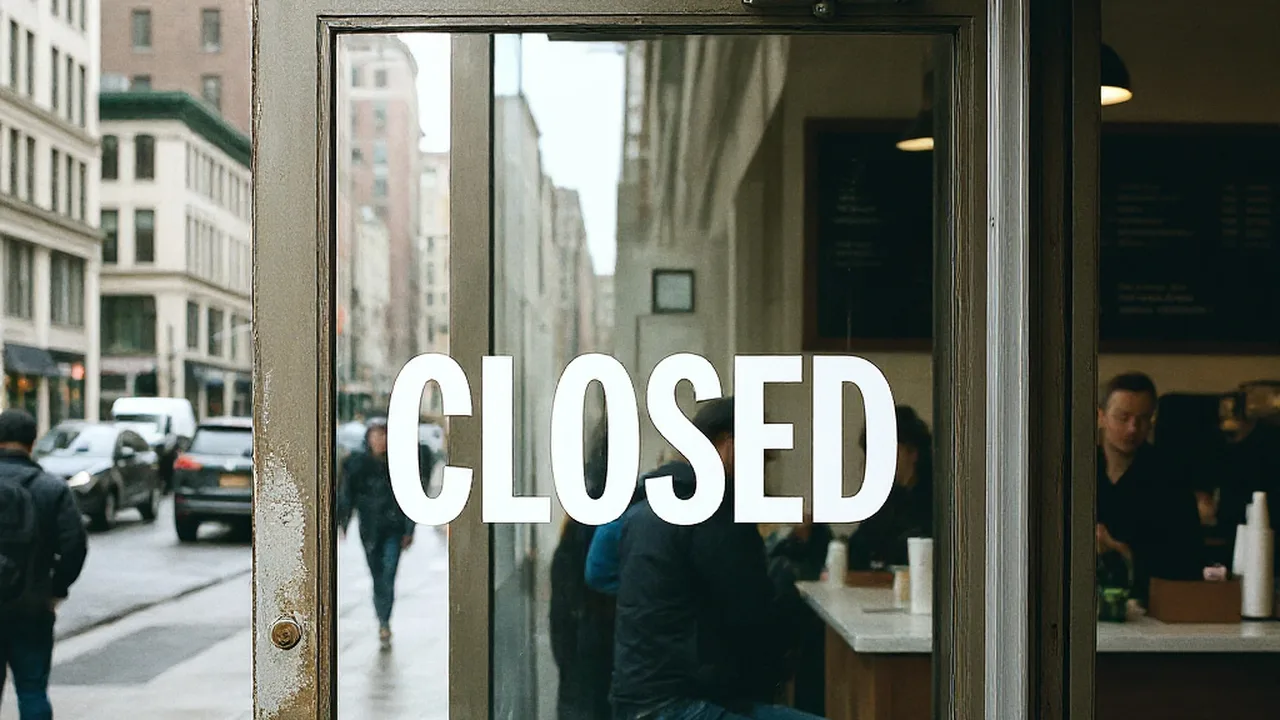
I spent yesterday morning reviewing a promotional image generated for a small neighborhood dining space. The frame came together in a way that rarely happens on an initial try: natural morning sun drifted across the wooden counter, a chef stood near the prep station adjusting a pan, and copper cookware hung neatly along the back wall. Above the kitchen pass, an antique chalkboard displayed the daily service schedule, showing the header text LUNCH 11-2 written in slightly scuffed white lettering.
The client messaged me right as I was about to export the final asset. Their actual lunch service runs an hour later, meaning the header on that chalkboard needed to say LUNCH 12-3 rather than the earlier shift. Generating a brand new image would immediately scramble everything I liked about the scene, from the chef's posture to the exact angle of steam rising from the pots. I did not want a new background or a different room; I simply needed to change those numbers while leaving the rest of the visual environment undisturbed.
Fix Text in AI Images
Repair typos and garbled words using our free online AI image text editor without rerunning prompts.
Why Overlays Fail on AI-Generated Text
When an image model creates text, it does not build an editable graphic document with independent layers. It paints shapes that resemble typography straight into the pixel array alongside the wood grain, brickwork, and kitchen steam. If you open a standard image editor and paste a text box over the board, you immediately see the problem. Placing a new clean label over the surface leaves the original distorted lettering peeking around the edges, creating a messy clash between raw raster noise and crisp computer fonts.
Covering the area with an opaque digital rectangle looks even worse in a finished piece. That approach flattens the slate texture, wipes out the natural chalk dust smudges, and destroys the subtle highlights falling across the frame. What you actually need is a specialized system that can read the pixel cluster where the old words sit, clean out those characters, and repaint the replacement phrase using the surrounding visual context. That distinction is exactly why a dedicated tool like Fix Text in AI Image exists for creators caught in this spot.
Knowing When to Regenerate Versus When to Edit
Before touching any editing workflow, I always ask myself whether the base artwork is truly worth saving. If the image model gave the chef six fingers, twisted the perspectives of the countertop, or ruined the primary lighting, spending time fixing the text makes no sense. In those situations, your best move is simply generating another batch of images from your prompt until the foundational composition looks sound.
Editing makes sense only when the overall frame is already acceptable and only one specific line contains an error. In my cafe scene, the lighting, the depth of field, and the overall atmosphere were finished and balanced. Re-rolling the whole prompt would throw away a great composition just to correct a three-character typo on a menu board. When the rest of the image does its job, addressing just that single line saves you from endlessly rolling the dice on prompt variations.
How Line Detection and Text Replacement Work
The process begins by uploading your static image, whether it is saved as a PNG, JPG, or WebP file. The system scans the canvas to identify the text regions embedded in the scene without consuming any credits during the initial detection phase. Once the scan highlights the text paths, you inspect the recognized phrases directly on your screen. You do not wait for an automated system to guess what you wanted to say; you retain full control by typing the intended wording yourself.
In my project, the detection system identified the top line of the chalkboard as a distinct block. I opened that entry, removed the outdated schedule, and typed LUNCH 12-3 directly into the input field. If you ever run across a stray caption or unwanted watermarking mark in another composition, leaving that specific input blank clears the line out of the picture entirely. For my image, I only needed to replace the digits while letting the tool work its replacement logic on that single identified line.
A common point of confusion when working with browser-based editors involves how elements are isolated. In traditional design software, you lock an independent layer so that paint brushes or selection marquees do not alter it. Here, locking functions quite differently because there are no independent graphical layers inside a flattened bitmap. When you toggle a lock in this workspace, you are locking an identified detected text line against changes during processing.
Below the main header on my chalkboard, several menu items filled the lower half of the slate. I had no reason to alter those dish listings because their chalk style and layout already looked natural. By keeping those lower lines locked, I ensured the generation process focused exclusively on modifying the lunch hours at the top. The rest of the board remained completely stable while the new hours were generated into the designated line.
Visual Synthesis Without Font Files
One of the most important things to realize about this workflow is that the software is not loading true typography files. It does not look through an operating system directory for an OpenType or TrueType font matching an antique chalkboard typeface. Instead, it reads the visible stroke weight, the chalk residue, and the specific white-to-gray contrast already present in the source pixels. The system then synthesizes the new characters to match those observable traits as closely as possible within the local patch.
Because it relies on visual synthesis rather than vector geometry, this is not a mathematically lossless vector procedure. It will strive to align with the angle, perspective slant, and organic roughness of the surrounding chalk strokes. When you use Edit Text in Image, you are asking an image engine to paint believable characters into an existing surface rather than placing a geometric sticker over it. This preserves the illusion that the text was written inside the original kitchen environment.
Preserving the Frame and Managing Resolution Costs
Running these targeted generation operations requires server computation, so understanding the credit structure keeps your workflow predictable. Creating an account gives you trial credits after sign-in so you can test how your specific assets behave. The initial image upload and automatic text detection do not deduct any credits from your balance. Credits are only consumed when you trigger an actual image generation step to render your new text onto the canvas.
The credit cost depends on the output resolution you select for the finished file. Generating an image at 1K resolution uses 10 credits, selecting 2K resolution uses 20 credits, and high-resolution 4K generation requires 30 credits. There are no unlimited free generation passes, and the platform does not offer automated bulk processing through a batch API. Every image is treated as an individual, deliberate edit where you check the visual results yourself.
The real test of any editing tool is what happens to the surrounding scene once the processing finishes. In my kitchen scene, I needed complete confidence that the copper pans on the wall would retain their metallic reflections. I also needed the steam near the cooktop to keep its soft, translucent appearance without turning into crunchy digital artifacts. The chef's apron, the wooden cutting boards, and the kitchen tiles all needed to emerge from the process looking exactly as they did before.
When the output rendered, the new schedule sat naturally across the header of the chalkboard. The characters displayed the same chalky texture and slight slant as the original generation, while the surrounding kitchen scene remained completely stable. The dish titles underneath stayed untouched, and the atmosphere of the room did not shift by a single shade. Choosing an AI Image Text Editor allows you to solve the specific text problem without sacrificing the creative accident that made the rest of the image worth keeping.
The Bottom Line
When an image generation model gives you the perfect composition with flawed lettering, starting over from scratch is rarely your only option. If the room, the people, and the lighting look right, you do not need to discard the entire frame just to fix a single heading on a board. By targeting the specific line of text, typing the exact replacement words yourself, and locking down the parts you want to preserve, you keep your best creative results intact. It saves you from restarting a generation cycle when all you truly wanted was an accurate line of text.
Sources
- https://en.wikipedia.org/wiki/Chalkboard
- https://en.wikipedia.org/wiki/Cafe
- https://en.wikipedia.org/wiki/Restaurant